

Introduction
In earlier versions of SharePoint, Microsoft provided an OOB web part to show organization hierarchy. You just needed to add the webpart on the page and that’s it. It was so easy to navigate through direct reporters and top managers for any employee.
But, in SharePoint Online, there are no such web parts available out of the box. As part of the company or a department, you might want to browse through the hierarchy of your organization or department, how to achieve this then?
Details
Well, if Microsoft has not provided the web part, we can build our own, that too using PowerApps, i.e., without writing a single line of code. Of course, you need to write some logic in PowerApps.
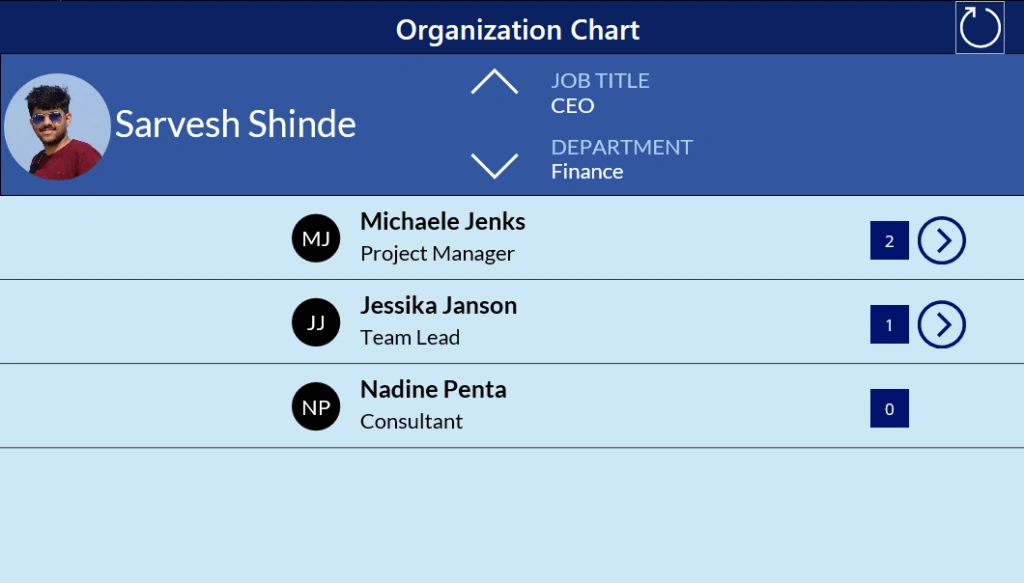
We will be creating a PowerApps app. We will be using Office365 Users connector, Data cards, and Gallery controls. The result will look like this 😊
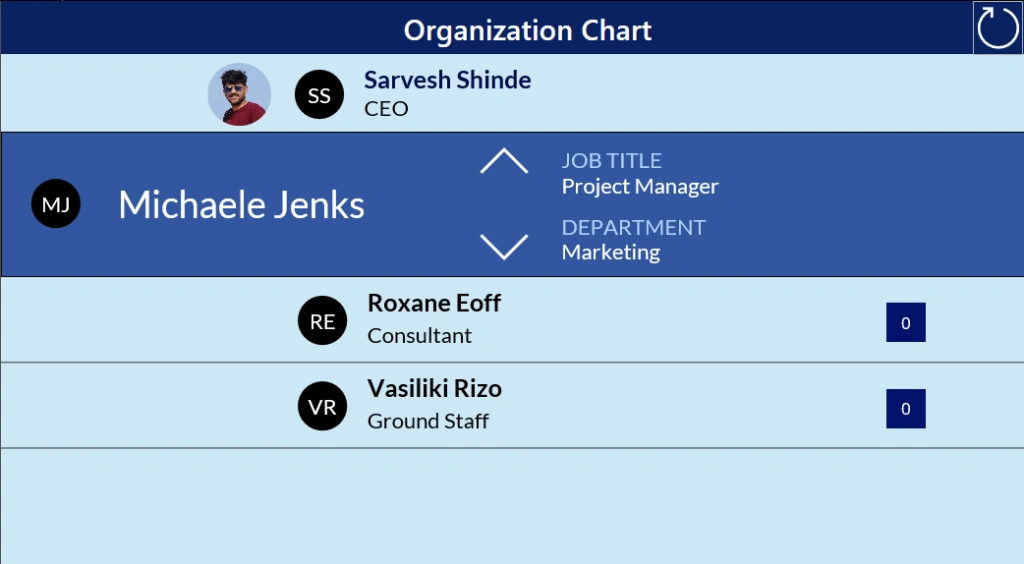
I won’t be able to share all the details but this article will surely give you a brief about how easily you can build your own organization chart web part. And, it’s up to your imagination how creative you can make it. So, let’s begin!
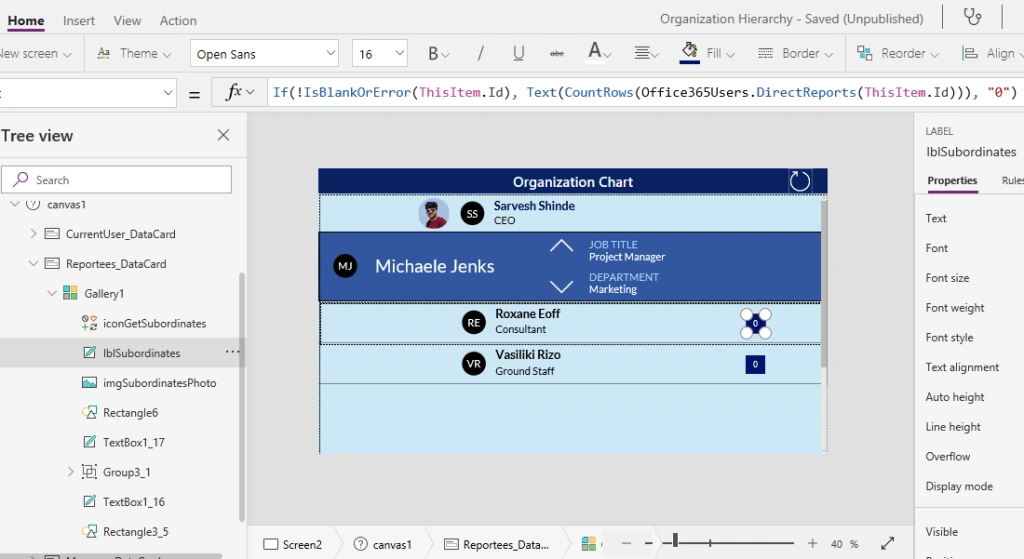
Create a new PowerApps app. Add three data cards on the canvas. Add labels, image, icons control in the data cards to show employee name, profile photo, role, department, etc.
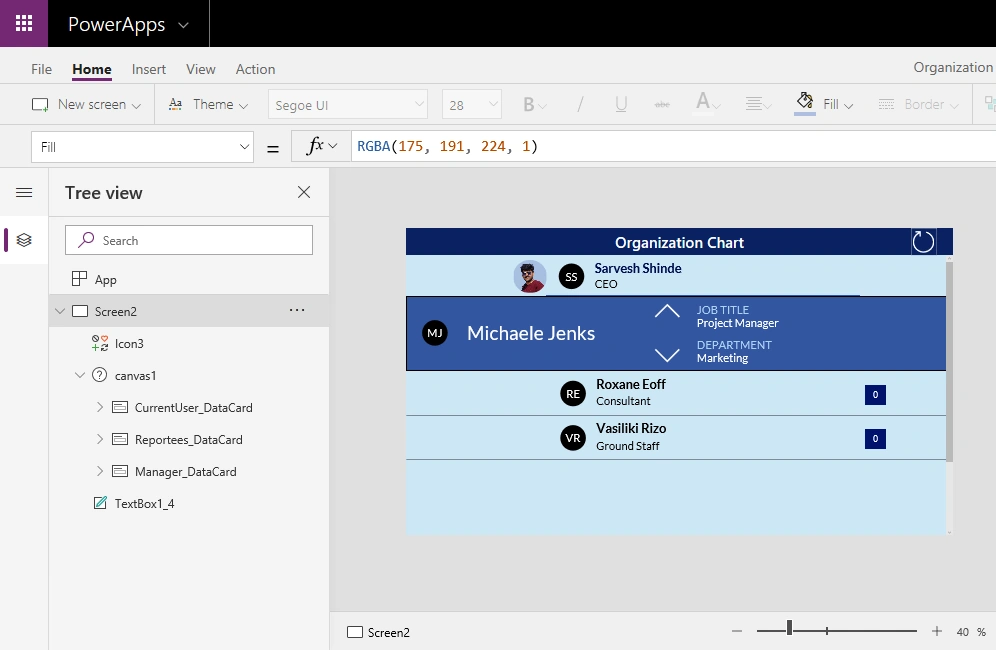
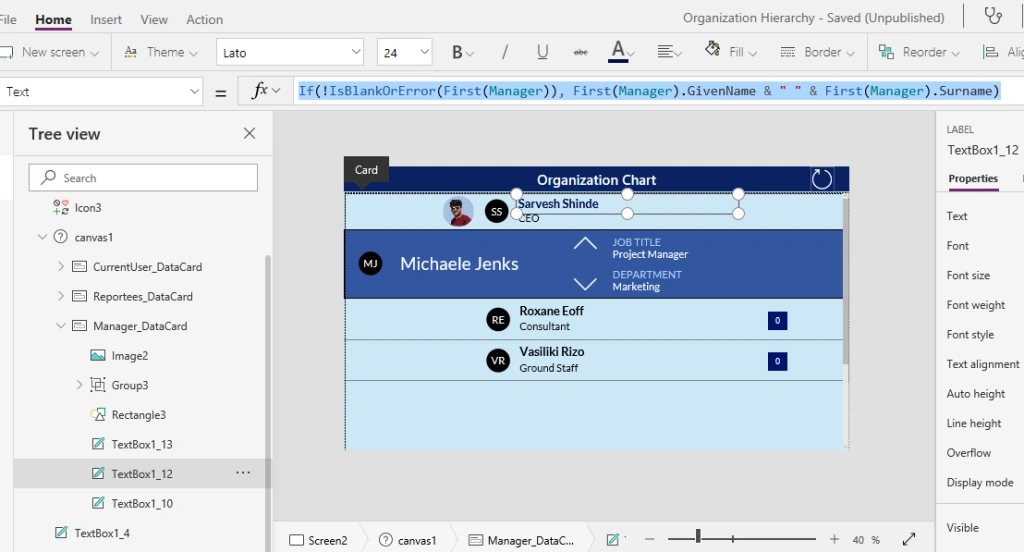
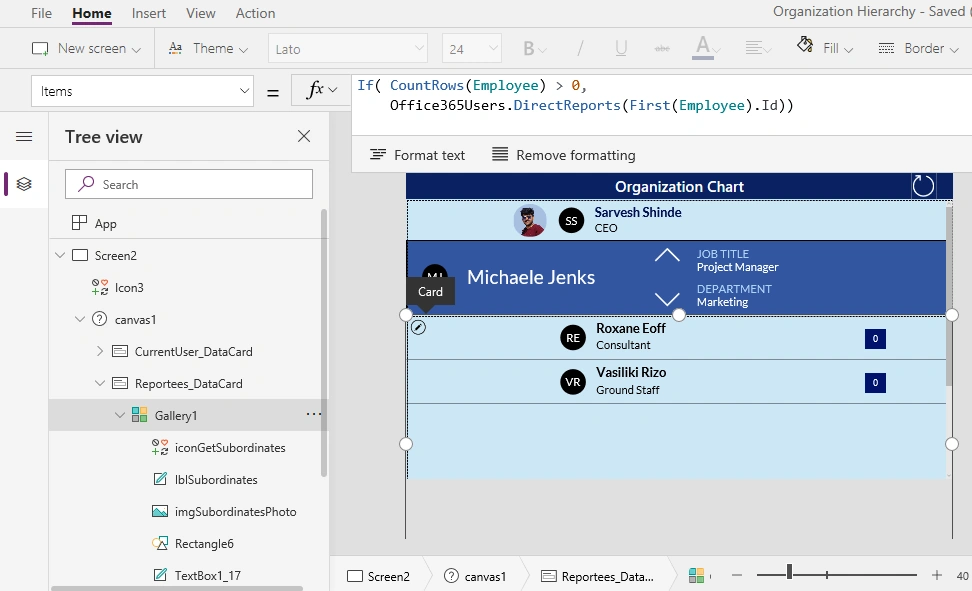
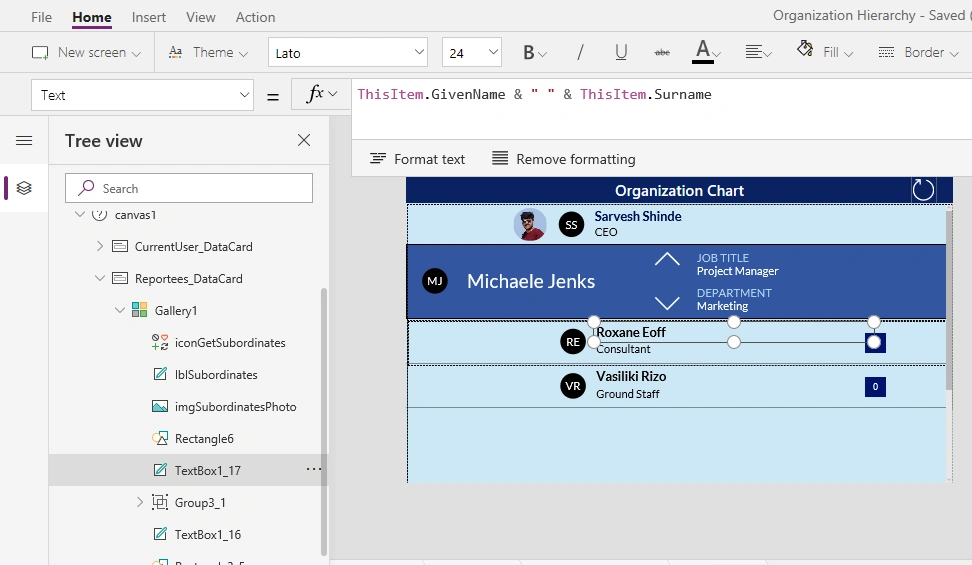
We will be using three data cards as shown above - from top to bottom; first to show Manager information, second to show current user details, and third to show current users direct reporters’ information.
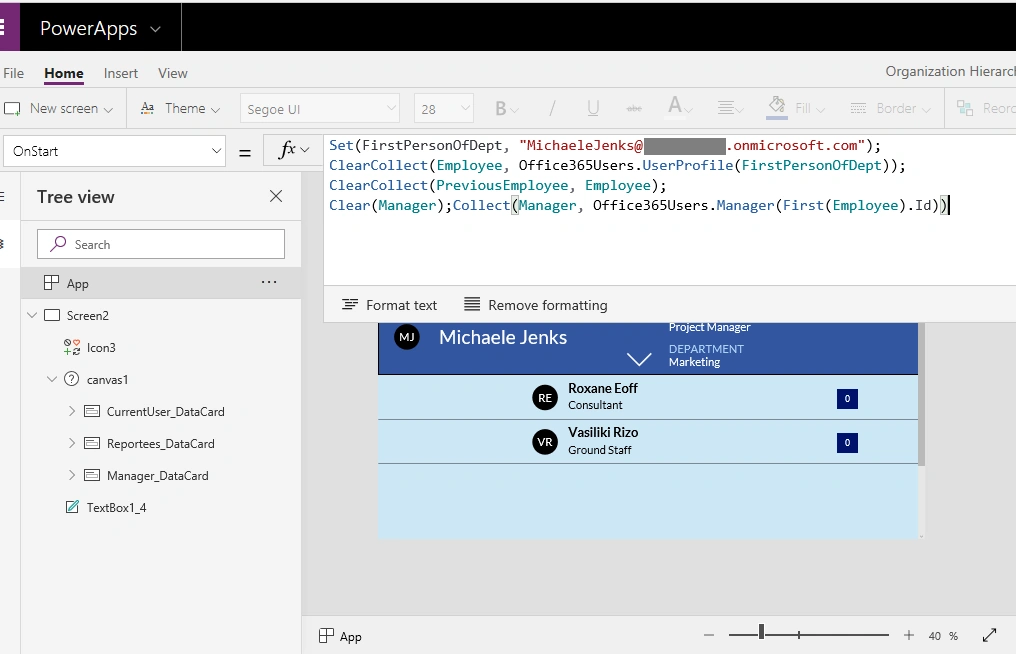
On App Start, we need to set variables and collections. We need to specify some starting point to show hierarchy such as - it can be a department HOD. We will get user profile information of this user. We will get the manager's information for this user. Below is the code to be added on OnStart event
- Set(FirstPersonOfDept, "[email protected]");
- ClearCollect(Employee, Office365Users.UserProfile(FirstPersonOfDept));
- ClearCollect(PreviousEmployee, Employee);
- Clear(Manager);Collect(Manager, Office365Users.Manager(First(Employee).Id))
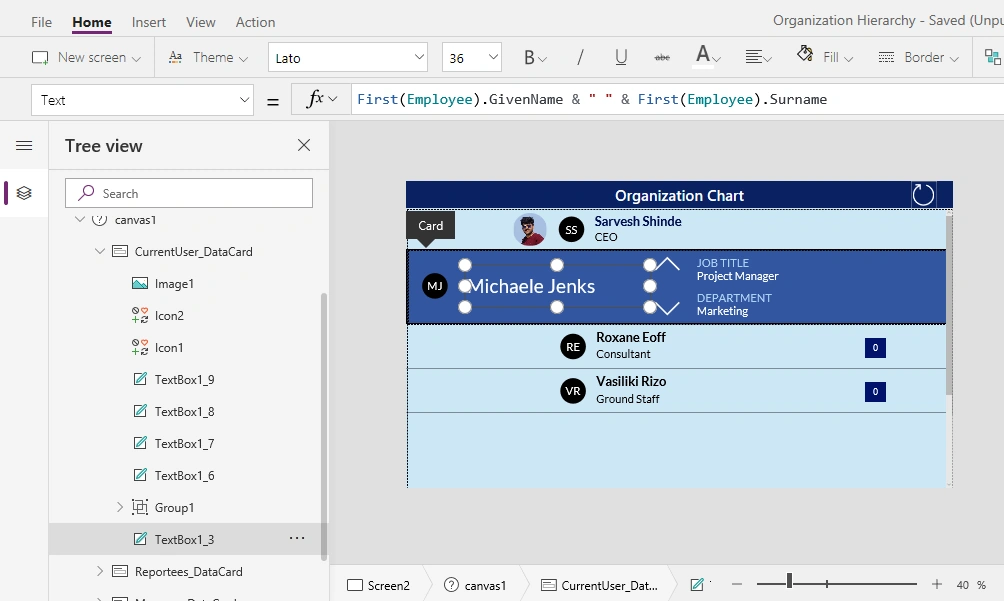
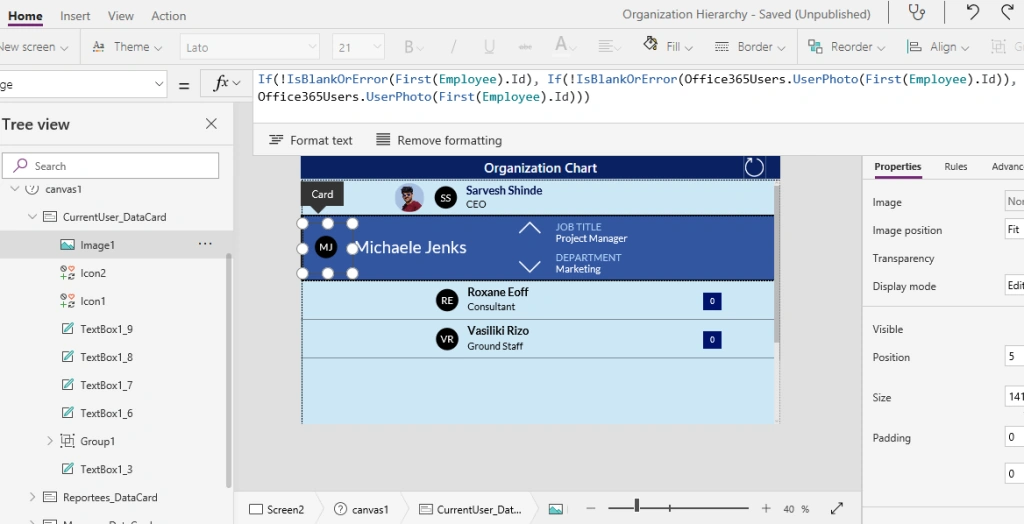
That’s how you can access current user information now using Employee collection object. Set this info to controls in CurrentUser_DataCard.
Join the conversation! Your thoughts help the community grow.