Introduction
This article will explain standard HTML Helpers in MVC. Standard HTML helpers render HTML controls like Anchor, Label, Hidden Input, TextBox, TextArea, DrpdownList, RadioButton, CheckBox, ListBox, Password Input, and HTML Form etc. We can use as per our requirement.
List of standard HTML Helpers
- @Html.BeginForm
- @Html.ActionLink
- @Html.Label
- @Html.Hidden
- @Html.TextBox
- @Html.TextArea
- @Html.Password
- @Html.RadioButton
- @Html.CheckBox
- @Html.ListBox
- @Html.DropdownList
Step 1
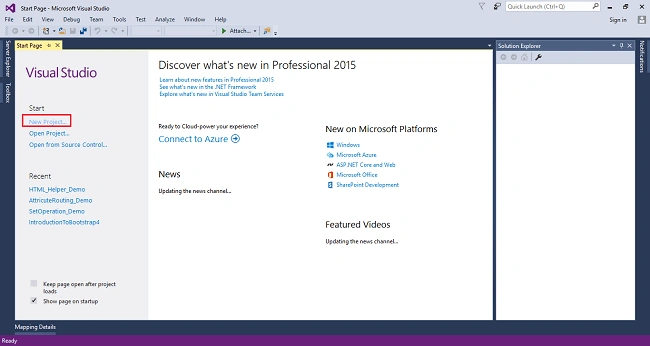
Open Visual Studio 2015, click on New Project, and create an empty web application project.
Screenshot for creating new project-1
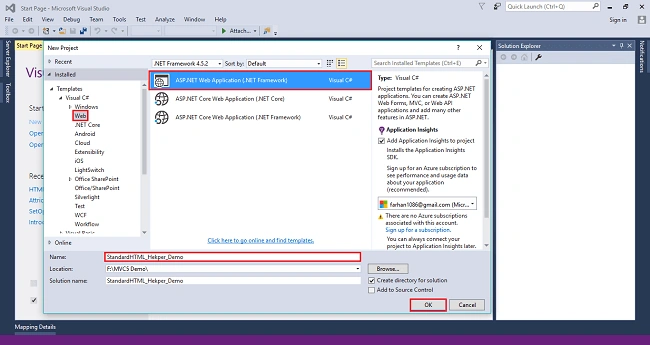
After clicking on New Project one window will appear. Select Web from left panel and choose ASP.NET Web Application to give a meaningful name to your project then click on OK as shown in the below screenshot.
Screenshot for creating new project-2
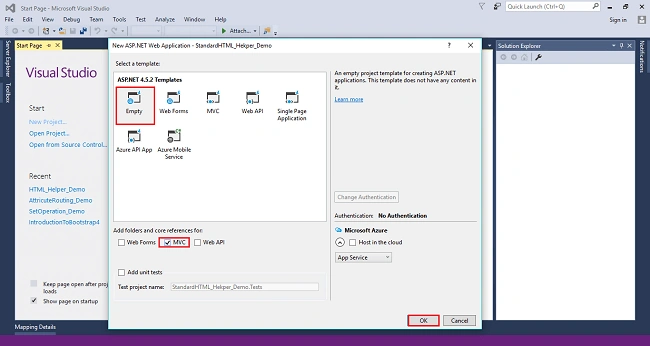
After clicking on OK, one more window will appear. Choose Empty, check on MVC checkbox and click on OK as shown in the below screenshot.
Screenshot for creating new project-3
After clicking on OK, a project will be created with the name of StandardHTML_Hekper_Demo.
Step 2
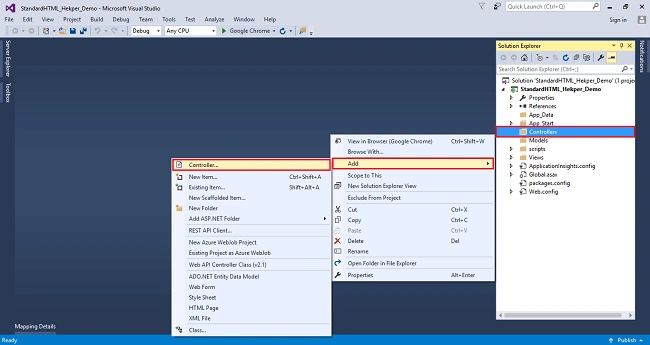
Right-click on the Controllers folder, select Add then choose Controller as shown in the below screenshot.
Screenshot for adding controller
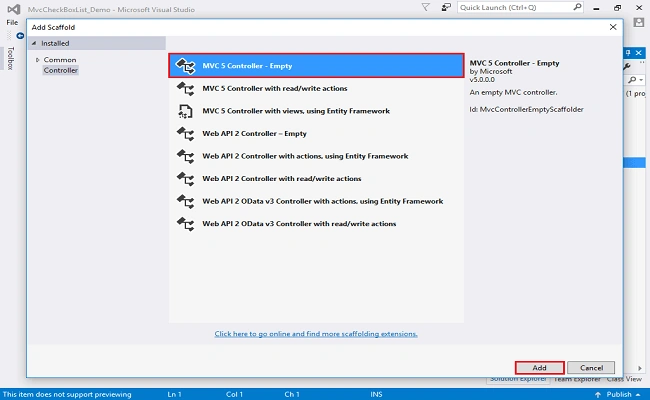
After clicking on the controller, a window will appear to choose MVC5 Controller-Empty -- click on Add.
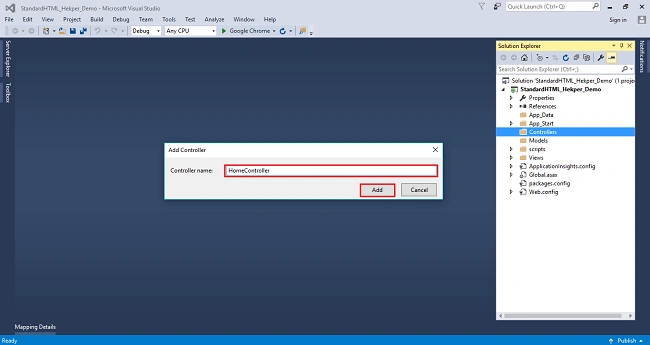
After clicking on Add, another window will appear with DefaultController. Change the name to HomeController then click on Add.
HomeController will be added under the Controllers folder as shown in the below screenshot.
Step 3
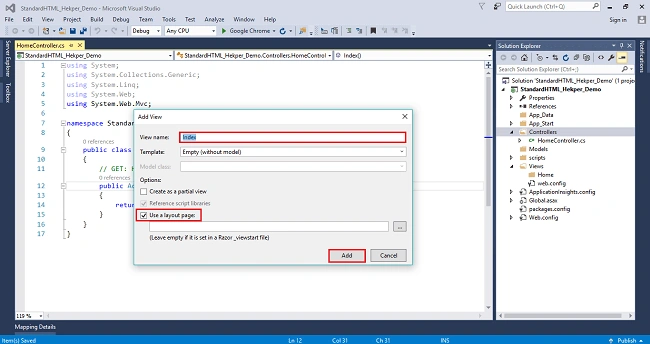
Right-click on the index action method in controller, and the Add view window will appear with default index name check (use a Layout page), and click on Add as shown in the below screenshot. The view will be added in views folder under Home folder with name index.
Screenshot for adding view
@Html.BeginForm
This HTML helper creates and renders HTML form element. Action name is first parameter, controller name is second parameter name and form method.
- @using (Html.BeginForm("Index", "Home", FormMethod.Post))
- {
- }
@Html.ActionLink
This HTML helper is used to create an anchor tag or anchor link. It renders anchor. Provide link Text to display and Action Name.
- @Html.ActionLink ("Home", "Index")
Output
@Html.Label
The label helper method responsible for creating HTML label is on the browser. It has two parameters -- first label id and label value.
- @Html.Label("firstName", "First Name")
Output
@Html.Hidden
Hidden helper is used for hidden HTML input like employee id.
- @Html.Hidden("EmployeeId", "")
@Html.TextBox
TheTextBox Helper method renders a textbox in View that has a specified name. We can also add attributes like class, placeholder etc. with the help of overloaded method in which we have to pass objects of HTML Attributes.
- @Html.TextBox("txtFirstName", "", new { @class = "form-control", placeholder = "First Name" })
Output
@Html.TextArea
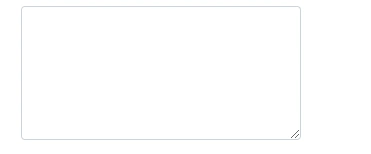
The TextArea Method renders <textarea> element on browser.
- @Html.TextArea("address", new { @class = "form-control", rows = "5" })
Output
@Html.Password
The password HTML helper method is responsible for creating password input field on browser.
- @Html.Password("password", " ", new { @class = "form-control" })
Output
@Html.RadioButton
RadioButton helper method is responsible for creating a radio button on the browser. It is rendered as HTML radio button. RadioButton Helper method takes three parameters; i.e. name of the control, the value, and the Boolean value for selecting the value initially.
- <div class="btn-group" data-toggle="buttons">
- <label class="btn btn-primary active">
- @Html.RadioButton("MaritalStatus", "Married", true, new { id = "IsMarried" }) Married
- </label>
- <label class="btn btn-primary">
- @Html.RadioButton("MaritalStatus", "Unmarried", false, new { id = "IsUnmarried" }) Unmarried
- </label>
- </div>
Output
@Html.CheckBox
The CheckBox helper method renders a checkbox and has the name and id that you specify.
- <div class="btn-group" data-toggle="buttons">
- <label class="btn btn-primary">
- <span class="glyphicon glyphicon-unchecked"></span>
- @Html.CheckBox("htmlSkill", true) HTML 5
- </label>
- <label class="btn btn-primary active">
- <span class="glyphicon glyphicon-ok-circle"></span>
- @Html.CheckBox("cssSkill") CSS3
- </label>
- <label class="btn btn-primary">
- <span class="glyphicon glyphicon-unchecked"></span>
- @Html.CheckBox("bootstrapSkill", false) Bootstrap 4
- </label>
- </div>
Output
Html.ListBox
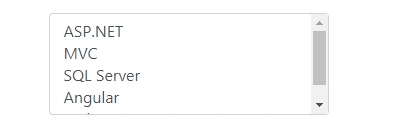
The ListBox helper method creates html ListBox with scrollbar on browser. It allows you to choose multiple values by holding ctrl.
- @Html.ListBox("Skills",new List<SelectListItem> {
- new SelectListItem { Text="ASP.NET",Value="1"},
- new SelectListItem { Text="MVC",Value="2"},
- new SelectListItem { Text="SQL Server",Value="3"},
- new SelectListItem { Text="Angular",Value="4"},
- new SelectListItem { Text="Web API",Value="5"}
- },new { @class="form-control"})
Output
@Html.DropdownList
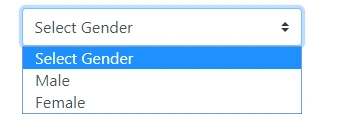
The DropDownList helper renders a drop down list.
- @Html.DropDownList("Gender", new List<SelectListItem> {
- new SelectListItem {Text="Select Gender",Value="-1" },
- new SelectListItem {Text="Male",Value="1" },
- new SelectListItem {Text="Female", Value="2" }
- }, new { @class = "custom-select" })
Output








Amit Kumar SinghPosted Nov 5, 2018, 11:51 PM
Nice one... Thanks for sharing !!!