

Welcome to Sway! You might ask me, what is Sway?
Sway is an app to express your ideas, your thoughts and your work with everyone, in your way and in your style using various modes of telecommunication.
Use Sway to create and share a user-friendly, interactive, web-based canvas of your ideas with family, friends, teachers and coworkers. Sway makes sure your creation look great on any screen and is compatible with all devices.
Want to see what it is? Let's get started!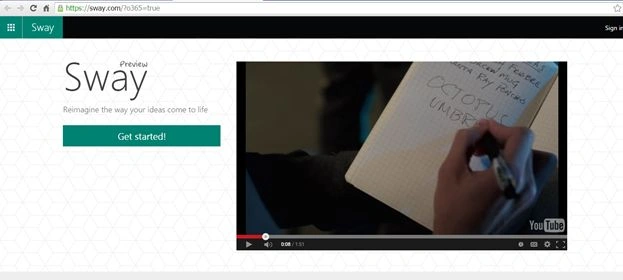
Figure 1: Sway
Sway has a video on its home page providing a preview of what you will build. Kindly view the following link to see the video.
Link: https://www.youtube.com/watch?v=Jw-g6IuBVJE
Figure 2: Get Started
Click on “Get Started”.
- You will reach the dashboard of Sway as in the following screen.
- This will be your design phase of the portal you want to build.
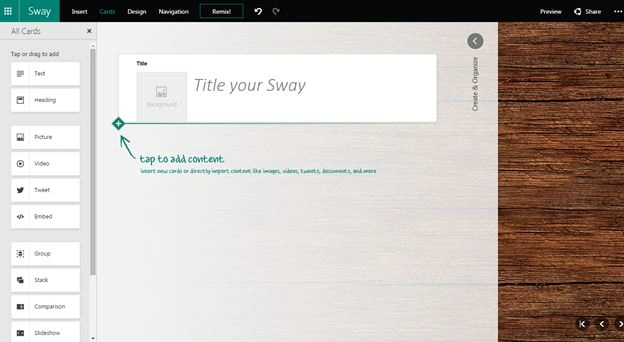
Figure 3: Title your Sway
How to build your canvas
I'll help you build your canvas. Sway provides all the necessary functions that we require to commnicate our ideas using a portal. It can be anything including images, videos, texts and so on and so on.
You need not worry about uploading stuff or making a separate database for it. Sway is seamlessly integrated with OneDrive, your devices, social networks and the web so you can drag and drop your content right onto your canvas.
Let's build it
First let's see the center part of our Sway design interface.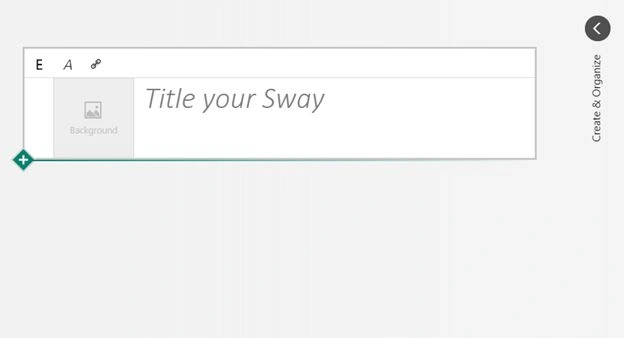
Figure 4: Sway Design Interface
Here we have the web design to customize our slides or our pages using just drag and drop. So this will have many layouts that you can use to create your slides or your web page. These layouts are as easy using Microsoft PowerPoint. You just need to drag and drop the image or the text or anything you want and the page is ready.
Left Navigation
Here we can see the left navigation with all the important tools necessary to build our portal. Let's see them one by one.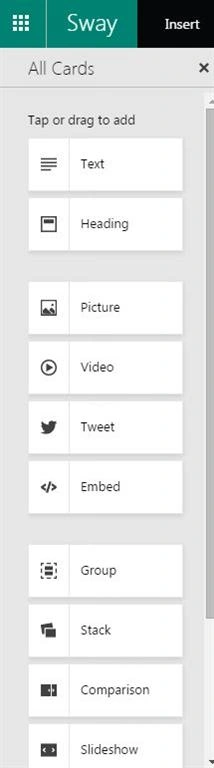
Figure 5: Left Navigation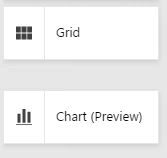
Figure 6: Grid
- Text: Drag the text to your dashboard to add text to your portal.
- Heading: Drag the header to your dashboard to add a header to your portal.
- Picture: Use this to add a picture.
- Video: Use this to add a video.
- Tweet: Use the tweet app to enable the tweet feature on your portal.
- Embed: Use the embed to fix in the code to your portal to attach maps, images, videos and many more.
- Group: Here you can use this feature to do a group by for your contents.
- Stack: Here you can stack your contents using this feature.
- Comparison: You can compare two contents using the comparison feature.
- Slideshow: Enable the slideshow on the portal.
- Grid: Add a grid to your portal.
- Chart (Preview): Add some charts for a rich look for your portal.
Top Navigation
Figure 7: Remix
On the top navigation, we have the following functions.
Insert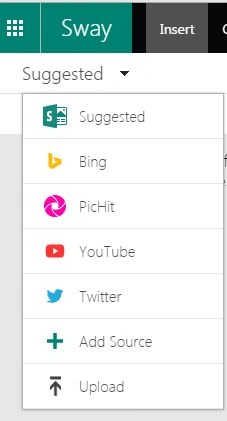
Figure 8: Insert
The following are the modules that can be inserted or you can even add a source or upload some files.
Design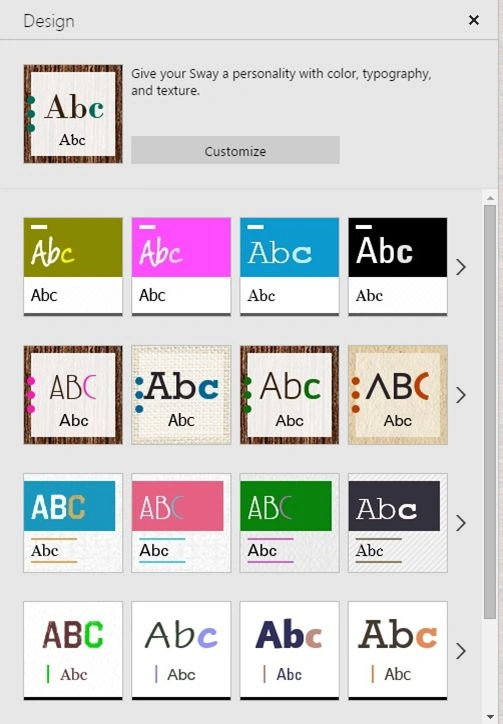
Figure 9: Design
You can design your template from the options above.
Navigation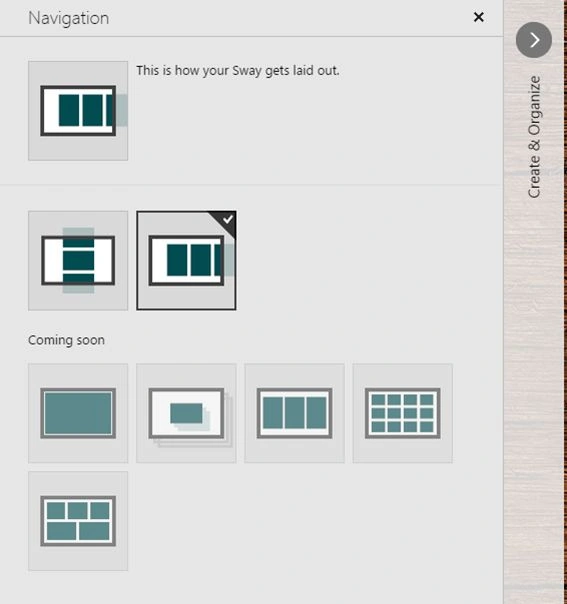
Figure 10: Navigation
Here you can define your layout of the portal, how you want it to be as the left slider, right slider, page slider and many more.
Remix
If you are unable to determine in the design phase how it should be then just click on remix, it will set up everything for you and you can review it.
Right Navigation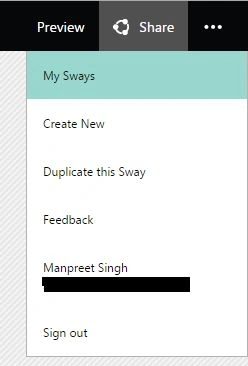
Figure 11: Right navigation
Here you have options such as:
- Preview: To preview the sway.
- Share: To share it with everyone.
- Create New.
- Duplicate this Sway.
- Provide feedback.
- Sign out.
I know what you now want a preview, right? Here is the preview.
Figure 12: Preview
Isn't it beautiful? That too it is just a single slide. Kindly look at to the following links for more examples.
Examples
I want you to all try this, you will definitely not need a web developer for your pages, portals and design documents. It is so easy that anybody can do it on their own.
Welcome everyone to “Sway in SharePoint”. An amazing part of SharePoint technology adding stars to it.
Dinesh KachhawayPosted Jul 16, 2015, 1:29 AM
How to Use it Bos
Sibeesh VenuPosted Jul 11, 2015, 8:23 AM
Nice share.
Santhakumar MunuswamyPosted Jul 11, 2015, 2:53 AM
Nice article! Thanks for sharing
Neeraj KumarPosted Jul 10, 2015, 12:43 PM
Thank you for sharing..
Nilesh JadavPosted Jul 10, 2015, 8:34 AM
Nice one sir