
A Windows application, which focuses mainly on its GUI
aspects, can make use of the ownerdraw properties of the various forms
components. Once such component that allows us to define our own drawing and
painting of items is the Menu component of Windows Forms.
This article will explain to you how we can draw our own menu items with our own
fonts, pictures, background color and other graphics objects.
Step 1: Create a simple windows form application.
Click File - > New -> Project - > Create new application OD_Menu.
In the designer view for the default form created, add a new "Main Menu"
component from the Windows Forms Toolbox.
Using the designer, create menu and menu items.
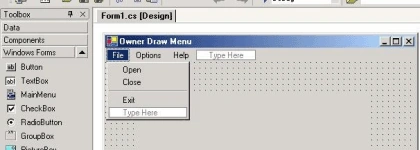
We need to ownerdraw not only the top-level menu items, but also all
the submenu items.
For every menu item select the "Properties" and set the OwnerDraw option to
"True".
For every owerdraw menu item the application will call 2 functions..
DrawItem: This function will do the actual painting and drawing of the intended
menu item.
Measure Item: This function is called to set the height / width of the menu
item.
We need to add these 2 events from the "Events" tab of the menu properties.
Select the properties for the "File" menu item.
Click on the Events tab.
Double Click the Draw Item option. It will add a default handler to handle the
drawing of the "File" menu item.
private sub
menuItem1_DrawItem(sender as
object ,e
as System.Windows.Forms.DrawItemEventArgs )
Double Click the MeasureItem otpion. It will add a default handler
private sub
menuItem1_MeasureItem(sender as
object ,e
as System.Windows.Forms.MeasureItemEventArgs )
end sub
Now we need to add the sametype of DrawItem and MeasureItem for the sub menu
items. We are creating a different event handler for the subitems , since we
need to do some more fancy stuff with the sub items like drawing icons or
bitmaps.
Select the first subitem "Open" and add the same 2 events for this item.
private sub
menuItem1_MeasureItem(sender as
object ,e
as System.Windows.Forms.MeasureItemEventArgs )
private sub
menuItem2_DrawItem(sender as
object ,e
as System.Windows.Forms.DrawItemEventArgs )
Important: Since we need to have a DrawItem and MeasureItem for
each and every item, it does not make sense to duplicate the events for every
menu item. We can have the mainmenu items (File / Options / Help) be handle via
a common event handler and we can have the submenu items like (Open /Close ...
About) be routed through another common event handler.
Here is how to do this.
For every other main menu item like "Options and Help", select the item in
designer.
- Click proerties. Click the Events tab.
- Click the listbox next to the DrawItem and select the menuItem1_DrawItem option from the list.
- Click the listbox next to the MeasureItem and select the menuItem1_MeasureItem option from the list.
For every other sub menu items like "Close / Exit / Security / Network / About".
- Click proerties. Click the Events tab.
- Click the listbox next to the DrawItem and select the menuItem2_DrawItem option from the list.
- Click the listbox next to the MeasureItem and select the menuItem2_MeasureItem option from the list.
We are all set to add our own code the handle the
drawing and paiting of the TopLevel Menu Items and the SubItems.
Here is the code for the Sub menu Items.
Private
Sub menuItem1_DrawItem(sender
As Object,
e As
System.Windows.Forms.DrawItemEventArgs) '
Dim
rc As New
Rectangle(e.Bounds.X + 1, e.Bounds.Y + 1, e.Bounds.Width - 5, e.Bounds.Height -
1)
e.Graphics.FillRectangle(New
SolidBrush(Color.LightGray), rc)
Dim
s As MenuItem =
CType(sender, MenuItem)
Dim
s1 As
String = s.Text
Dim
sf As New
StringFormat()
sf.Alignment = StringAlignment.Center
e.Graphics.DrawString(s1, New
Font("Ariel", 10), New
SolidBrush(Color.Black), rc, sf)
Console.WriteLine(e.State.ToString())
If
e.State =(DrawItemState.NoAccelerator Or
DrawItemState.Selected) Or e.State
=(DrawItemState.NoAccelerator Or
DrawItemState.HotLight) Then
e.Graphics.FillRectangle(New
SolidBrush(Color.CornflowerBlue), rc)
e.Graphics.DrawString(s1, New
Font("Veranda", 10), New
SolidBrush(Color.Black), rc, sf)
e.Graphics.DrawRectangle(New Pen(New
SolidBrush(Color.Black)), rc)
End
If
e.DrawFocusRectangle()
e.Graphics.DrawRectangle(New Pen(New
SolidBrush(Color.Black), 2), rc)
End
Sub
'menuItem1_DrawItem
Private
Sub menuItem1_MeasureItem(sender
As Object,
e As
System.Windows.Forms.MeasureItemEventArgs)
e.ItemWidth = 75
e.ItemHeight = 25
End
Sub
'menuItem1_MeasureItem
Here is the code for
the Sub menu
Items.
Private
Sub menuItem2_DrawItem(sender
As Object,
e As
System.Windows.Forms.DrawItemEventArgs)
Dim
rc As New
Rectangle(e.Bounds.X, e.Bounds.Y, e.Bounds.Width, e.Bounds.Height)
e.Graphics.FillRectangle(New
SolidBrush(Color.LightGray), rc)
Dim
s As MenuItem =
CType(sender, MenuItem)
Dim
s1 As
String = s.Text
Dim
sf As New
StringFormat()
sf.Alignment = StringAlignment.Far
sf.LineAlignment = StringAlignment.Center
Dim
rcText As Rectangle = rc
rcText.Width -= 5
e.Graphics.DrawString(s1, New
Font("Veranda", 10), New
SolidBrush(Color.Blue), rcText, sf)
e.Graphics.DrawRectangle(New Pen(New
SolidBrush(Color.LightGray)), rc)
If
e.State =(DrawItemState.NoAccelerator Or
DrawItemState.Selected) Then
e.Graphics.FillRectangle(New
SolidBrush(Color.CornflowerBlue), rc)e.Graphics.DrawString(s1,
New Font("Veranda", 10, FontStyle.Bold
Or FontStyle.Underline),
New SolidBrush(Color.Yellow), rcText, sf)
e.Graphics.DrawRectangle(New Pen(New
SolidBrush(Color.Black)), rc)
e.DrawFocusRectangle()
End
If
Dim useImage As
Image = Nothing
If s1 = "Open" Then
useImage = img_fileopen
End
If
If s1 = "Close" Then
useImage = img_close
End
If
If s1 = "Exit" Then
useImage = img_exit
End
If
If s1 = "Security"
Then
useImage = img_security
End
If
If s1 = "Network"
Then
useImage = img_network
End
If
If s1 = "About" Then
useImage = img_about
End
If
If Not
(useImage Is
Nothing)
Then
Dim sz As
SizeF = useImage.PhysicalDimension
e.Graphics.DrawImage(useImage, e.Bounds.X + 5,(e.Bounds.Bottom + e.Bounds.Top) /
2 - sz.Height / 2)
End
If
End Sub
'menuItem2_DrawItem
Private
Sub menuItem2_MeasureItem(sender
As Object,
e As
System.Windows.Forms.MeasureItemEventArgs)
e.ItemWidth = 75
e.ItemHeight = 25
End
Sub
'menuItem2_MeasureItem
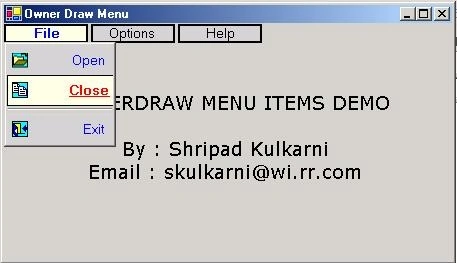
Compile and execute the
application.
Join the conversation! Your thoughts help the community grow.