
Introduction
The biggest difference between web applications designed specially for use on Mobile Devices is the limitation imposed by the small screen size of Mobile devices. We have to work with a different mind frame to come up with user interfaces that are more compact and yet deliver information as needed. However, you cannot practically reduce the content displayed on a mobile form beyond a certain point - and this is where our example focuses on - We will discuss the simple but immensely useful features of Pagination and the PagerStyle for Mobile Forms.
We will use Visual Studio.Net for our example. You can refer to the code listing below and use any editor of your choice.
Details
Create a new project of type Visual C# .Net Mobile Web Application.
In the default mobile web form, add the mobile controls from the ToolBox. I created a registration form as shown below.
| Control | Property Name | Value |
| Label | Text | Registration Form |
| Label | Text | First Name |
| Textbox | ||
| Label | Text | Middle Name |
| Texbox | ||
| Label | Text | Last Name |
| Textbox | ||
| Label | Text | |
| Textbox | ||
| Label | Text | Confirm Email |
| Textbox | ||
| Label | Text | Password |
| TextBox | Password | True |
| Command Button | Text | Submit |
Table : Controls on our mobile web form.
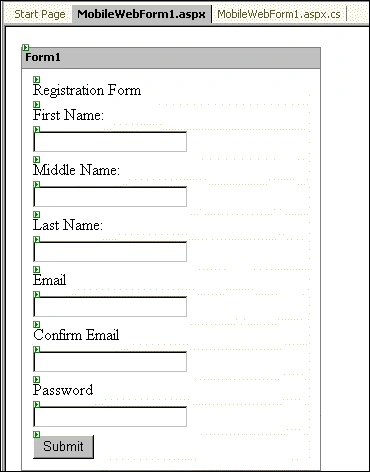
Figure : User interface for our sample.
Compile the project. Shown below are the results of the mobile web form.
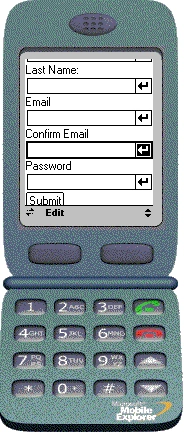
Figure: Results of our long mobile web form.
Note how difficult it is for the end user to scroll all the way on the web form. In some mobile devices, an error can result if the page size is too long for the device to handle.
Break Down the Web form into Pages
Return to Visual Studio and now set the Paginate property of the Mobile Form to True
The mobile page is now displayed in good-sized chunks. Take a look at the results below.
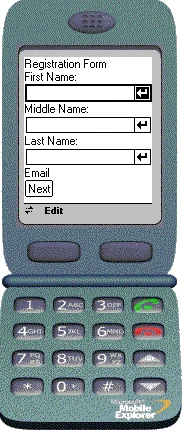
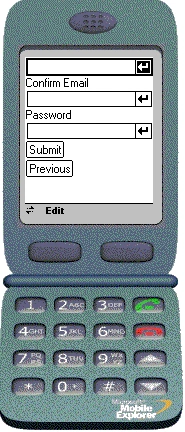
Figure: Mobile Form is now displayed in parts, with a Next and Previous button at the bottom of the screen.
Customize the Pagination
You can customize the pagination look and feel by modifying the PagerStyle of the Form. The PagerStyle can be included in a StyleSheet object, enabling you to reuse the same style for all the mobile forms in the application.
The PagerStyle has three key properties.
NextPageText : Sets or returns the label that the user clicks to browse to the next page. You can use the value {0} which is substituted with the page number of the next page.
PreviousPageText : Similar to NextPageText, but used for returning to the previous page. You can use the value {0} to refer to the page number of the previous page within the value of this property.
Page Label : Sets or returns the value of the label displayed on the current page. You can use format-specifiers {0} and {1} to display the current page number and the total number of pages respectively. This property only applies to HTML devices.
You can also modify other properties like Font, BackColor, ForeColor etc where supported.
Let's look at a live example using these properties.
Make changes as shown below in our sample application to the Mobile Web Form's Form control properties:
| Control | Property Name | Value |
| Form | PagerStyle | |
| NextPageText | Next(Page {0}) | |
| PageLabel | [{0} of {1}] | |
| PreviousPageText | Back(Page {0}) |
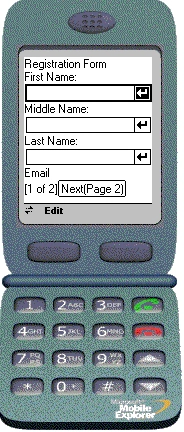
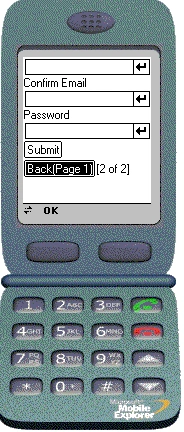
Figure: Original web page distributed in multiple pages with Customized Scrolling
Here is the entire souce code for the mobilewebform.aspx (without using code-behind)
<%@ Register TagPrefix="mobile" Namespace="System.Web.UI.MobileControls" Assembly="System.Web.Mobile, Version=1.0.3300.0, Culture=neutral, PublicKeyToken=b03f5f7f11d50a3a" %>
<%@ Page language="c#" Inherits="System.Web.UI.MobileControls.MobilePage"%>
<body>
<mobile:Form id="Form1" runat="server" Paginate="True" PagerStyle-NextPageText="Next(Page {0})" PagerStyle-PageLabel="[{0} of {1}]" PagerStyle-PreviousPageText="Back(Page {0})">
<mobile:Label id="Label1" runat="server">Registration Form</mobile:Label>
<mobile:Label id="Label7" runat="server">First Name: </mobile:Label>
<mobile:TextBox id="TextBox1" runat="server"></mobile:TextBox>
<mobile:Label id="Label2" runat="server">Middle Name:</mobile:Label>
<mobile:TextBox id="TextBox2" runat="server"></mobile:TextBox>
<mobile:Label id="Label3" runat="server">Last Name:</mobile:Label>
<mobile:TextBox id="TextBox3" runat="server"></mobile:TextBox>
<mobile:Label id="Label4" runat="server">Email</mobile:Label>
<mobile:TextBox id="TextBox4" runat="server"></mobile:TextBox>
<mobile:Label id="Label5" runat="server">Confirm Email</mobile:Label>
<mobile:TextBox id="TextBox5" runat="server"></mobile:TextBox>
<mobile:Label id="Label6" runat="server">Password</mobile:Label>
<mobile:TextBox id="TextBox6" runat="server" Password="True"></mobile:TextBox>
<mobile:Command id="Command1" runat="server">Submit</mobile:Command>
</mobile:Form>
</body>
Code Listing : Complete web form testpage.aspx
Conclusion : Mobile Web Forms provide a convenient mechanism to limit the size of Web forms on the mobile devices and customize the appearance of the paging labels.
budhi arsaPosted Oct 28, 2007, 10:04 PM
wolud you like to give code of how to download contents from mobile page? thanks for your help