

Introduction
The use case here is when a CSV is uploaded to the SharePoint online document library, and the Power Automate reads the CSV and parses the data into the SharePoint list. I have written a similar use case, but in that, the CSV document is uploaded to One Drive. Please refer to the link in the references section for the CSV uploaded to One Drive.
Steps
Below are the steps briefly.
- The user uploaded the CSV to the SPO Document Library.
- Power Automate gets triggered based on the condition
- Data from CSV is parsed and created in the SharePoint list.
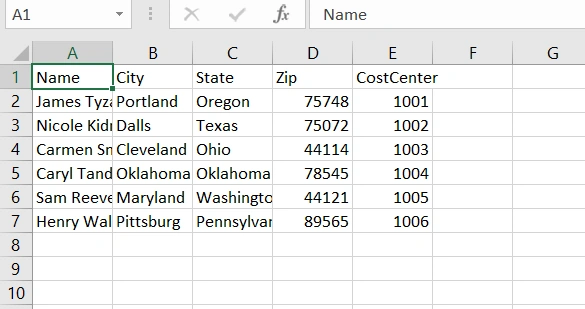
Step 1. Create and Configure SharePoint list and library. Here, I am using the sample below for this scenario.
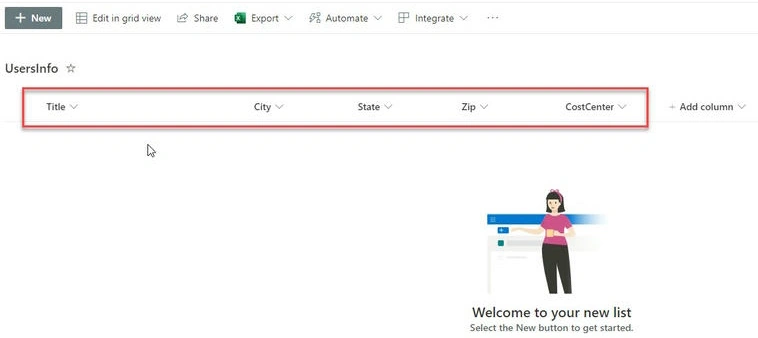
For the SharePoint list, I have created the list with the required metadata. Title, City, State, Zip, CostCenter. All are of type ‘single line of text’.
For the document library, I have created a folder called ‘CSVs’ inside the default ‘Shared Documents’ Library.

The idea here is that when a file gets created inside the folder, the data from the CSV file needs to be parsed and created in the SharePoint list. Let’s see this in action.
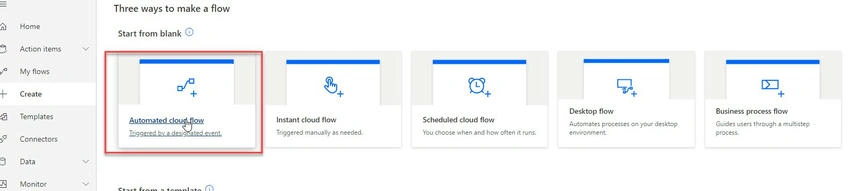
Step 2. Login to https://flow.microsoft.com with your organization / Development tenant credentials. From the home page, click on ‘Create’ à select ‘Automated cloud flow’.
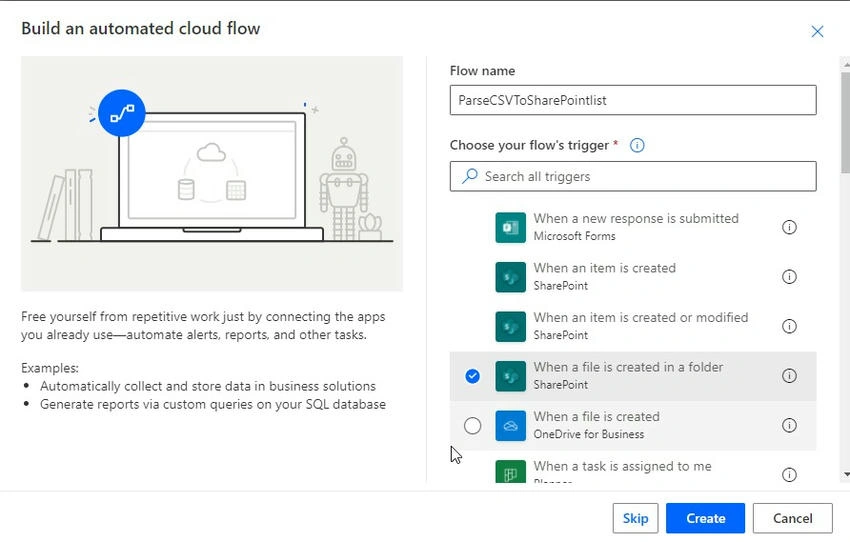
Step 3. Give a meaningful name. Here I have selected the trigger ‘When a file is created in a folder’.
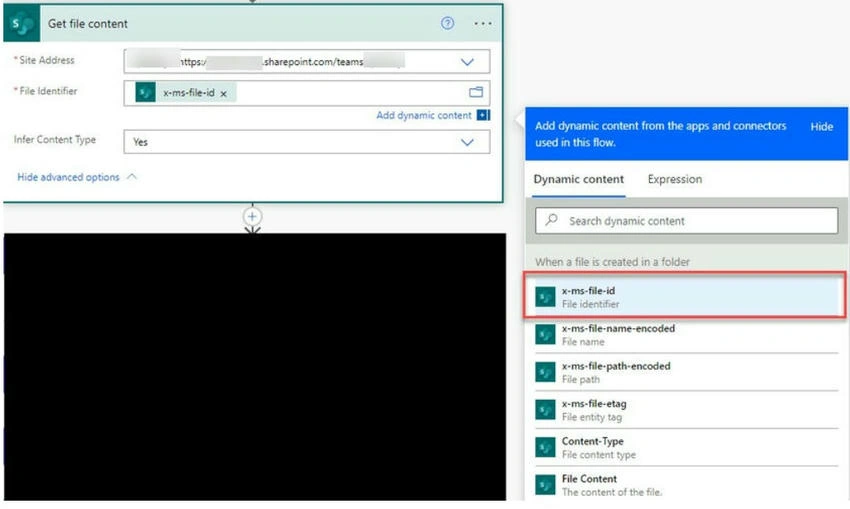
Step 4. Add an action ‘Get file content’ and select the file identifier ‘x-ms-file-id’ under the ‘Dynamic Content’. Below is the screen capture for reference.
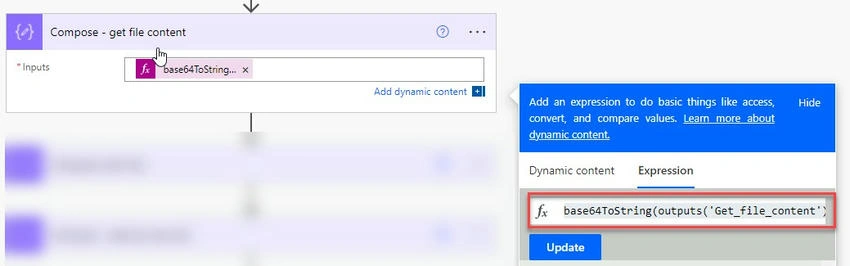
Step 5. The output from the ‘SharePoint Get File Content’ is in octet-stream, which is not in readable format. In order to query the data, it needs to be converted to string format. For this, I am using the function called ‘base64ToString()’.
base64ToString(outputs('Get_file_content')?['body']['$content'])
Step 6. Now select the ‘Compose’ action and rename it to ‘Compose –new line’. Inside the ‘Inputs’ field, just hit the ‘Enter’ key. This denotes a new line.

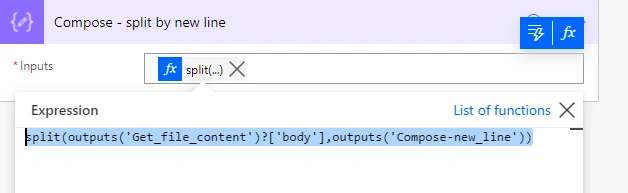
Step 7. Now select another compose. Rename it as ‘Compose – split by new line’. Here, we need to split the outputs of get file content by the new line. Let's see how to do this.
select expression and enter split([Select the outputs from file content], [select the output of compose-new line].
Step 8. Now, get the field names. We know from the CSV that the header has field names. In this case, the input CSV file has five fields.
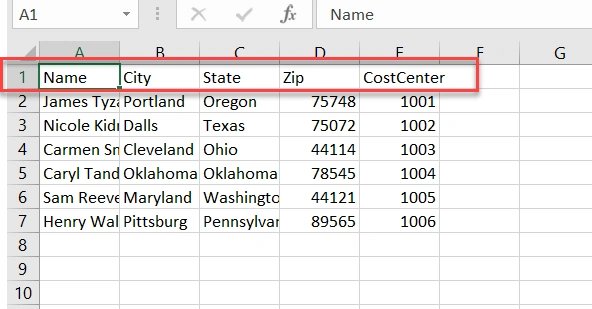
The result in my case is,
split(first(outputs('Compose_-_split_by_new_line')),',')
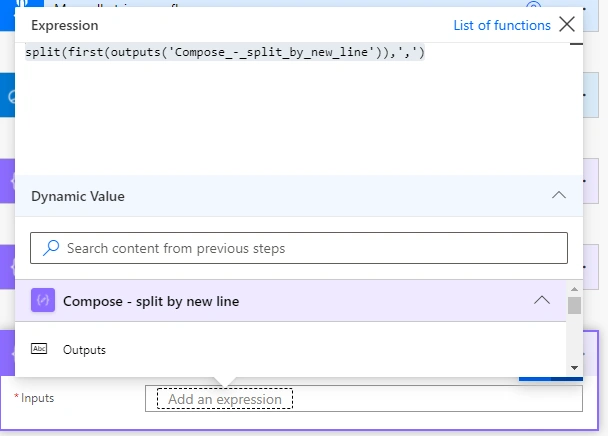
Step 9. Now, add a new step and choose the ‘select’ action. Under expression, it should skip the first record since the first row contains the data.
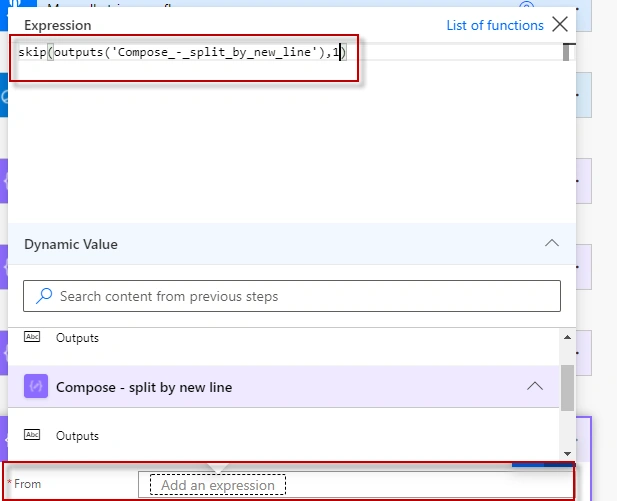
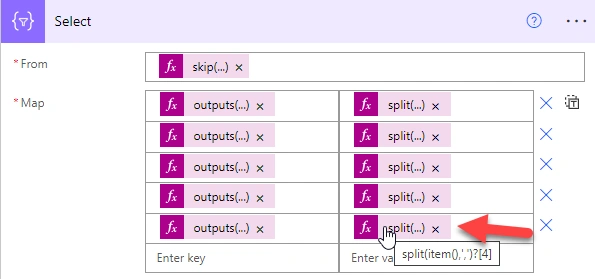
Step 10. Configure the key and value as per the following.
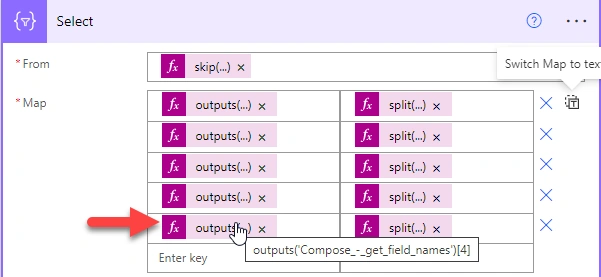
- key: These should be values from the outputs ‘compose - get field names’. Note that we are getting the array values here.
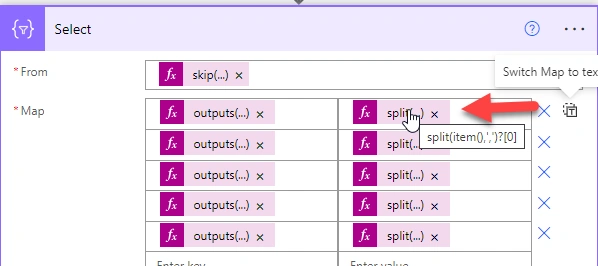
- value: It should be the values from the outputs of compose-split by new line’.
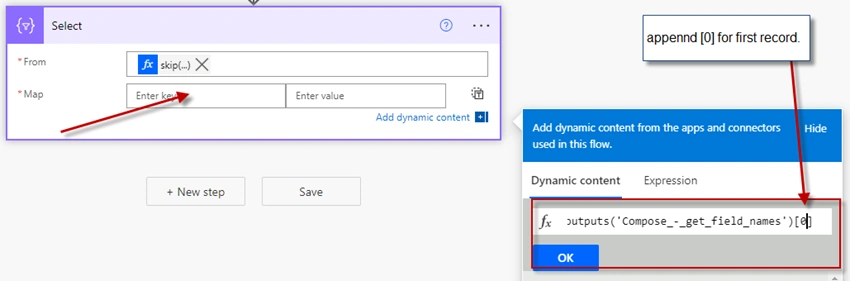
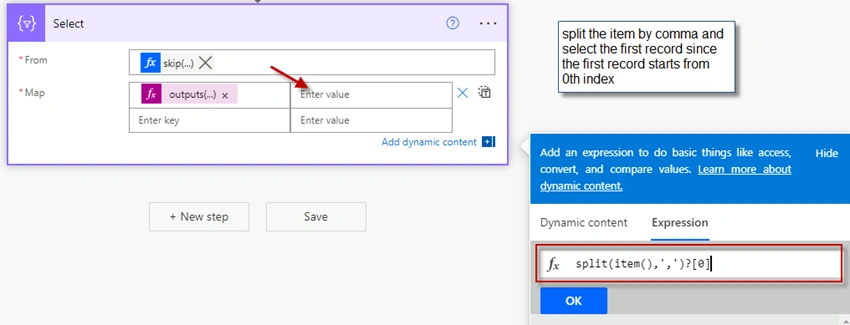
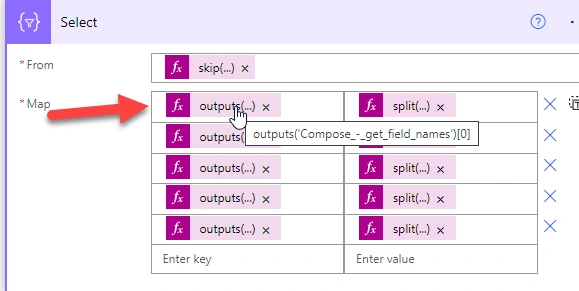
Since we have five field values, we will map the values for each field.
Second key, the expression, would be outputs('Compose_-_get_field_names')[1]
Screen capture for the first key
Screen capture for the first value.
Screen capture for the last key.
Screen capture for the last value.
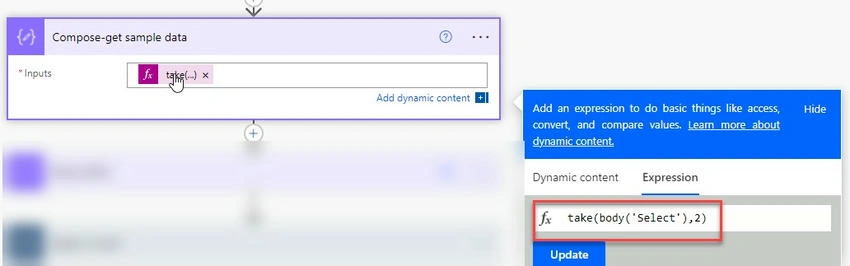
Step 11. Now, add another ‘Compose’ action to get the sample data. The schema of this sample data is needed for the ‘Parse JSON’ action. The expression is taken (outputs from ‘select’, 3). This means it would select the top 3 records from the previous ‘Select’ output action.
take(body('Select'),3)
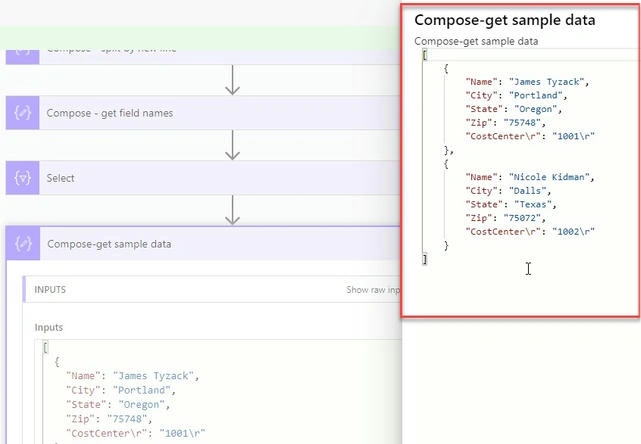
Step 12. Now save and run the flow. And copy the output from the ‘Compose – get sample data’. In this case, you may need to upload the csv file to the document library to get the sample data.
Step 13. Now add the ‘Parse JSON’ action and configure the action.
- Content: It would be the output from the ‘Select’
- Schema: the output payload that you have copied before. Click on ‘Generate from sample’.
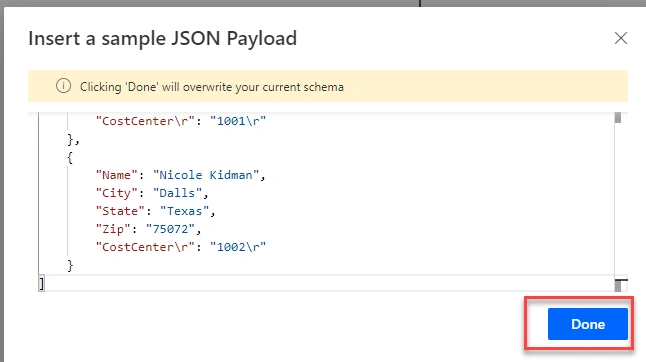
The final ‘Parse JSON’ should look like the one below.
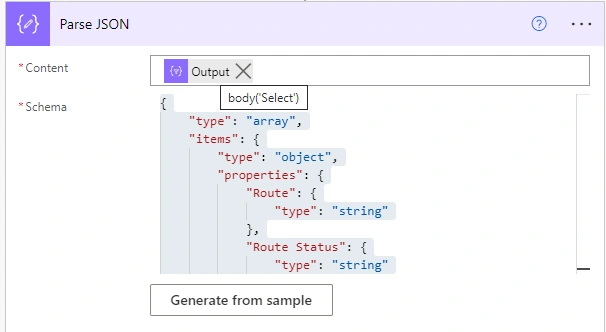
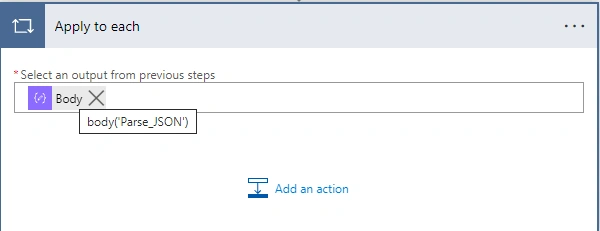
Step 14. Now, for each record in the JSON file, a SharePoint list item needs to be created.
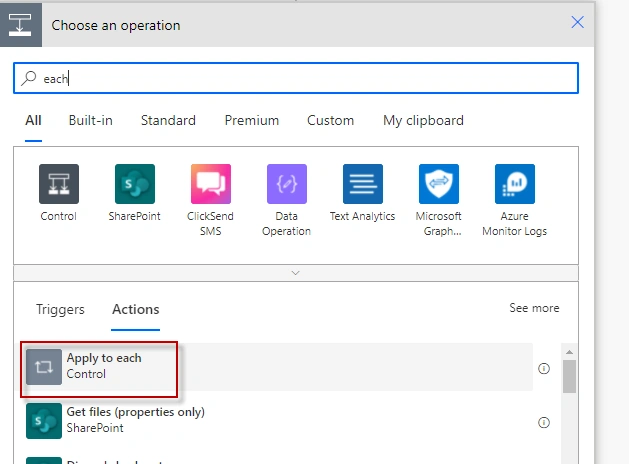
Now select the ‘Body from Parse JSON’ action item.
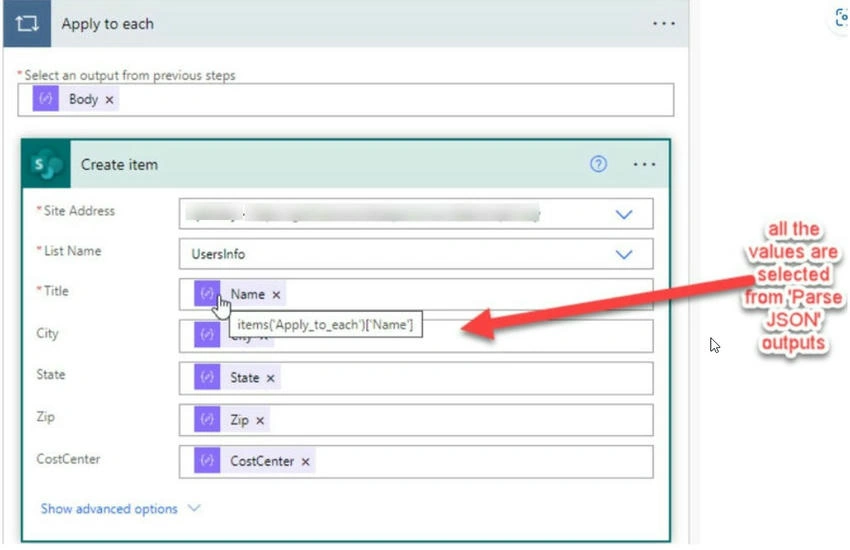
Step 15. Inside, apply to each, add a SharePoint list, and create the item.
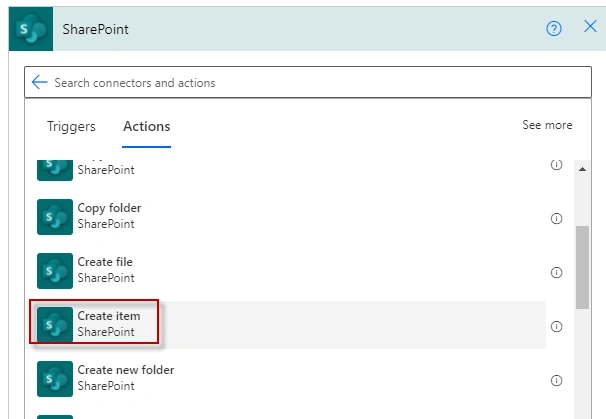
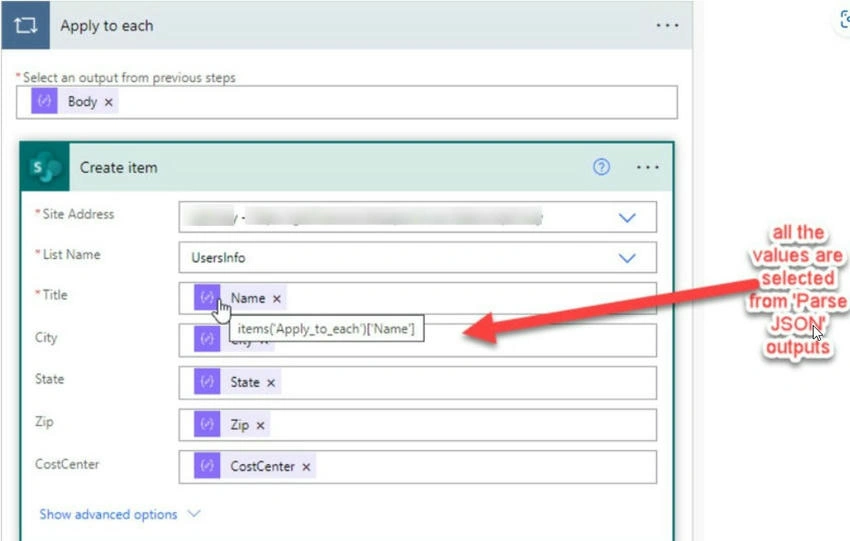
Configure the Site Address, the ‘List Name’, and the rest of the field values from the ‘Parse JSON’ dynamic output values. Please refer to the screen capture.
Validation
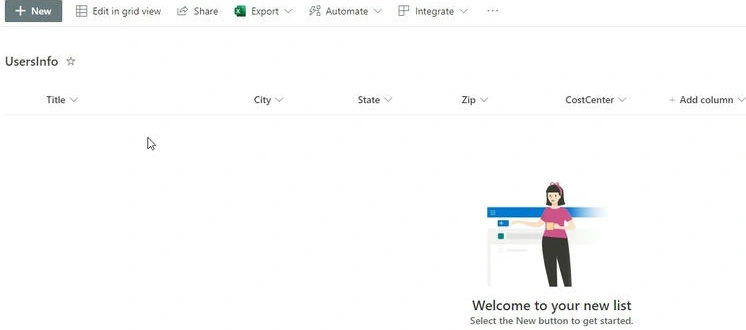
Before the run, I have no items on the list.
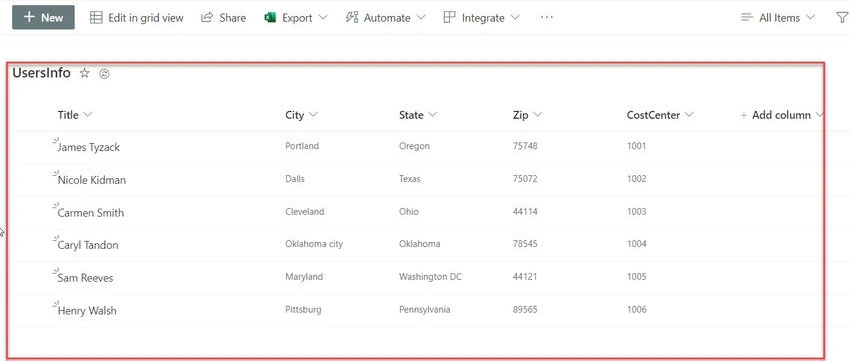
After the run, the items from the CSV are created in the SPO list.
Possible Errors
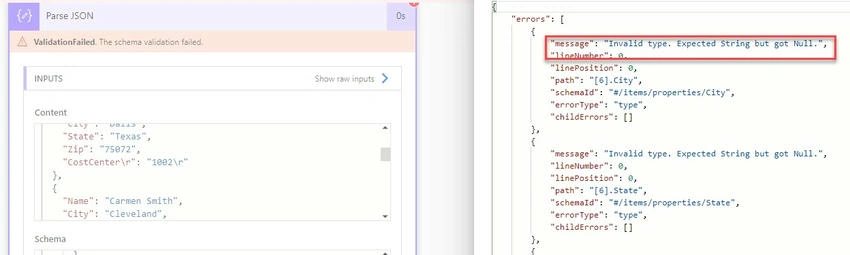
Error in Parse JSON action: Invalid Type, expected string but got null.
Reason
This is due to, in some cases, in the CSV file, the last column has an empty value. There are two ways to fix it. Edit the CSV file using Notepad and delete the last empty line. The instructions are mentioned in the below link.
https://www.c-sharpcorner.com/blogs/invalid-type-expected-string-but-got-null-parse-json-error
The other way to fix this is updating the schema type in the parse JSON action by adding the type ‘null’.
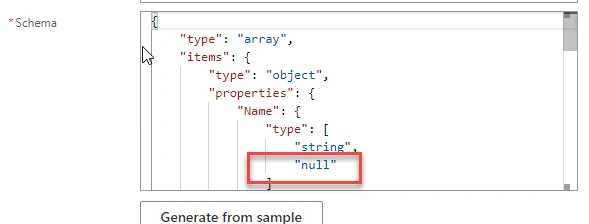
By updating this schema, we are telling the parsed JSON action that expects null values and takes action accordingly. But please note that after adding a null schema, an empty item in the SharePoint list gets created for the final item.
Conclusion
Thus, in this article, we have seen how to parse the CSV data uploaded into the SharePoint document library and parse the CSV data and create it in the SPO list. If you get stuck, you can refer to the attached flow template and check for issues.
References
Join the conversation! Your thoughts help the community grow.