
Introduction
In this article you will learn how to make a passport-sized photo in Photoshop.
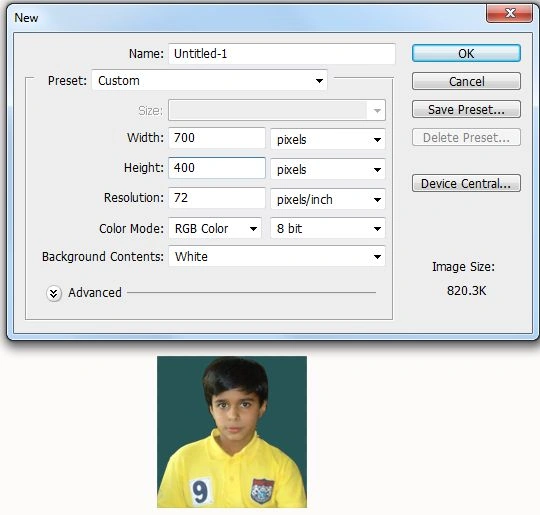
Initial image: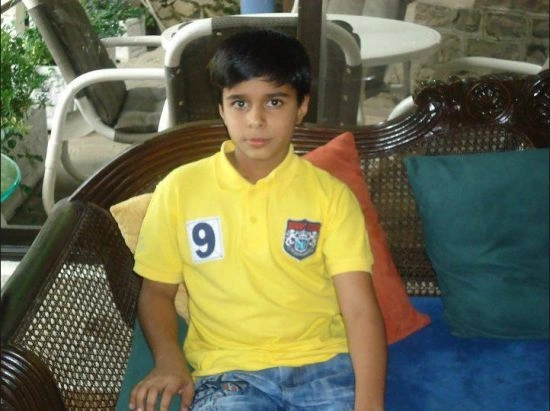
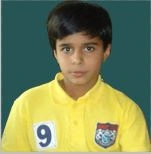
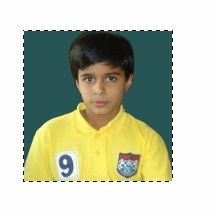
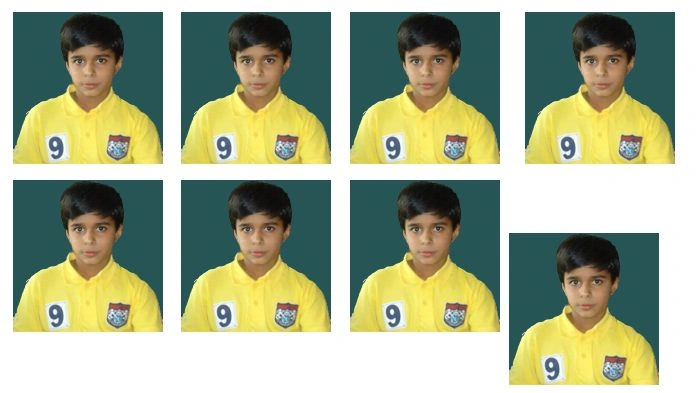
Final image:
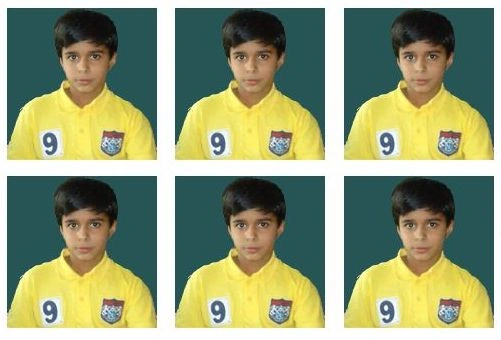
First of all open Photoshop then click on "File" in the option bar then click "Open" then select the image.
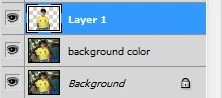
If your layer box is hidden then click "Window" then select "Layer"; the shortcut key of the keyboard is "F7".
Image layer
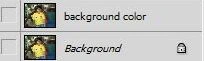
Create a duplicate layer by right-clicking on the layer then select duplicate layer / Short cut key "Ctrl+J" / click on "Layer" in the Menu bar then select "Duplicate layer". The name will be "Background copy"; you can change this name. Just double-click on the background copy, you can then write anything for the name. I am using the name "background color".
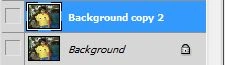
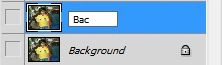
Layer name change:
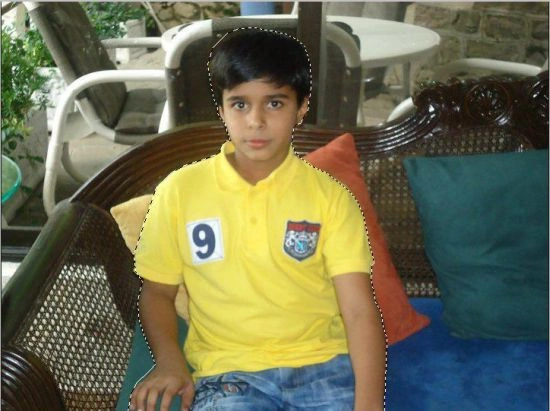
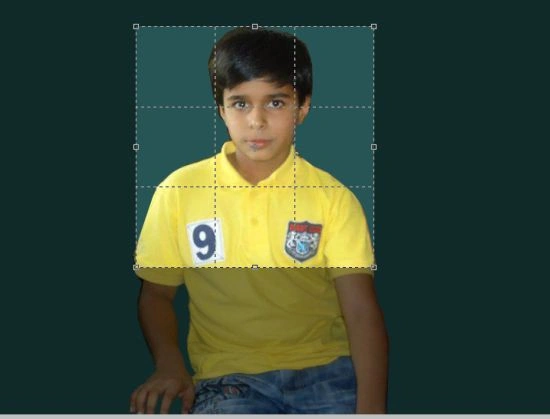
Select "Lasso Tool" in the Tool Panel and select the image then copy the image; the short cut is "Ctrl+C".
Prabu ElavarasanPosted Jun 28, 2017, 4:49 AM
For better image quality set the Resolution as 300
Santhakumar MunuswamyPosted Jul 8, 2015, 3:42 PM
Thanks for sharing
Anubhav ChaudharyPosted Apr 4, 2013, 11:23 PM
Nice Article