

Introduction
PathListBox, is a control added to Expression Blend 4. In this article we will see how it is helpful.
Creating Silverlight Project
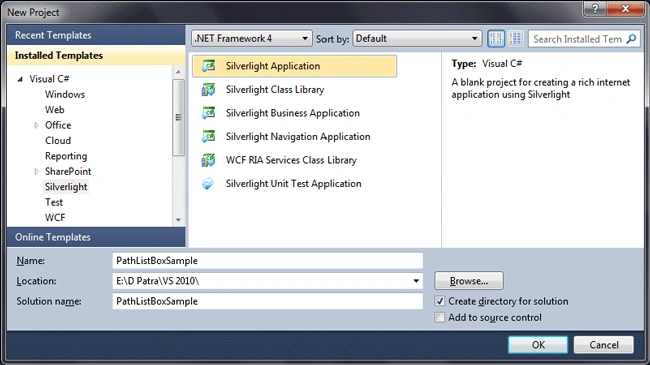
Fire up Visual Studio 2010 and create a new Silverlight Application Project. Name it as PathListBoxSample.
Let's open the Application in Blend 4, where we will design the page.
Now if you explore the controls in Assets, you can find the following controls related to PathListBox, such as PathListBoxItem and Pathpanel.
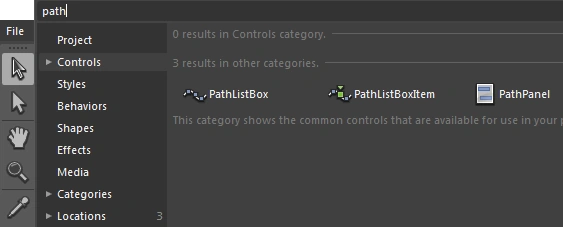
We will add one Path List Box to the grid.
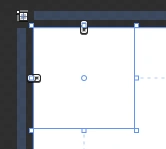
Don't worry about it's position at all, because it takes the position where the target path is.
So let's draw a path.

I am pretty bad at drawing, let's use the above path for the PathListBox.
Go to the properties pane of the PathListBox and find the property called Layout Paths.
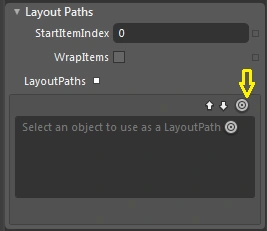
As highlighted in above image, click there to select a path from the designer, to be part of the PathListBox control.
You can use multiple paths as part of PathListBox.
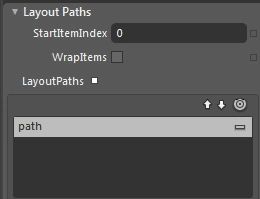
The above image shows the addition of a single path.
If you go behind the XAML code, you will find the following.

Now let's have sample data that would be bound to the PathListBox.
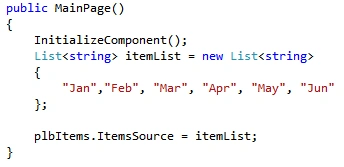
Let's run the application and see how PathListBox is displayed with data.
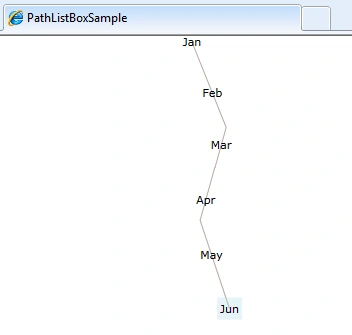
Looks great.
We have still the selection events and all as there with normal list box.
Hope this article helps.
Join the conversation! Your thoughts help the community grow.