

This article is going to explain how to create a pdf viewer inside the Android application using Xamarin forms in Visual studio and here, I am using the latest version Visual Studio 2017.
Step 1
Create a project in Visual Studio which has Xamarin installed.
To create the project, open Visual Studio and select File -> New -> Project then you can see a popup and select template as shown below.
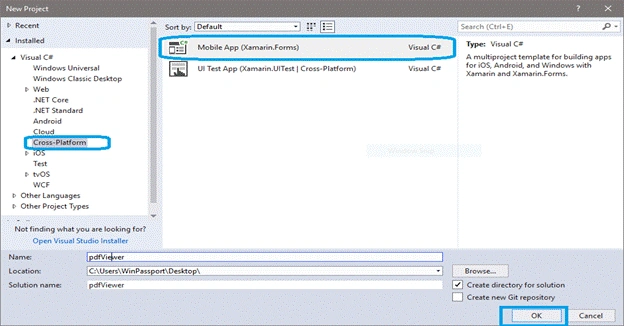
As you can see, I have selected cross-platform Xamarin forms and I have given a name as pdf viewer. After clicking the ok button you can see one more popup and select that as in the following figure.
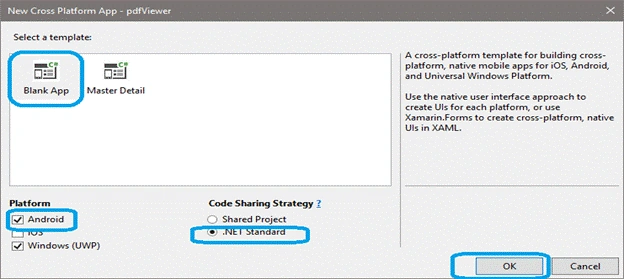
After clicking ok, you have successfully created a solution which contains portable project (pdfViewer) and android project (pdfViewer.android or pdfViewer.Droid).
Step 2
Now, design a page in portable project (pdfViewer) using xaml, for that you can see by default one page has been created; that is MainPage.xaml. Open that and add some labels and buttons as given in the below code.
- <?xml version="1.0" encoding="utf-8" ?>
- <ContentPage xmlns="http://xamarin.com/schemas/2014/forms"
- xmlns:x="http://schemas.microsoft.com/winfx/2009/xaml"
- xmlns:local="clr-namespace:pdfViewer"
- x:Class="pdfViewer.MainPage">
- <StackLayout BackgroundColor="White" >
- <Label Text="Select a pdf file" TextColor="Black" />
- <StackLayout x:Name="MainStack" >
- <Grid>
- <Grid.RowDefinitions>
- <RowDefinition Height="*"/>
- </Grid.RowDefinitions>
- <Grid.ColumnDefinitions>
- <ColumnDefinition Width="80" />
- <ColumnDefinition Width="*" />
- </Grid.ColumnDefinitions>
- <Button Text="Browse" HeightRequest="40" TextColor="Black" WidthRequest="80" Grid.Column="0" Clicked="btnBrowse"/>
- <Label Grid.Column="1" x:Name="lblPdfName" TextColor="Blue" VerticalTextAlignment="End"/>
- </Grid>
- </StackLayout>
- </StackLayout>
- </ContentPage>
Step 3
Now that we have designed a part of a page we have to add a pdf viewer. For this, download some support files from here
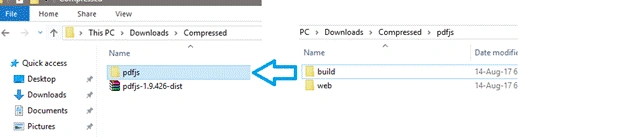
And unzip that, now you can see two folders, build and web. Create one folder and give a name as pdfjs and copy those two folders into this pdfjs folder as shown in the below figure.
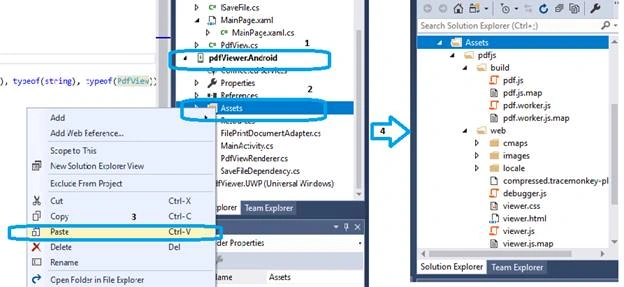
After that copy this pdfjs folder into the Android project (pdfViewer.android or pdfViewer.Droid) -> Assets Folder as shown in the below figure.
Step 4
Let’s start writing functionality, for this create one class in the Android project (pdfViewer.android or pdfViewer.Droid) by right-clicking this project. Add a class and give a name as PdfViewRenderer and make this class public and add the following namespaces.
- using System.ComponentModel;
- using Android.Print;
- using Android.Webkit;
- using pdfViewer.Droid;
- using pdfViewer;
- using Xamarin.Forms;
- using Xamarin.Forms.Platform.Android;
- using WebView = Xamarin.Forms.WebView;
After that, inherit PdfViewRenderer class from WebViewRenderer Android platform class as shown below
- public class PdfViewRenderer: WebViewRenderer
- {
- }
And we have to write functionality for pdf view inside this class, before that we have to create a property in the portable project (pdfViewer) to access to PdfViewRenderer class, for this create one class in portable project (pdfViewer) and give a name as PdfView and inherit this from WebView and make the class public.
- public class PdfView: WebView
- {
- }
And create one bindable property as shown in the below code
- public class PdfView: WebView
- {
- public static readonly BindableProperty UriProperty = BindableProperty.Create(nameof(Uri), typeof(string), typeof(PdfView));
- public string Uri
- {
- get { return (string)GetValue(UriProperty); }
- set { SetValue(UriProperty, value); }
- }
- }
Now, let’s access that PdfViewRenderer class through this above property, using this property you can pass pdf file path.
To give a connection between these two classes from different projects you have to export this PdfView into that PdfViewRenderer by adding the below code above the namespace of pdfViewer.Droid
- [assembly: ExportRenderer(typeof(PdfView), typeof(PdfViewRenderer))]
Now, we can access PdfViewRenderer class and pass the file path to it.
Using this Uri property let's add functionality into PdfViewRenderer class as shown below:
- public class PdfViewRenderer: WebViewRenderer
- {
- internal class PdfWebChromeClient : WebChromeClient
- {
- public override bool OnJsAlert(Android.Webkit.WebView view, string url, string message, JsResult result)
- {
- if (message != "PdfViewer_app_scheme:print")
- {
- return base.OnJsAlert(view, url, message, result);
- }
- using (var printManager = Forms.Context.GetSystemService(Android.Content.Context.PrintService) as PrintManager)
- {
- printManager?.Print(FileName, new FilePrintDocumentAdapter(FileName, Uri), null);
- }
- return true;
- }
- public string Uri { private get; set; }
- public string FileName { private get; set; }
- }
- protected override void OnElementChanged(ElementChangedEventArgs<WebView> e)
- {
- base.OnElementChanged(e);
- if (e.NewElement == null)
- {
- return;
- }
- var pdfView = Element as PdfView;
- if (pdfView == null)
- {
- return;
- }
- if (string.IsNullOrWhiteSpace(pdfView.Uri) == false)
- {
- Control.SetWebChromeClient(new PdfWebChromeClient
- {
- Uri = pdfView.Uri,
- FileName = GetFileNameFromUri(pdfView.Uri)
- });
- }
- Control.Settings.AllowFileAccess = true;
- Control.Settings.AllowUniversalAccessFromFileURLs = true;
- LoadFile(pdfView.Uri);
- }
- private static string GetFileNameFromUri(string uri)
- {
- var lastIndexOf = uri?.LastIndexOf("/", StringComparison.InvariantCultureIgnoreCase);
- return lastIndexOf > 0 ? uri.Substring(lastIndexOf.Value, uri.Length - lastIndexOf.Value) : string.Empty;
- }
- protected override void OnElementPropertyChanged(object sender, PropertyChangedEventArgs e)
- {
- base.OnElementPropertyChanged(sender, e);
- if (e.PropertyName != PdfView.UriProperty.PropertyName)
- {
- return;
- }
- var pdfView = Element as PdfView;
- if (pdfView == null)
- {
- return;
- }
- if (string.IsNullOrWhiteSpace(pdfView.Uri) == false)
- {
- Control.SetWebChromeClient(new PdfWebChromeClient
- {
- Uri = pdfView.Uri,
- FileName = GetFileNameFromUri(pdfView.Uri)
- });
- }
- LoadFile(pdfView.Uri);
- }
- private void LoadFile(string uri)
- {
- if (string.IsNullOrWhiteSpace(uri))
- {
- return;
- }
- Control.LoadUrl($"file:///android_asset/pdfjs/web/viewer.html?file=file://{uri}");
- }
- }
Create one more class for printing and give name as FilePrintDocumentAdapter and inhert this class from PrintDocumentAdapter and add functionality into it as shown below:
- using System;
- using Android.Print;
- using Java.IO;
- namespace pdfViewer.Droid
- {
- public class FilePrintDocumentAdapter : PrintDocumentAdapter
- {
- private readonly string _fileName;
- private readonly string _filePath;
- public FilePrintDocumentAdapter(string fileName, string filePath)
- {
- _fileName = fileName;
- _filePath = filePath;
- }
- #region implemented abstract members of PrintDocumentAdapter
- public override void OnLayout(PrintAttributes oldAttributes, PrintAttributes newAttributes, Android.OS.CancellationSignal cancellationSignal, LayoutResultCallback callback, Android.OS.Bundle extras)
- {
- if (cancellationSignal.IsCanceled)
- {
- callback.OnLayoutCancelled();
- return;
- }
- callback.OnLayoutFinished(new PrintDocumentInfo.Builder(_fileName)
- .SetContentType(PrintContentType.Document)
- .Build(), true);
- }
- public override void OnWrite(PageRange[] pages, Android.OS.ParcelFileDescriptor destination, Android.OS.CancellationSignal cancellationSignal, WriteResultCallback callback)
- {
- try
- {
- using (InputStream input = new FileInputStream(_filePath))
- {
- using (OutputStream output = new FileOutputStream(destination.FileDescriptor))
- {
- var buf = new byte[1024];
- int bytesRead;
- while ((bytesRead = input.Read(buf)) > 0)
- {
- output.Write(buf, 0, bytesRead);
- }
- }
- }
- callback.OnWriteFinished(new[] { PageRange.AllPages });
- }
- catch (FileNotFoundException fileNotFoundException)
- {
- System.Diagnostics.Debug.WriteLine(fileNotFoundException);
- }
- catch (Exception exception)
- {
- System.Diagnostics.Debug.WriteLine(exception);
- }
- }
- #endregion
- }
- }
Step 5
Now the pdf viewer is almost ready. Let’s see how to use this in our MainPage.xaml which we have designed. First call this pdf viewer inside this page, for this first add the reference in the above xaml page.
- xmlns:local="clr-namespace:pdfViewer"
I think we have already added this, but if not add it, then add the below lines after MainStack:
- <StackLayout x:Name="pdfStack">
- <local:PdfView x:Name="PdfDocView" HorizontalOptions="FillAndExpand" VerticalOptions="FillAndExpand" />
- </StackLayout>
So the full design code looks like below:
- <?xml version="1.0" encoding="utf-8" ?>
- <ContentPage xmlns="http://xamarin.com/schemas/2014/forms"
- xmlns:x="http://schemas.microsoft.com/winfx/2009/xaml"
- xmlns:local="clr-namespace:pdfViewer"
- x:Class="pdfViewer.MainPage">
- <StackLayout BackgroundColor="White" >
- <Label Text="Select a pdf file" TextColor="Black" />
- <StackLayout x:Name="MainStack" >
- <Grid>
- <Grid.RowDefinitions>
- <RowDefinition Height="*"/>
- </Grid.RowDefinitions>
- <Grid.ColumnDefinitions>
- <ColumnDefinition Width="80" />
- <ColumnDefinition Width="*" />
- </Grid.ColumnDefinitions>
- <Button Text="Browse" HeightRequest="40" TextColor="Black" WidthRequest="80" Grid.Column="0" Clicked="btnBrowse"/>
- <Label Grid.Column="1" x:Name="lblPdfName" TextColor="Blue" VerticalTextAlignment="End"/>
- </Grid>
- </StackLayout>
- <StackLayout x:Name="pdfStack">
- <local:PdfView x:Name="PdfDocView" HorizontalOptions="FillAndExpand" VerticalOptions="FillAndExpand" />
- </StackLayout>
- </StackLayout>
- </ContentPage>
So far we have added a pdf viewer, now let’s call pdf file from button. Before this we need to install one plug in for selecting a file so right click in solution and select Manage NuGet Packages for solution and search for File Picker and install as shown in fig.
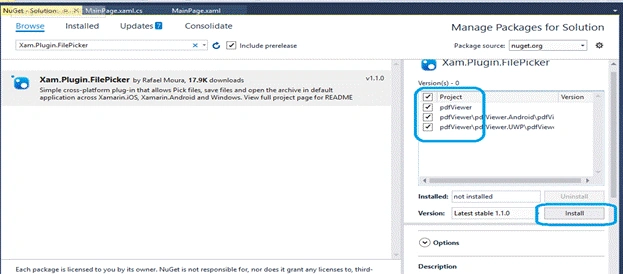
After installation success, just write the following code to pick a file from the device in button click
- private void btnBrowse(object sender, EventArgs args)
- {
- FileData filedata = await CrossFilePicker.Current.PickFile();
- lblPdfName.Text = filedata.FileName;
- }
But I don’t know from this if I will be able to get file path, we can get only the name and file bytes, so we can create file in device with our own path and we can give that path to pdf viewer path, for this let’s create a dependency service . Create one interface in portable project (pdfViewer) for getting the path as shown below.
- using System.Threading.Tasks;
- namespace pdfViewer
- {
- public interface ISaveFile
- {
- Task<string> SaveFile(string filename, byte[] bytes);
- }
- }
Create one dependency class and inherit that from the above interface in pdfViewer.Droid project for creating a file and returning that path back.
- using System.IO;
- using System.Threading.Tasks;
- using pdfViewer.Droid;
- [assembly: Xamarin.Forms.Dependency(typeof(SaveFileDependency))]
- namespace pdfViewer.Droid
- {
- public class SaveFileDependency:ISaveFile
- {
- public async Task<string> SaveFile(string filename, byte[] bytes)
- {
- var documentsPath = System.Environment.GetFolderPath(System.Environment.SpecialFolder.MyDocuments);
- var filePath = Path.Combine(documentsPath, filename);
- File.WriteAllBytes(filePath, bytes);
- return filePath;
- }
- }
- }
So, the dependency service is ready, next we can call this and get the path from this. After that we can assign this path to a pdf viewer, so rewrite the button code as shown.
- private async void btnBrowse(object sender, EventArgs args)
- {
- FileData filedata = await CrossFilePicker.Current.PickFile();
- lblPdfName.Text = filedata.FileName;
- if (filedata != null)
- {
- string URL = await DependencyService.Get<ISaveFile>().SaveFile(filedata.FileName, filedata.DataArray);
- PdfDocView.Uri = URL;
- }
- }
Finally we have done it, but one more thing I have forgotten is that you have to give height for this pdf viewer. For this just override the OnSizeAllocated function as shown below
- protected override void OnSizeAllocated(double width, double height)
- {
- base.OnSizeAllocated(width, height);
- if (this.Width > 0)
- {
- pdfStack.HeightRequest = this.Height- MainStack.Height;
- }
- }

The output will be as follows,
sakshi suriPosted Mar 5, 2020, 4:50 AM
Hi can you please send your code as my code is giving some error. My email address is [email protected]
Vinayak KPosted Aug 29, 2019, 4:42 AM
Hi Rafnas, Thanks for sharing your knowledge. I tried with the same steps but facing some issues while implementing so it will be a great help if you can share the working code at [email protected].
teofilo chambillaPosted Jul 14, 2019, 2:31 PM
Super gooddd thanksssssssssss
Bernardo BragaPosted Dec 13, 2018, 2:14 PM
I'm having a problem with this part, it's saying that i need to make that a async. private void btnBrowse(object sender, EventArgs args) { FileData filedata = await CrossFilePicker.Current.PickFile(); lblPdfName.Text = filedata.FileName; }
arif fikriPosted Dec 6, 2018, 9:58 PM
Hi, can you share the full code? thanks
Anas APosted Aug 10, 2018, 1:21 PM
Supper...........
Gabriel CemalPosted Aug 1, 2018, 11:21 AM
Hi Rafnas! This's my e-mail [email protected], I can,t send you a message, please I need a guide
Gabriel CemalPosted Jul 27, 2018, 12:36 PM
Hi, can you share code? I wanna compare my code, I had troubles when I set the local:PdfView in the Xaml
Aditya RayamajhiPosted Jul 3, 2018, 1:01 PM
Thank you so much. Happy coding
faysal khaPosted Jun 27, 2018, 6:54 AM
Can you please share code of this application on email address [email protected]
rameshkumarp pPosted Jun 9, 2018, 5:12 AM
Hi Rafnas. Your Pieces of information is helping much for Xamarin developers. Can you please let me know how to print a small POS receipt to receipt printer using Xamarin Android/UWP applications with visual studio.?. Suggest how can we achieve this local USB Printer from Mobile device?.
Addison ErvisPosted May 8, 2018, 8:55 AM
Did you try ZetPDF.com? Worked excellent for me.