

Introduction
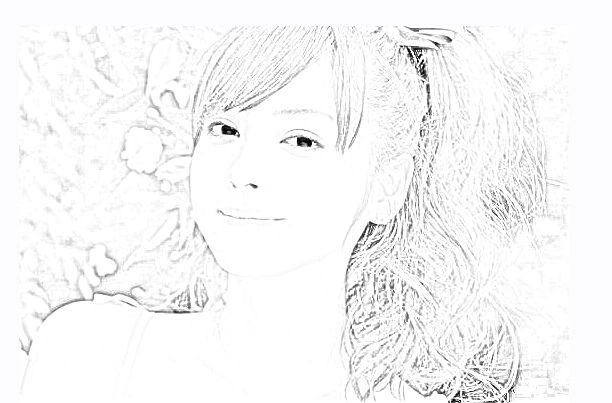
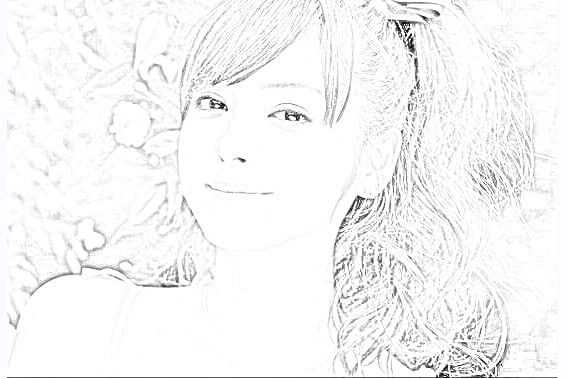
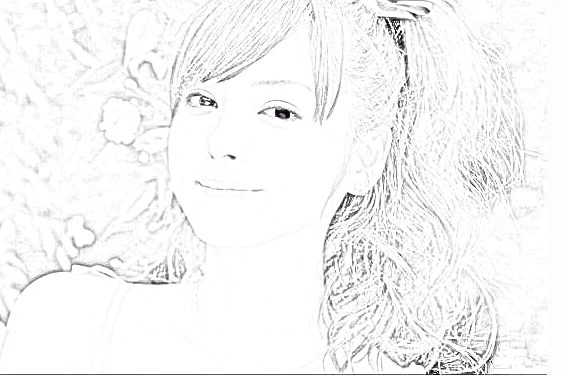
In this article you will learn how to create a pencil sketch image in Photoshop CS5.
Previous Image

Final image
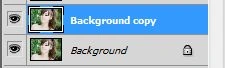
Open your Photoshop > click on the "File" in the Menu Bar and open an image then create a duplicate layer; do that by right-clicking on the layer and selecting "Duplicate layer".
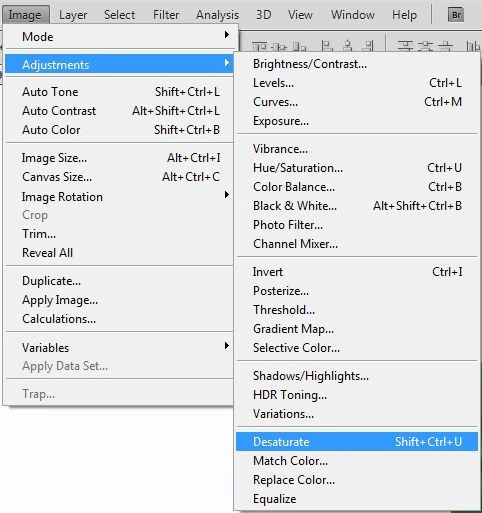
Then click on "Image" in the Menu Bar option then select "Adjustments" > "Desaturate".
You will find this type:

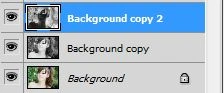
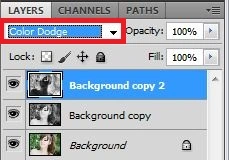
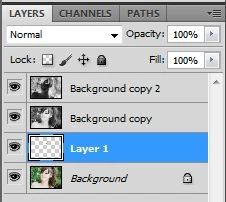
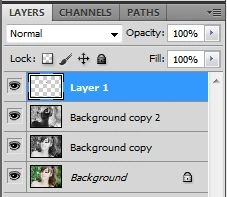
The Layer will show this type:

Create "Duplicate layer":
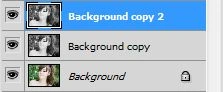
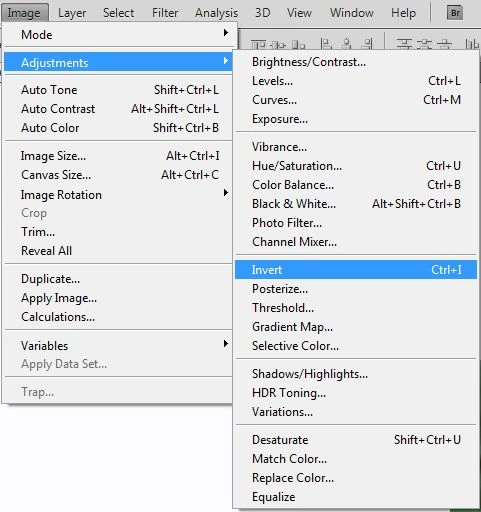
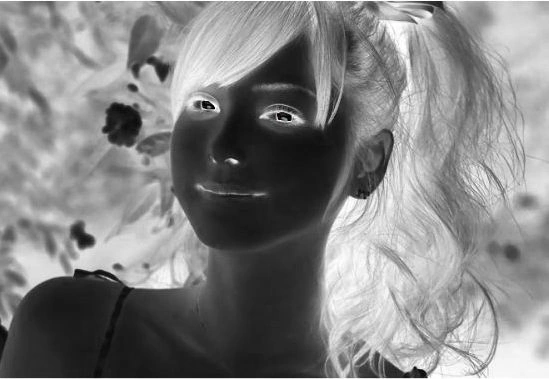
Then click on "Image" in the Menu Bar then select "Adjustments" > "Invert".
Santhakumar MunuswamyPosted Jul 8, 2015, 3:41 PM
Thanks for sharing
Anubhav ChaudharyPosted Apr 11, 2013, 3:34 AM
Nice Article Sudhir