

In my previous article, we learned how to set-up Visual Studio Team Services. In this session, we will learn how to assign roles and permission to individuals or a group in Visual Studio Team Services. Also, we will check each built-in group and permission.
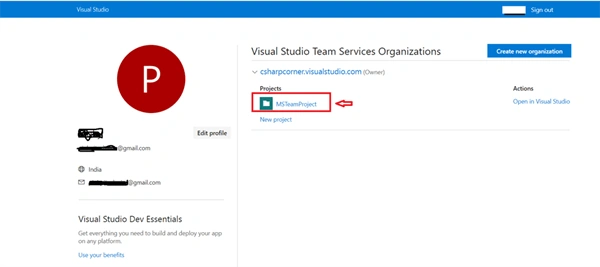
In Visual Studio Team Services, we can give permission to an individual user or a group of users. After you have logged in to VSTS, select the Project in which you want to set permission. Here, I am selecting 'MSTeamProject'.
Once you are in, click on the Settings and navigate to Security.

You can see the built-in collection-level groups which have predefined permissions and access, created by VSTS.
 Let's create a Group in Visual Studio. For that, click on 'Create group' button.

Enter the Group name that you want to create and click on 'Create Group'.

Once you create the group, VSTS assigns the default built-in collection 'Project Collection Valid users'.That means the role and permissions for the 'Dev Team' Group will be inherited from the 'Project Collection Valid users'.

You can see in the above screen that the Group 'Dev Team' has predefined Permissions that are inherited from the Project Collection's Valid Users. As an admin, you can manage permissions and for that, click the group name you just created and change the permission levels by just clicking on 'Allow', 'Not Set', or 'Deny'.
In Visual Studio Team Services, we can give permission to an individual user or a group of users. After you have logged in to VSTS, select the Project in which you want to set permission. Here, I am selecting 'MSTeamProject'.
Once you are in, click on the Settings and navigate to Security.
You can see the built-in collection-level groups which have predefined permissions and access, created by VSTS.
Enter the Group name that you want to create and click on 'Create Group'.
Once you create the group, VSTS assigns the default built-in collection 'Project Collection Valid users'.That means the role and permissions for the 'Dev Team' Group will be inherited from the 'Project Collection Valid users'.
You can see in the above screen that the Group 'Dev Team' has predefined Permissions that are inherited from the Project Collection's Valid Users. As an admin, you can manage permissions and for that, click the group name you just created and change the permission levels by just clicking on 'Allow', 'Not Set', or 'Deny'.


Once you set the permission, click on the Save Changes button to apply the settings.
You can edit the group details and permissions anytime as per the requirements of your projects or add team members or groups in the newly created group.


In my next article, we will see how to add users to an administrator role, how to add users to an account, how to add users to a team project or a team, and how to make a user a team admin.
Hope you like the article. Please leave your feedback, comments, and suggestions in the comment box.
Viknaraj ManogararajahPosted Aug 6, 2018, 11:40 AM
nice article...
balakrishna maddhurPosted Aug 6, 2018, 4:36 AM
Thanks for sharing your knowledge sir.It will helpful to us.
maha lakshmiPosted Aug 6, 2018, 2:44 AM
Nice article
Praveen KumarPosted Aug 6, 2018, 1:04 AM
Awesome! I have a question related to VSTS. How can I get list of all files path between two changes sets using PowerShell or any VSTS API?
Ravishankar NPosted Aug 5, 2018, 10:57 AM
Nice Article. Very useful