In this example, we will personalize the settings for a mobile web application based on the user logged into the site. Personalization is a very useful approach to provide a satisfying user experience. Particularly in Mobile applications where the small size of the device is often a hindrance in data input, the user can be more comfortable when the amount of data entry is reduced when some commonly used settings are persisted in a secure manner.
Our sample consists of a Stock Quote Mobile Applications. Users will be able to access the live stock quotes for symbols selected by them. The user can save his selections of stock quotes so that when the user logs on to the web site, he/she is directly displayed the stock quotes of his/her interest. We will use Forms Authentication to authenticate and identify the user. The user identification information and the personalized symbol selections are stored in an MS Access database for this sample. You can easily use another datastore such as SQL Server or XML as per your requirements.
Details
The Database
We will use an MS Access database to store our user values and their stock selections.
Our database db1.mdb has two tables-one for storing the user identification information and the other for storing the user's preferred stock symbols. The design of the tables is shown in the structures below.
TblUser
The tblUser contains fields for the username and the password to authenticate access to the mobile web site.
Sample Data
| User ID |
Password |
| User1 |
Pwd1 |
| User2 |
Pwd2 |
TblStock
| User ID |
Text |
| StockSymbols |
Text |
This table stores the users' preferred stock symbols in comma-separated format in the StockSymbols field for each user.
Sample Data
| User ID |
Stock Symbols |
| User1 |
MSFT |
| User2 |
CSCO,NT,XRX |
For production systems, you will need to add security to protect the passwords from security attacks and hackers.
Create the Mobile Web Application
We will create a Visual C# Mobile Web Application. Complete Code Listings are provided at the bottom of the article for users not on Visual Studio.Net
Security Settings
Make the following changes in the web.config file to configure Forms Authentication for the Mobile Application.
<authentication mode="Forms" >
<forms loginUrl="login.aspx" name=".ASPXCOOKIEAUTH
" path="/">
</forms>
</authentication>
<authorization>
<deny users="?" />
</authorization>
Web.Config authentication and authorization sections.
The above changes in the configuration file set the authentication mode to Forms and specify that unauthorized users will be denied access to the mobile web site.
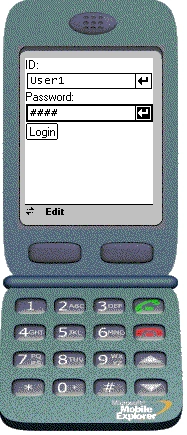
We will now create the Login.aspx web page which was specified in the web.config settings as the login URL. The web form accepts a user name and password and when the Login button is clicked, the form authenticates the user against the database. If the user requests for a page without authentication, he/she will be displayed the login page. Once the user is authenticated, he/she will be redirected to the originally requested page.
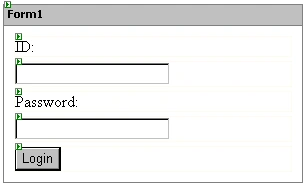
Figure : Layout for login.aspx
Drag and drop an OleDbConnection and create a connection pointing to the Access database. Drag and drop a command object and set the Connection property of the command object to the Connection object just created. Set the CommandText property to the SQL statement shown below:
SELECT COUNT(UserID) AS Expr1 FROM tblUser WHERE (Pwd = ?) AND (UserID = ?)
This command object will be used to validate the user in our sample.
private void btnLogin_Click(object sender, System.EventArgs e)
{
oleDbCommand1.Parameters.Add("Pwd", OleDbType.VarChar,50);
oleDbCommand1.Parameters["Pwd"].Value = txtPwd.Text;
oleDbCommand1.Parameters.Add("Pwd", OleDbType.VarChar,50);
oleDbCommand1.Parameters["UserId"].Value = txtUser.Text;
oleDbConnection1.Open();
int nCount = (int)oleDbCommand1.ExecuteScalar();
oleDbConnection1.Close();
if (nCount ==1 )
MobileFormsAuthentication.RedirectFromLoginPage(TextBox1.Text, true);
}
Code Snippet : Event handler for the Click event of the Login Button
Mobile Web Page
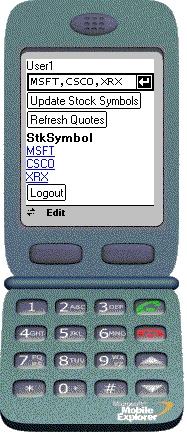
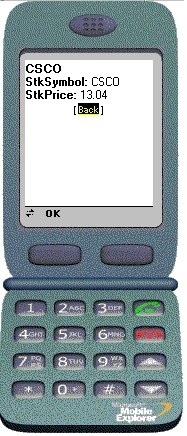
Our mobile application will consists of only one mobile forms page. The authenticated user's name and the stock symbols specified by the user are displayed. Live Stock Quotes for the selection are displayed in a tabular layout. The user can modify his stock preference settings.
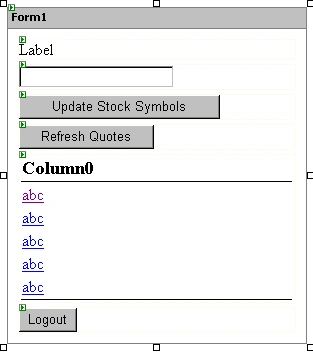
Figure : Layout for default.aspx
| Default.aspx Layout Contents |
| Label-Displays User Name |
| TextBox-Displays the User's stock preference settings |
| Button-Update Stock Symbols |
| Button-Refresh Quotes |
| ObjectList-Displays the stock quotes for the selected symbols |

Join the conversation! Your thoughts help the community grow.