

Introduction
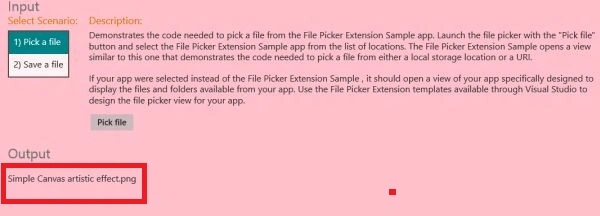
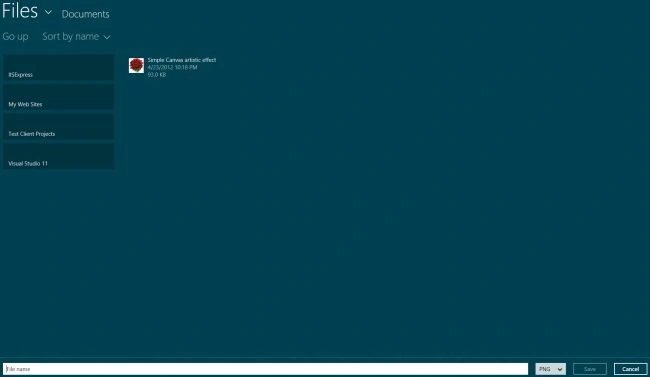
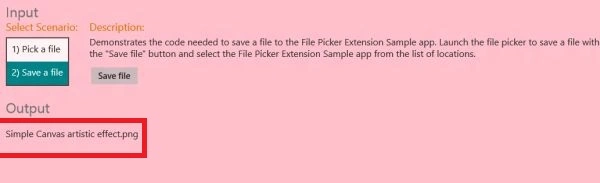
In this article we will show how to pick and save the location of a file in a Windows 8 Metro Style application. Here, I will present an example to explain how to pick a file in our system and after that how to save a location for the selected file.
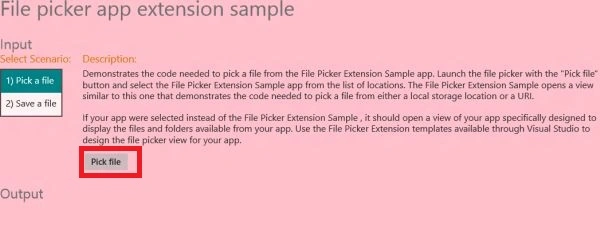
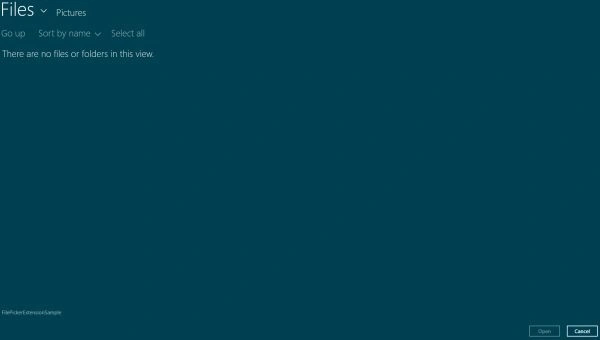
So, these points are shown in a list box and shows the following output with the help of the given snapshots in these steps as below.
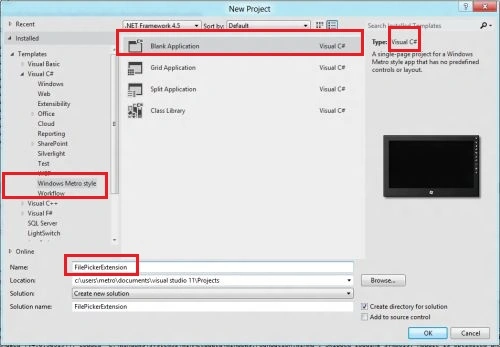
Step 1 : First of all you will create a new Metro Style Application. Let us see the description with images of how you will create it.
- Open Visual Studio 2011
- File -> New -> Project
- Choose Template -> Visual C# ->Metro Style Application
- Rename this Application :
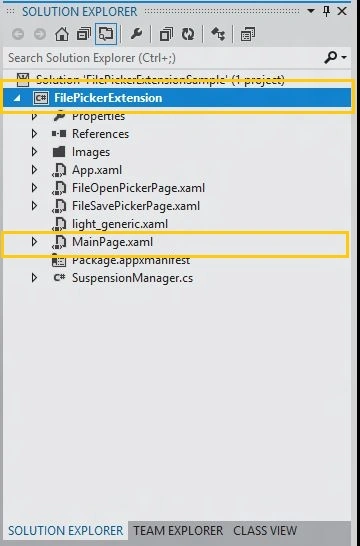
Step 2 : In the Solution Explorer there are two files that we will primarily work with; MainPage.xaml and MainPage.xaml.cs files.
Step 3 :
The MainPage.xaml file is as in the following code.
Code : Let us see the code which is given below.
<UserControl x:Class="FilePicker.MainPage"
xmlns="http://schemas.microsoft.com/winfx/2006/xaml/presentation"
xmlns:x="http://schemas.microsoft.com/winfx/2006/xaml"
xmlns:d="http://schemas.microsoft.com/expression/blend/2008"
xmlns:mc="http://schemas.openxmlformats.org/markup-compatibility/2006"
mc:Ignorable="d"
d:DesignHeight="768" d:DesignWidth="1366">
<Grid x:Name="LayoutRoot" Background="Pink">
<!--App Orientation States-->
<VisualStateManager.VisualStateGroups>
<VisualStateGroup x:Name="OrientationStates">
<VisualState x:Name="Full"/>
<VisualState x:Name="Fill">
<Storyboard>
<ObjectAnimationUsingKeyFrames Storyboard.TargetProperty="(FrameworkElement.Margin)" Storyboard.TargetName="ContentRoot">
<DiscreteObjectKeyFrame
KeyTime="0">
<DiscreteObjectKeyFrame.Value>
<Thickness>40,20,40,20</Thickness>
</DiscreteObjectKeyFrame.Value>
</DiscreteObjectKeyFrame>
</ObjectAnimationUsingKeyFrames>
<ObjectAnimationUsingKeyFrames Storyboard.TargetProperty="(StackPanel.Orientation)" Storyboard.TargetName="InputPanel">
<DiscreteObjectKeyFrame KeyTime="0">
<DiscreteObjectKeyFrame.Value>
<Orientation>Horizontal</Orientation>
</DiscreteObjectKeyFrame.Value>
</DiscreteObjectKeyFrame>
</ObjectAnimationUsingKeyFrames>
<ObjectAnimationUsingKeyFrames Storyboard.TargetProperty="(FrameworkElement.MaxWidth)" Storyboard.TargetName="Description">
<DiscreteObjectKeyFrame KeyTime="0" Value="700">
</DiscreteObjectKeyFrame>
</ObjectAnimationUsingKeyFrames>
</Storyboard>
</VisualState>
<VisualState x:Name="Portrait">
<Storyboard>
<ObjectAnimationUsingKeyFrames Storyboard.TargetProperty="(FrameworkElement.Margin)" Storyboard.TargetName="ContentRoot">
<DiscreteObjectKeyFrame KeyTime="0">
<DiscreteObjectKeyFrame.Value>
<Thickness>40,20,40,20</Thickness>
</DiscreteObjectKeyFrame.Value>
</DiscreteObjectKeyFrame>
</ObjectAnimationUsingKeyFrames>
<ObjectAnimationUsingKeyFrames Storyboard.TargetProperty="(FrameworkElement.MaxWidth)" Storyboard.TargetName="Description">
<DiscreteObjectKeyFrame KeyTime="0" Value="700">
</DiscreteObjectKeyFrame>
</ObjectAnimationUsingKeyFrames>
</Storyboard>
</VisualState>
<VisualState x:Name="Snapped">
<Storyboard>
<ObjectAnimationUsingKeyFrames Storyboard.TargetProperty="(FrameworkElement.Margin)" Storyboard.TargetName="ContentRoot">
<DiscreteObjectKeyFrame KeyTime="0">
<DiscreteObjectKeyFrame.Value>
<Thickness>20,20,20,20</Thickness>
</DiscreteObjectKeyFrame.Value>
</DiscreteObjectKeyFrame>
</ObjectAnimationUsingKeyFrames>
Join the conversation! Your thoughts help the community grow.