

Picture Library Slideshow web part is an out-of –the-box web part which is
used to create a slideshow.
Steps Involved:
- Go to the SharePoint site.
- Go to Site Actions => Edit the Page.
- In the ribbon interface, go to Editing Tools => Insert => Web Part.
- In the Categories, select Media and Content => Picture Library
Slideshow Web Part.
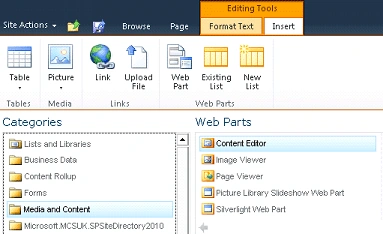
- Click on Add.
- You can configure the web part as shown in the following.
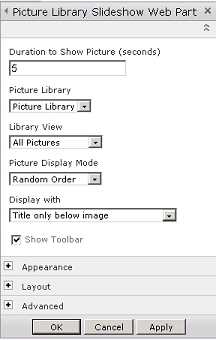
- Duration to Show Picture (seconds)
The amount of seconds before a new picture will appear.
- Picture library
Select the picture library.
- Library view
Select the view.
- Picture Display Mode
Show the pictures in random or sequential order.
- Display with
The pictures can be shown with the title and description.
- Show toolbar
A toolbar can be shown for selecting the next or previous picture or to stop the slideshow.
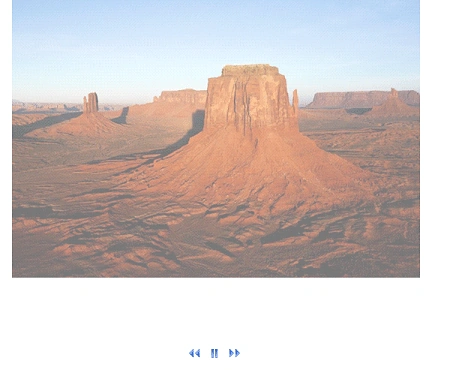
Picture Library Slideshow
kimberly smithPosted Sep 16, 2011, 4:30 PM
Thank you for the article. However, how do I activate the feature (picture library slideshow web part) if it is not offered under Media & Content? Some sites in our company have it offered and some do not. At first I thought it might be a feature, but no. We are all on Foundation 2010. Thank you!