

Introduction
In this article, we are going to explain how to pin Desktop items to the Windows 8 Start Screen. Here's how to pin any item from the Desktop to the Metro Start Screen.
Procedure for Pinning Desktop Items in Windows 8
Step 1
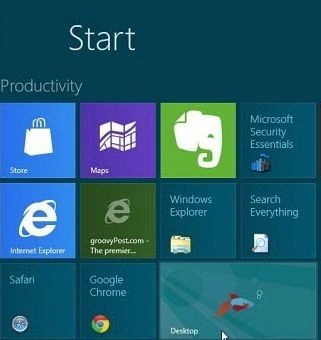
First, we go to the Windows 8 Start Screen and then click on the Desktop tile.
Step 2
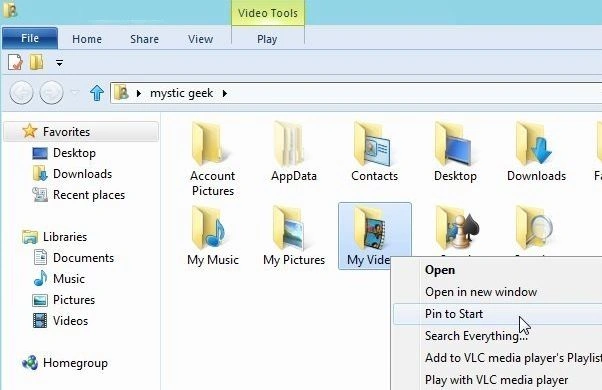
Now select the app we want to see on the Start Screen. Then right-click any app, folder, file or document and select "Pin to Start" from the "Context menu".
Step 3
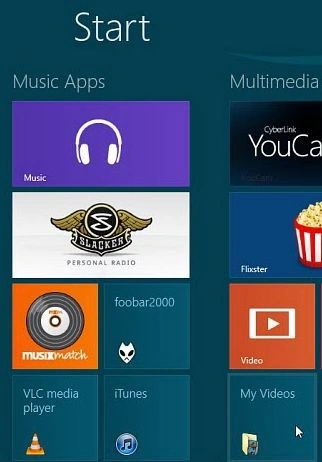
Hit the Windows Key to toggle back to Metro and we'll see the app you just pinned.
Step 4
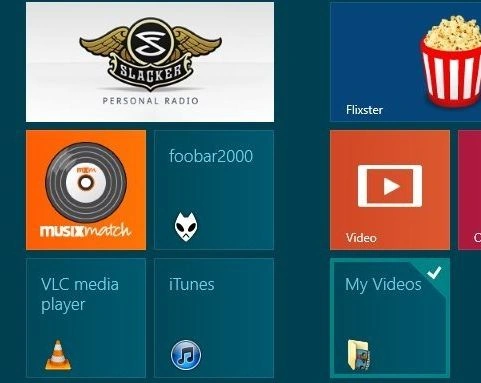
To unpin an item from the Metro Start Screen, right-click on it. Then select "Unpin" from Start on the menu bar that pops up.
Summary
In this article, we learned about Pin Desktop Items to the Windows 8 Start Screen.
Join the conversation! Your thoughts help the community grow.