

This article has been
excerpted from book "Graphics Programming with GDI+".
So far we have been dealing with static image formats, such as BMP. Each of
these formats holds image data for a single picture. Other format – such as GIF,
AVI (Audio Vide Interleaved), and MPEG (Moving Picture Experts Group)- contain
image data that, when played back in quick succession gives the illusion of
movement. These images are called animated images. GIF is one of the common
formats used for animated images. An animated image is a series of images, also
called frames (e.g., see Figure 7.29).
You can create animated images by using graphics tools such as Macromedia
Fireworks or CorelDraw, but GDI+ doesn't support creation of animated images.
When you create animated images, you must specify the order of frames and the
time interval between them.
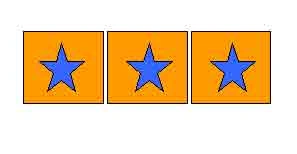
FIGURE 7.29: An animated image with three frames
The GDI+ library provides the ImageAnimator class to deal with animated file
formats using time-based frames. At this point, GDI+ supports only multiframe
GIFs and TIFFs. ImageAnimator has four static methods: Animate, CanAnimate,
StopAnimate, and UpdateFrames.
- The Animate method displays a framed image as an animation. This method takes parameters of type Image and EventHandler. Image is the image you want to animate. The event is triggered when the currently displayed frame is changed.
- The CanAnimate method returns true when an image has time-based frames.
- The StopAnimate method terminates an animation. It takes parameters of type Image and EventHandler.
- The UpdateFrames method will move to the next frame and render it the next time the image is drawn.
Now let's write an application that will play
animated images. We create a Windows application and add a MainMenu control and
two button controls to the form. We also add two menu items: Open File and Exit.
We change the text and names of the menu items and button controls as shown in
Figure 7.30.
We add two variable of type Image and string as follows:
private
Image curImage = null;
private string
curFileName = null;
The Open File menu item allows us to browse images, and the Exit menu items
closes the form. Listing 7.13 gives the code for the click event handlers for
these two menu items.
LISTING 7.13: The Open File and Exit menu item click event handler
private
Image curImage;
private void
OpenFileMenu_Click(object sender, System.EventArgs
e)
{
//Create OpenFileDialog
OpenFileDialog opnDlg =
new OpenFileDialog();
opnDlg.Filter = "Animated Gifs | *.gif;";
//If OK, selected
if (opnDlg.ShowDialog() ==
DialogResult.OK)
{
//Read current selected file name
curFileName = opnDlg.FileName;
}
}
private void
ExitMenu_Click(object sender, System.EventArgs
e)
{
this.Close();
}
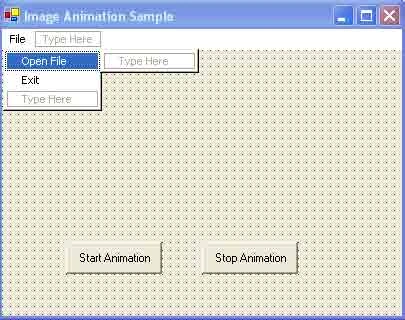
FIGURE 7.30: An image animation example
Now we rename the two buttons Start Animation and Stop Animation, respectively,
and write click event handlers by double-clicking on them. The code for the
StartAnimationBtn event handler is given in Listing 7.14. We create an Image
object by calling FromImage, which takes an image files as its only argument.
Then we use the CanAnimate method to check if the image can be animated. If it
can, we call Animate, which plays the animation.
LISTING 7.14: The StartAnimationBtn click event handler
private void
StartAnimationBtn_Click(object sender, System.EventArgs
e)
{
curImage = Image.FromFile(curFileName);
if (ImageAnimator.CanAnimate(curImage))
{
ImageAnimator.Animate(curImage,new
EventHandler(this.OnFrameChanged));
}
else
MessageBox.Show("Image
doesn't have frames");
}
On the StopAnimationBtn click event handler, we check whether there is an Image
object, and we call StopAnimate to stop the animation as shown in Listing 7.15.
LISTING 7.15: The StopAnimationBtn click event handler
private void
StopAnimationBtn_Click(object sender, System.EventArgs
e)
{
if (curImage !=
null)
{
ImageAnimator.StopAnimate(curImage,new
EventHandler(this.OnFrameChanged));
}
}
Now we add OnPaint and OnFrameChanged methods to the application. The code for
these methods is given in Listing 7.16. In the OnPaint method, we call the
UpdateFrames method of ImageAnimator and then call DrawImage to draw the image.
In the OnFrameChanged method, we repaint the form by calling Invalidate.
LISTING 7.16: The OnPaint and OnFrameChanged methods
protected
override void onPaint(PaintEventArgs
e)
{
if (curImage !=
null)
{
ImageAnimator.UpdateFrames();
e.Graphics.DrawImage(curImage, new
Point(0, 0));
}
}
private void
OnFrameChanged(object o,
EventArgs e)
{
this.Invalidate();
}
Now compile and run the application. You can browse animated images on your
system or download the files from online and select a file. The Start Animation
button will start playing the animation. The Stop Animation button will stop the
animation.
Figure 7.31 shows the first frame of the animation sample provided with this
article (download code from online).
Figure 7.32 shows the second frame of the sample.
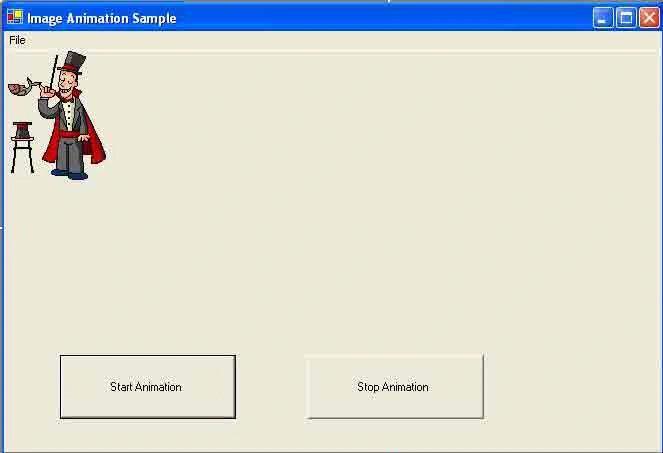
FIGURE 7.31: The first frame of an animated image
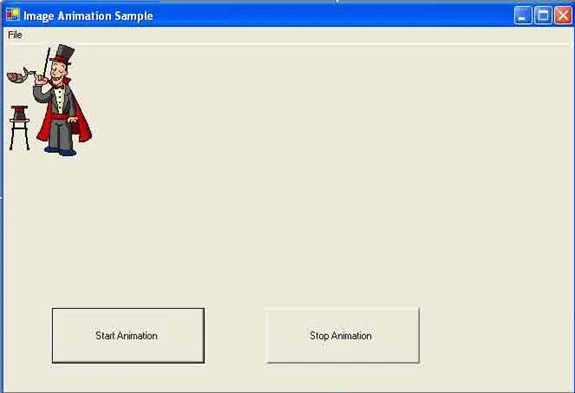
FIGURE 7.32: The second frame of an animated image
Conclusion
Hope the article would have helped you in understanding Playing Animation in GDI+. Read other articles on GDI+ on the website.
 |
This book teaches .NET developers how to work with GDI+ as they develop applications that include graphics, or that interact with monitors or printers. It begins by explaining the difference between GDI and GDI+, and covering the basic concepts of graphics programming in Windows. |
Join the conversation! Your thoughts help the community grow.