

Overview
Xamarin is a development platform that allows us to code native, cross-platform iOS, Android, and Windows Phone apps in C#. This tutorial focuses on playing the audio file and video file. Please ensure that you are aware of C# class and variables declaration and passing methods.
Requirements
- Visual Studio RC 2017
- Xamarin Studio Packages should be installed
- Self-confidence with creativity
The following steps should be followed.
Step 1
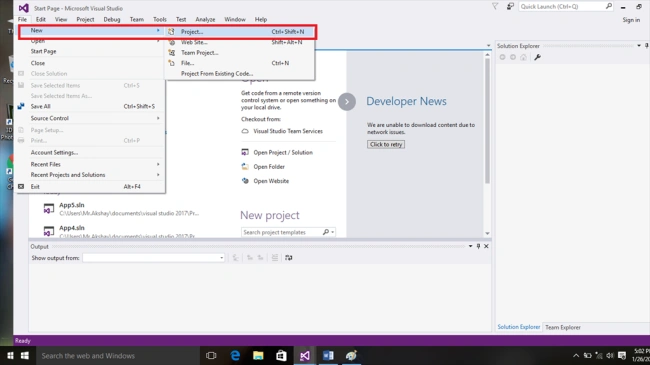
Launch the Visual Studio RC 2017 and go to File >> New >> Project.
Step 2
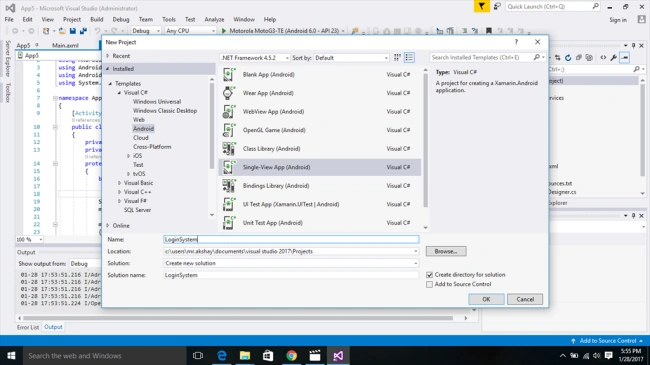
Then, you need to select Android template from the list, name the application, and press to create the Project and select where to save the project.
Step 3
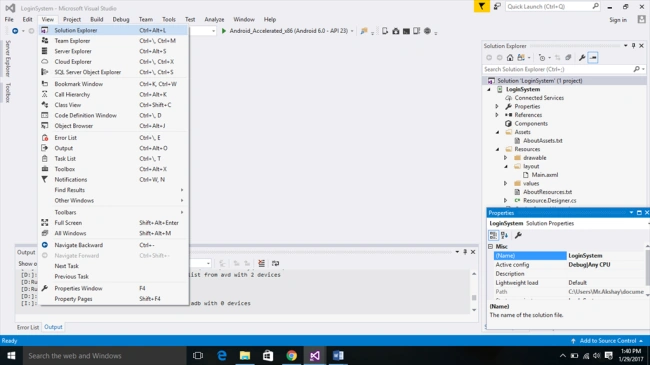
Here we go. Our new project has been created and we need to navigate to Designer Page. To open the designer page, you need to open Solution Explorer View >>Solution Explorer.
Step 4
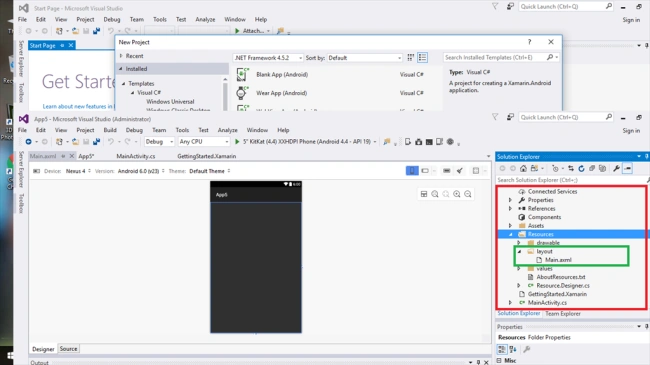
Then, to open Designer Page, we need to select the following, Solution Explorer >> Resources >> Layout >> Main.Xaml.
Step 5
Add the following code in Main.Xaml Source Page. This main.xaml file is our designer page and here, our Intent Action will be present available. Need to drag and drop the button, and add the VideoView from toolbox.
- <?xml version="1.0" encoding="utf-8"?>
- <LinearLayout xmlns:android="http://schemas.android.com/apk/res/android"
- android:orientation="vertical"
- android:layout_width="match_parent"
- android:layout_height="match_parent">
- <Button
- android:id="@+id/MyButton"
- android:layout_width="match_parent"
- android:layout_height="wrap_content"
- android:text="Play This Music"
- android:background="blue" />
- <VideoView
- android:layout_width="match_parent"
- android:layout_height="wrap_content"
- android:id="@+id/videoView1"
- android:background=""
- android:theme="" />
- </LinearLayout>
Priya PPosted Jul 4, 2022, 2:08 PM
How to play more than one video one after another in xamarin forms c#