

PnP React Controls
Patterns and Practices (PnP) provides a list of reusable React controls to developers for building solutions such as webparts and extensions using SharePoint Framework.
Refer to this link to get the list of React controls for SPFx.
You will see how to use PnP Date Time Picker control in SPFx webpart.
PnP Date Time Picker Control
This control allows you to select dates from a calendar and optionally the time of day using dropdown controls. You can configure the control to use a 12 or 24-hour clock. Refer to this link for more details.
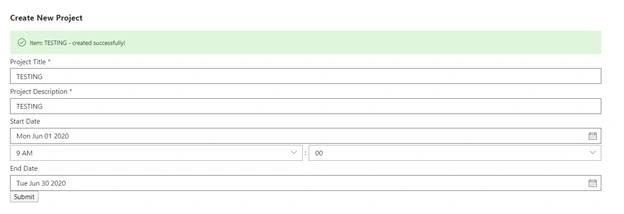
In this article, you will see how to perform the following tasks,
- Prerequisites
- Create SPFx solution
- Implement Date Time Picker Control solution
- Deploy the solution
- Test the webpart
Prerequisites
Create SPFx solution
Open Node.js command prompt.
Create a new folder.
>md spfx-pnpreact-datetimepicker
Navigate to the folder.
> cd spfx-pnpreact-datetimepicker
Execute the following command to create SPFx webpart.
>yo @microsoft/sharepoint
Enter all the required details to create a new solution. Yeoman generator will perform the scaffolding process and once it is completed, lock down the version of project dependencies by executing the following command.
>npm shrinkwrap
Execute the following command to open the solution in the code editor.
>code .
Implement Date Time Picker Control solution
Execute the following command to install the PnP React Controls NPM package.
>npm install @pnp/spfx-controls-react –save
Execute the following command to install the pnp sp library.
>npm install @pnp/sp –save
Create a new ts file named as “IDatetimepickercontrolState.ts” under Components folder (src\webparts\datetimepickercontrol\components\IDatetimepickercontrolState.ts) and update the code as shown below.
- import { MessageBarType } from 'office-ui-fabric-react';
- export interface IDatetimepickercontrolState{
- projectTitle: string;
- projectDescription: string;
- startDate: Date;
- endDate: Date;
- showMessageBar: boolean;
- messageType?: MessageBarType;
- message?: string;
- }
Open the props file (src\webparts\datetimepickercontrol\components\IDatetimepickercontrolProps.ts) and update the code as shown below.
- import {WebPartContext} from '@microsoft/sp-webpart-base';
- export interface IDatetimepickercontrolProps {
- description: string;
- context: WebPartContext;
- }
Open the webpart file “src\webparts\datetimepickercontrol\DatetimepickercontrolWebPart.ts” and update the render method.
- public render(): void {
- const element: React.ReactElement<IDatetimepickercontrolProps> = React.createElement(
- Datetimepickercontrol,
- {
- description: this.properties.description,
- context: this.context
- }
- );
- ReactDom.render(element, this.domElement);
- }
Open the component file “src\webparts\datetimepickercontrol\components\Datetimepickercontrol.tsx” and import the following modules.
- import { IDatetimepickercontrolState } from './IDatetimepickercontrolState';
- import { TextField } from 'office-ui-fabric-react/lib/TextField';
- import { MessageBar, MessageBarType, IStackProps, Stack } from 'office-ui-fabric-react';
- import { autobind } from 'office-ui-fabric-react';
- import { DateTimePicker, DateConvention, TimeConvention, TimeDisplayControlType } from '@pnp/spfx-controls-react/lib/dateTimePicker';
- import { sp } from "@pnp/sp";
- import "@pnp/sp/webs";
- import "@pnp/sp/lists";
- import "@pnp/sp/items";
Update the render method as shown below.
- public render(): React.ReactElement<IDatetimepickercontrolProps> {
- return (
- <div className={styles.row}>
- <h1>Create New Project</h1>
- {
- this.state.showMessageBar
- ?
- <div className="form-group">
- <Stack {...verticalStackProps}>
- <MessageBar messageBarType={this.state.messageType}>{this.state.message}</MessageBar>
- </Stack>
- </div>
- :
- null
- }
- <div className={styles.row}>
- <TextField label="Project Title" required onChanged={this.__onchangedTitle} />
- <TextField label="Project Description" required onChanged={this.__onchangedDescription} />
- <DateTimePicker label="Start Date"
- dateConvention={DateConvention.DateTime}
- timeConvention={TimeConvention.Hours12}
- timeDisplayControlType={TimeDisplayControlType.Dropdown}
- showLabels={false}
- value={this.state.startDate}
- onChange={this.__onchangedStartDate}
- />
- <DateTimePicker label="End Date"
- dateConvention={DateConvention.Date}
- timeConvention={TimeConvention.Hours12}
- timeDisplayControlType={TimeDisplayControlType.Dropdown}
- showLabels={false}
- value={this.state.endDate}
- onChange={this.__onchangedEndDate}
- />
- <div className={styles.button}>
- <button type="button" className="btn btn-primary" onClick={this.__createItem}>Submit</button>
- </div>
- </div>
- </div>
- );
- }
Create the constructor in the component file.
- export default class Datetimepickercontrol extends React.Component<IDatetimepickercontrolProps, IDatetimepickercontrolState> {
- constructor(props: IDatetimepickercontrolProps, state: IDatetimepickercontrolState) {
- super(props);
- sp.setup({
- spfxContext: this.props.context
- });
- this.state = {
- projectTitle: '',
- projectDescription: '',
- startDate: new Date(),
- endDate: new Date(),
- showMessageBar: false
- };
- }
Create the helper methods in the component file.
- @autobind
- private __onchangedTitle(title: any): void {
- this.setState({ projectTitle: title });
- }
- @autobind
- private __onchangedDescription(description: any): void {
- this.setState({ projectDescription: description });
- }
- @autobind
- private __onchangedStartDate(date: any): void {
- this.setState({ startDate: date });
- }
- @autobind
- private __onchangedEndDate(date: any): void {
- this.setState({ endDate: date });
- }
- @autobind
- private async __createItem() {
- try {
- await sp.web.lists.getByTitle('Project Details').items.add({
- Title: this.state.projectTitle,
- Description: this.state.projectDescription,
- StartDate: this.state.startDate,
- EndDate: this.state.endDate
- });
- this.setState({
- message: "Item: " + this.state.projectTitle + " - created successfully!",
- showMessageBar: true,
- messageType: MessageBarType.success
- });
- }
- catch (error) {
- this.setState({
- message: "Item " + this.state.projectTitle + " creation failed with error: " + error,
- showMessageBar: true,
- messageType: MessageBarType.error
- });
- }
- }
Updated React component (src\webparts\datetimepickercontrol\components\Datetimepickercontrol.tsx),
- import * as React from 'react';
- import styles from './Datetimepickercontrol.module.scss';
- import { IDatetimepickercontrolProps } from './IDatetimepickercontrolProps';
- import { IDatetimepickercontrolState } from './IDatetimepickercontrolState';
- import { escape } from '@microsoft/sp-lodash-subset';
- import { TextField } from 'office-ui-fabric-react/lib/TextField';
- import { MessageBar, MessageBarType, IStackProps, Stack } from 'office-ui-fabric-react';
- import { autobind } from 'office-ui-fabric-react';
- import { DateTimePicker, DateConvention, TimeConvention, TimeDisplayControlType } from '@pnp/spfx-controls-react/lib/dateTimePicker';
- import { sp } from "@pnp/sp";
- import "@pnp/sp/webs";
- import "@pnp/sp/lists";
- import "@pnp/sp/items";
- const verticalStackProps: IStackProps = {
- styles: { root: { overflow: 'hidden', width: '100%' } },
- tokens: { childrenGap: 20 }
- };
- export default class Datetimepickercontrol extends React.Component<IDatetimepickercontrolProps, IDatetimepickercontrolState> {
- constructor(props: IDatetimepickercontrolProps, state: IDatetimepickercontrolState) {
- super(props);
- sp.setup({
- spfxContext: this.props.context
- });
- this.state = {
- projectTitle: '',
- projectDescription: '',
- startDate: new Date(),
- endDate: new Date(),
- showMessageBar: false
- };
- }
- public render(): React.ReactElement<IDatetimepickercontrolProps> {
- return (
- <div className={styles.row}>
- <h1>Create New Project</h1>
- {
- this.state.showMessageBar
- ?
- <div className="form-group">
- <Stack {...verticalStackProps}>
- <MessageBar messageBarType={this.state.messageType}>{this.state.message}</MessageBar>
- </Stack>
- </div>
- :
- null
- }
- <div className={styles.row}>
- <TextField label="Project Title" required onChanged={this.__onchangedTitle} />
- <TextField label="Project Description" required onChanged={this.__onchangedDescription} />
- <DateTimePicker label="Start Date"
- dateConvention={DateConvention.DateTime}
- timeConvention={TimeConvention.Hours12}
- timeDisplayControlType={TimeDisplayControlType.Dropdown}
- showLabels={false}
- value={this.state.startDate}
- onChange={this.__onchangedStartDate}
- />
- <DateTimePicker label="End Date"
- dateConvention={DateConvention.Date}
- timeConvention={TimeConvention.Hours12}
- timeDisplayControlType={TimeDisplayControlType.Dropdown}
- showLabels={false}
- value={this.state.endDate}
- onChange={this.__onchangedEndDate}
- />
- <div className={styles.button}>
- <button type="button" className="btn btn-primary" onClick={this.__createItem}>Submit</button>
- </div>
- </div>
- </div>
- );
- }
- @autobind
- private __onchangedTitle(title: any): void {
- this.setState({ projectTitle: title });
- }
- @autobind
- private __onchangedDescription(description: any): void {
- this.setState({ projectDescription: description });
- }
- @autobind
- private __onchangedStartDate(date: any): void {
- this.setState({ startDate: date });
- }
- @autobind
- private __onchangedEndDate(date: any): void {
- this.setState({ endDate: date });
- }
- @autobind
- private async __createItem() {
- try {
- await sp.web.lists.getByTitle('Project Details').items.add({
- Title: this.state.projectTitle,
- Description: this.state.projectDescription,
- StartDate: this.state.startDate,
- EndDate: this.state.endDate
- });
- this.setState({
- message: "Item: " + this.state.projectTitle + " - created successfully!",
- showMessageBar: true,
- messageType: MessageBarType.success
- });
- }
- catch (error) {
- this.setState({
- message: "Item " + this.state.projectTitle + " creation failed with error: " + error,
- showMessageBar: true,
- messageType: MessageBarType.error
- });
- }
- }
- }
Deploy the solution
Execute the following commands to bundle and package the solution.
>gulp bundle --ship
>gulp package-solution --ship
Navigate to tenant app catalog – Example: https://c986.sharepoint.com/sites/appcatalog/SitePages/Home.aspx
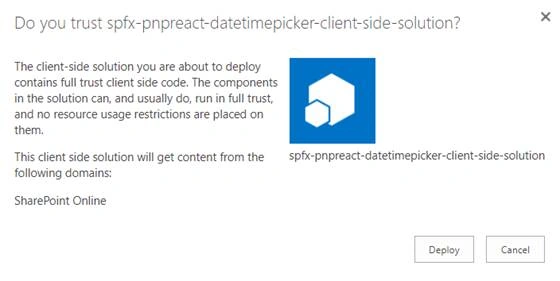
Go to Apps for SharePoint library and upload the package file (sharepoint\solution\spfx-pnpreact-datetimepicker.sppkg). Click Deploy.
Test the webpart
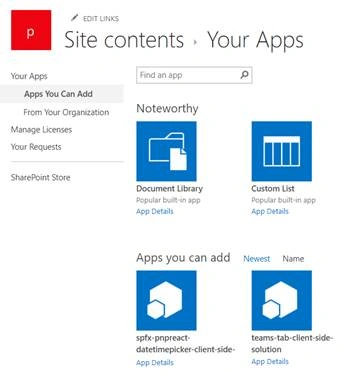
Navigate to the SharePoint site and add the app.
Result
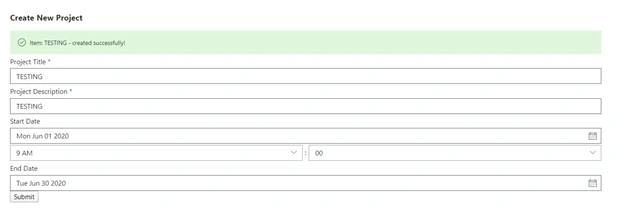
Navigate to the page and add the webpart. Enter all the details and click submit, a new item gets created in the SharePoint list.
Summary
Thus, in this article, you saw how to use PnP Date Time Picker Control in SharePoint Framework.
hritik pandeyPosted Nov 2, 2022, 6:04 AM
As i type to project description it closes the web part and in console it shows the error cannot read properties and in title it is showing error -"Error making HttpClient request in queryable [404] ::>" how i can resolve this autobundle feature after i am importing and using it is also showing error that module -"module '"office-ui-fabric-react"' has no exported member 'autobind'