

PnP React Controls
Patterns and Practices (PnP) provides a list of reusable React controls to developers for building solutions such as webparts and extensions using SharePoint Framework.
Refer to this link to get the list of React controls for SPFx.
You will see how to use PnP List View control in SPFx webpart.
PnP List Item View control
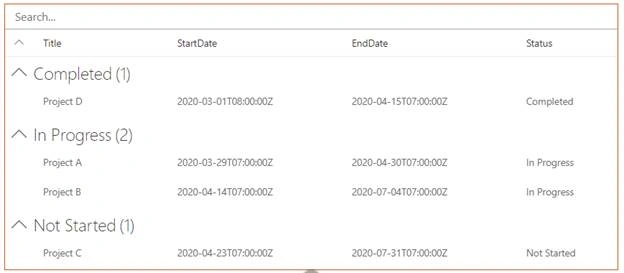
This control renders a list view for the given set of items. Refer to this link for more details and to see all the properties available for this control.

Note
I have created a custom list named Project and added the items as shown below.
In this article, you will see how to perform the following tasks,
- Prerequisites
- Create SPFx solution
- Implement List View solution
- Deploy the solution
- Test the webpart
Prerequisites
Create SPFx solution
Open Node.js command prompt.
Create a new folder.
>md spfx-pnpreact-listview
Navigate to the folder.
> cd spfx-pnpreact-listview
Execute the following command to create SPFx webpart.
>yo @microsoft/sharepoint
Enter all the required details to create a new solution as shown below.
Yeoman generator will perform the scaffolding process and once it is completed, lock down the version of project dependencies by executing the following command.
>npm shrinkwrap
Execute the following command to open the solution in the code editor.
>code .
Implement List View solution
Execute the following command to install the PnP React Controls NPM package.
>npm install @pnp/spfx-controls-react –save
Execute the following command to install @pnp/sp package
>npm install @pnp/sp –save
Folder Structure
Create a new folder named “models” inside webparts\pnPListView folder. Create a new file named as IListItem.ts. Open “src\webparts\pnPListView\models\IListItem.ts” file and update the code as shown below.
- export interface IListItem {
- Title: string;
- StartDate: string;
- EndDate: string;
- Status: string;
- }
- export interface IListItemColl {
- value: IListItem[];
- }
Create a new file named index.ts under models folder. Open “src\webparts\pnPListView\services\index.ts” file and update the code as shown below.
- export * from './IListItem';
Create a new file named as IPnPListViewState.ts under components folder. Open “src\webparts\pnPListView\components\IPnPListViewState.ts” file and update the code as shown below.
- import {IListItem, IListItemColl} from '../models/IListItem';
- export interface IPnPListViewState{
- items?: IListItem[];
- }
Create a new folder named “services” inside webparts\pnPListView folder. Create a new file named as ListViewService.ts. Open “src\webparts\pnPListView\services\ListViewService.ts” file and update the code as shown below. Import all the required modules and create getAllItems method which will retrieve data from SharePoint list using PnP.
- import { WebPartContext } from '@microsoft/sp-webpart-base';
- import { sp } from "@pnp/sp";
- import "@pnp/sp/webs";
- import "@pnp/sp/lists";
- import "@pnp/sp/items";
- import { IListItem, IListItemColl } from '../models/IListItem';
- export class ListViewService {
- public setup(context: WebPartContext): void {
- sp.setup({
- spfxContext: context
- });
- }
- public async getAllItems(listname: string): Promise<IListItem[]> {
- return new Promise<IListItem[]>(async (resolve, reject) => {
- try {
- var listItems: Array<IListItem> = new Array<IListItem>();
- sp.web.lists.getByTitle(listname).items.getAll().then((items) => {
- items.map((item) => {
- listItems.push({
- Title: item.Title,
- StartDate: item.StartDate,
- EndDate: item.EndDate,
- Status: item.Status
- });
- });
- resolve(listItems);
- });
- }
- catch (error) {
- console.log(error);
- }
- });
- }
- }
- const SPListViewService = new ListViewService();
- export default SPListViewService;
Create a new file named as index.ts under services folder. Open “src\webparts\pnPListView\services\index.ts” file and update the code as shown below.
- export * from './ListViewService';
Open “src\webparts\pnPListView\PnPListViewWebPart.ts” file and update the following.
- Import modules
- Update the OnInit method
Import modules
- import ListViewService from '../pnPListView/services/ListViewService';
Update the OnInit method
- protected onInit(): Promise<void> {
- return super.onInit().then(() => {
- ListViewService.setup(this.context);
- });
- }
Open “src\webparts\pnPListView\components\PnPListView.tsx” file and import the modules.
- import { IPnPListViewState } from './IPnPListViewState';
- import { ListView, IViewField, SelectionMode, GroupOrder, IGrouping } from "@pnp/spfx-controls-react/lib/ListView";
- import { IListItem, IListItemColl } from '../models/IListItem';
- import ListViewService from '../services/ListViewService';
Update the render method as shown below.
- public render(): React.ReactElement<IPnPListViewProps> {
- const { items = [] } = this.state;
- return (
- <div className={styles.pnPListView}>
- <ListView
- items={this.state.items}
- viewFields={viewFields}
- groupByFields={groupByFields}
- compact={true}
- selectionMode={SelectionMode.none}
- showFilter={true}
- filterPlaceHolder="Search..."
- />
- </div>
- );
Call the ListViewService to retrieve SharePoint list items.
- public _getItems = (): void => {
- ListViewService.getAllItems('Project').then(listItems => {
- console.log(listItems);
- this._items = listItems;
- this.setState({
- items: listItems
- });
- });
- }
Updated React component (src\webparts\pnPListView\components\PnPListView.tsx),
- import * as React from 'react';
- import styles from './PnPListView.module.scss';
- import { IPnPListViewProps } from './IPnPListViewProps';
- import { escape } from '@microsoft/sp-lodash-subset';
- import { IPnPListViewState } from './IPnPListViewState';
- import { ListView, IViewField, SelectionMode, GroupOrder, IGrouping } from "@pnp/spfx-controls-react/lib/ListView";
- import { IListItem, IListItemColl } from '../models/IListItem';
- import ListViewService from '../services/ListViewService';
- const viewFields: IViewField[] = [{
- name: "Title",
- displayName: "Title",
- isResizable: true,
- sorting: true,
- minWidth: 0,
- maxWidth: 150
- },
- {
- name: "StartDate",
- displayName: "StartDate",
- isResizable: true,
- sorting: true,
- minWidth: 0,
- maxWidth: 200
- },
- {
- name: "EndDate",
- displayName: "EndDate",
- isResizable: true,
- sorting: true,
- minWidth: 0,
- maxWidth: 200
- },
- {
- name: "Status",
- displayName: "Status",
- isResizable: true,
- sorting: true,
- minWidth: 0,
- maxWidth: 150
- },];
- const groupByFields: IGrouping[] = [
- {
- name: "Status",
- order: GroupOrder.ascending
- },];
- export default class PnPListView extends React.Component<IPnPListViewProps, IPnPListViewState> {
- private _items: IListItem[] = [];
- constructor(props: IPnPListViewProps, state: IPnPListViewState) {
- super(props);
- this.state = {
- items: []
- };
- }
- public componentDidMount(): void {
- this._getItems();
- }
- public render(): React.ReactElement<IPnPListViewProps> {
- const { items = [] } = this.state;
- return (
- <div className={styles.pnPListView}>
- <ListView
- items={this.state.items}
- viewFields={viewFields}
- groupByFields={groupByFields}
- compact={true}
- selectionMode={SelectionMode.none}
- showFilter={true}
- filterPlaceHolder="Search..."
- />
- </div>
- );
- }
- public _getItems = (): void => {
- ListViewService.getAllItems('Project').then(listItems => {
- console.log(listItems);
- this._items = listItems;
- this.setState({
- items: listItems
- });
- });
- }
- }
Deploy the solution
Execute the following commands to bundle and package the solution.
>gulp bundle --ship
>gulp package-solution --ship
Navigate to tenant app catalog – Example: https://c986.sharepoint.com/sites/appcatalog/SitePages/Home.aspx
Upload the package file (sharepoint\solution\spfx-pnpreact-listview.sppkg). Click Deploy.
Test the webpart
Navigate to the SharePoint site and add the app.
Navigate to the page and add the webpart as shown below.
Result
Summary
Thus, in this article, you saw how to use PnP List View control in SharePoint Framework.
Deepali jainPosted Jun 4, 2020, 2:31 PM
Do we have the option to enable Paging for the records displayed in PnP Listview?