
Let’s first look at adaptive card actions available in Power Automate,
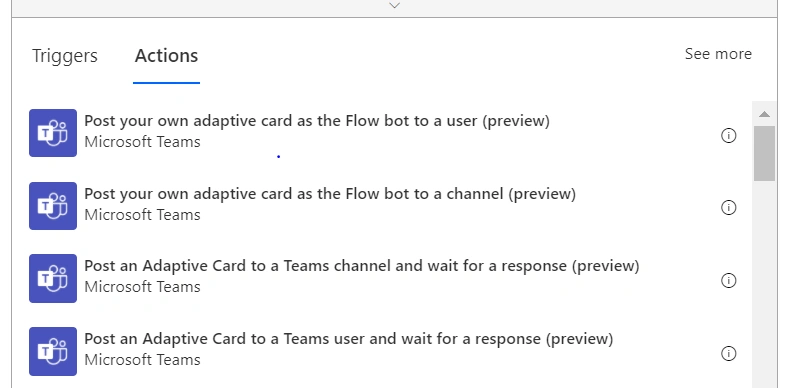
We can leverage adaptive cards in Teams using power automate in four ways as shown in Fig below,
- Post your own adaptive card as the Flow bot to a user (preview) - With this action, you can post an adaptive card to a user’s activity feed and chats as a flow bot.
- Post your own adaptive card as the Flow bot to a channel (preview) - With this action, you can post an adaptive card to a team’s channel as a flow bot.
- Post an adaptive card to a team’s channel and wait for a response (preview) - With this action, you can post an adaptive card to a user’s activity feed and chats and wait for users to respond and send an updated adaptive card.
- Post an adaptive card to a team’s user and wait for a response (preview) - With this action, you can post an adaptive card to a team’s channel and wait for users to respond and send an updated adaptive card.
Now, let’s start creating a power automate flow that will post an adaptive card to a team’s channel and save the users response in the SharePoint list, and send an updated adaptive card
Here, I have created a scheduled flow that will daily post the Café menu card to a team’s channel and collect the user’s order and save it in SharePoint List
This is how our flow will look like,
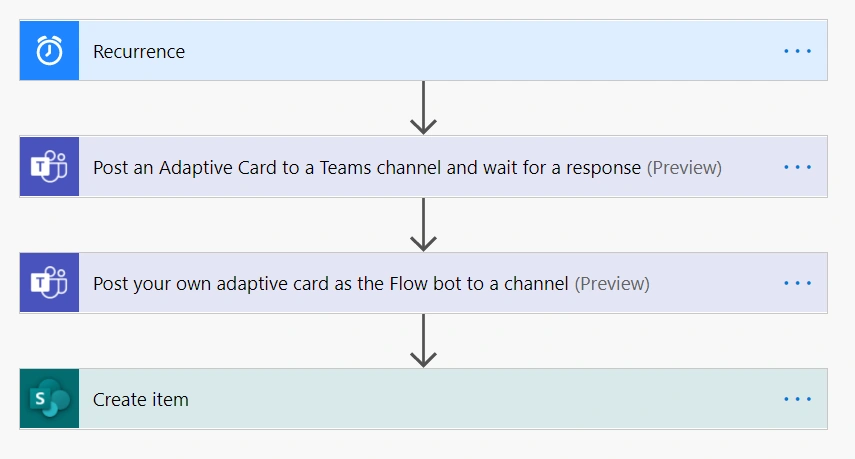
Let’s start creating it and explore every step,
- Firstly, schedule your power to automate flow, as per my use case I have scheduled for a day.
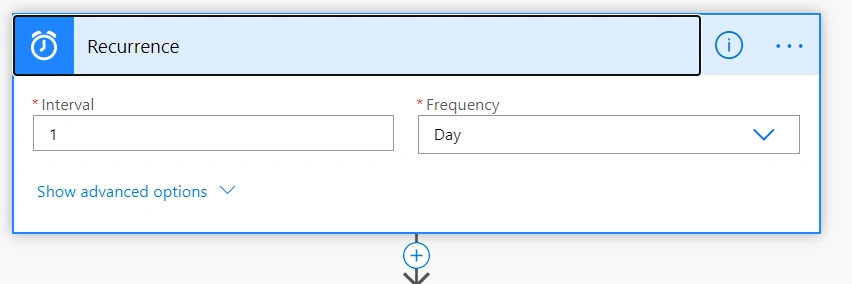
Fig 1.1
- Now add ‘Post an adaptive card to team’s channel and wait for response’ and provide the team and channel name as shown in Fig 1.2 where you want the adaptive card to be posted.
- Also, you will have to add your card JSON data right, then how will you add that? Go to https://adaptivecards.io/designer/ design your adaptive card here, and then take that JSON data from the card payload editor.
- Post that JSON data in the message section of that adaptive card action as shown in Fig 1.2,
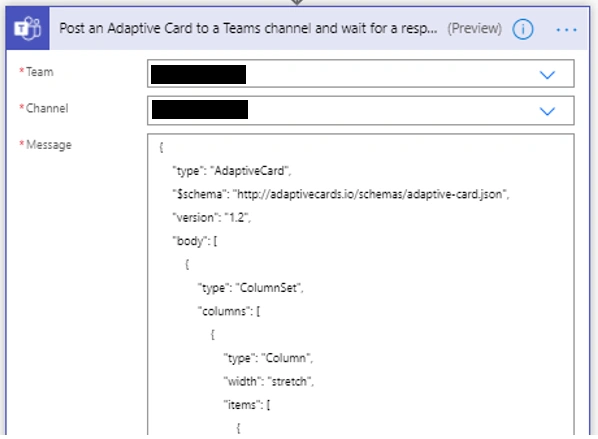
Fig 1.2
- Now, add ‘Post an adaptive card to teams channel as flow bot’ action Provide the given team and channel name, Then design another adaptive card to let that user know their response is collected like I have shown the message “Thanks for Submitting your Order” in Fig 1.3
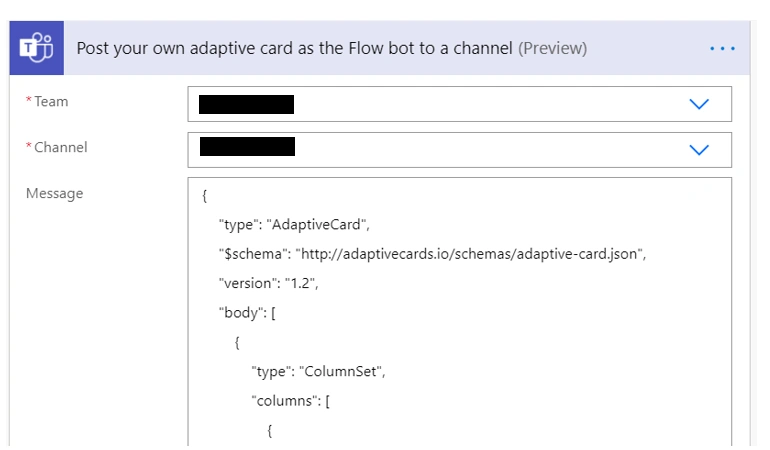
Fig 1.3
- Now, we just have to save the response In the SharePoint list,
Hence, we will use Create item SharePoint connector and map the columns with the response inputs from the adaptive card as shown in Fig 1.4,
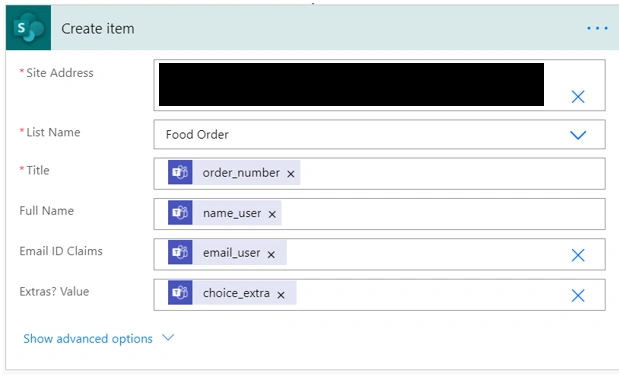
Fig 1.4
- Now, test your power automate flow and let’s see how it looks like.
- An adaptive card will be posted to a specified team’s channel and the response will be saved in SharePoint sites with an updated adaptive card
I hope you enjoy creating this power automate flow with adaptive card action.
Join the conversation! Your thoughts help the community grow.