

Introduction
PostgreSQL is a robust, open-source object-relational database system known for its extensibility and adherence to standards. Among its many features, backup and restore functionalities are essential for database maintenance and disaster recovery. This guide walks you through the process of backing up and restoring a PostgreSQL database using pgAdmin, a popular GUI tool for PostgreSQL.

Prerequisites
Before we dive into the steps, ensure you have the following.
- PostgreSQL installed and running.
- pgAdmin is installed and configured to connect to your PostgreSQL server.
Backup Using pgAdmin
Backing up a PostgreSQL database using pgAdmin involves creating a backup file that contains the data and schema of the database. Here’s how to do it:
Step 1. Open pgAdmin and Connect to Your Database Server.
- Launch pgAdmin.
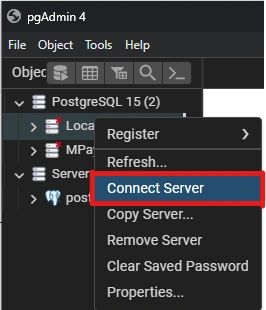
- Connect to your PostgreSQL server by right-clicking on the server name and selecting Connect Server.
Step 2. Navigate to the Database.
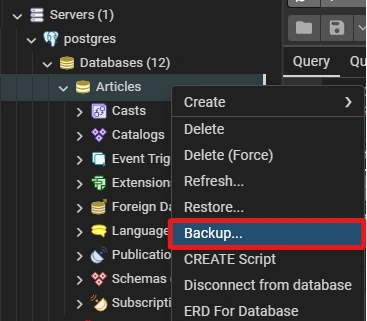
- In the browser panel on the left, expand the server and navigate to the database you want to back up.
- Right-click on the database and select Backup.
Step 3. Configure Backup Options.
1. General Tab
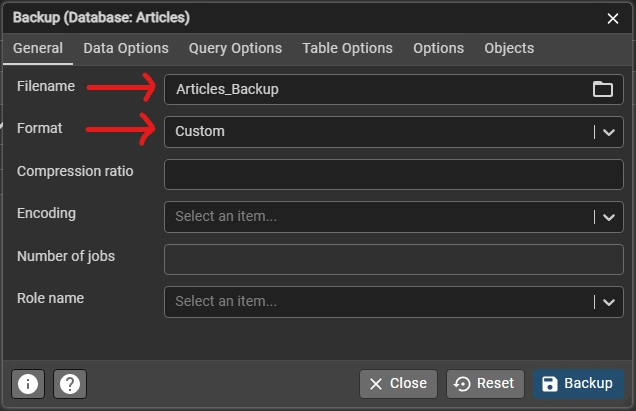
- Filename: Specify the path and name of the backup file (e.g., /path/to/backup/your_database.backup).
- Format: Choose the backup format. Custom is generally recommended for its flexibility.
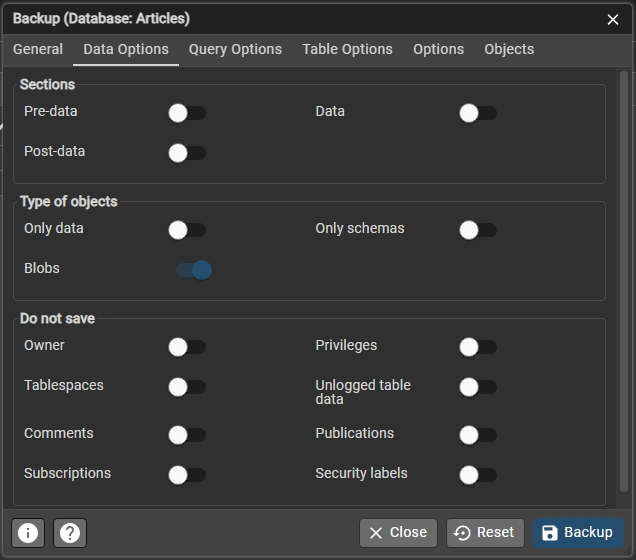
2. Data Options Tab (Optional)
3. Query OptionsTab (Optional)
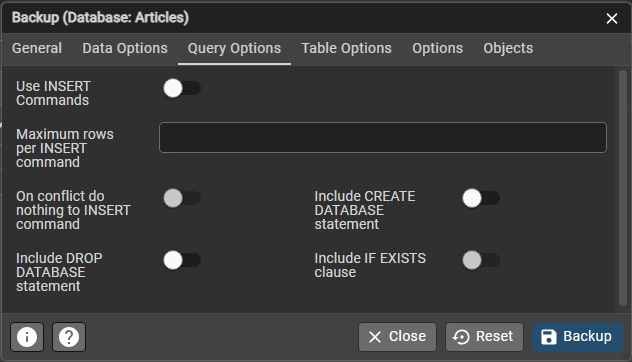
4. Table Options Tab (Optional)
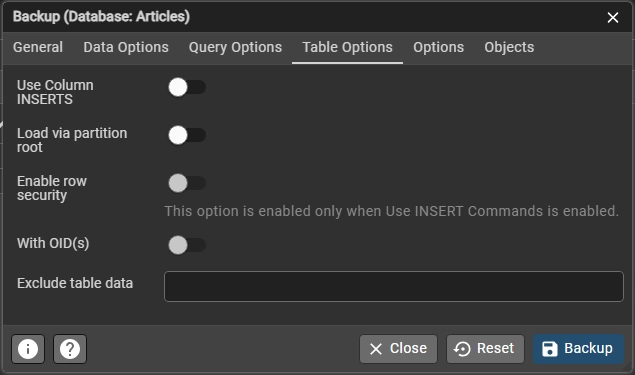
5. Options Tab (Optional)
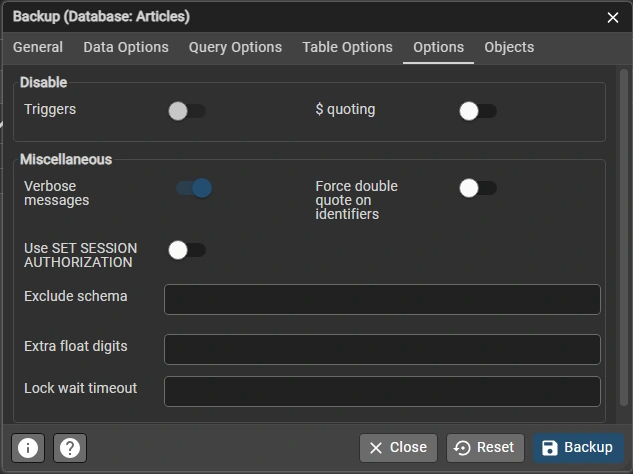
6. Objects Tab
Here you can choose a whole public folder that will have all your tables, procedures, functions, etc, or you can choose a specific table or others as per your requirement.
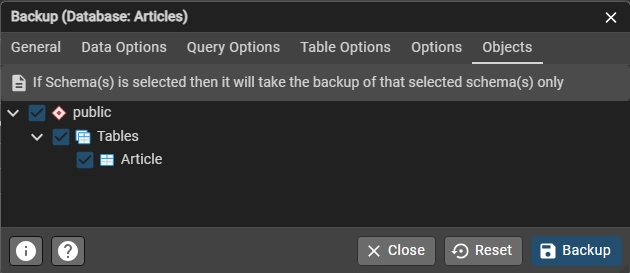
Step 4. Execute the Backup.
- Click the Backup button.
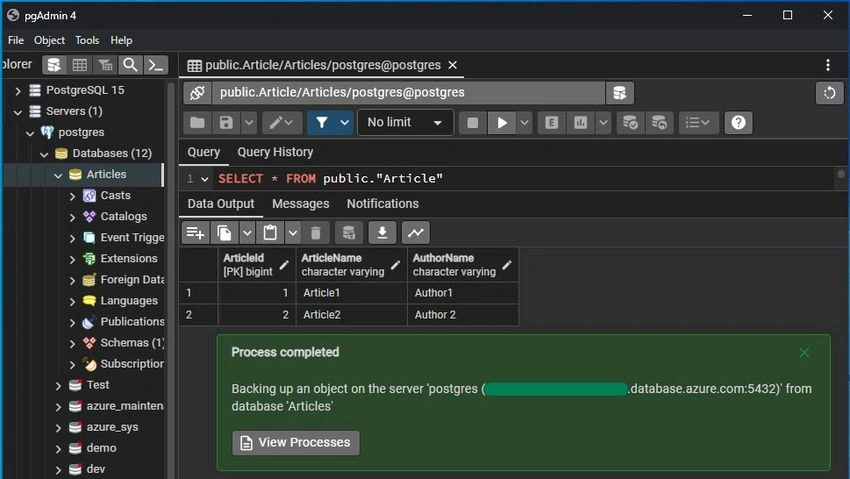
- pgAdmin will execute the backup command. You can monitor the progress in the Messages tab at the bottom of the window.
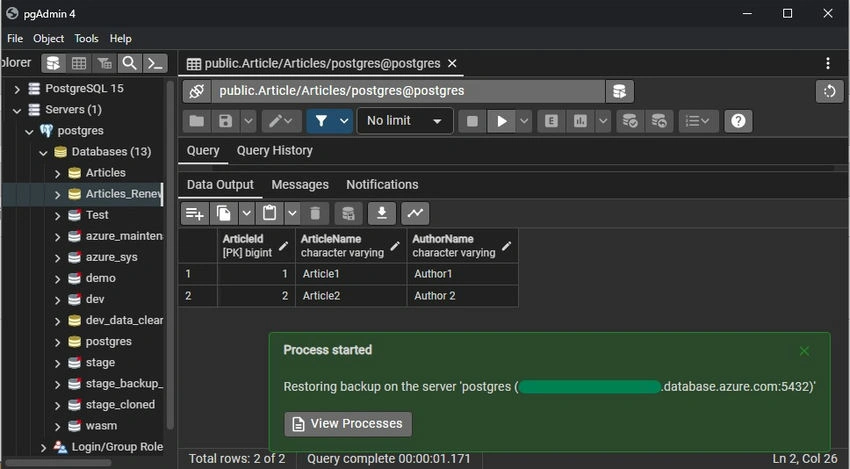
- Once completed, you will see a success message, and the backup file will be saved at the specified location eg. Documents.
Restore Using pgAdmin
Restoring a PostgreSQL database involves loading data from a backup file into a database. Here’s how to restore using pgAdmin:
Step 1. Open pgAdmin and Connect to Your Database Server.
- Launch pgAdmin.
- Connect to your PostgreSQL server by right-clicking on the server name and selecting Connect Server.
Step 2. Create a New Database (If Necessary).
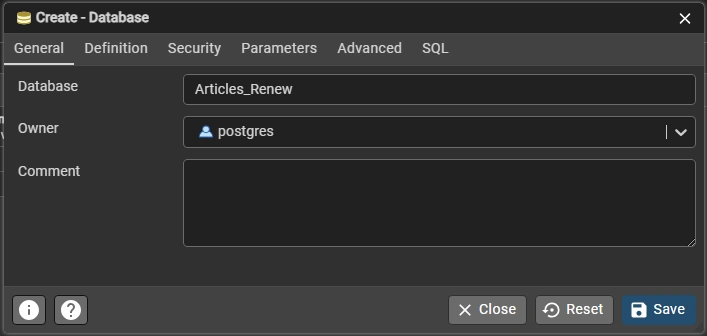
- If you want to restore into a new database, create one first.
- Right-click on Databases and select Create > Database.
- Enter the database name and owner, then click Save.
Step 3. Navigate to the Target Database.
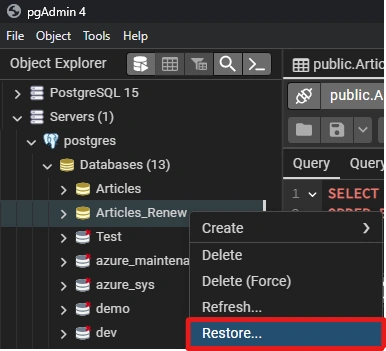
- In the browser panel, navigate to the database where you want to restore the backup.
- Right-click on the database and select Restore.
Step 4. Configure Restore Options.
1. General Tab
Filename: Specify the path to the backup file (e.g., /path/to/backup/your_database.backup).
Note. Select All Files(*.*) if you have not found your Backup file.
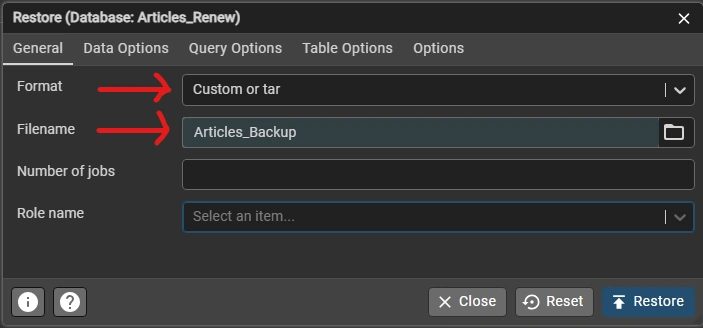
2. Restore Options (Optional)
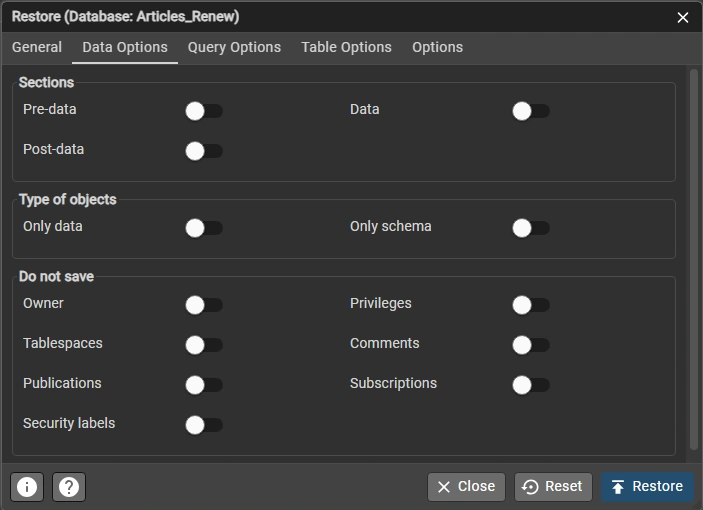
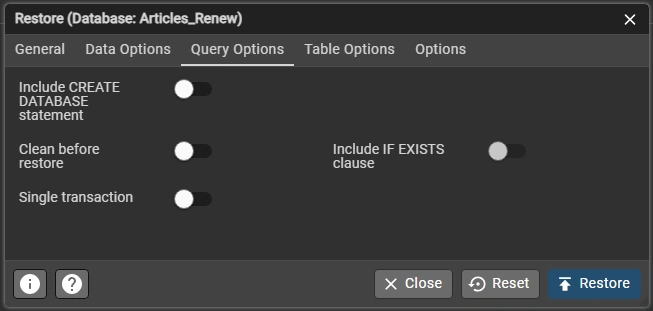
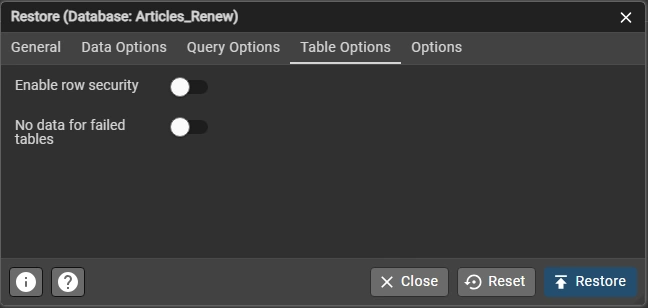
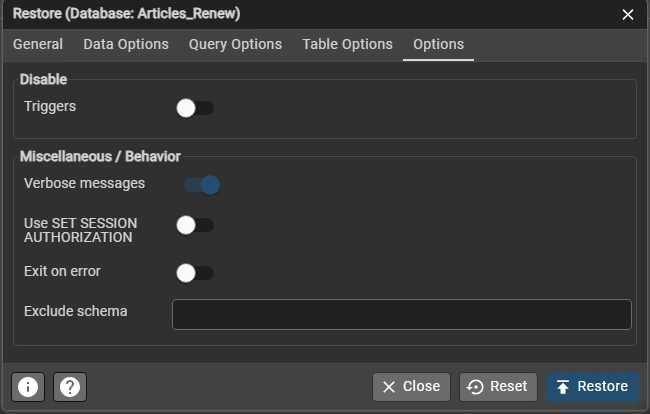
Step 5. Execute the Restore.
- Click the Restore button.
- pgAdmin will execute the restore command. You can monitor the progress in the Messages tab at the bottom of the window.
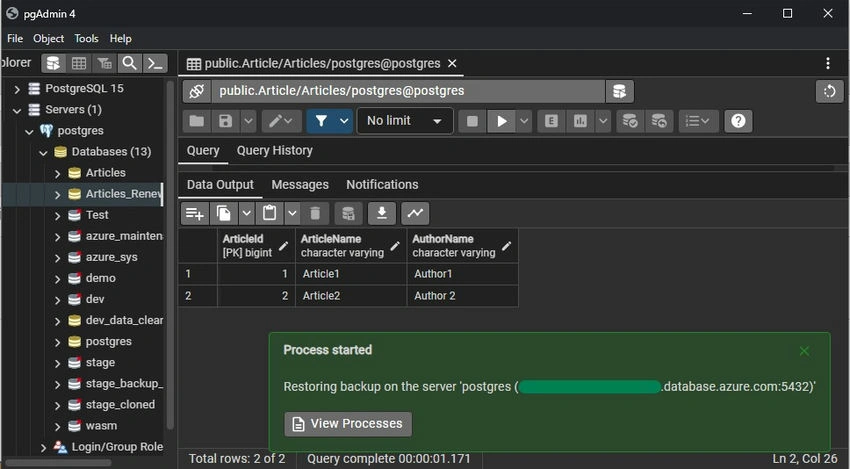
- Once completed, you will see a success message, indicating that the database has been restored from the backup file.
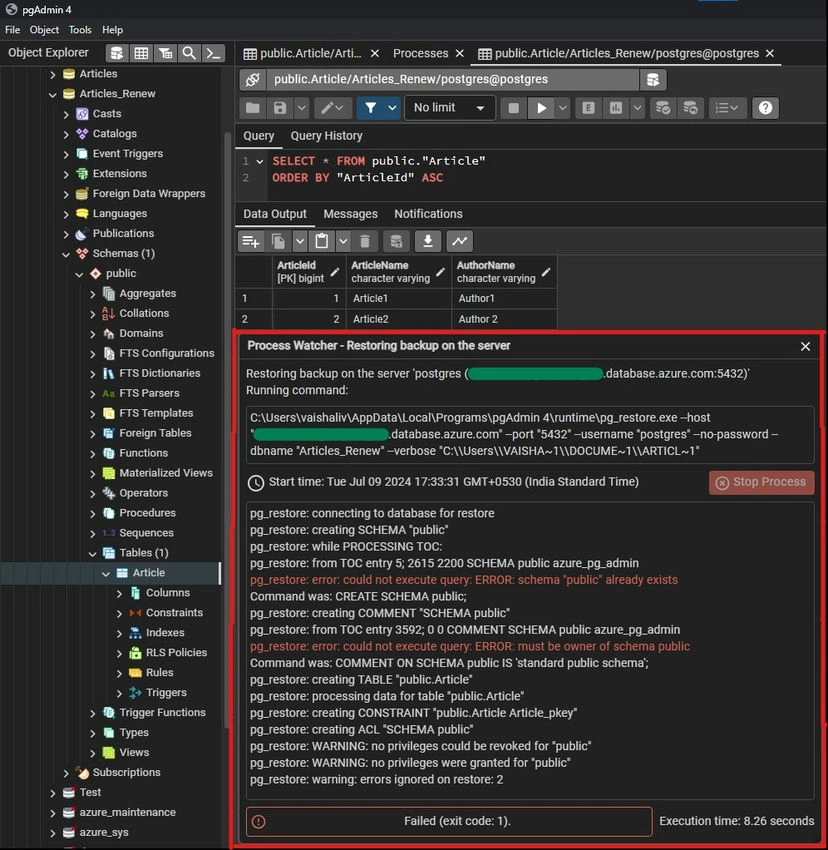
In the above Image, there is only a "public" folder already exists and must be the owner of the schema public error indication as they are already inside our "Article_Renew" Database. Other than those all commands Ran successfully.
Conclusion
Using pgAdmin to manage backups and restores of your PostgreSQL databases is a straightforward and efficient process. Regular backups are crucial to ensure data safety and continuity in case of any issues. By following this guide, you can back up and restore your PostgreSQL databases, safeguarding your data against potential loss.
Join the conversation! Your thoughts help the community grow.