


Introduction
Power Apps, Microsoft's low-code development platform, offers a wide range of controls to create interactive and dynamic applications. One such control is the Slider control, which allows users to select a value by dragging a handle along a track. In this article, we will explore the Slider control in Power Apps and learn how to bind data from SharePoint, enhancing the functionality and usability of your applications.
Benefits
- User-Friendly Interface: The Slider control provides an intuitive and interactive way for users to select numeric values, improving the user experience.
- Efficient Data Input: Users can easily input numeric values by sliding the handle along the track, reducing the need for manual entry and minimizing errors.
- Visual Feedback: The Slider control offers visual feedback as users interact with it, making it easier to understand the selected value relative to the available range.
- Dynamic Data Binding: Binding data from SharePoint to the Slider control allows for dynamic updating of values based on changes in SharePoint data, ensuring accuracy and relevance.
Features
- Customizable Range: The Slider control can be customized to define a specific range of values, including minimum and maximum limits.
- Step Increment: Users can define a step increment for the Slider control, specifying the interval between selectable values along the track.
- Orientation Options: The Slider control supports both horizontal and vertical orientations, providing flexibility in layout and design.
- Default Value: A default value can be set for the Slider control, specifying the initial position of the handle along the track.
Limitations
- Limited Customization: Customization options for the Slider control's appearance and layout are relatively limited compared to other controls in Power Apps.
- Single-Value Input: The Slider control allows users to select only a single numeric value, making it less suitable for scenarios requiring multiple-value selection.
- Limited Precision: Depending on the size of the Slider control and the range of values, users may experience limitations in precision when selecting values.
Step-by-Step Guide
- Open Power Apps.
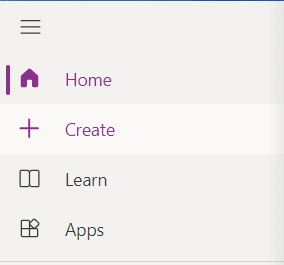
- Click on the "Create" button.

- Select "Blank app".

- Choose "Blank tablet app" to create an app for tablet devices.
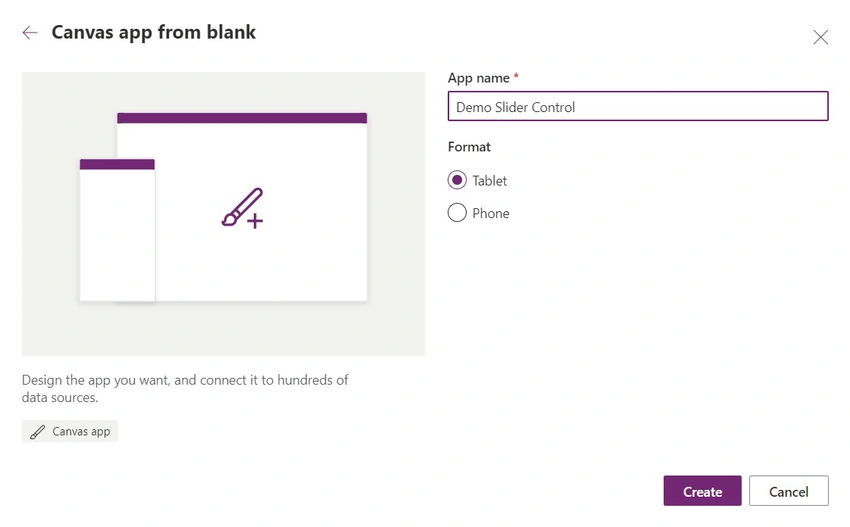
- Provide a name for your app.
- Select "Create" to proceed.
Insert Slider Control

- Within the Power Apps studio, locate the "Insert" tab in the top menu.
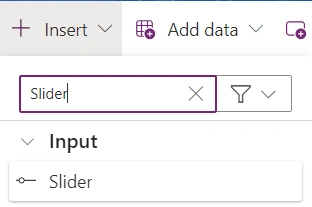
- Click on "Input" and then select "Slider" from the dropdown menu.

- Position the Slider control on the desired screen of your app.
Bind Data from SharePoint
- Navigate to the screen where the Slider control is placed.
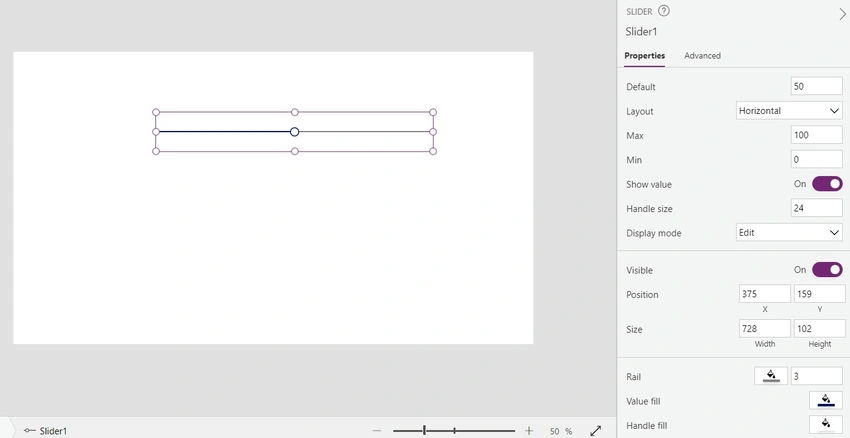
- Select the Slider control.
- In the properties pane, locate the "Default" property.
- Click on the formula bar next to the "Default" property.
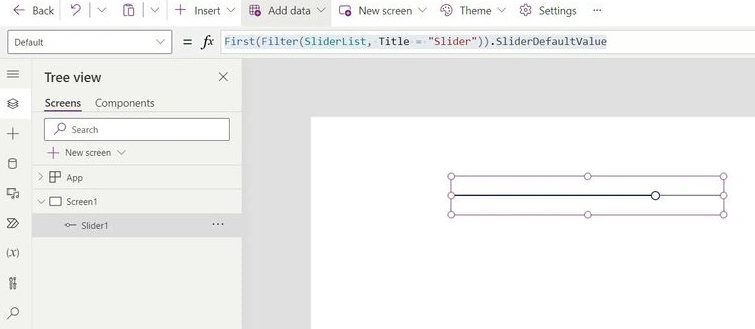
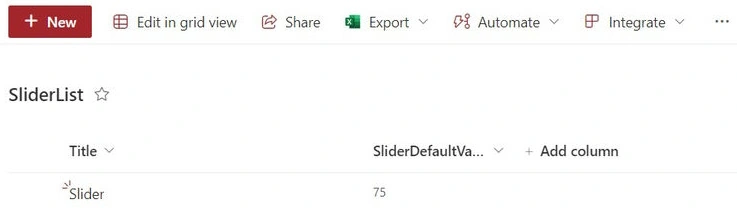
- Write a formula to retrieve data from SharePoint and bind it to the Slider control. For example.
PowerApps code to get filter data where Title equals Slider.
First(
    Filter(
        SliderList,
        Title = "Slider"
    )
).SliderDefaultValue
Replace 'SliderList' with the name of your SharePoint list and 'Title' with the column containing the numeric values you want to bind to the Slider control.
- Press Enter to apply the formula.
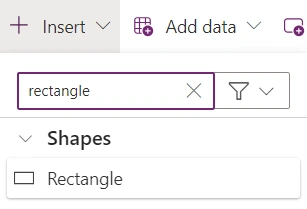

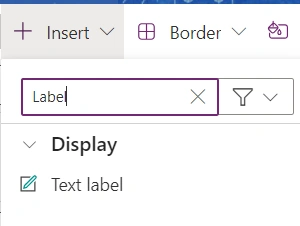
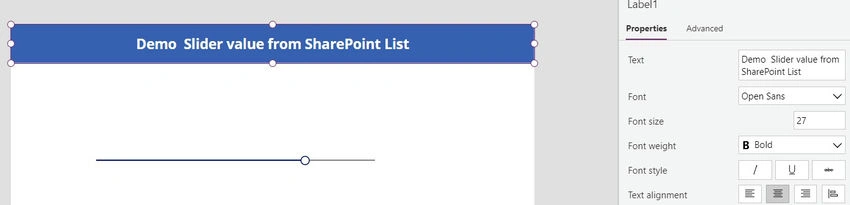
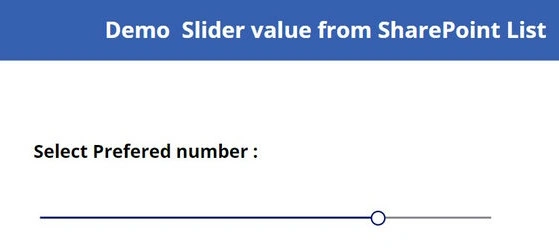
- Beautify your App.
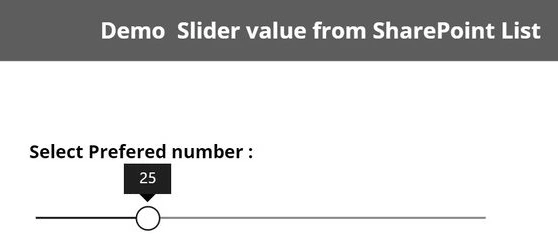
- By following these steps, you can successfully create a Slider control in Power Apps and bind data from SharePoint, enhancing the functionality and usability of your applications.
Conclusion
The Slider control in Power Apps offers a convenient and intuitive way for users to select numeric values within your applications. By binding data from SharePoint, you can ensure that your Slider control dynamically updates with the latest information, providing users with accurate and relevant data input capabilities. While the Slider control has its limitations, its benefits and features make it a valuable tool for building interactive and user-friendly applications in Power Apps.
Join the conversation! Your thoughts help the community grow.