

Introduction
Power Apps, Microsoft's low-code development platform, offers a versatile range of controls to build interactive and dynamic applications. One such control is the Combo box, which allows users to select from a dropdown list of options. In this article, we'll explore the Combo box control in Power Apps and learn how to bind data from SharePoint, enhancing the functionality and usability of your applications.
Benefits
- User-Friendly Interface: The Combo Box Control provides a user-friendly interface for selecting options from a dropdown list, improving the overall user experience.
- Efficient Data Binding: Binding data from SharePoint to the Combo box allows for dynamic updating of options, ensuring that users always have access to the latest information.
- Customization: The Combo box control can be customized to fit specific design requirements and business needs, offering flexibility in application development.
- Seamless Integration: Integrating SharePoint data with Power Apps enhances data accessibility and streamlines business processes, improving productivity and collaboration.
Features
- Dropdown Selection: Users can easily select options from a dropdown list presented by the Combo box control, simplifying data input and selection processes.
- Search Functionality: The Combo box control includes built-in search functionality, allowing users to quickly search and filter options within the dropdown list.
- Data Binding: Data from SharePoint lists can be bound to the Combo box, enabling a dynamic population of options based on SharePoint data.
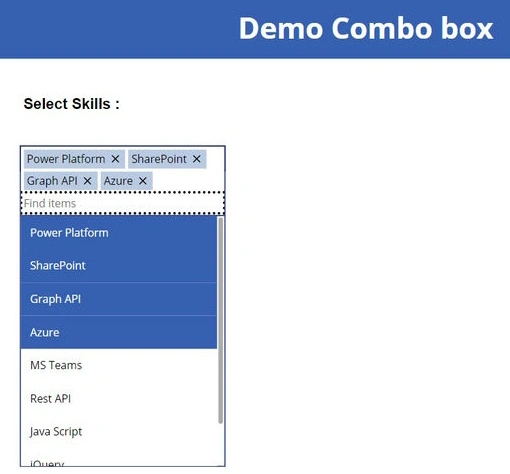
- Multiple Selection: The Combo box control supports both single and multiple selection modes, providing flexibility in data selection based on application requirements.
Limitations
- Data Refresh Rate: The Combo box control's dropdown list may not update in real-time with changes to SharePoint data, requiring manual refreshes or periodic updates.
- Limited Display Options: Customization options for the Combo box's appearance and layout are relatively limited compared to other controls in Power Apps.
- Mobile Responsiveness: The Combo box control's dropdown list may not always be optimized for mobile devices, leading to potential usability issues on smaller screens.
Step-by-Step Guide
- Open Power Apps.
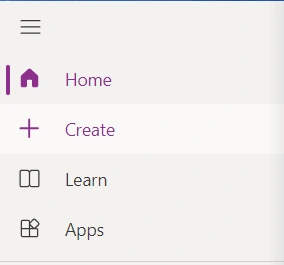
- Click on the "Create" button.

- Select "Blank app".
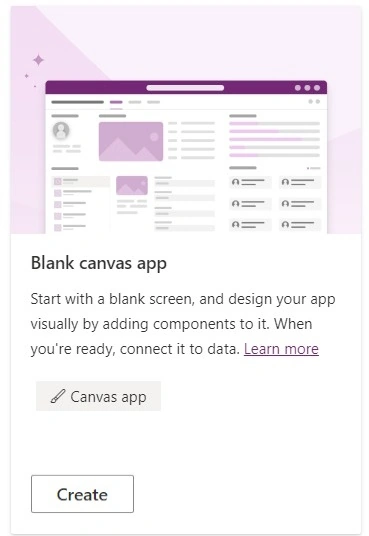
- Choose "Blank tablet app" to create an app for tablet devices.
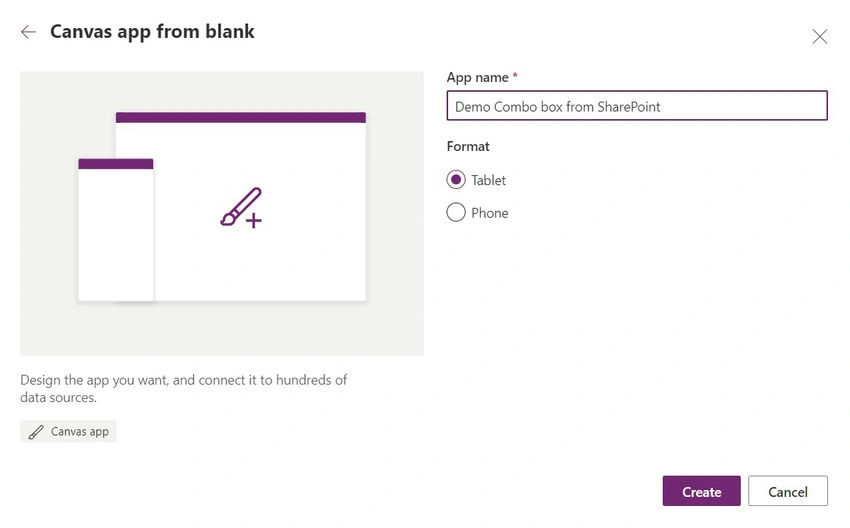
- Provide a name for your app.
- Select "Create" to proceed.
Insert Combo Box Control

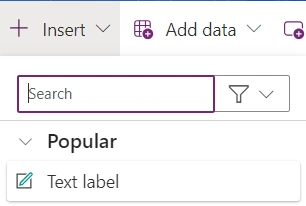
- Within the Power Apps studio, locate the "Insert" tab in the top menu.
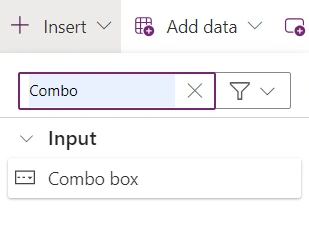
- Click on "Input" and then select "Combo box" from the dropdown menu.

- Position the Combo box control on the desired screen of your app.
Bind Data from SharePoint
- Navigate to the screen where the Combo box control is placed.
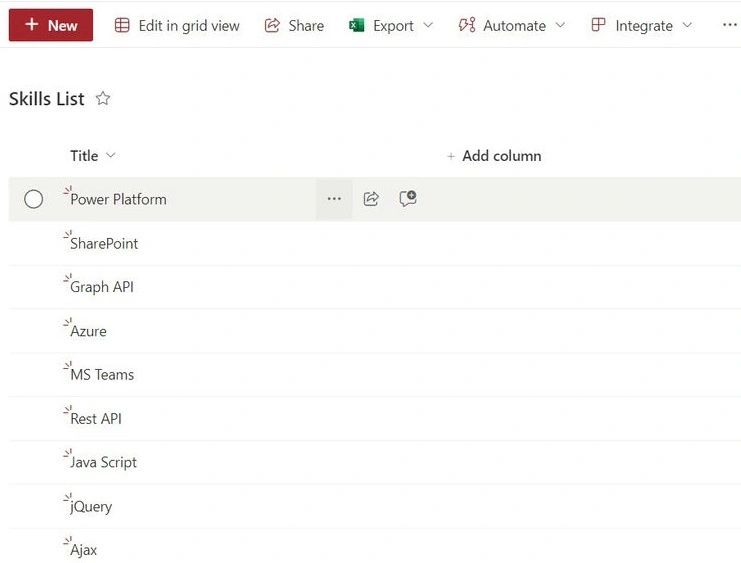
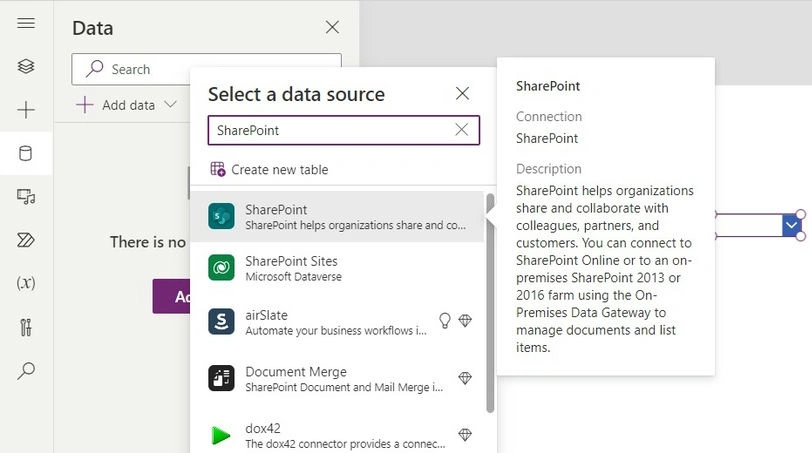
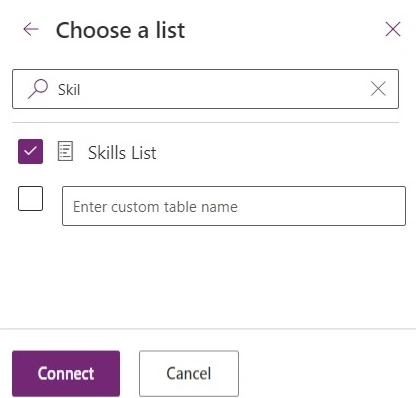
- Connect from your SharePoint list.

- Select the Combo box control.
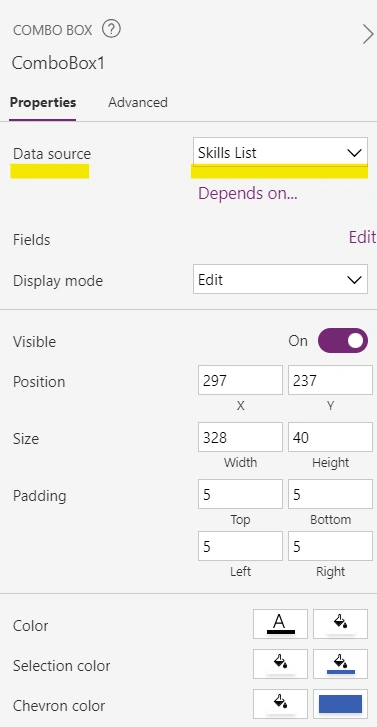
- In the properties pane, locate the "Items" property.
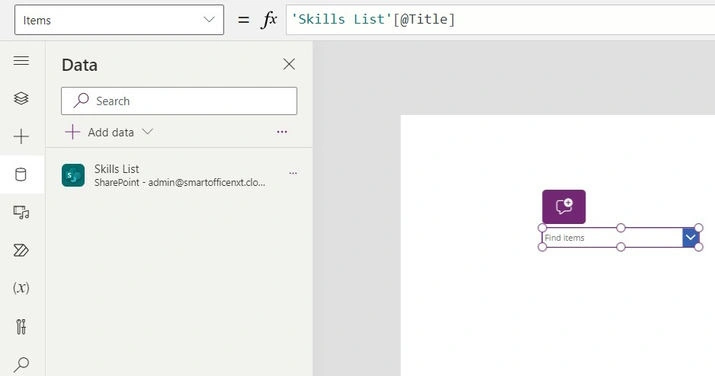
- Click on the formula bar next to the "Items" property.
- Write a formula to retrieve data from SharePoint and populate the Combo box dynamically. For example
Power Apps code to get items from SharePoint
'Skills List'[@Title]
Replace 'Skills List' with the name of your SharePoint list and Title with the column containing the data you want to display in the Combo box.
- Press Enter to apply the formula.
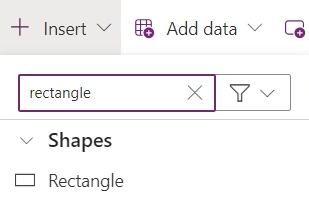
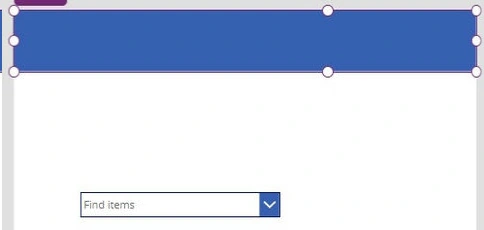
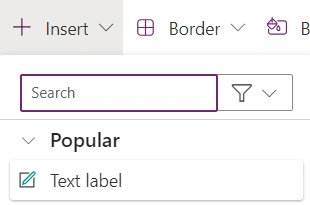
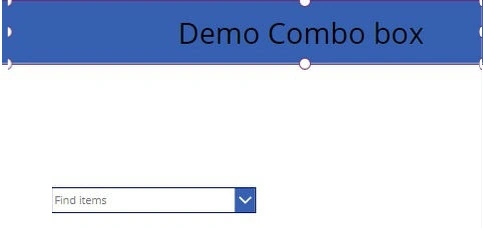
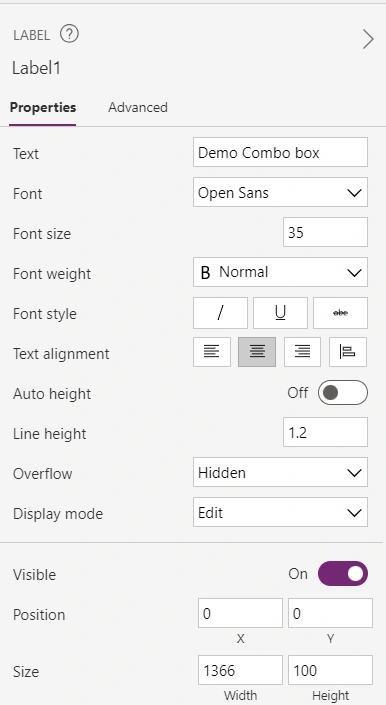
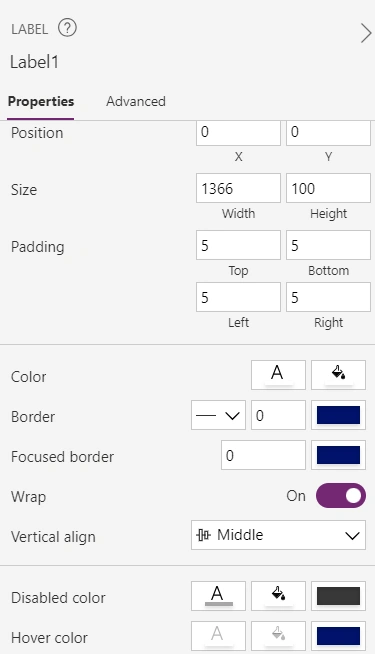

- Beautify your application.
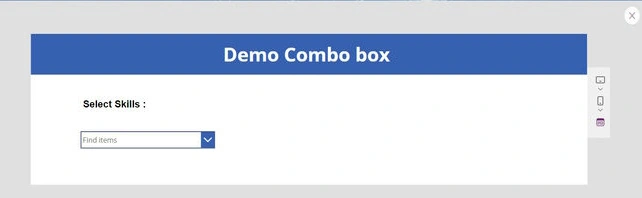
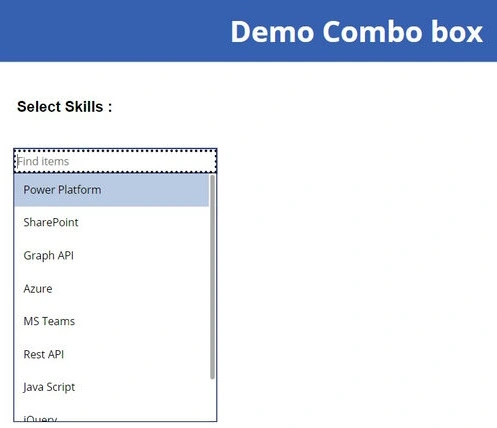
- By following these steps, you can successfully create a Combo box control in Power Apps and bind data from SharePoint, enhancing the functionality and usability of your applications.
Conclusion
The Combo box control in Power Apps offers a convenient and versatile way to present selectable options to users within your applications. By binding data from SharePoint, you can ensure that your Combo box dynamically updates with the latest information, providing users with an efficient and intuitive interface for data selection. While the Combo box control has its limitations, its benefits and features make it a valuable tool for building powerful and user-friendly applications in Power Apps.
Join the conversation! Your thoughts help the community grow.