

Introduction
Microsoft is showcasing new ways to use Copilot in Power Automate to automate and coordinate business activities throughout your company at Microsoft Ignite 2023. Microsoft revealed earlier this year how users may use Copilot to help with data ingestion for process mining as well as to design and improve cloud processes. They are thrilled to present the newest development of Copilot in Power Automate, which includes additional enhancements for cloud flows and desktop flows, as well as automation activity analysis.
The following subjects will be featured in this blog post.
- Power Automate
- Copilot for Power Automate
- New Experiences Revealed
What is Power Automate?
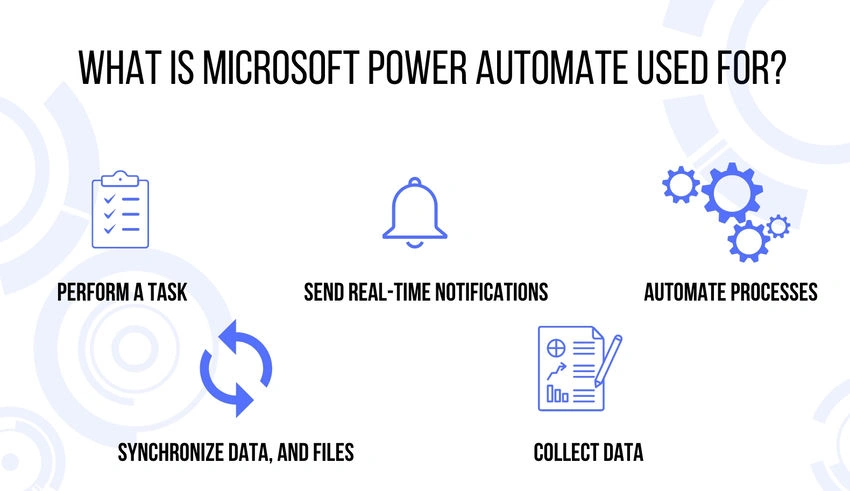
A software package called Microsoft Power Automate, formerly known as Microsoft Flow, enables users to establish automated processes between different applications and services.
Microsoft created the program with the intention of increasing productivity by assisting users in automating repetitive, manual tasks in Microsoft Office 365 and Microsoft Azure.
About 150 standard connectors are included with Power Automate, which is enabled by default in all Office 365 apps. In order to enhance automation possibilities, the tool provides an equivalent number of high-quality connectors for purchase.
Power Automate Weaknesses
- By default, Office 365 is installed with the software.
- Each user is able to design their own flows.
- Security rules, such as data loss prevention (DLP), can be circumvented via flows.
- Individual connectors cannot be turned off; everything is all or nothing.
- Power Automate's features can be used by malicious actors to build unique, malevolent processes.
Copilot for Power Automate
With AI-driven dialogues, Power Automate enables you to not only define a flow to develop but also refine and iterate on it. Inside the flow studio of Power Automate, this cutting-edge AI-based Copilot assists with all newly created or modified flows.
While authoring your flows with Power Automate, Copilot enables conversational and open-ended experiences. You'll be able to ask questions and get help making adjustments and enhancements as you create. You won't require any particular expertise to use Power Automate. You will be able to create and improve anything from a basic flow to a sophisticated, reliable enterprise-wide procedure only by utilizing natural language.

New Experiences Revealed
Our newest releases and information on how to get started are provided below.
The start point for desktop flows is Microsoft Power Automate for Desktop, which automates your desktop or virtual machine's (VM) user interface (UI) through robotic process automation (RPA). More customers have been able to take advantage of the power of automation thanks to its user-friendly interface, which includes an actions recorder and hundreds of prebuilt drag-and-drop actions. Now, we're improving it even further and making it even simpler to get started.
Users may now easily browse documentation and create scripts by using Copilot in Power Automate. This new experience helps you receive the information you need faster, regardless of whether you're a seasoned developer or this is your first time experimenting with desktop processes.
Get step-by-step guidance and information with Copilot
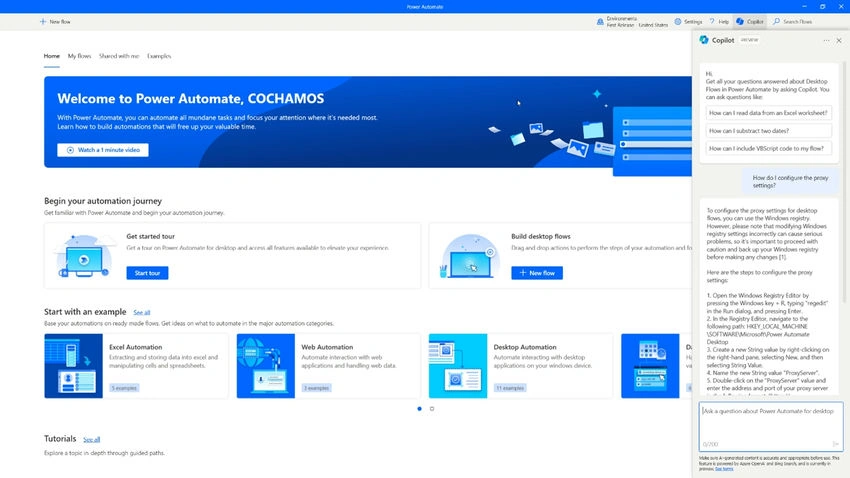
Users can now use Copilot in Power Automate for desktop to obtain help with using the software and developing desktop flows with custom or predefined prompts.
You can use the following prompts, for instance.
- "How do I include a condition?"
- "How can the proxy settings be adjusted?"
- "How does an Excel file action's 'get first free' row and column operate?"
- "How can I take pictures out of a PDF file?"
- "How can I make my own web selector or edit one?"
- "How do I execute a script in PowerShell?"
- "How can I run a SQL query?"

How to get started?
- Download and run Power Automate's most recent desktop version.
- Click the Copilot button in the upper right corner of the console or designer after starting it.
- Select from one of the pre-written prompts or create your own once the Copilot pane opens.
Generate scripts using Copilot in Power Automate
You may now utilize Copilot to produce scripts, regardless of your level of coding skills, which will increase your proficiency and save you time while creating desktop flows. When utilizing the "Run PowerShell," "Run VBScript," "Run JavaScript," "Run DOS command," and "Run Python" actions in Copilot, scripts can be generated.
You can use the following prompts, for instance.
- PowerShell: "Create a script that sends the %invoices% variable along with a POST request to www.contoso.com/api_endpoint."
- VBScript: "Create a script that displays the local computer's name."
- Execute command: Execute the following DOS command to list all the folders on the C drive "Write a command."
- Execute Python command: Execute the following Python command to connect two strings: String A = Foo and String B = Bar.
- Launch JavaScript: "Create a script that returns the sum of numbers A and B."

How do you get started?
- Get the most recent desktop version of Power Automate and open it.
- Open Designer, then select the scripting actions group from the actions pane.
- Choose an action to drag and drop from the list below: "Run PowerShell," "Run VBScript," "Run DOS command," "Run JavaScript," or "Run Python."
- Select "Generate script with Copilot" from the menu.
- Once you've written your prompt, select "generate."
Use Copilot to analyze automation activity
For automation to be built and operated at scale, orchestration is essential. As an individual, small team, or member of a Center of Excellence (CoE), understanding the performance of your automation can help you achieve more success.
CoE teams will be able to expand the use cases for their governance and monitoring plans thanks to this improved Copilot experience, which will also democratize access to information. Because of this, stakeholders in automation may quickly and simply use natural language to assess the effectiveness and health of their automation. Check out our automation kit if you haven't already created a CoE to get started.
You can use the following prompts, for instance.
- "Tell me which run errors were most common last month."
- "Show me the most unsuccessful flows ranked by the total number of runs, along with owner details."
- "Tell me how many runs were successful compared to unsuccessful last week."
- Which devices had the highest number of run failures today?
- "What was the '<name of flow>' flow's average run duration during the previous semester?"
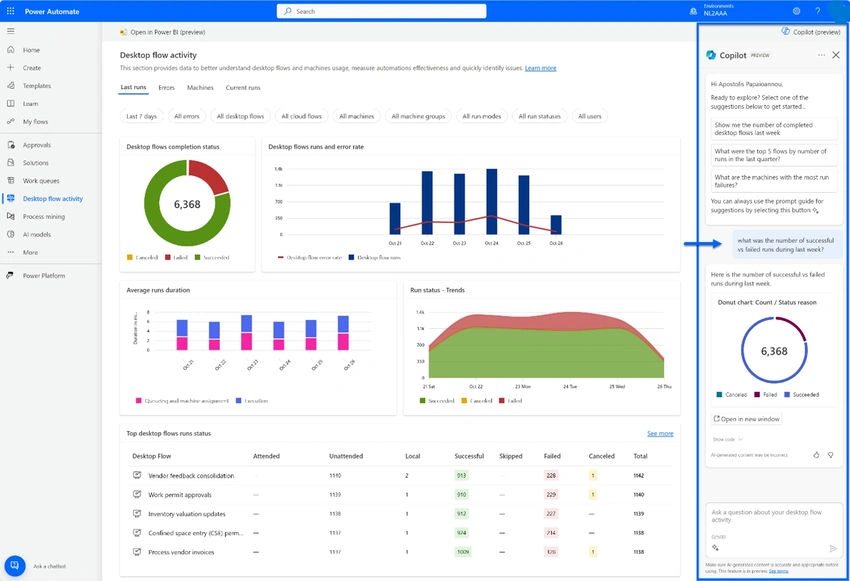


How to get started?
- Go to the dashboard of Power Automate and log in.
- Navigate to the "desktop flow activity" option on the left.
- The "Copilot (preview)" button is located in the upper right corner; select it.
- Select from one of the pre-written prompts or create your own after the Copilot pane has opened.
- Study up on this Copilot.
Use Copilot to do even more with cloud flows
We introduced the public release of Copilot in Power Automate for cloud flows along with a brand-new designer at this year's Microsoft Power Platform Conference. We're happy to announce even more Copilot improvements for cloud flows since more than 126,000 businesses have now utilized AI-powered features in Microsoft Power Platform:
- Added support for over 1,000 API connectors: Copilot may now be used with a greater number of API connectors, such as SAP, AI Builder, child flows, desktop flows, and more. Furthermore, Copilot can identify and, where necessary, suggest bespoke connectors if you have any in your company.
- Troubleshooting flow run errors: Previously, self-debugging was typically necessary for flow run errors. These days, Copilot can give you details on flow run faults and a synopsis of how to repair your flow quickly.
- Increased robustness and precision: Copilot can now comprehend prompts with grammatical errors more accurately, and precision in parameter filling has improved, saving time compared to manually setting settings.
How to get started:
- Go to the dashboard of Power Automate and log in.
- In the "hero type" field, specify what you want cloud flows to automate.
- Engage with Copilot and follow the instructions.
Start using Copilot in Power Automate today.
With the power of low-code and AI, Copilot with Power Automate can help you discover, create, optimize, and orchestrate automation more quickly. To get started, open the most recent Power Automate desktop version and navigate to the Power Automate dashboard.
Summary
Finally, the release of new expedient experiences in Power Automate represents a major advancement in enabling users to automate and simplify their workflows with previously unheard-of levels of efficiency. The improved features promise a more user-friendly and intuitive interface in addition to streamlining the automation process. Power Automate's most recent innovations position it as a strong solution that meets a variety of automation needs as businesses aim for more productivity and agility. These improvements, which prioritize versatility and user experience, open the door to a future in which automation is not only powerful but also available to a wider range of users, promoting efficiency and creativity in the digital sphere.
Join the conversation! Your thoughts help the community grow.