

Overview
Sometimes, there is a situation where when we open a report and click on any visual it accidentally nudges a chart a little bit to the right or left. Sometimes, by mistake when viewing a report, the arrangement of visuals scatters a little bit.
Microsoft rolls out one new amazing feature to resolve this issue, that is, Lock Objects in Power BI.
Advantages of using this feature
- When our purpose is to only view a report, this feature is a boon for us. Visualization’s position is not changed.
- Saves a lot of the developer's time to resolve the position related issues.
Note - This feature is not saved with the report. So, every time you open a report, you need to enable this feature.
Now, let’s understand this feature in a brief manner. To understand this, I will first show you one report in which I have not enabled “Lock Objects” feature.
Step 1
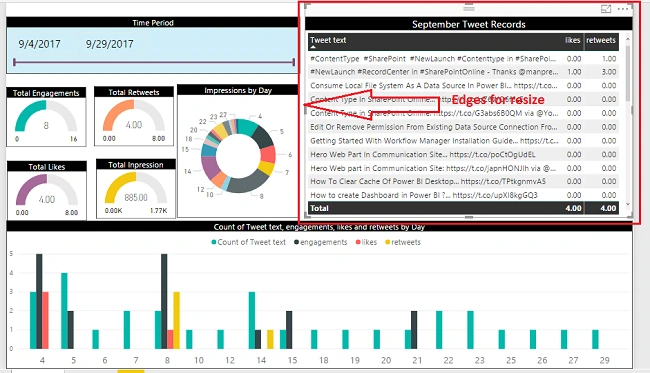
The below screenshot shows my report which doesn’t have the enabled Lock Objects feature.
Step 2
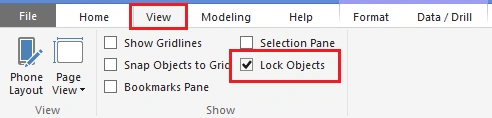
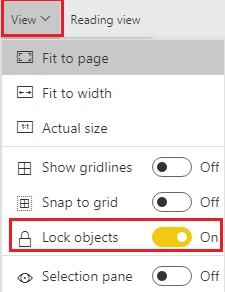
Go to View > Click on 'Lock Objects".
Step 3
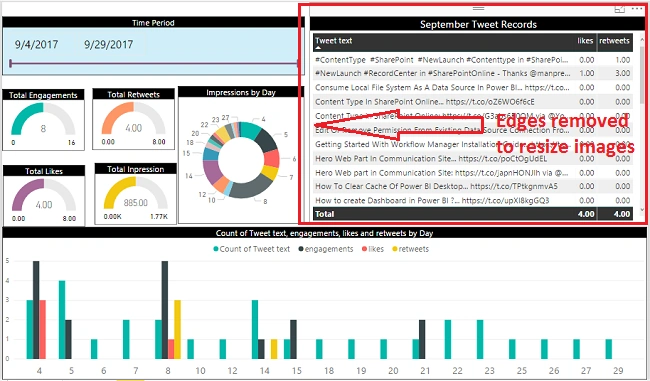
Now, observe the following visual. After enabling this feature, it turns off the resize and move functionality.
Step 4
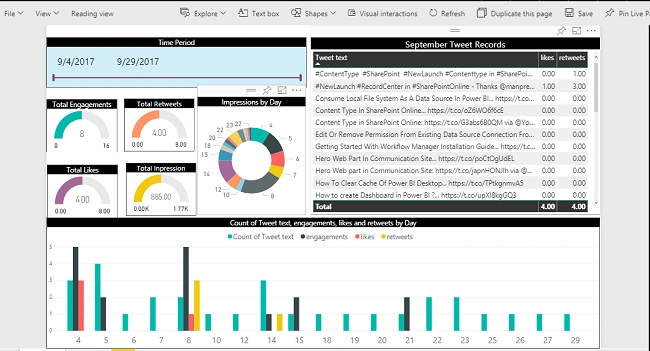
The same option is also available for Power BI Online. Publish Power BI report to the Power BI Online.
Step 5
Go to View > Lock Objects.
Conclusion
This is how we can use this amazing feature rolled out by Microsoft, i.e., Lock Objects.
Carsten GisselPosted Sep 20, 2018, 5:23 AM
Hi Is possible to lock the controls in the edit mode in powerbi Embeded. Best Regard Carsten Gissel
Mahesh ChandPosted Nov 11, 2017, 2:59 PM
Updated title and removed "New feature". This title is more suitable for search engines. Best