

Efficiency is paramount in today's AI-dominated world. Software engineers who focus on developing core products require an understanding of data structures and algorithms as well as proficiency in programming languages and tools. When facing challenges they turn to resources like Stack Overflow or online searches tailored to their issues. However, this often leads to delays and time wasted finding solutions. If you find yourself in this situation keep reading as I dive deep into how you can enhance your productivity using Visual Studio IDE.
The GitHub team has revolutionized the game by integrating an AI-powered Copilot into the Visual Studio IDE. This feature assists you in solving problems without having to switch out of your coding environment. Isn't it incredible? Let's explore the functionalities together and discover how to make the most of it.
GitHub Copilot
GitHub Copilot is an AI-powered tool that helps developers with coding best practices and provides auto-completion recommendations to improve overall code quality. It can produce code snippets based on the provided query. It works with a variety of programming languages and integrates well with both Visual Studio Code and Visual Studio IDE. As a developer, we can leverage Copilot to write repetitive tasks so that you can utilize your time in implementing core algorithms and improving your development cycles. Copilot also has a chat feature where you can ask questions in your code and ask it to do mundane tasks like "Adding XML documentation to classes/methods, explaining the selected code, providing suggestions on writing tests, etc..."
Tools and Prerequisites
- Visual Studio 2022 IDE with version 17.6 or later installed, or
- Visual Studio Code
- Active GitHub Account
- GitHub Copilot Subscription (Trial Version is available)
Note: In this article, I will focus on VS 2022 IDE but the same experience is provided in VS code as well. Kudos to the GitHub and Visual Studio teams for bringing out this powerful AI tool.
Installing GitHub Copilot and Chat Extensions in VS 2022
After you have set up all the requirements and gained access to the GitHub Copilot subscription open the Visual Studio IDE (integrated development environments). Next, click on Tools. Choose Manage Extensions. Then proceed to install both the GitHub Copilot and GitHub Copilot Chat extensions. Once you have installed them you will see icons appearing in the right corner. It's worth mentioning that these two tools serve different purposes; GitHub Copilot focuses on assisting with code suggestions, within the IDE while GitHub Copilot Chat offers a conversational interface to help with coding tasks and provide explanations.

You will see a notification at the bottom left corner that says "Successfully authorized GitHub Copilot."

There are two ways to open the GitHub Copilot chat window. Click on view --> GitHub Copilot chat option which opens a pane that can be docked to any frame in VS IDE. I generally prefer the left side as on the right side I keep my solution explorer.
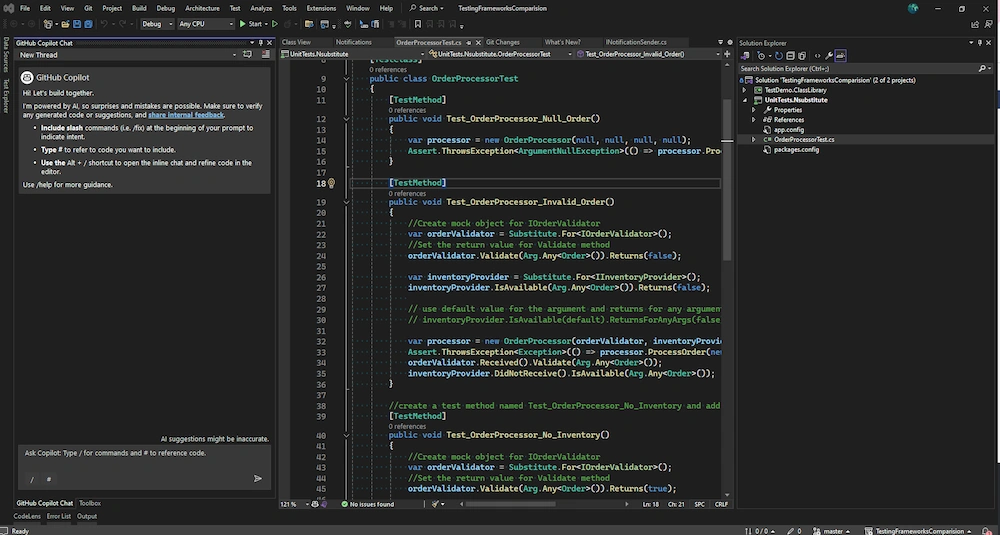
The second way is to click on this Image at the bottom, similarly, you can also disable Copilot any time you want by unselecting the enable option globally or for this solution.


Join the conversation! Your thoughts help the community grow.