

In this article, we will look for developing a logging mechanism for PowerShell automation components that can provide logs not just in the form of a flat file, but also as an interactive HTML format. This best part of the story is we can design this HTML log format using whatever HTML/CSS elements to make as intuitive as possible.
For the sake of clear understanding, I am going to explain the complete process in various steps-
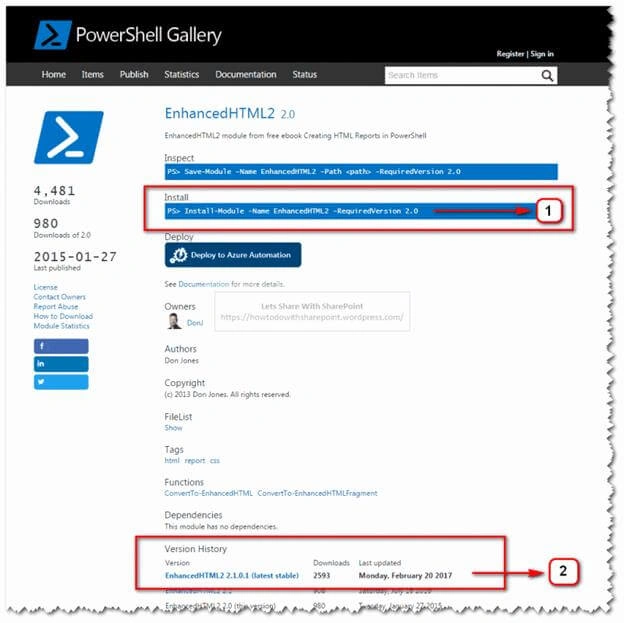
We need to download and install the “EnhancedHTML2” module.
In Step 1, we can see the command to download & install the module. We can use this command using PowerShell Console, or we can download & install this module manually as shown in Step 2, from the PowerShell Gallery
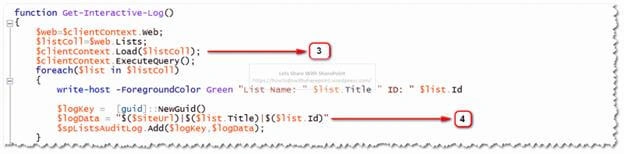
In Step 3, we have added the code to the query for all Lists in SharePoint Site. I have kept it simple & straight for this demo.
In Step 4, we have added the code to build a collection keep list of SharePoint Lists using a PowerShell hash table as shown below-
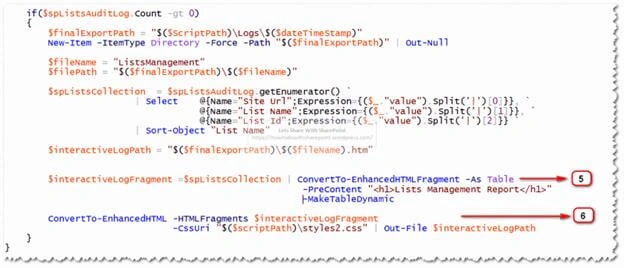
In Step 5 and 6, we can see the implementation of “EnhancedHTML2” module.
In Step 5, we will convert the data collection (Row & Column format) to “EnhancedHTMLFragment” by using “ConvertTo-EnhancedHTMLFragment” cmdlet. Similarly, we can create any number of HTML Fragments as per our need.
This cmdlet uses a switch “PreContent” that allows you to any HTML snippet before the fragment adds to the HTML outcome.
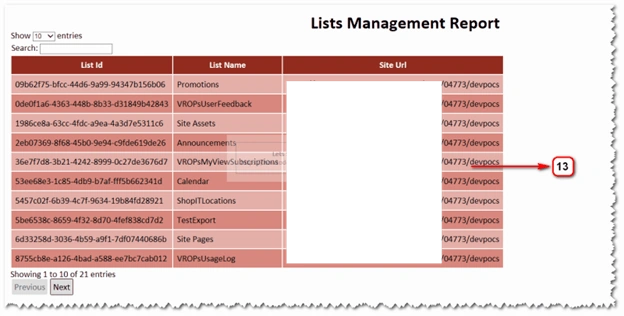
“-MakeTableDynamic” switch allows the cmdlet to embed basic HTML plumbing like Search, Pagination and so on to the HTML outcome
In Step 6, we will append all the HTML Fragments to build a single HTML file by using “ConvertTo-EnhancedHTML”cmdlet.
This cmdlet has got the “HTMLFragments” parameter that will accept comma separated values of names of the Fragments that you want to include in the HTML document.
Another important parameter “CssUri” accepts the path of CSS file that will define the styling attributes for the HTML page.
The “Out-File” parameter defines the path to the save the HTML Log file.
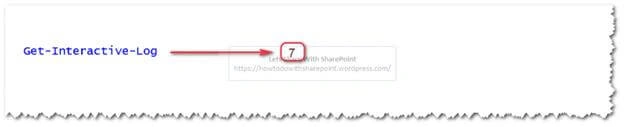
In Step 7, we will call the method to execute the above steps.
In Step 8, the dll files are shown that we need to include to the script to make SharePoint Calls work.

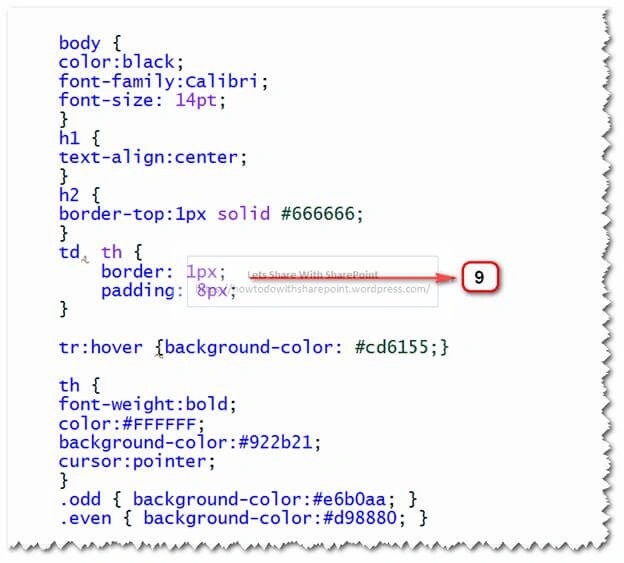
Step 9 shows the CSS file that we referred with “ConvertTo-EnhancedHTML” in Step 6.
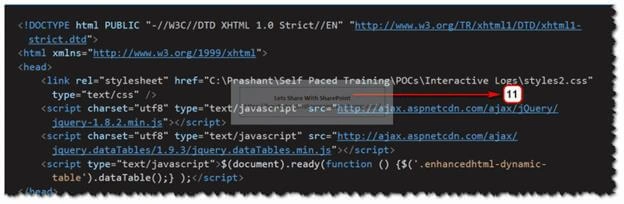
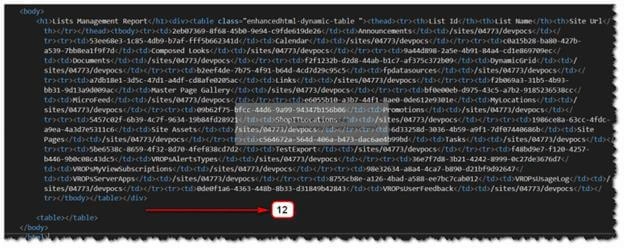
Step 10 shows the HTML outcome log file generated after we successfully executed the steps above
Balakumar KPosted Feb 10, 2021, 3:01 AM
Hi Can you please help me, how did you get the Search option and page list
Abhishek MishraPosted Jan 6, 2019, 2:51 AM
Happy to see powershell stuff. It is a very powerful scripting language. The professionals are niche. Well written.