

Timer Service
A SharePoint Farm requires a mechanism to run tasks necessary to provide its services. These tasks include updating components of the Farm such as servers and services and updating data and configuration in Farm databases. To run these tasks, SharePoint provides its own scheduled tasks management service, manifested as Timer Service instances installed on every SharePoint server in the Farm.
Consider a scenario where you need to restart the SharePoint timer service in all the servers in the Farm. the manual work can be time consuming and PowerShell becomes handy here.
The following piece of code restarts the SharePoint timer service in the SharePoint Farm:
- Function RestartTimerServiceInSPFarm([Microsoft.SharePoint.Administration.SPFarm]$farm)
- {
- Write-Host ""
- foreach($server in $farm.Servers)
- {
- foreach($instance in $server.ServiceInstances)
- {
- # If the server has the timer service then stop the service
- if($instance.TypeName -eq $timerServiceInstanceName)
- {
- [string]$serverName = $server.Name
- Write-Host "Stop " $timerServiceName " service on server: " $serverName -fore yellow
- $service = Get-WmiObject -ComputerName $serverName Win32_Service -Filter "DisplayName='$timerServiceName'"
- $serviceInternalName = $service.Name
- sc.exe \\$serverName stop $serviceInternalName > $null
- # Wait until this service has actually stopped
- write-host "Waiting for '$timerServiceName' service on server: " $serverName " to be stopped" -fore yellow
- do
- {
- Start-Sleep 1
- Write-Host -foregroundcolor DarkGray -NoNewLine "."
- $service = Get-WmiObject -ComputerName $serverName Win32_Service-Filter "DisplayName='$timerServiceName'"
- }
- while ($service.State -ne "Stopped")
- write-host " '$timerServiceName' service on server: " $serverName " stopped successfully" -fore green
- Write-Host "Start " $timerServiceName " service on server: " $serverName -fore yellow
- $service = Get-WmiObject -ComputerName $serverName Win32_Service -Filter "DisplayName='$timerServiceName'"
- $serviceInternalName = $service.Name
- sc.exe \\$serverName start $serviceInternalName > $null
- # Wait until this service starts running
- write-host "Waiting for " $timerServiceName " service on server: " $serverName " to be started" -fore yellow
- do
- {
- Start-Sleep 1
- Write-Host -foregroundcolor DarkGray -NoNewLine "."
- $service = Get-WmiObject -ComputerName $serverName Win32_Service-Filter "DisplayName='$timerServiceName'"
- }
- while ($service.State -ne "Running")
- write-host $timerServiceName " service on server: " $serverName " started successfully" -fore green
- write-host ""
- #break;
- }
- }
- }
- Write-Host ""
- }
- $LogTime = Get-Date -Format yyyy-MM-dd_hh-mm
- $LogFile = ".\SPTimerServiceRestartPatch-$LogTime.rtf"
- # Add SharePoint PowerShell Snapin
- if ( (Get-PSSnapin -Name Microsoft.SharePoint.PowerShell -ErrorAction SilentlyContinue) -eq $null ) {
- Add-PSSnapin Microsoft.SharePoint.Powershell
- }
- $scriptBase = split-path $SCRIPT:MyInvocation.MyCommand.Path -parent
- Set-Location $scriptBase
- write-host "TESTING FOR LOG FOLDER EXISTENCE" -fore yellow
- $TestLogFolder = test-path -path $scriptbase\Logs
- if($TestLogFolder)
- {
- write-host "The log folder already exist in the script location" -fore yellow
- $clearlogfolder = read-host "Do you want to clear the log folder (y/n)"
- if($clearlogfolder -eq 'y')
- {
- write-host "The user choosen to clear the log folder" -fore yellow
- write-host "Clearing the log folder" -fore yellow
- remove-item $scriptbase\Logs\* -recurse -confirm:$false
- write-host "Log folder cleared" -fore yellow
- }
- else
- {
- write-host "The user choosen not to clear the log files" -fore yellow
- }
- }
- else
- {
- write-host "Log folder does not exist" -fore yellow
- write-host "Creating a log folder" -fore yellow
- New-Item $Scriptbase\Logs -type directory
- write-host "Log folder created" -fore yellow
- }
- #moving any .rtf files in the scriptbase location
- $FindRTFFile = Get-ChildItem $scriptBase\*.* -include *.rtf
- if($FindRTFFile)
- {
- write-host "Some old log files are found in the script location" -fore yellow
- write-host "Moving old log files into the Logs folder" -fore yellow
- foreach($file in $FindRTFFile)
- {
- move-item -path $file -destination $scriptbase\logs
- }
- write-host "Old log files moved successfully" -fore yellow
- }
- start-transcript $logfile
- $global:timerServiceName = "SharePoint 2010 Timer"
- $global:timerServiceInstanceName = "Microsoft SharePoint Foundation Timer"
- # Get the local farm instance
- [Microsoft.SharePoint.Administration.SPFarm]$farm = [Microsoft.SharePoint.Administration.SPFarm]::get_Local()
- Function RestartTimerServiceInSPFarm([Microsoft.SharePoint.Administration.SPFarm]$farm)
- {
- Write-Host ""
- foreach($server in $farm.Servers)
- {
- foreach($instance in $server.ServiceInstances)
- {
- # If the server has the timer service then stop the service
- if($instance.TypeName -eq $timerServiceInstanceName)
- {
- [string]$serverName = $server.Name
- Write-Host "Stop " $timerServiceName " service on server: " $serverName -fore yellow
- $service = Get-WmiObject -ComputerName $serverName Win32_Service -Filter "DisplayName='$timerServiceName'"
- $serviceInternalName = $service.Name
- sc.exe \\$serverName stop $serviceInternalName > $null
- # Wait until this service has actually stopped
- write-host "Waiting for '$timerServiceName' service on server: " $serverName " to be stopped" -fore yellow
- do
- {
- Start-Sleep 1
- Write-Host -foregroundcolor DarkGray -NoNewLine "."
- $service = Get-WmiObject -ComputerName $serverName Win32_Service -Filter "DisplayName='$timerServiceName'"
- }
- while ($service.State -ne "Stopped")
- write-host " '$timerServiceName' service on server: " $serverName " stopped successfully" -fore green
- Write-Host "Start " $timerServiceName " service on server: " $serverName -fore yellow
- $service = Get-WmiObject -ComputerName $serverName Win32_Service -Filter "DisplayName='$timerServiceName'"
- $serviceInternalName = $service.Name
- sc.exe \\$serverName start $serviceInternalName > $null
- # Wait until this service starts running
- write-host "Waiting for " $timerServiceName " service on server: " $serverName " to be started" -fore yellow
- do
- {
- Start-Sleep 1
- Write-Host -foregroundcolor DarkGray -NoNewLine "."
- $service = Get-WmiObject -ComputerName $serverName Win32_Service -Filter "DisplayName='$timerServiceName'"
- }
- while ($service.State -ne "Running")
- write-host $timerServiceName " service on server: " $serverName " started successfully" -fore green
- write-host ""
- #break;
- }
- }
- }
- Write-Host ""
- }
- RestartTimerServiceInSPFarm $farm
- write-host ""
- write-host "SCRIPT COMPLETED" -fore green
- stop-transcript
Step 1: Download and copy the script to the SharePoint server.
Step 2: Navigate to the script path.
Step 3: Execute the script.
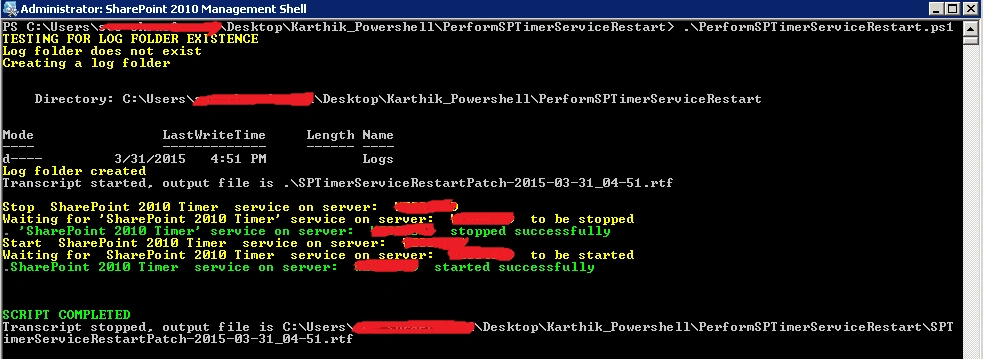
Conclusion
Thus this article explains how to restart the SharePoint timer service using a PowerShell script.
Karthik Muthu KaruppanPosted Apr 30, 2015, 11:05 AM
Thanks
Prasad PathakPosted Apr 8, 2015, 7:14 AM
Good article for starting the timer service in farm.
Prasad PathakPosted Apr 8, 2015, 7:13 AM
Good article
Karthik Muthu KaruppanPosted Apr 2, 2015, 10:34 AM
Thanks Vijay
Karthik Muthu KaruppanPosted Apr 2, 2015, 10:34 AM
Thanks Gowtham
Vijay SPosted Apr 2, 2015, 2:31 AM
Very Informative.
Gowtham RajamanickamPosted Apr 1, 2015, 11:05 PM
good