

Introduction
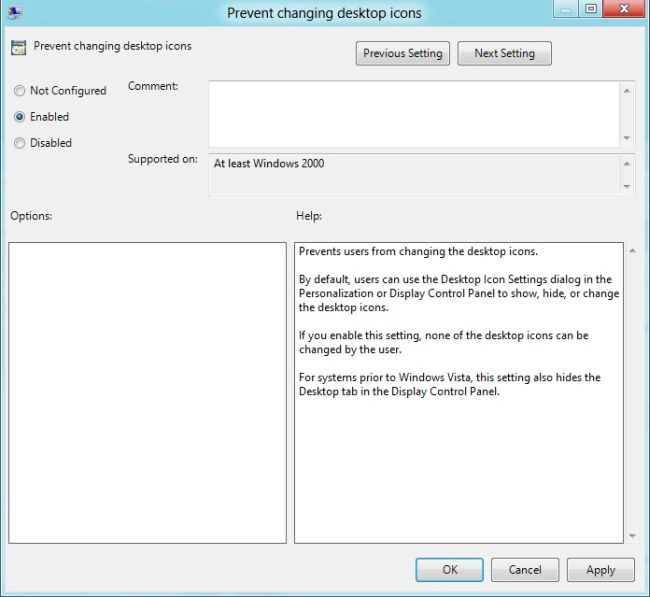
In this article, we are explaining how to prevent a user from changing Desktop Icons in Windows 8. By default, users can use the Desktop Icons Settings. In the Personalization or Display Control Panel the Desktop Icons can be changed or hidden. If you set this setting to "Enabled" then none of the Desktop Icons can be changed by the user. If you set this setting to "Not Configured" or "Disabled" then users can change the Desktop Icons.
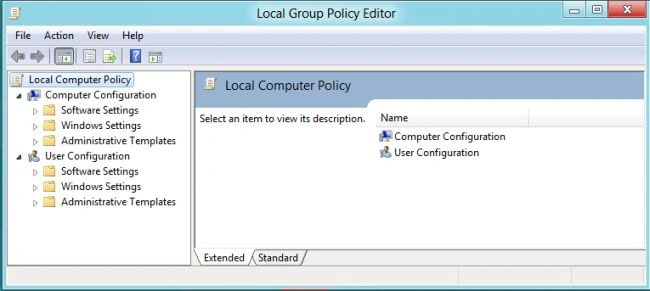
By default this setting is "Not Configured" and users can change the Desktop Icons. Windows 8 helps you "Prevent Changing Desktop Icons". Windows 8 provides the ability to disable changing Desktop Icons. If you want to disable changing of Desktop Icons then you open the Local Group Policy Editor. You can enter the gpedit.msc in the search box and click on it.
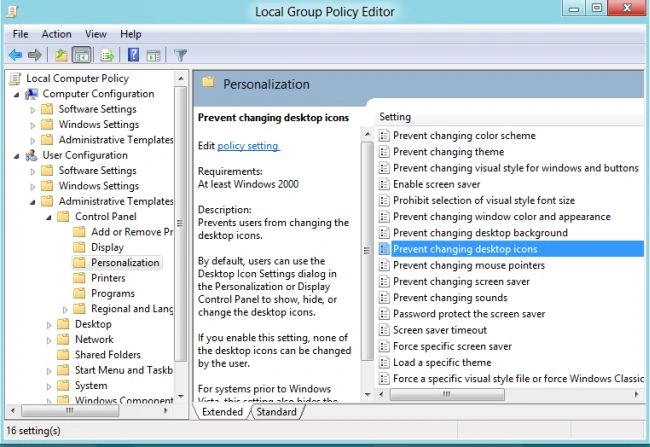
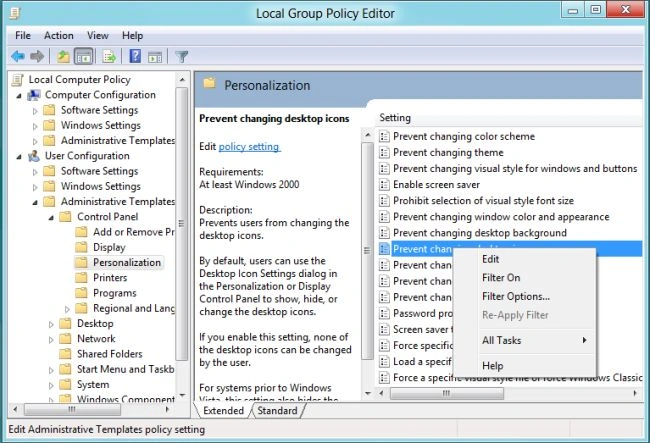
After opening the Local Group Policy Editor, you click on the User Configuration sub-category Administrative Templates sub-category Control Panel sub-category Personalized and right-click on the Prevent Changing Desktop Icons under the Personalized. If you want to Prevent the Desktop Icons then you click on Enabled Button for disabling the Desktop Icons. I do not want to allow anyone to change my Desktop Icons, so it is possible to disable the Desktop Icons from being changed in Windows 8.
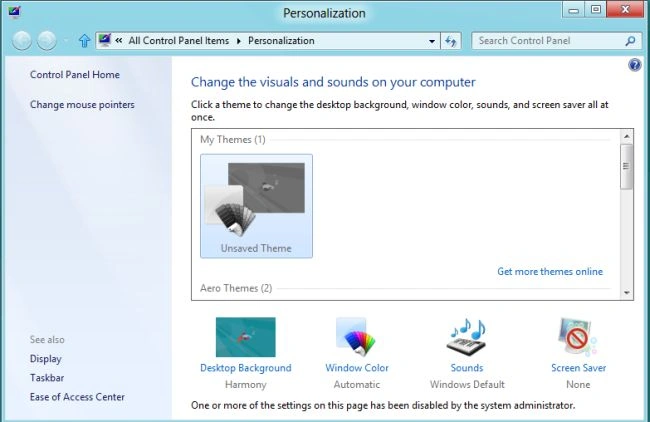
Before preventing the Desktop Icons, right-click on your Desktop and select the Personalized tab. In this tab, you will see the option "Change Desktop Icons". After clicking on it, you will see "Desktop Icons Settings". In this setting, you can change the Desktop Icons.
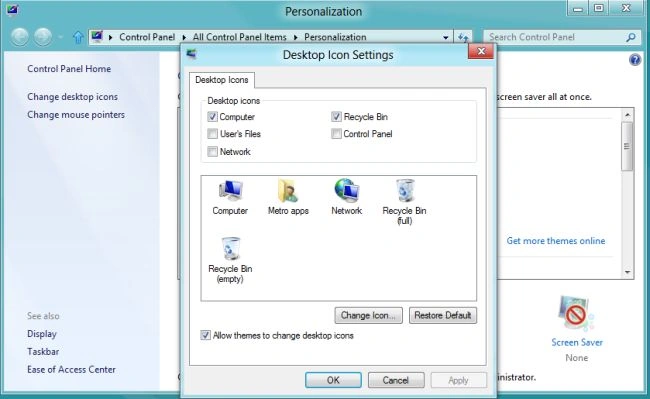
Steps How to Prevent User from Changing Desktop Icons in Windows 8
Step 1
Move the cursor on the right-bottom and select the search box and enter into the search box what you want.
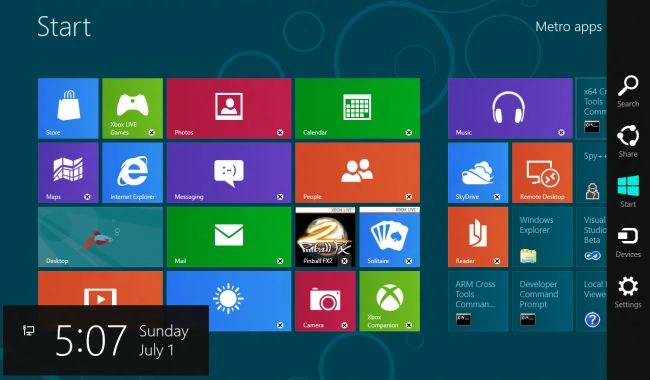
Step 2
In the search box, you enter the gpedit.msc under the application tab and click on the window that is shown.

Join the conversation! Your thoughts help the community grow.