

In this article you will see how to view, print or download a Word document as a PDF in SharePoint 2013.
Introduction
“Print to PDF” is one of the new and cool features in SharePoint 2013. It allows you to view, print or download a Word document as a PDF document. You could see this option in the Hover Panel of any document.
Print to PDF
- Navigate to the Document Library and select the document.
- Select “…”. on the document preview panel; locate the Menu button and then click on the button.
- Click on "Print to PDF".
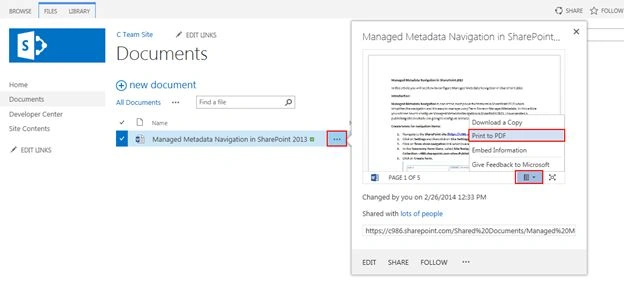
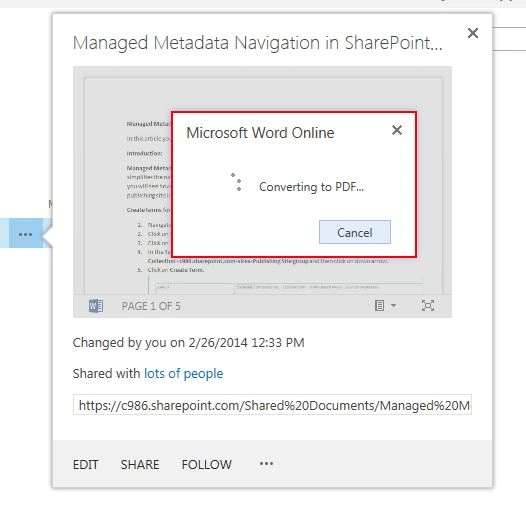
- The document wille be is converted to PDF.
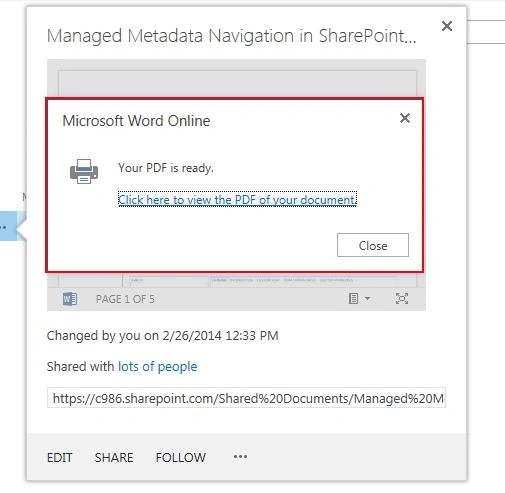
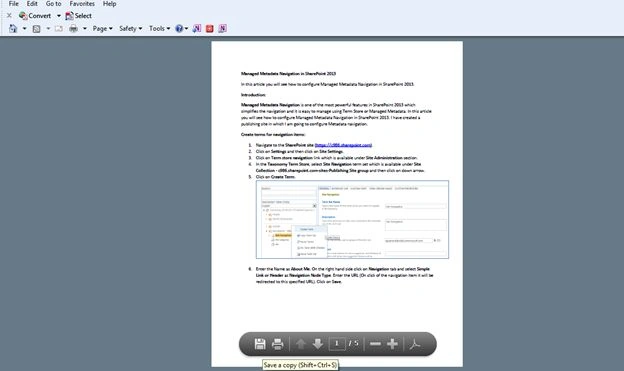
- The PDF document is ready to view, print or download.
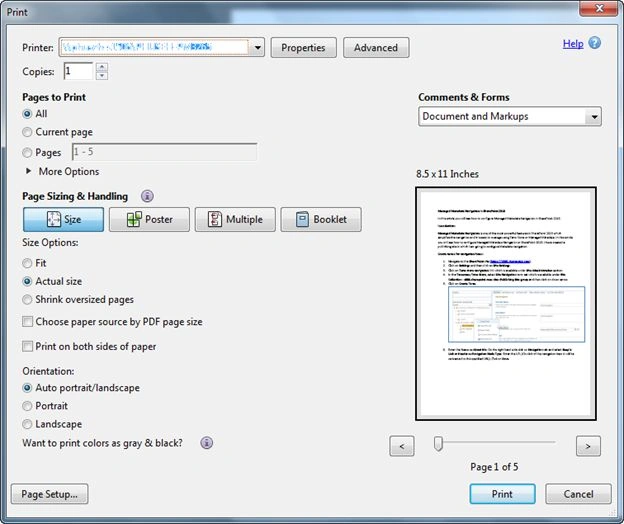
- You will be able to print the PDF.
- You can view or download the PDF.
Note: The Print to PDF option is available in an Office 365 SharePoint site. If you want to see this option in an on-premise environment then you need to install and configure the Office Web App 2013 server with SharePoint 2013, then the "Print to PDF" can be displayed and used.
Summary
Thus in this article you have seen how to view, print or download a Word document as a PDF in SharePoint 2013.
PDF WizardPosted Jan 25, 2018, 8:09 AM
There is a new SharePoint product "PDF Wizard" that handles: - Conversion of files from one format into others. - Add Security features to PDF files like encrypt,decrypt,Add watermarks etc.- Merges multiple files of different format as one PDF file.And many more features.Very easy to install.Very easy to use, no training required. Please checkout the link for more information: https://sharepointpdfwizard.com