

If you misplaced your ruler, here's an application that will create one for you on your printer! Unfortunately, you'll still need a ruler the first time using it so that you can calibrate the measurement for your particular printer, but once you know the calibration value, you are all set with a fairly accurate ruler. Below is the simple design of our ruler. The ruler itself is drawn in a Form. The only other class used is the Calibration Dialog used to enter and retrieve a calibration value:
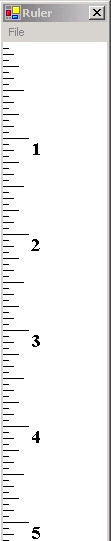
Figure 1 - Part of the ruler

This design was reverse engineered using the WithClass 2000 UML Design Tool for C#
The ruler is created by simply determining the resolution in pixels per inch. This information can be retrieved from the graphics object itself:
- void SizeFormToRuler() {
- // get resolution, most screens are 96 dpi, but you never know...
- Graphics g = this.CreateGraphics();
- this.HRes = g.DpiX; // Horizontal Resolution
- this.VRes = g.DpiY; // Vertical Resolution
- Width = (int) HRes;
- Height = (int) VRes * 11;
- Left = 250;
- Top = 5;
- }
- private void Form1_Paint(object sender, System.Windows.Forms.PaintEventArgs e) {
- Graphics g = e.Graphics;
- RulerHeight = 11;
- DrawRuler(g);
- }
- private void DrawRuler(Graphics g) {
- g.DrawRectangle(Pens.Black, ClientRectangle);
- g.FillRectangle(Brushes.White, 0, 0, Width, Height);
- float PixelsPerInch = VRes + (float) Calibration;
- int count = 1;
- //cycle through every pixel in the ruler at 1/16 pixel intervals
- // Mark the appropriate tick values
- for (float i = 1; i < (float) PixelsPerInch * RulerHeight + 10; i += 0.0625 f) {
- // use the modulus function to determine what type of tick to use
- if ((i % (PixelsPerInch)) == 0) {
- g.DrawLine(Pens.Black, 0, i, 25, i);
- // Draw a Number at every inch mark
- g.DrawString(count.ToString(), TheFont, Brushes.Black, 25, i, new StringFormat));
- count++;
- } else if (((i * 2) % ((PixelsPerInch))) == 0) {
- g.DrawLine(Pens.Black, 0, i, 20, i);
- } else if (((i * 4) % ((PixelsPerInch))) == 0) {
- g.DrawLine(Pens.Black, 0, i, 15, i);
- } else if (((i * 8) % ((PixelsPerInch))) == 0) {
- g.DrawLine(Pens.Black, 0, i, 10, i);
- } else if (((i * 16) % ((PixelsPerInch))) == 0) {
- g.DrawLine(Pens.Black, 0, i, 5, i);
- }
- }
- }

Fig 3 - Ruler Calibration Dialog
The Calibration Dialog uses ShowDialog to display the form and retrieves the Calibration Value in the CalibrationValue property of the dialog:
- private void CalibrationMenu_Click(object sender, System.EventArgs e) {
- // Create Calibration Dialog
- CalibrationForm dlg = new CalibrationForm();
- // Set the initial Calibration Value
- dlg.CalibrationValue = Calibration;
- // Show the dialog and retrieve the Calibration Value
- if (dlg.ShowDialog() == DialogResult.OK) {
- Calibration = dlg.CalibrationValue;
- WriteCalibration(); // write the value out to a file to remember for next time
- }
- Invalidate();
- }
Printing the ruler is accomplished using 3 different print controls: The PrintDocument, The PrintDialog, and the PrintPreviewDialog control. Once you've dropped these controls on your form and assigned the PrintDocument Instance to the corresponding Document properties in the PrintDialog and the PrintPreviewDialog, it's fairly easy to set up printing. Below is the routine for PrintPreview. As you can see there is not really much to it.
The actual printing occurs in the PrintDocument's PrintPage Event Handler. This is where you put all the GDI routines for drawing the ruler. You can actually use the same drawing routines in your print handler as you do for your Paint Handler. Your just passing in a Printer Graphics Object instead of a Screen Graphics object:
We've also added persistence to this application to remember the calibration value. The two routines below read and write the calibration value using the StreamReader and StreamWriter classes:
Improvements
This control could be improved by adding a metric ruler option. This is easy enough to accomplish simply by figuring out the pixels per centimeter and then using modulus 10 to get the millimeters. Also a large ruler can be created by printing to multiple pages. I'm sure you can think of some other ideas with a little measured thought.
- private void PrintPreviewMenu_Click(object sender, System.EventArgs e) {
- this.printPreviewDialog1.ShowDialog();
- }
- Printing is not much more complicated.Simply open the PrintDialog and once the user has assigned properties, call the Print method on the PrintDocument:
- private void PrintMenu_Click(object sender, System.EventArgs e) {
- if (printDialog1.ShowDialog() == DialogResult.OK) {
- printDocument1.Print();
- }
- }
- private void printDocument1_PrintPage(object sender,
- System.Drawing.Printing.PrintPageEventArgs e)
- {
- Graphics g = e.Graphics;
- PageSettings ps = e.PageSettings;
- // Set the ruler height based on the Page Settings of the printer
- // That way you can have a larger ruler for a larger piece of paper
- RulerHeight = (int)(ps.Bounds.Height/100.0);
- DrawRuler(g);
- }
- void ReadCalibration() {
- // Determine the path of the file from the application itself
- string calfile = Application.StartupPath + @ "\cal.txt";
- // If the calibration file exists, read in the initial calibration value
- if (File.Exists(calfile)) {
- StreamReader tr = new StreamReader(calfile);
- string num = tr.ReadLine();
- Calibration = Convert.ToInt32(num);
- tr.Close();
- }
- }
- void WriteCalibration() {
- string calfile = Application.StartupPath + @ "\cal.txt";
- treamWriter tw = new StreamWriter(calfile);
- tw.Flush();
- // Write out the calibration value
- tw.WriteLine(Calibration.ToString());
- tw.Close();
- }
This control could be improved by adding a metric ruler option. This is easy enough to accomplish simply by figuring out the pixels per centimeter and then using modulus 10 to get the millimeters. Also a large ruler can be created by printing to multiple pages. I'm sure you can think of some other ideas with a little measured thought.
Akbar mahdiPosted Mar 1, 2017, 9:24 AM
Thank's Mr Mike Gold
erwin yudhaPosted Feb 25, 2012, 9:53 AM
Good Article. How to change that to a millimeter ruler? Can you give an example. Thanks.
sundar lakhmanPosted Feb 8, 2012, 1:25 AM
Dear sir, I follow up ur coding in my project. now i need print invoice in C#asp.net
meha jainPosted Jun 3, 2011, 2:02 AM
While viewing the print preview, only the part of the ruler which fits with first page is displayed, what about the remaining part of the ruler. What I should do to display the remaining part of the ruler
wind wenPosted Nov 7, 2007, 4:20 AM
so happy to see your article while I am fighting with dpi things, I am developing a MDI application with C#, there are some children dialogs need to flat in the mdi parent dialog, and I also have many toolbars and images need to show. currently, I just use the "if elseif " to identify the user's resolution, and then write code to locate each child dialog's position, but I found it's very annoying for I must write code to fit different resolution, dpi and font(nomal, large,extra large...). From your article, I think you're a very expert in this field, would you please give me some suggestions on my trouble? looking forward to your message. -----Katherine.
rupen makhechaPosted Jun 27, 2007, 2:09 AM
I have a c# application with main menu , when i change the DPI settings then my UI looks ugly , can you giveme some solution which is independent of DPI , in other words i want to write application that will look perfect independent of any DPI settings
Richard BlythePosted Apr 28, 2007, 3:49 PM
Great Article! I am running into a problem with one of my applications. Even though I am adjusting the HardMargin property, I still am getting varied output on different printers. Does the dpi figure into me problem? If so, what do I need to do?