

In this article, we will see how to create a simple printing application in C# and GDI+. The application will call a printer on the machine and print a simple text.
Now let's talk about how to write your first simple printing application. In this application we will send the text "Hello Printer!" to the printer from a Windows application. To create this application, follow the simple steps described here.
Using Visual Studio .NET, create a Windows application project names HelloPrinterSamp, as shown in Figure 11.6.
After we create the project, we add the following line to it:
- using System.Drawing.Printing;
Then we add controls for a label, a combo box, and a button to the form. We change the Text and Name properties of the form and these controls. (See the online source code for more details.) The final form should look like Figure 11.7.
When you run this application, the combo box will display the available printer on your machine. You can select any printer from this list, and when you click the Hello Printer button, it will print "Hello Printer!" on your printer.
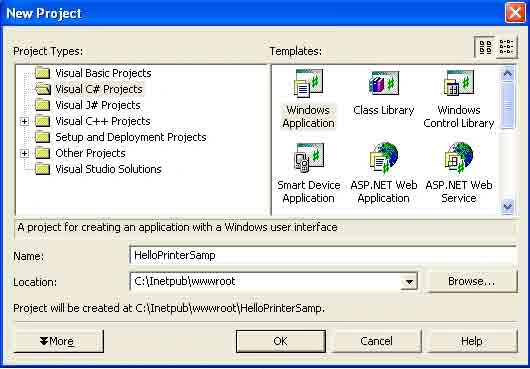
FIGURE 11.6: Creating a Windows application
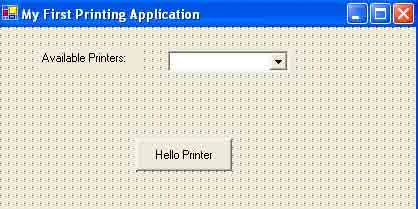
FIGURE 11.7: Your first printing application
We load the available printers on the form's load event handler. The PrinterSetting.InstalledPrinter property returns the installed printers on a machine.
PrinterSettings.InstalledPrinters.Count returns the total number of printers. In Listing 11.2 we check if printers are installed on the machine, read them, and add them to the printer list combo box.
LISTING 11.2: Getting all installed printers
- private void Form1_Load(object sender, System.EventArgs e)
- {
- //See if any printers are installed
- if (PrinterSettings.InstalledPrinters.Count <= 0)
- {
- MessageBox.Show("Printer not found!");
- return;
- }
- //Get all available printers and add them to the combo box
- foreach (String printer in PrinterSettings.InstalledPrinters)
- {
- printersList.Itmes.Add(printer.ToString());
- }
- }
The next step is to add code to the Hello Printer button click event handler (see Listing 11.3). This code is responsible for printing. We create a PrintDocument object and set the PrintDocument.PrinterSettings.PrinterName property to the printer selected from the printer list combo box. Then we add print-page event handler and call the PrintDocument.Print method, which prints the document.
LISTING 11.3: The Hello printer button click event handler
- private void HelloPrinterBtn_Click(object sender, System.EventArgs e)
- {
- //Create a PrintDocument object
- PrintDocument pd = new PrintDocument();
- //Set PrinterName as the selected printer in the printers list
- pd. PrinterSetting.PrinterName =
- printersList.SelectedItem.ToString();
- //Add PrintPage event handler
- pd.PrintPage + = new PrintPageEventHandler (pd_PrintPage);
- //Print the document
- pd.Print();
- }
Join the conversation! Your thoughts help the community grow.