

Overview
Structured document processing model works best for structured and semi-structured documents including forms and invoices. In this article, we will explore Structured document processing model and how to use it in invoices processing scenario.
Structured document processing
Structured document processing model uses Microsoft Power Apps AI Builder to create and train models within Microsoft Syntex. It can be used to process the documents received over mail, fax, and email. Structured document processing model helps to extract out the key-value pairs and table data from structured and semi-structured documents.
Business Scenario
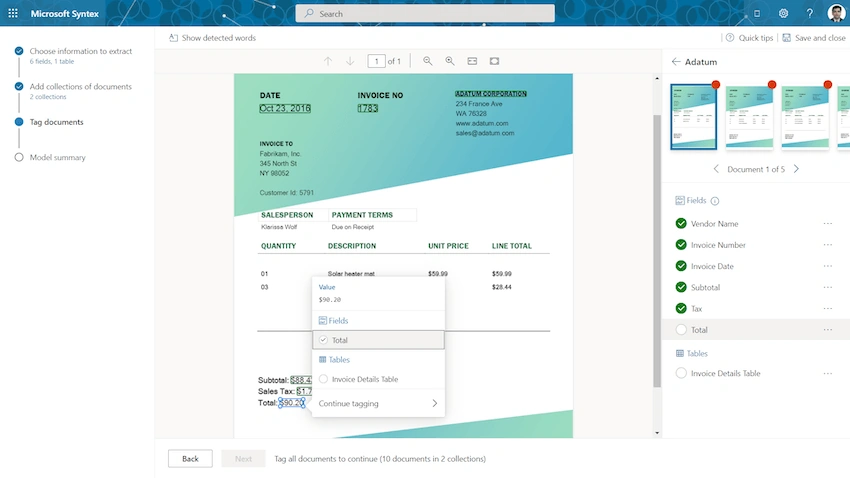
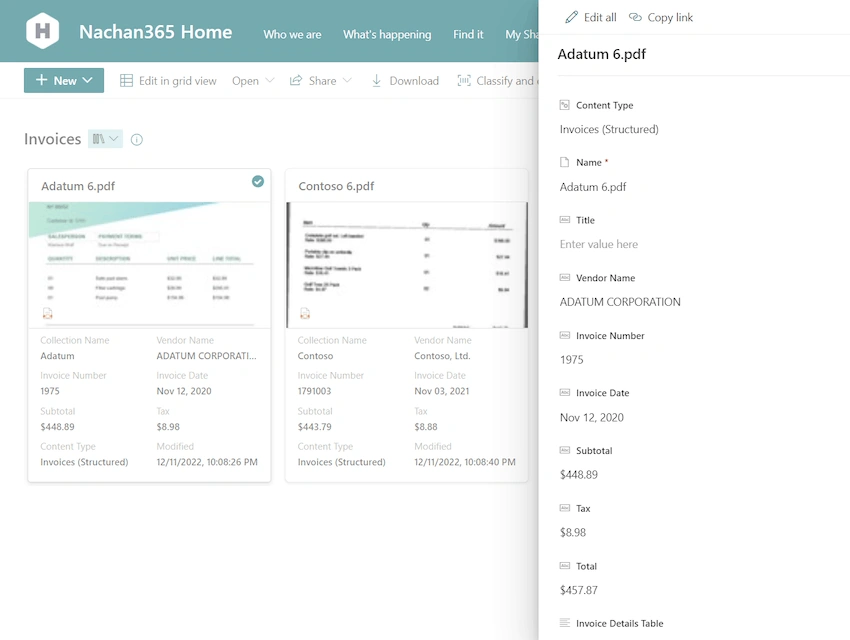
Let us take a scenario, where we are receiving invoices from multiple vendors (e.g., Adatum and Contoso). Adatum shares the invoices over an email. Whereas invoices received from Contoso are in scanned format. Each of them follows its format to share the invoices.

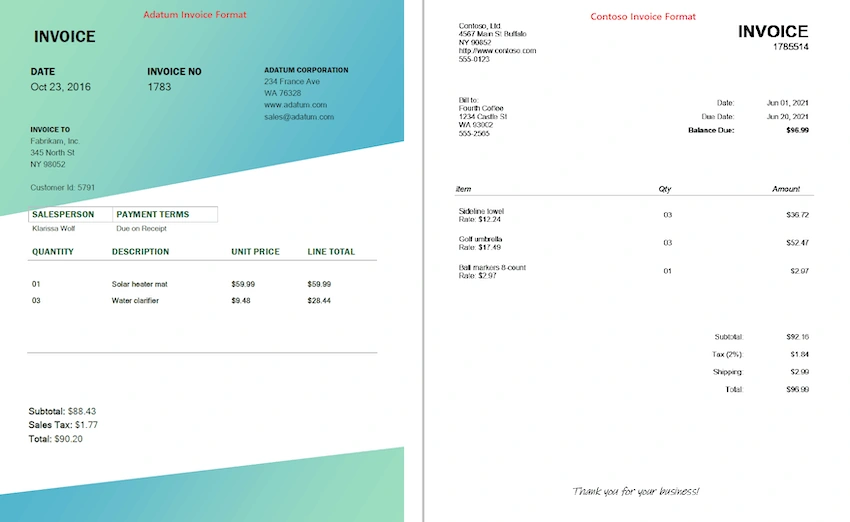
You may use the Invoices sample data for setting up the model.
Create a Structured document processing model
Follow the below steps to create a structured document processing model:
- Open the content center in SharePoint.
- From the top navigation, click Models.
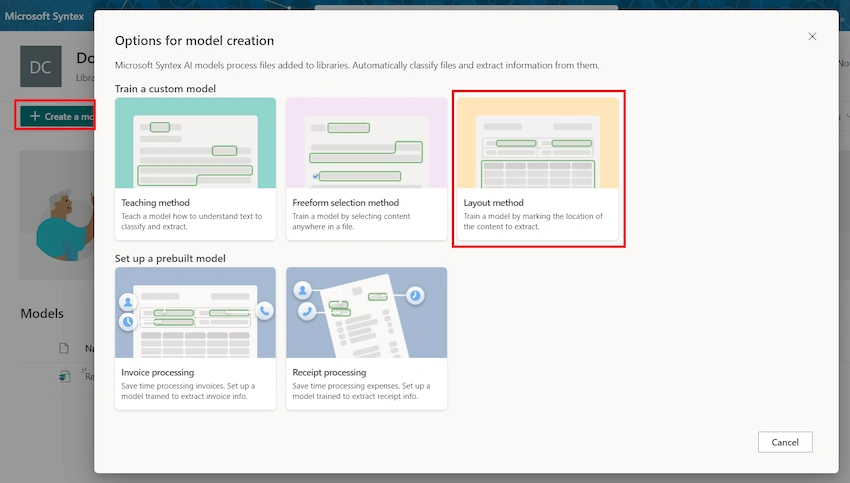
- Click Create a model.
-
Select the Layout method.

-
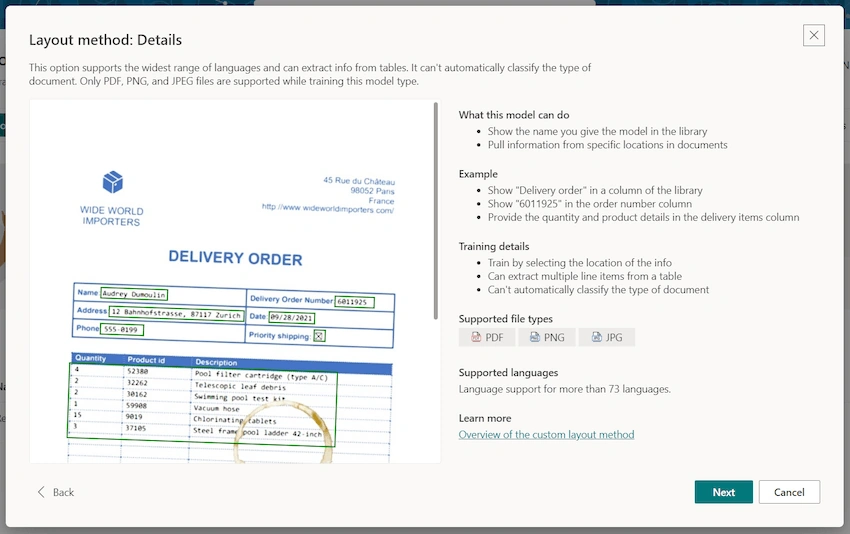
Read out the details to understand the model better. Note, you can use this model on PDF and image files and it does support more than 73 languages.

-
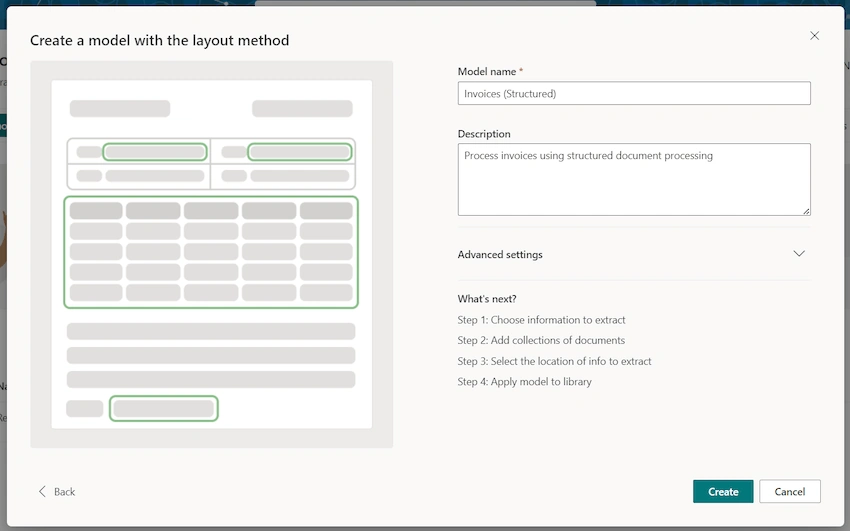
Name your model. Click Create.

Choose information to extract
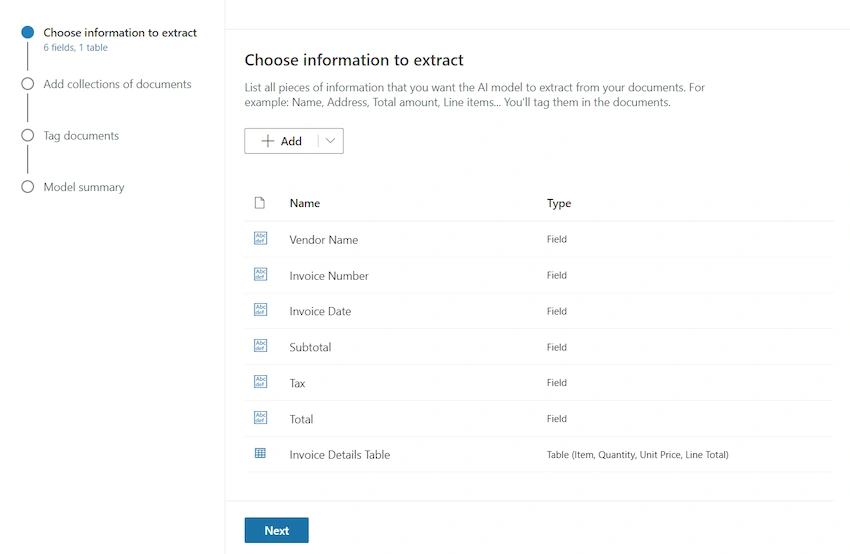
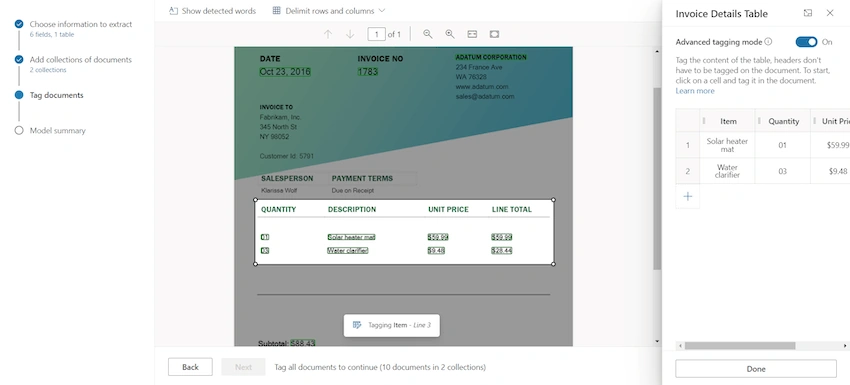
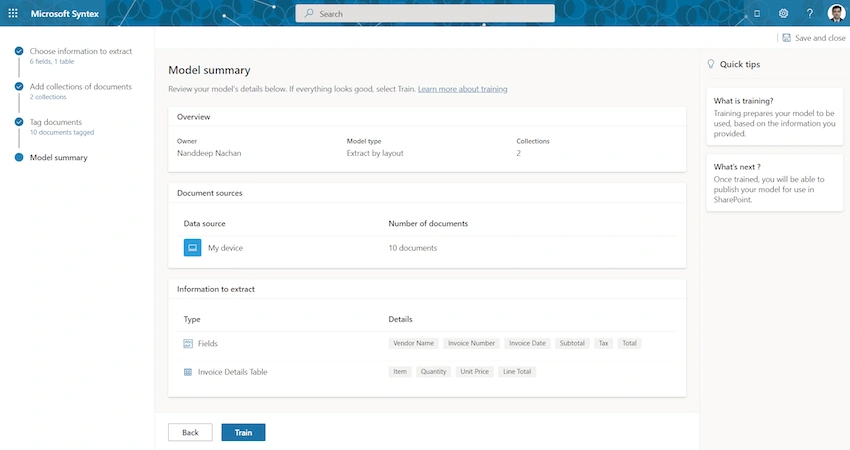
We can now start by defining the information to extract as Field, Checkbox, or Table. Based on the fields that we want to capture from the invoice, let us define the fields.

Add collections of documents
In the next step, we need to create a collection for each layout (e.g., Adatum and Contoso invoices).

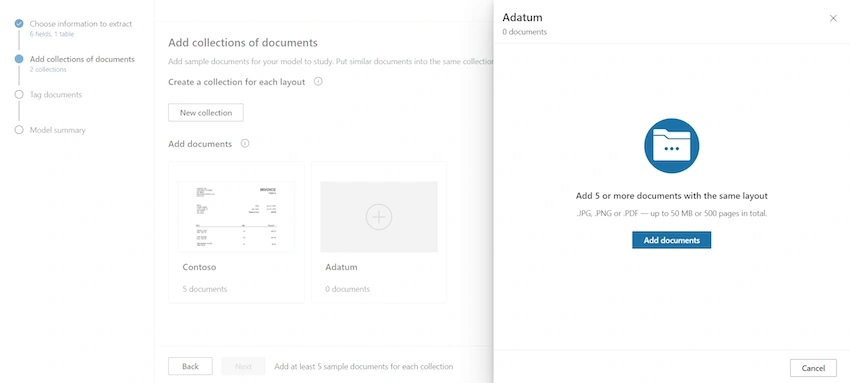
We can add documents from any of below source:
- Local device
- Feedback loop
- SharePoint
- Azure Blob Storage
We need to add at least 5 sample documents in total.






Join the conversation! Your thoughts help the community grow.