

Introduction
This article describes an approach to processing multiple command line arguments. The example provided illustrates processing a variable number or command line arguments and further describes an approach to processing arguments using a key-value pair for each item processed. The additional examples provided illustrate approaches to processing single arguments and processing a variable number of arguments.
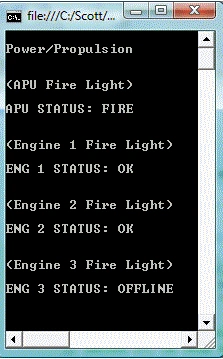
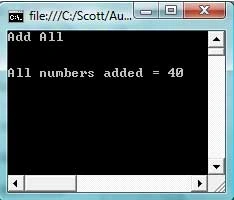
Figure 1. Processing Multiple Command Line Arguments
Getting Started.
There are three example projects included with this article; the examples include:
- SingleCLA. A console mode application that processes a single command line argument
- VariableCLA. A console mode application that processes multiple command line arguments
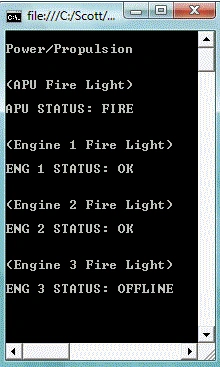
- CommandLineArgs. A console mode application that processes a variable number of arguments in a manner consistent with processing a key-value pair.
You may open and examine each of the projects if you wish, however, the code is quite simple and will be described in the following sections of this document. All examples were written using Visual Studio 2005 and are in C#; the same code could also be used in earlier versions of Visual Studio.
Code Example 1: Processing Single Command Line Arguments.
The first example, SingleCLA, demonstrates an approach to processing a single command line argument. Command line arguments are processed in the Main function of the application and it does not matter whether or not the application is a Windows application or a console mode application. The Main function accepts a string array as an argument list and you may either ignore or process any or all of the list as you see fit. If you wanted to do something like open and process a file on initialization, you may wish to allow the application to accept a file path as an argument and process the associated file when the application is started. You may, however, process anything passed as an argument, not just file paths.
In the sample, the application is set up to process the first argument in the argument list; any additional arguments passed in are simply ignored. In this example, an integer value is passed to the Main function; the application will attempt to process the first argument in the list by squaring the value submitted and then displaying that value in the console.
The code used to perform these actions is as follows:
static void Main(string[] args)
{
    if (args.Length == 0)
    {
        Console.WriteLine("No arguments submitted");
        Console.ReadLine();
        return;
    }
    // processing a single argument
    Console.WriteLine("Squared Argument" + Environment.NewLine);
    // create variables to hold arguments
    Int32 orginalValue = 0;
    Int32 squaredValue = 0;
    try
    {
        orginalValue = int.Parse(args[0].ToString()); //first argument only
        squaredValue = orginalValue * orginalValue;
        Console.WriteLine(Environment.NewLine +
        Convert.ToString(orginalValue) + " Squared = " + Convert.ToString(squaredValue) +
        Environment.NewLine);
        Console.ReadLine();
        return;
    }
    catch
    {
        // display indication of invalid input from command line
        Console.WriteLine(Environment.NewLine + "Invalid Input" +
        Environment.NewLine);
        Console.ReadLine();
        return;
    }
}
In this example, the code begins by checking to see if any arguments were passed to the Main function; if none were, the user is notified and the Main function is exited.
After making sure that we have an argument to process, the application prints a title out to the screen, two variables are then created and initialized; one will contain the value passed into the Main function as an argument, the second will contain the value obtained by squaring the orginal value.
Within the try-catch block, the application will assign the first argument in the argument list to the variable used to contain the orginal value; since the argument is passed as a string, it is converted to an integer value. Next, the original value is squared and the squared value is assigned to the variable used to contain the original value squared. If the operation is successful, the results are displayed to the user; if the operation fails, the user will receive an indication that the input was invalid.
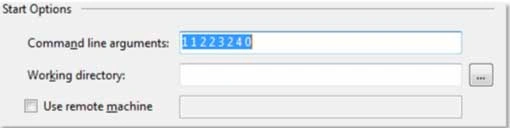
In order to test the command line interface from the the IDE, you may open the project properties, select the 'Debug' tab, and key an argument into the command line arguments field as indicated in the following figure. You may wish to experiment with the command line here by keying in multiple values (separated by a space) , different values, and no value.
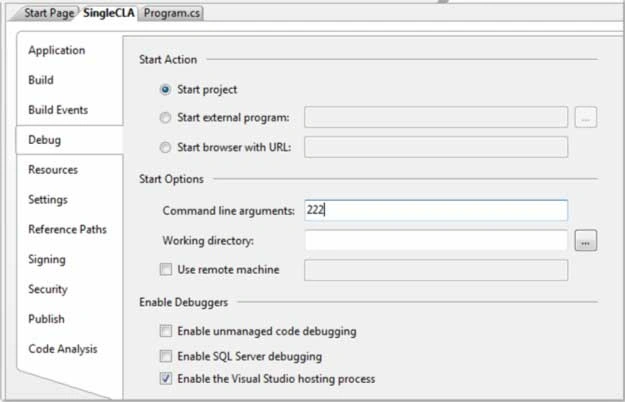
Figure 2. Entering Command Line Arguments from the IDE
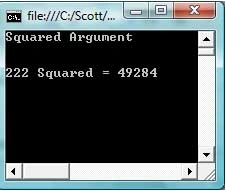
Figure 3. Results of Executing Example 1 with the Argument "222"
Code Example 2: Processing a Variable Number of Arguments
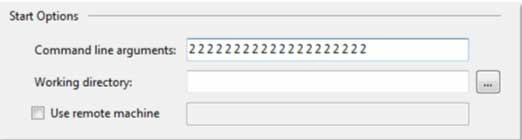
In this example (VariableCLA), the Main function is configured to process a variable number of arguments. The code is set to add up the values of all of the arguments passed to the function and then, after the last argument is included, return the result of the addition for display. The function will loop through any number of items passed into the Main function as arguments through the argument string array.
The code used in this example is as follows:
static void Main(string[] args)
{
    if (args.Length == 0)
    {
        Console.WriteLine("No arguments submitted");
        Console.ReadLine();
        return;
    }
    Console.WriteLine("Add All" + Environment.NewLine);
    // create variables to hold arguments
    int RunningTotal = 0;
    // populate the variables from the arguments
    for (int i = 0; i < args.Length; i++)
    {
        try
        {
            RunningTotal = RunningTotal +
            Convert.ToInt32(args[i].ToString());
        }
        catch
        {
            // Display error if input is missing or invalid
            Console.WriteLine(Environment.NewLine + "Invalid Input" +
            Environment.NewLine);
            Console.ReadLine();
            return;
        }
    }
    Console.WriteLine(Environment.NewLine + "All numbers added = " +
    RunningTotal.ToString() + Environment.NewLine);
    Console.ReadLine();
    return;
}
Join the conversation! Your thoughts help the community grow.