

The following are the few properties that must be considered when using this webpart:
- WebId
- ListId, ListName
- ViewGuid (because of this and SPD, I spent many a sleepless night)
- RenderContext of a toolbar (Reflection help is needed to set it, another factor for sleepless night :))
- XmlDefinition and XmlDefinitionLink
- Xsl and XslLink
- AsyncRefresh
- DisableColumnFiltering
- EnableSorting
- ChromeType
- AutoRefresh
- AllowPaging, PageSize
- DisplayName, DisplayTitle
- ShowToolbarWithRibbon
- SuppressWebPartChrome
You can either use SharepoingDesigner (SPD) or your skill :) to define the XsltListViewWebPart definition declaratively.
Attributes set on the element WebPartPages:XsltListViewWebPart like AutoRefresh, AsyncRefresh, AllowEdit, AllowConnect, AllowHide, SuppressWebPartChrome, UseSQLDataSourcePaging, Title, AllowMinimize and ListUrl
<table style="width: 100%">
<tr>
<td class="ms-descriptiontext" valign="top">
<table border="0" cellspacing="0" cellpadding="1" width="100%">
<tbody>
<tr>
<td style="padding-top: 4px" class="ms-sectionheader" height="22" valign="top">
<h3 class="ms-standardheader ms-inputformheader">
Employee Information
</h3>
</td>
</tr>
<tr>
<td class="ms-descriptiontext ms-inputformdescription">
Employee Name and Role/Designation .
</td>
<td>
<img alt="" src="/_layouts/images/blank.gif" width="8" height="1">
</td>
</tr>
<tr>
<td>
<img alt="" src="/_layouts/images/blank.gif" width="150" height="19">
</td>
</tr>
</tbody>
</table>
</td>
<td class="ms-authoringcontrols ms-inputformcontrols" valign="top" align="left">
<table border="0" cellspacing="0" cellpadding="0" width="100%">
<tbody>
<tr>
<td class="ms-authoringcontrols">
<table class="ms-authoringcontrols" border="0" cellspacing="0" cellpadding="0" width="100%">
<tbody>
<!-- End Right_Text -->
<tr>
<td class="ms-authoringcontrols" width="99%">
<asp:Panel ID="RowLevel_list1" runat="server" Direction="LeftToRight" HorizontalAlign="Left"
ScrollBars="Auto" Wrap="False">
</asp:Panel>
</td>
</tr>
</tbody>
</table>
</td>
</tr>
</tbody>
</table>
</td>
</tr>
</table>
Code
using (SPSite site = new SPSite(SPContext.Current.Web.Url.ToString()))
{
using (SPWeb web = site.OpenWeb())
{
SPList list = web.Lists["Tracker"];
XsltListViewWebPart XsltListViewWebPart1 = new XsltListViewWebPart();
XsltListViewWebPart1.ListId = list.ID;
SPView lstview = list.DefaultView;
XsltListViewWebPart1.Toolbar = "";
StringBuilder xml = new StringBuilder();
xml.Append("<View Name='" + list.DefaultView.ID.ToString("B").ToString().ToUpper(CultureInfo.InvariantCulture) + "' TabularView='FALSE' MobileView='TRUE' Type='HTML' Hidden='TRUE' DisplayName='' Url='" + Request.Url.ToString() + "' Level='1' BaseViewID='1' ContentTypeID='0x' ImageUrl='/_layouts/images/generic.png'>");
xml.Append("<Query><OrderBy><FieldRef Name='ID'/></OrderBy></Query>");
xml.Append("<ViewFields> <FieldRef Name='LinkTitle'/><FieldRef Name='Edit'/><FieldRef Name='Role'/></ViewFields>");
xml.Append("<RowLimit Paged='TRUE'>20</RowLimit>");
xml.Append("<Aggregations Value='Off'/>");
xml.Append("<Toolbar Type='None'/></View>");
XsltListViewWebPart1.XmlDefinition = xml.ToString();//lstview.GetViewXml();
XsltListViewWebPart1.AllowClose = false;
XsltListViewWebPart1.AllowConnect = false;
XsltListViewWebPart1.AllowEdit = false;
XsltListViewWebPart1.AllowHide = false;
XsltListViewWebPart1.AllowMinimize = false;
XsltListViewWebPart1.AllowZoneChange = false;
XsltListViewWebPart1.ChromeType = PartChromeType.Default;
RowLevel_list1.Controls.Add(XsltListViewWebPart1);
}
}
Shown below is the XsltListViewWebPart Web Part that lists employees.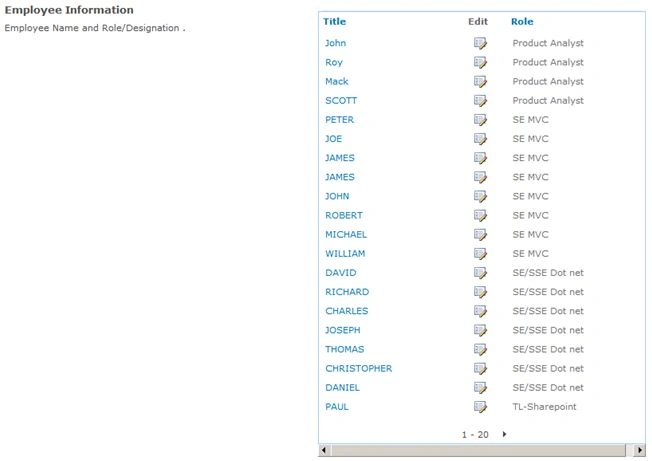
Join the conversation! Your thoughts help the community grow.