

In this article we will be seeing how to configure Navigation Hierarchies using
Single value choice field in SharePoint 2010 using C# and powershell script.
Refer this article to Configure
Navigation Hierarchies using Single value Choice field in SharePoint 2010
through UI and basics of Navigation hierarchies.
Here we will be seeing the same thing programmatically and using powershell
scripts.
Steps Involved:
- Open Visual Studio 2010.
- Create Console application.
- Replace the code with the following.
using System;
using System.Collections.Generic;
using System.Linq;
using System.Text;
using Microsoft.SharePoint;
using Microsoft.Office.DocumentManagement.MetadataNavigation;namespace NavigationHierarchy
{
class Program
{
static void Main(string[] args)
{
using (SPSite site = new SPSite("http://serverName:1111/"))
{
using (SPWeb web = site.RootWeb)
{
SPList list=web.Lists.TryGetList("cl");
SPField field=list.Fields["Country"];
MetadataNavigationSettings listNavSettings = MetadataNavigationSettings.GetMetadataNavigationSettings(list);
MetadataNavigationHierarchy mdnNavHierarchy = new MetadataNavigationHierarchy(field
;
listNavSettings.AddConfiguredHierarchy(mdnNavHierarchy);
MetadataNavigationSettings.SetMetadataNavigationSettings(list, listNavSettings, true);
}
}
}
}
} - Hit F5.
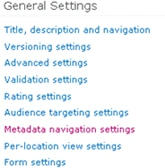
Go to the List => List Settings =>General
Settings =>Metadata navigation settings => Configure navigation hierarchies.
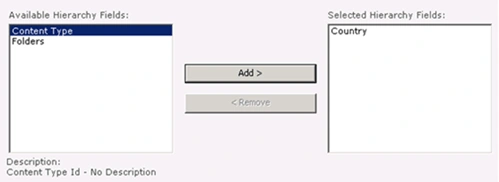
You could see the field "Country" is added successfully to the Hierarchy Fields.
Join the conversation! Your thoughts help the community grow.