In this article you will be seeing how to get all the Social Tags for the
specified URL in SharePoint 2010 using the object model.
A Social Tag can be created for any specified URL with a valid term using
SocialTagManager object. SocialTagManager object contains methods and properties
that are used to manipulate social tag data. Here we will be seeing how to get
all the social tags for the specified URL in SharePoint 2010 using the SharePoint
Object Model.
View all the social tags for the specified URL through Central
Administration:
- Open Central Administration by going Start
| All Programs | Microsoft SharePoint 2010 Products | SharePoint 2010
Central Administration.
- Click on Manage Service Application which
is available in Application Management section.
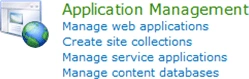
Figure : Application Management section in SharePoint 2010
- Click on User Profile Service Application.
- Click on Manage Social Tags and Notes
which is available in "My Site Settings" section.

- Select Tags from the Type dropdown and
enter the URL.
- Click on Find.
- You could be able to see the Social Tags
for the specified URL.
Programmatically get all the social tags for the specified URL:
Steps Involved:
- Open Visual Studio 2010 by going Start |
All Programs | Microsoft Visual Studio 2010 | Right click on Microsoft
Visual Studio 2010 and click on Run as administrator.
- Go to File tab, click on New and then
click on Project.
- In the New Project dialog box, expand the
Visual C# node, and then select the Windows node.
- In the Templates pane, select Console
Application.
- Enter the Name and then click OK.
- In the solution explorer, right click on
the solution and then click on Properties.
- Select the Application tab, check whether
".Net Framework 3.5" is selected for Target Framework.
- Select the Build tab, check whether "Any
CPU" is selected for Platform Target.
- In the solution explorer, right click on
the References folder and click on Add Reference.
- Add the following references.
1. Microsoft.SharePoint.dll
2. Microsoft.Office.Server.UserProfiles.dll - Double click on Program.cs and add the
following Namespaces.
1. using Microsoft.Office.Server.SocialData;
2. using Microsoft.SharePoint;
- Replace Program.cs with the following code
snippet.
namespace
GetallSocialTags
{
using System;
using System.Collections.Generic;
using System.Linq;
using System.Text;
using Microsoft.Office.Server.SocialData;
using Microsoft.SharePoint;
public class
Program
{
public
static void Main(string[]
args)
{
//// Uri - required to get all the social tags for
the specified uri
Uri uri =
new Uri("https://servername.com/finance/Finance/");
using (SPSite
site = new
SPSite("https://servername.com/finance/Finance/"))
{
//// Get the context of the
service application
SPServiceContext
context = SPServiceContext.GetContext(site);
//// SocialTagManager - Contains
methods and properties used to manipulate social tag data
SocialTagManager
socialTagManager = new
SocialTagManager(context);
//// GetTags(Uri) method is used
to retrieve an array of SocialTag objects that are owned by the current user
and that contain the specified URL.
SocialTag[] tags =
socialTagManager.GetTags(uri);
Console.WriteLine("Tags
for the URL: " + uri.AbsoluteUri);
foreach (SocialTag
tag in tags)|
{
Console.WriteLine("###############################################");
Console.WriteLine("
Tag Name : " + tag.Term.Name);
Console.WriteLine("
URL : " + tag.Url.AbsoluteUri);
Console.WriteLine("
Title : " + tag.Title);
Console.WriteLine("
Owner : " + tag.Owner.DisplayName);
}
Console.ReadLine();
}
}
}
}
-
In the solution explorer, right click on the
solution and click on Build.
-
Hit F5.
Summary:
Thus in this article you have seen how to get all the social tags for the
specified URL in SharePoint 2010 using object model.


sunny singhPosted Apr 30, 2012, 3:13 AM
Thanks man...brilliant post....but I wanted to know how to get social tags of all the sites in a site collection into a tag cloud programatically..??thanks again