

Here I created a WPF Progress Bar that will demonstrate many terms, like Threading, Synchronization, Invoke() and begineInvoke() and simplicity!
Progress Bar in WPF
Step 1: Create WPF Project.
Step 2: Drag two Buttons and a Progress Bar to the WPF Window.
The following are some point to be noted:
- To update progress bar you need to start new thread, Other than the main thread of GUI; that can update progress bar!
- WPF, or Control in the case of Windows Forms have thread affinity, which means that only the thread that instantiates them.
- But can subsequently access their members. Violating this causes either unpredictable behavior, or an exception to be thrown. (for e.g if you want to call a member on object X created on another thread Y, you must marshal the request to thread Y).
- Solution : In WPF you can Use "Dispatcher" Object of "Control" (here Progress bar) to start a new thread.
- Same solution can be done with BackgroundWorker and Task Objects.
XAML CODE
<Window x:Class="ThreadsProgressBar.MainWindow"
xmlns="http://schemas.microsoft.com/winfx/2006/xaml/presentation"
xmlns:x="http://schemas.microsoft.com/winfx/2006/xaml"
Title="MainWindow" Height="350" Width="525" Closing="Window_Closing">
<Grid>
<ProgressBar Height="26" HorizontalAlignment="Left" Margin="40,32,0,0" Name="progressBar1"
VerticalAlignment="Top" Width="417" />
<Button Content="Start" Height="23" HorizontalAlignment="Left" Margin="162,128,0,0" Name="button1"
VerticalAlignment="Top" Width="75" Click="button1_Click" />
<Button Content="Cancel" Height="23" HorizontalAlignment="Left" Margin="243,128,0,0" Name="button2"
VerticalAlignment="Top" Width="75" Click="button2_Click" />
</Grid>
</Window>
CODE BEHIND
using System;
using System.Collections.Generic;
using System.Linq;
using System.Text;
using System.Windows;
using System.Windows.Controls;
using System.Threading;
using System.Windows.Threading;
namespace ThreadsProgressBar
{
/// <summary>
/// Developer Name : void
/// Email For Comments : [email protected]
/// Message : Welcome !
/// Interaction logic for MainWindow.xaml
/// </summary>
public partial class MainWindow : Window
{
// Start New Thread here -- Globally --
Thread t = null;
public MainWindow()
{
InitializeComponent();
// You can set this Max limit in XAML also !
progressBar1.Maximum = 100;
}
private void Work()
{
// Do You Expensive Work Here!
for (int i = 0; i <= 100; i++)
{
//This Sleep is Just For Some timepass
Thread.Sleep(100);
UpdateProgressBar(i);
}
MessageBox.Show("Finish !");
}
private void UpdateProgressBar(int i)
{
// Action is delegate (means a function pointer) which is Pointing towards "SetProgress" method
Action action = () => { SetProgress(i);};
// Here Dispacthers Invoke (is a Syncronus)/ BegineInvoke (Is Asyncornus) in Called
progressBar1.Dispatcher.BeginInvoke(action);
}
private void SetProgress(int i)
{
progressBar1.Value = i;
}
// Start Thread Button Code
private void button1_Click(object sender, RoutedEventArgs e)
{
// Thread is started here (We can say this is 2nd thread after main Thread !)
t = new Thread(Work);
t.Start();
}
private void Window_Closing(object sender, System.ComponentModel.CancelEventArgs e)
{
if (t.IsAlive)
t.Abort();
}
// Abort Thread Button Code
private void button2_Click(object sender, RoutedEventArgs e)
{
// Aborti ng Thread here !
if (t.IsAlive)
{
t.Abort();
progressBar1.Value = 0;
}
}
}
}
WINODW
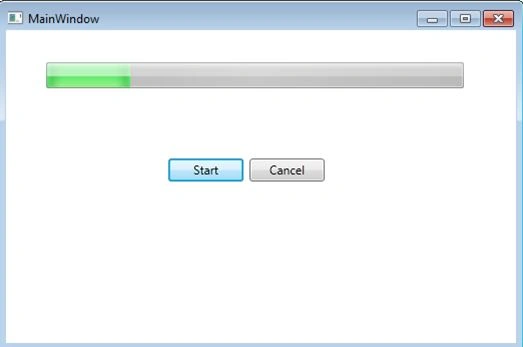
Thanks! I hope this will help someone!
Join the conversation! Your thoughts help the community grow.