

This article is about the Project Summary webpart in SharePoint 2013.
Introduction
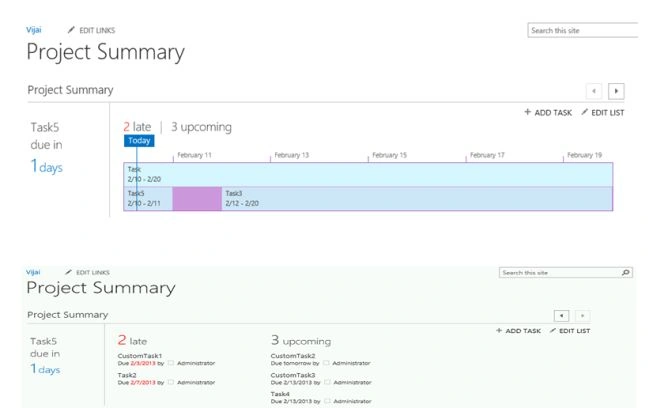
The Project Summary web part in SharePoint 2013 displays the events and tasks. By default this web part will be available in the home page of the project sites. In this article I will create a new page where I will add the Project Summary web part. I have created the following tasks list in the site.
Tasks List
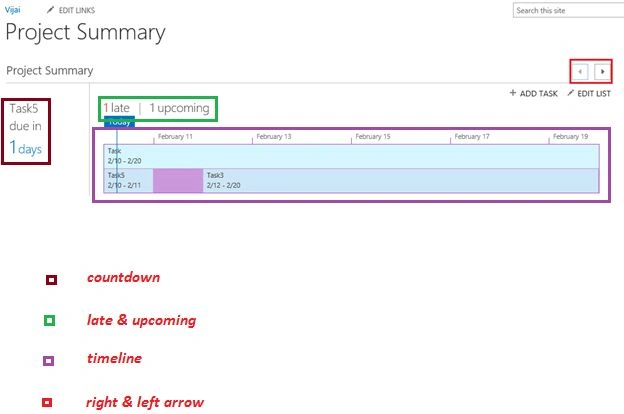
I have a tasks list named Tasks that has the following tasks (Task, Task5 and Task3 are added to the timeline):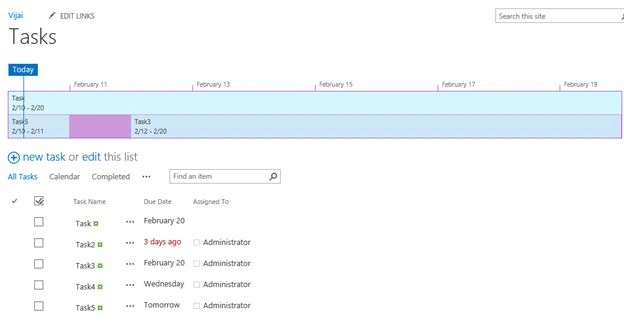
Figure 1: Tasks list
CustomTasks List
I have one more tasks list named CustomTasks that has the following tasks and the tasks that are added to the timeline: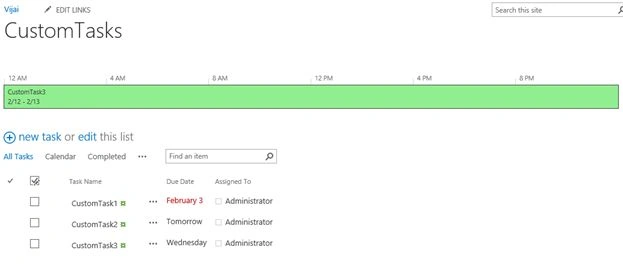
Figure 2: CustomTasks list
[Note: Please refer to http://www.c-sharpcorner.com/UploadFile/anavijai/tasks-list-in-sharepoint-2013 to learn more about the tasks list and timeline in SharePoint 2013.]
Create a new page
- Add a new page for the Project Summary web part. Navigate to the SharePoint Site http://c4968397007/sites/vijai/ (which is a team site).
- Click on "Add a page".
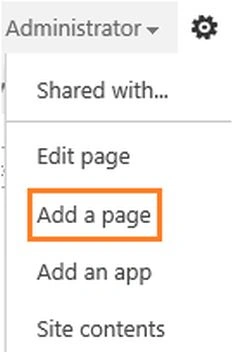
Figure 3: Add a page
- Enter the page name and then click on "Create".
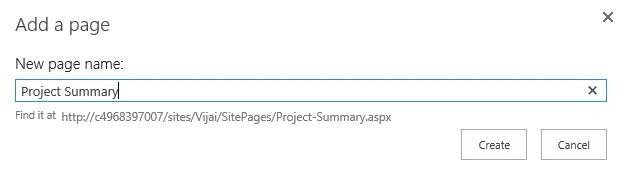
Figure 4: Create a new page
- Click on the "Insert" tab in the ribbon interface and then click on "Web Part".
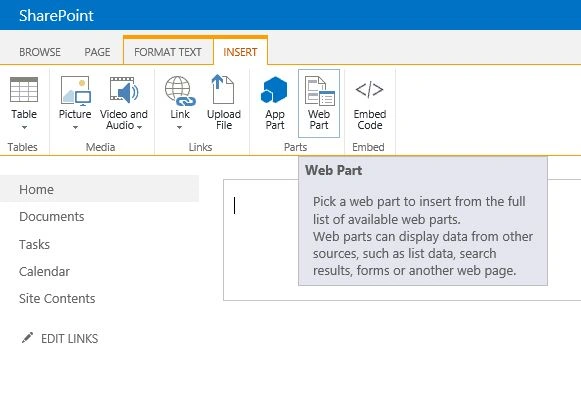
Figure 5: Insert the web part
- Click on "Content Rollup" in the "Categories" section then select "Project Summary" and then click on "Add".
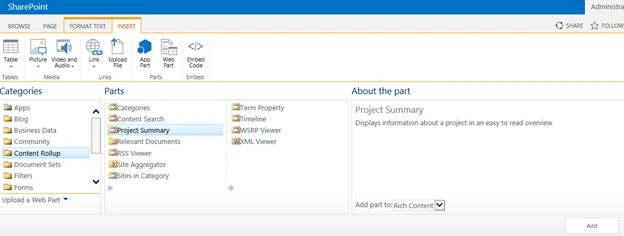
Figure 6: Project Summary web part
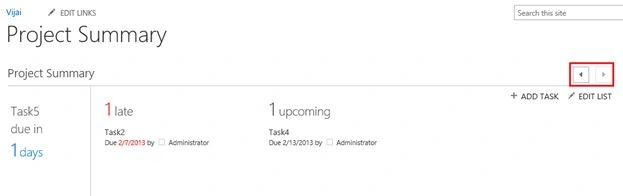
- A Project Summary web part is added successfully.
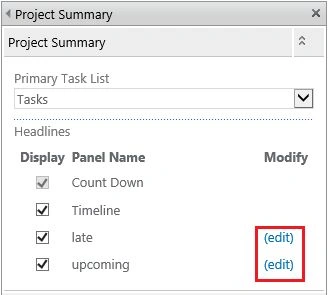
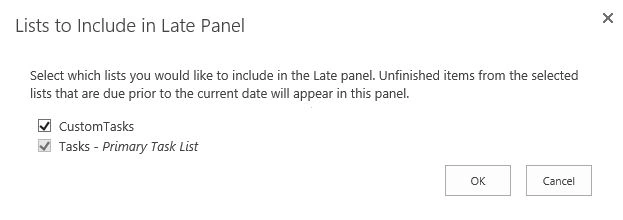
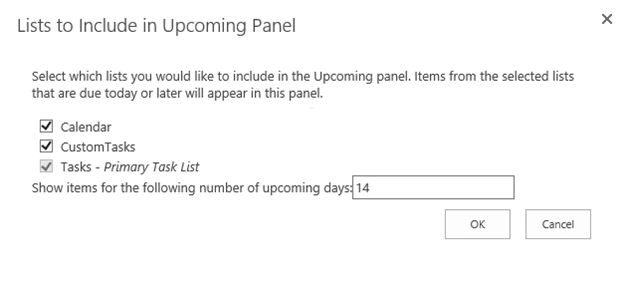
- Edit the web part in the web part properties; select the Primary Task List as Tasks from the drop down, under the Headlines section, ensure the Timeline, late and upcoming options are selected.
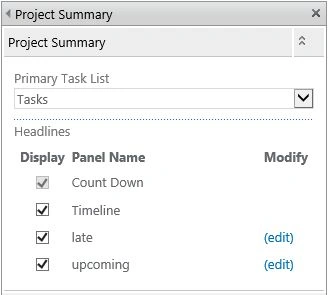
Figure 7: Project Summary web part properties
- Click on Ok.
Venkatesh KumarPosted Feb 14, 2013, 12:37 AM
Interesting feature...Good Post.