
Introduction
MinimumSize property of the Control class plays significant role in resizable
forms. In many cases its value can be determined in advance and set at design
time. However, there are many opposite cases, where MinimumSize must be
calculated at runtime.
This article explains, and demonstrates through a relatively complex example,
proper way of calculating MinimumSize property value at runtime. Result is that
all controls can be rendered without loss caused by insufficient size of their
parent controls.
Importance of Precise MinimumSize Calculation
Every control placed on a form or inside any other control takes space on user
interface. Some controls require fixed space (most of the buttons), some of them
require a strip (TextBox, Label, etc.), and some require a larger rectangle for
their purpose (Panel, TabControl, multiline TextBox, etc.).
Typical user interface heavily relies on Dock and Anchor properties to maintain
optimal layout of controls so that usefulness of each control is maximized.
However, docking and anchoring has a side effect - when container (form, panel,
etc.) is reduced too much, some of the contained controls cannot be rendered
without loss any more. Captions, images, and other GUI elements would not fit if
controls showing them continue shrinking beyond certain point.
This is where MinimumSize property comes into frame. Every control inherits
Control.MinimumSize property which should be set to such size below which
control may not be reduced. This size will be taken into account when layout
engine operates on parent control. When hard times come and control's bounds
start shrinking, MinimumSize property shows to be of higher order than Anchor
and Dock. If obeying anchoring and docking properties means that bounds of the
control will go below MinimumSize, then anchoring and docking will be ignored in
favour of minimum size. Only when control prospers again, in terms of its
spatial bounds, Anchor and Dock will come back into play as before.
This scenario explains why MinimumSize is important. However, one may say that
this property can be set arbitrarily, like 200x20 for a TextBox. That is
generally true, but it is not optimal and sometimes such decision can have
undesired consequences. Especially when container (e.g. form) is shrank by the
user so much that every pixel counts. Some smarter way of dealing with size is
then better.
Always keep on mind that when user decides to reduce size of the window as much
as possible, application should give a helping hand and to reduce all controls
to their absolute minimum at which controls can still operate. This is why
MinimumSize properties of controls should be calculated rather than safely set
to arbitrarily large values.
Simple Example
Suppose that TextBox is meant to receive person's first name. Minimum size can
be experimentally calculated by performing these steps:
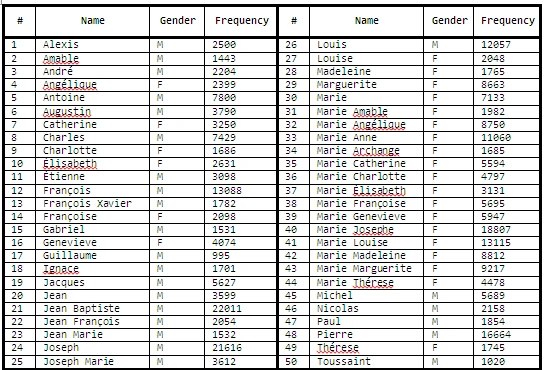
- Take a database of first names for expected culture. For example, table below lists most frequent traditional French names with their corresponding frequencies.
- Measure all names using some typical font, preferably the one that will be used on control. In rare case when font is not known in advance, pick any non-monospaced font, like Times New Roman.
- Calculate average width of all names when rendered. Don't forget to take each name's frequency into account - more frequent names affect average more than others.
- Finally choose name which renders in bounds closest to average.
Here is the function which picks typical name:
string
PickAverageName(string[] names,
int[] frequencies)
{
Font font = new
Font("Times New
Roman", 12.0F);
int sum = 0;
int count = 0;
List<string>
typicalNames = new
List<string>();
for (int i = 0;
i < names.Length; i++)
{
System.Drawing.Size size =
System.Windows.Forms.TextRenderer.MeasureText(names[i],
font);
sum += size.Width * frequencies[i];
count += frequencies[i];
while (typicalNames.Count <= size.Width)
typicalNames.Add(null);
if (typicalNames[size.Width] ==
null)
typicalNames[size.Width] = names[i];
}
int average = (sum + count - 1) / count; // Take ceiling of average width
// Now pick the first sample name at average or higher
width
while (typicalNames[average] ==
null)
average++;
return typicalNames[average];
}
For French names listed in the table, this
method returns name Marguerite, which requires 75 pixels wide rectangle using
Times New Roman font of size 12. This information can be used to determine
minimum size of a TextBox at runtime, using very simple method:
private
void SetTextBoxMinimumSize(TextBox
tb, string text)
{
System.Drawing.Size size =
System.Windows.Forms.TextRenderer.MeasureText(text,
tb.Font);
tb.MinimumSize = new
Size(size.Width, tb.Height);
}
...
SetTextBoxMinimumSize(textBox1, "Marguerite");
When applied to Microsoft Sans Serif font, size
8.25, this method sets TextBox's MinimumSize to 57x20 pixels. If table with
French names is relevant to population using our application, then this method
guarantees that approximately 50% of all names entered to TextBox will perfectly
fit its bounds without clipping.
Table: Frequencies of most common traditional French names, according to
University of Montreal (http://www.genealogie.umontreal.ca/en/nomsPrenoms.htm).
Role of the Control.Layout Event
Layout event is fired every time when control should reposition and resize
contained controls. For example, if panel contains several child controls, some
of which being anchored to panel's borders, exact locations and dimensions of
each control will be determined in the Layout event handler.
This can be demonstrated with a very simple test. Derive a class from Panel and
override its OnLayout event, so that custom implementation does not invoke base
class's implementation of OnLayout. Place CustomPanel onto a form, add other
controls to CustomPanel and anchor them to different borders. Now feel free to
resize the CustomPanel control and observe that Anchor properties of child
controls have no effect - layout logic is not executed.
Layout event interferes with MinimumSize property value in a very simple way.
When control's MinimumSize property is set, it may cause control to be enlarged
(never reduced, though). This happens in cases when minimum size is larger than
current size in at least one dimension. In such case, Layout event will be
raised and contained controls will be repositioned. Now suppose that MinimumSize
property of contained controls is also being calculated on the fly. These
influence contained controls sizes and positions. As can be suspected, setting
both parent and child control's MinimumSize property must therefore be performed
with care.
Here is an example which demonstrates where the danger comes from. Create new
Windows Forms project, open main form's source code and add these functions to
it:
protected
override void
OnLoad(EventArgs e)
{
base.OnLoad(e);
Panel pnl = new
Panel();
pnl.BackColor = Color.LightYellow;
pnl.BorderStyle = BorderStyle.FixedSingle;
pnl.Size = new
Size((ClientRectangle.Width - 10) / 2, (ClientRectangle.Height - 10) /
2);
pnl.Left = 5;
pnl.Top = 5;
pnl.SizeChanged += new EventHandler(pnl_SizeChanged);
TextBox tb = new
TextBox();
tb.Width = 2 * (pnl.ClientRectangle.Width - 10) / 3;
tb.Left = 5;
tb.Top = 5;
tb.Anchor = AnchorStyles.Top |
AnchorStyles.Left |
AnchorStyles.Right;
Size tbSize = tb.Size;
tb.SizeChanged += new
EventHandler(tb_SizeChanged);
pnl.Controls.Add(tb);
this.Controls.Add(pnl);
Console.WriteLine("Original
panel size {0}", pnl.Size);
Console.WriteLine("Original
text box size {0}", tb.Size);
// Now specify minimum sizes for panel and text box
tb.MinimumSize = new
Size(tbSize.Width * 2, tbSize.Height);
pnl.MinimumSize = new
Size(pnl.Width * 2, pnl.Height * 2);
}
void
tb_SizeChanged(object sender,
EventArgs e)
{
Console.WriteLine("TextBox
size changed to {0}", ((TextBox)sender).Size);
}
void
pnl_SizeChanged(object sender,
EventArgs e)
{
Console.WriteLine("Panel
size changed to {0}", ((Panel)sender).Size);
}
This code creates new Panel control which occupies top-left quarter of the
parent form (excluding 5 pixels margin from each of the form's borders). Inside
the Panel new TextBox control is added, so that it occupies 2/3 of the Panel's
client width (again, excluding 5 pixels margin from the borders).
If we run the code, output will look something like this:
Original panel size {Width=137, Height=127}
Original text box size {Width=83, Height=20}
TextBox size changed to {Width=166, Height=20}
TextBox size changed to {Width=303, Height=20}
Panel size changed to {Width=274, Height=254}
Now observe the output closely. We have changed TextBox's minimum width to 166
pixels, but at that moment Panel's width is only 137 pixels. Further on, width
of the panel is increased to 274 pixels, but this takes effect only after
Panel's Layout event is handled. Inside Layout handler, however, TextBox grows
in width by additional 137 pixels because that is exact increase in Panel's
width - that is how TextBox's Anchor property is handled. As a result, TextBox
grows to 303 pixels in width, which is again larger than containing Panel
control.
The problem in this example is order in which MinimumSize has been set on
TextBox and on Panel. The order must be inversed - first set MinimumSize of the
Panel. This may raise Layout event (if Panel's size is increased). Layout event
handler will resize TextBox accordingly. Only then we can set TextBox's
MinimumSize value, knowing that TextBox will be enlarged only if its MinimumSize
is still larger than current size.
We can exchange two lines of code that are setting MinimumSize values on TextBox
and Panel:
pnl.MinimumSize = new
Size(pnl.Width * 2, pnl.Height * 2);
tb.MinimumSize = new
Size(tbSize.Width * 2, tbSize.Height);
If we run the code now, output will be quite different:
Original panel size {Width=137, Height=127}
Original text box size {Width=83, Height=20}
TextBox size changed to {Width=220, Height=20}
Panel size changed to {Width=274, Height=254}
TextBox's size is now changed in the Layout event, which is raised after Panel's
MinimumSize is set to value larger than current size. After that, MinimumSize of
TextBox is set, but that has no effect because TextBox's size is already larger
than value of MinimumSize.
This little experiment leads to a conclusion. Set MinimumSize property values
top-down, i.e. first to parent controls, and only then to child controls. All
this to let parent control's Layout event opportunity to reposition child
controls properly before their own MinimumSize properties are changed.
General Rules in Calculating MinimumSize
We have determined in previous text that order of setting MinimumSize properties
should be top-down, i.e. containers first, contained controls after that.
However, minimum size of container control often depends on minimum sizes of
contained controls, which further depends on their own contained controls.
Hence, we have an opposite conclusion here: MinimumSize value is calculated
bottom-up, i.e. from the inner-most child controls to the outer-most containers.
From this analysis we come to an algorithm of setting MinimumSize of all
controls in a safe and reliable way:
-
For every control calculate minimum sizes of all relevant contained controls.
-
Calculate own minimum size based on minimum sizes and layout of contained controls.
-
Set own minimum size.
-
Order contained controls to set their own minimum sizes to previously calculated values.

arun rPosted Oct 19, 2013, 12:10 AM
thank you for your article. it is very helpful for me..
Zoran HorvatPosted Jul 18, 2012, 6:58 AM
Thanks Paul. I'm using this technique in my Windows Forms applications on a regular basis. Greatly improves user experience.
paul mortlockPosted Jun 26, 2012, 4:47 AM
Great article and very helpful I am going to try to use this in my accounts application.