

Introduction
This article is a continuation of API management. For managing your first API management you can click the following link http://www.c-sharpcorner.com/article/managing-api-in-azure/. And in this article, I will explain about an API product that allows the developer to make a call using the limit call rate and usage quota per subscriptions policy.
Prerequisites
- An active azure subscription.
- Running API management in azure portal.
Creating a product
Step 1
Login into your azure portal.
Step 2
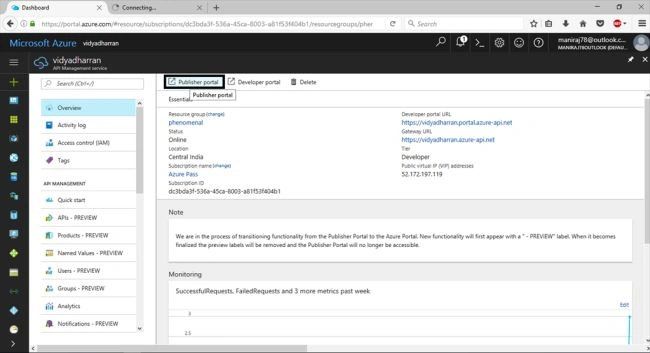
Open the API management and click->publisher portal for API management.
Step 3
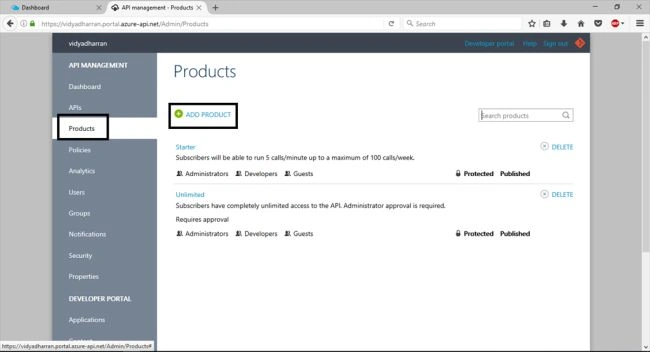
click-> products in API management menu and select ->Add product for adding new product dialog box.
Step 4
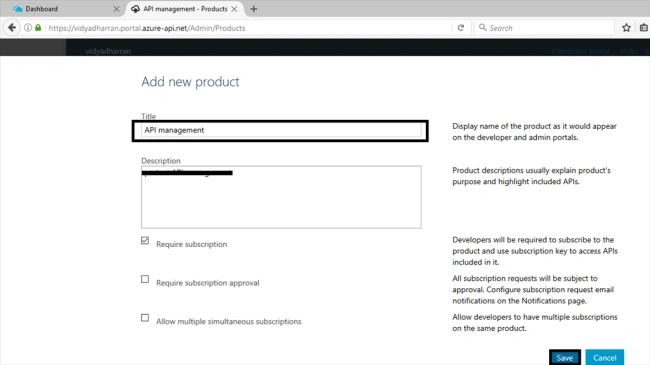
Provide a name for the new product in title text box & in the description text box ->provide a description about the API management and make sure the subscription is selected before clicking->save.
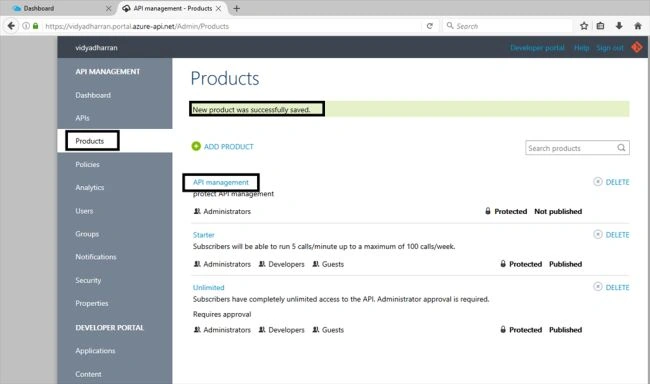
The product will be saved successfully and the new products will be visible for the users in admin
Group and now we can add the developer’s group by clicking->API management and click
->visibility.
Step 6
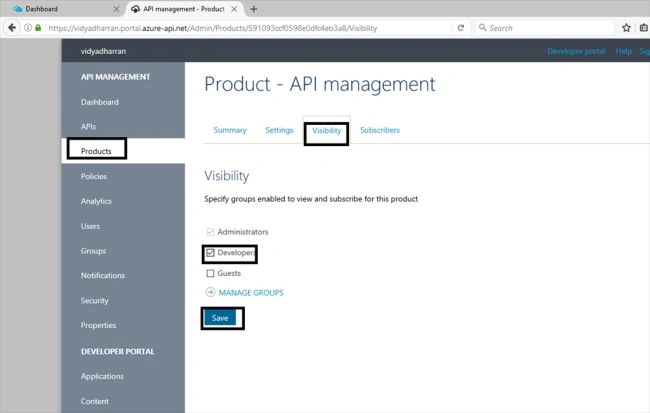
Select->developers check box and click->save.
Step 7
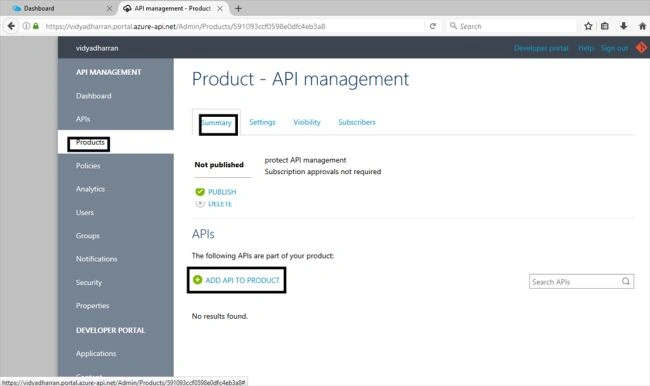
Now we need to add the echo API to API management, click->products and from API management menu->click->API management for configuring the product.
Step 8
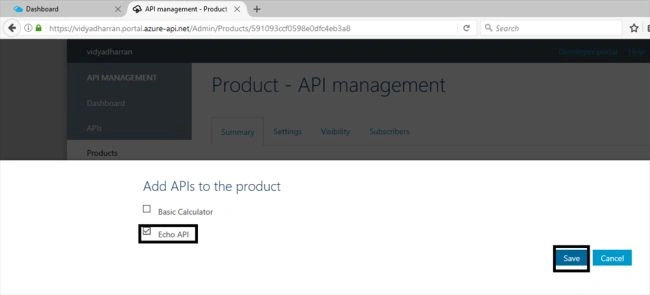
Click-> Add API to product and select Echo API->click->save.
Step 9
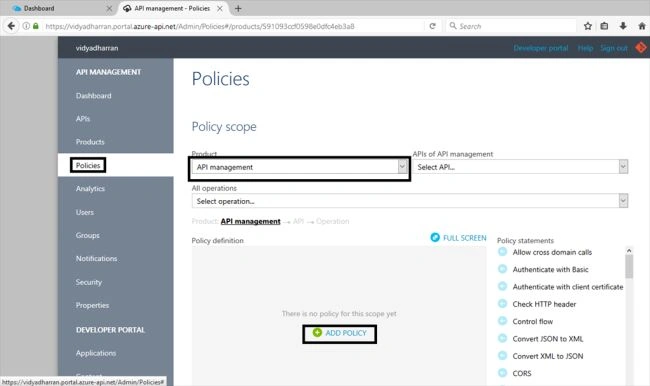
The rate limits and the quotas will be configured in policy editor. click-> policies under API management menu and in product list API management.
Step 10
Select Add policy for importing the policy template for creating the limits and quotas.
Step 11
For inserting the policies, position the cursor into inbound and outbound. The policy template and rate limit and quotas policy are inbound policies, so that the position of the cursor is in inbound element. The two limit policies were added and they are,
- limit call rate per subscription.
- set usage quota per subscription.
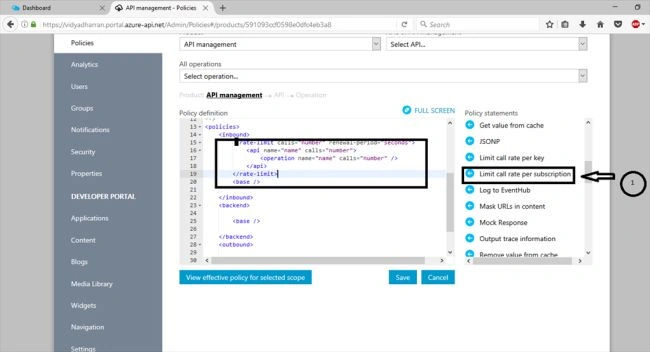
The cursor will be positioned in inbound element and click->limit call rate per subscription and template will be inserted as,
- <rate-limit calls="number" renewal-period="seconds">
- <api name="name" calls="number">
- <operation name="name" calls="number" /> </api>
- </rate-limit>
The limit call rate per subscription can be used in product based and the outer rate-limit elements will be like this:
- <rate-limit calls="number" renewal-period="seconds">
- </rate-limit>
In API management the maximum allowance call is 10 calls/min. and for renewal period it will be 60 days.
- <rate-limit calls="10" renewal-period="60">
- </rate-limit>
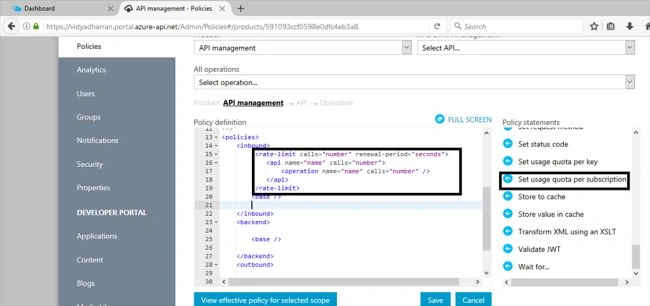
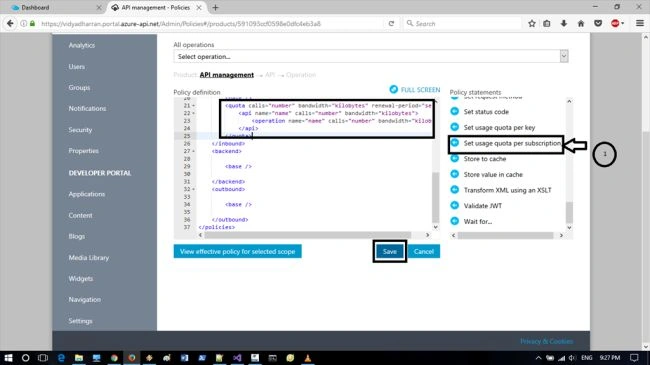
For configuring the set usage quota per subscription policy the position will be added of rate-limit element within the inbound element. click-> set usage quota per subscription.
- <quota calls="number" bandwidth="kilobytes" renewal-period="seconds">
- <api name="name" calls="number" bandwidth="kilobytes">
- <operation name="name" calls="number" bandwidth="kilobytes" /> </api>
- </quota>
Step 12
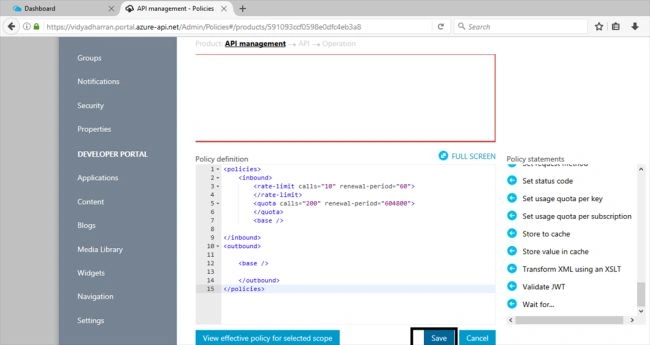
The final configuring policy will match the following way & click->save.
- <policies>
- <inbound>
- <rate-limit calls="10" renewal-period="60"> </rate-limit>
- <quota calls="200" renewal-period="604800"> </quota>
- <base /> </inbound>
- <outbound>
- <base /> </outbound>
- </policies>
Publishing the product
Step 13
The API will be added & so that the policy is configured. The product can be published, so it can be used by developers. Click->Products from API management and click->API management
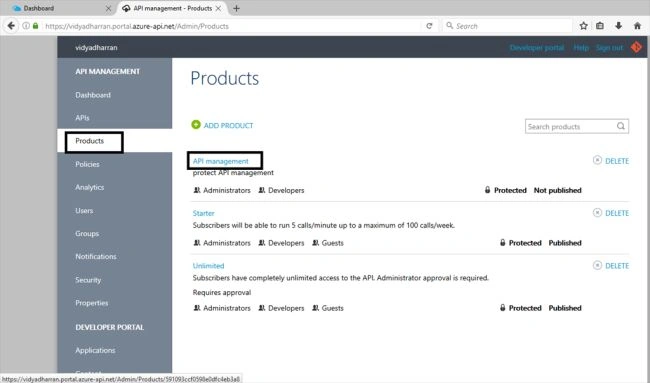
Step 14
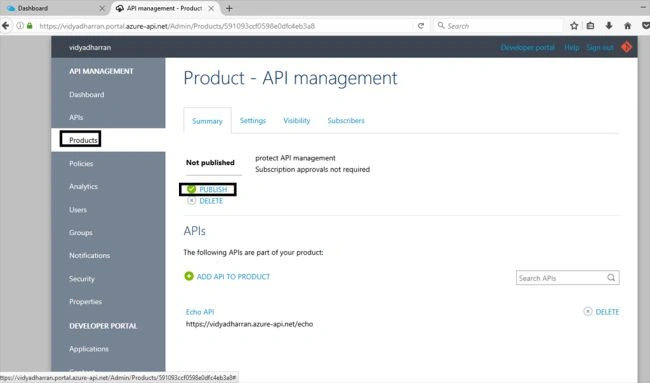
Click->publish, and now the product will be published and used by the developers.
Thiruppathi RPosted May 20, 2017, 5:22 AM
Nice Article......