

Overview
Welcome to Bot Development with the Microsoft Power Virtual Agent series. During this entire article series, we will learn how to create a Chatbot using Microsoft Power Virtual Agent without writing a single line of code. From this series, you will learn complete end to end process from development to deployment.
I have divided this article series into five Parts.
- Introduction to Microsoft Power Virtual Agent – Part One
- Get Started with the Bot Development Step by Step – Part Two
- Connect your Power Virtual Agent with the MS Power Automate – Part Three
- Publish Power Virtual Agent ChatBot and Deploy to MS Teams – Part Four
- Deploy Power Virtual Agent ChatBot to Any Website – Part Five
Use Case
In this article, we will talk about how we can deploy our ChatBot to Microsoft Teams.
Recap
In my previous article, we have created Power Virtual Agents ChatBot and connected ChatBot with Power Automate.
So, now let’s get started!
Step 1
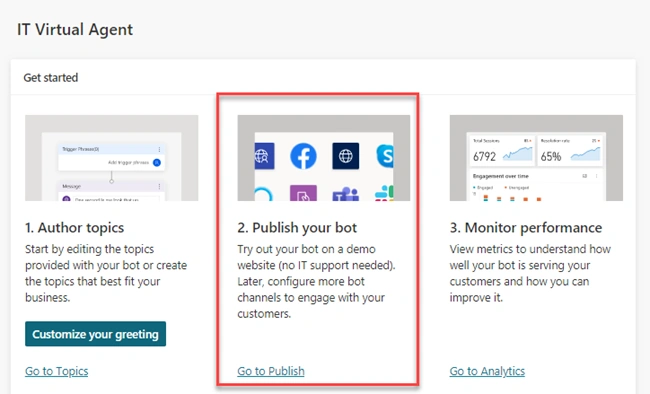
Click on Go to Publish button.
Step 2
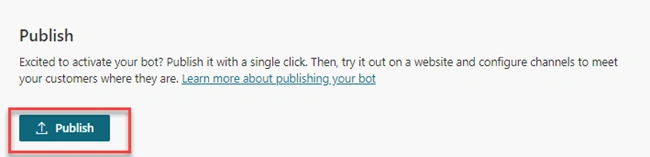
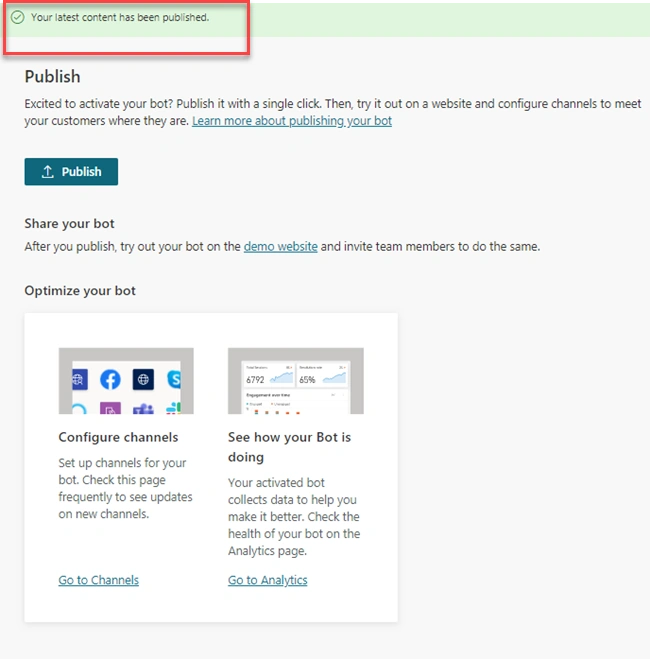
Click on Publish button.
Step 3
Click on Go to Channels.
Or
From Manage > Select Channels
Step 4
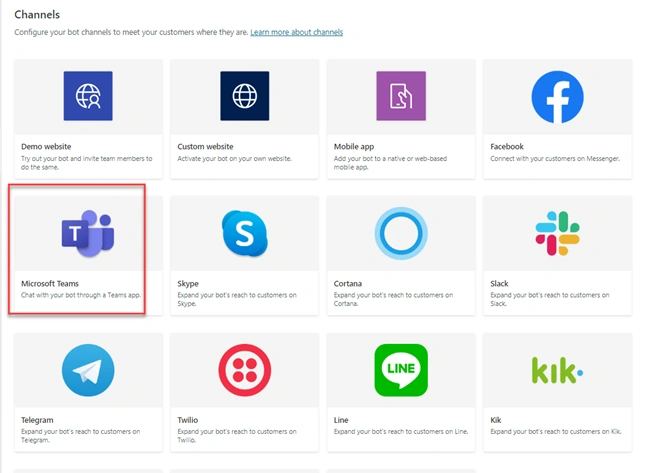
This will open the following screen
Select Microsoft Teams from the above options.
Step 5
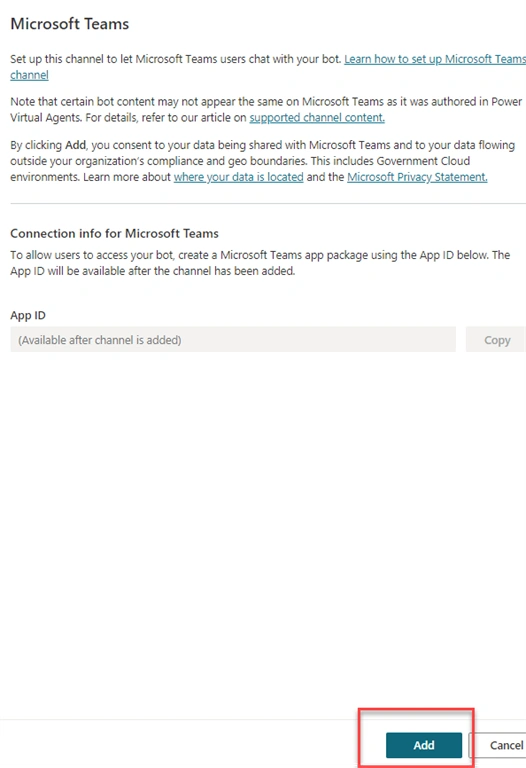
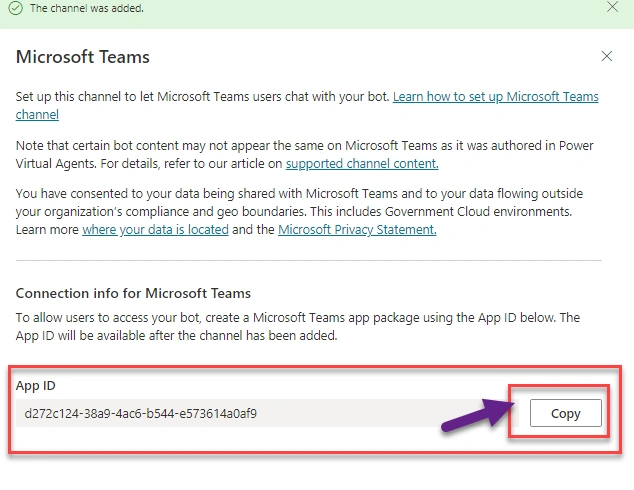
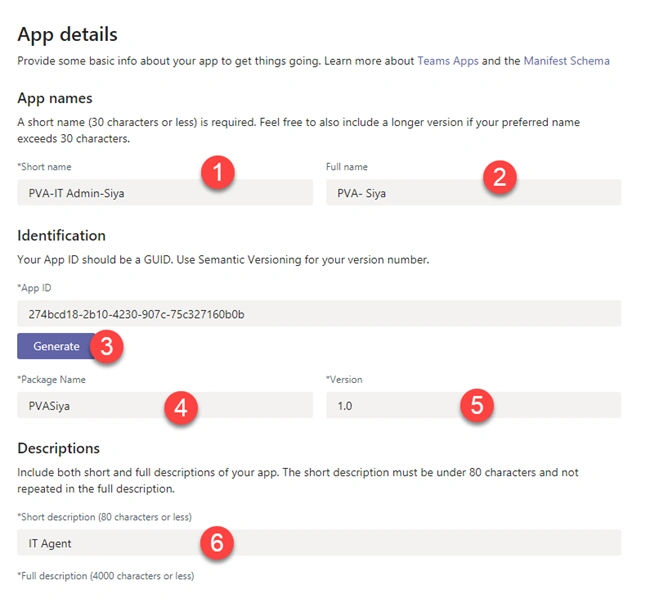
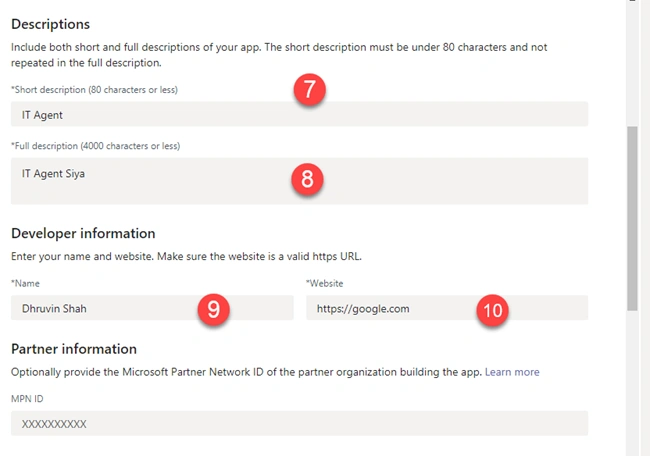
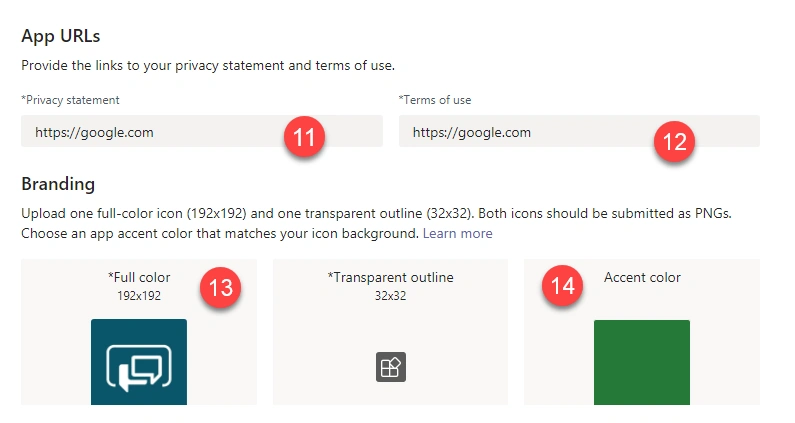
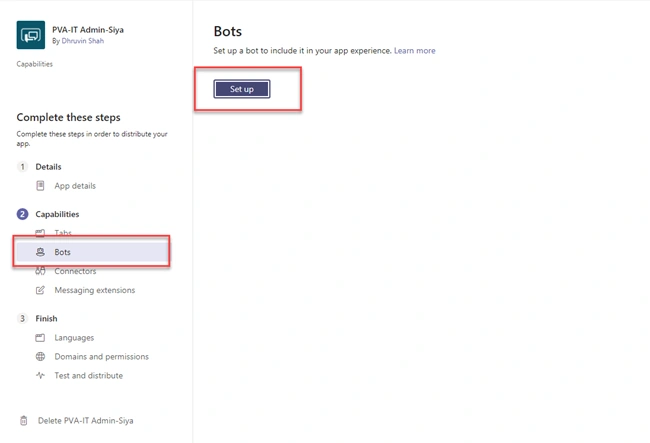
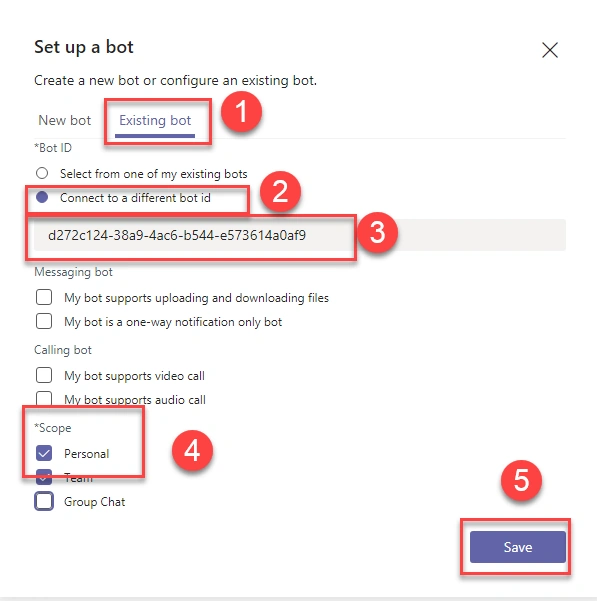
This will open below screen. Click on Add button. This will automatically add App ID.
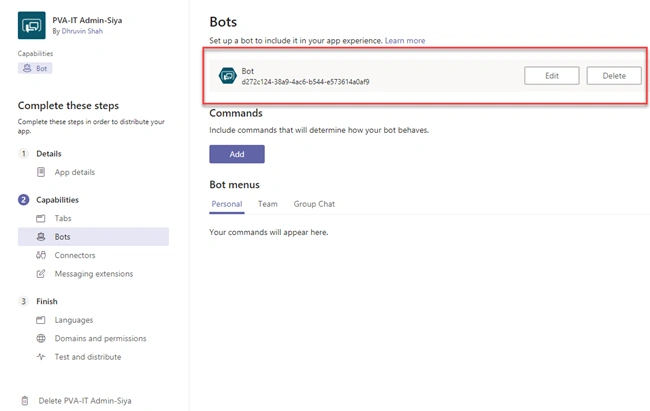
Copy App ID.
Join the conversation! Your thoughts help the community grow.