Azure Web
App Service supports continuous deployment from source code control and
repository tools like GitHub. You can use the GitHub tool to maintain the content
and code for your app, and then rapidly and simply push changes to your App
Service app.
Prerequisites
- GitHub Account
- Azure account
Now let's get started with the following steps:
Step 1: Setting up a GitHub repository
Sign in to the online GitHub Website.
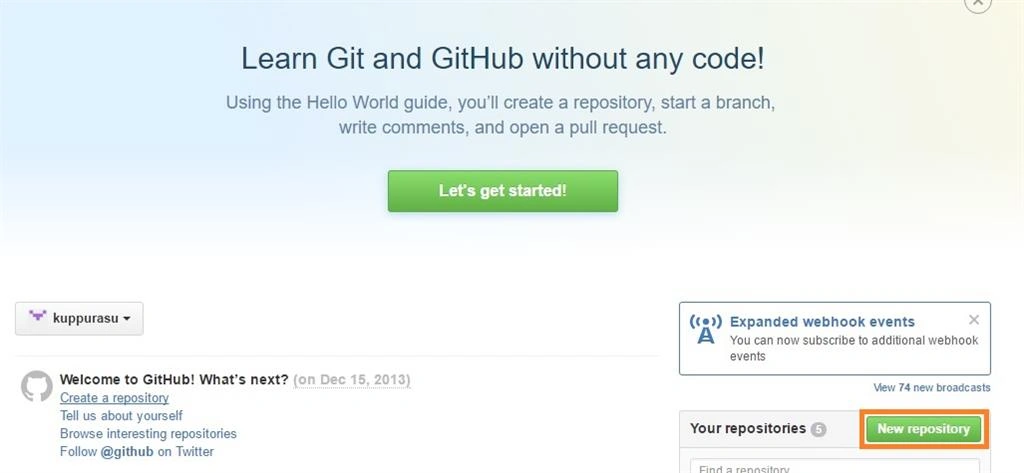
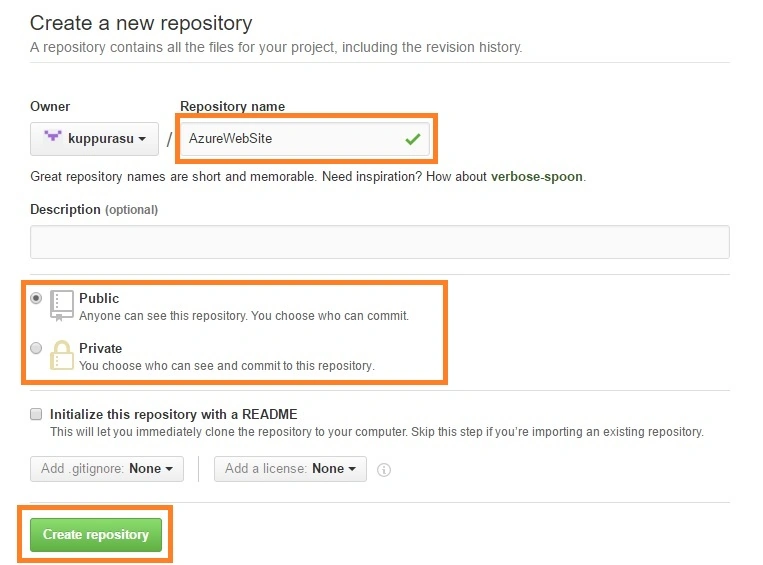
Then you will click on the + New Repository button, which will create a new repository for your code in your GitHub account.
After Clicking + New Repository button, you will get a new screen that allows you to make a new Repository name, description, select either public or private settings, and whether to initialize with a README then click on the Create repository button for creating this new repo with no code in it.
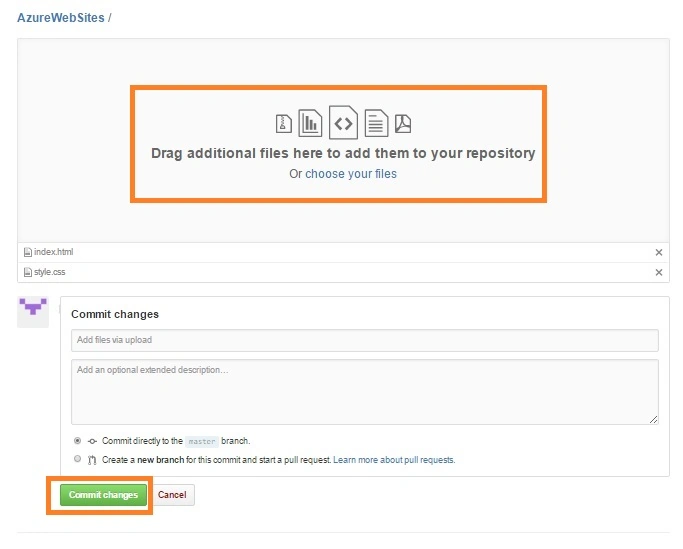
Then click upload files button for uploading our websites files.
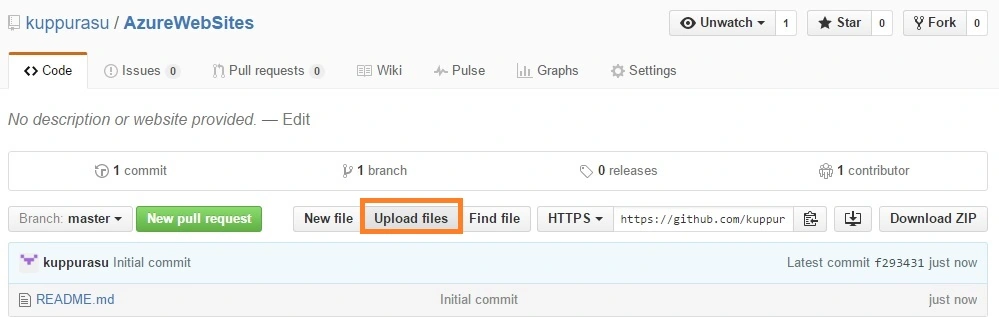
After clicking upload files button you can drag file or choose your files and click commit changes.
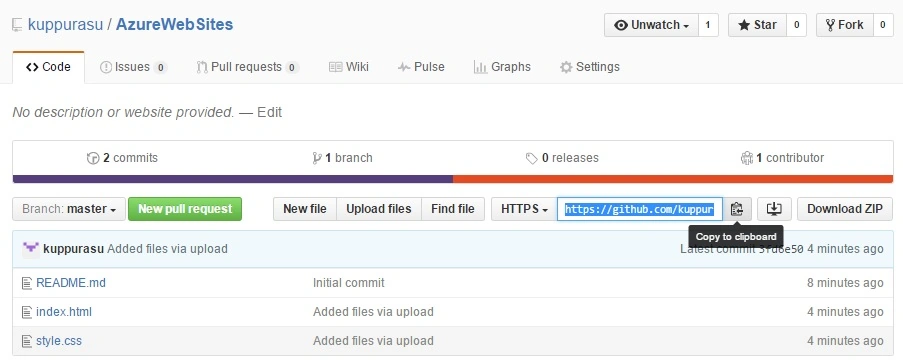
After some time your files will be uploaded in GitHub account.
Step 2: Creating a new Web App in Azure
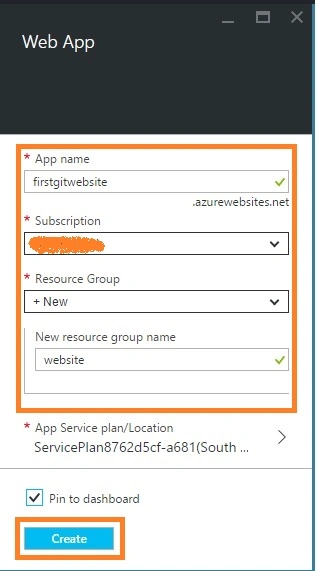
Sign in to the online Microsoft Azure Portal. In the Jumpbar, click New, then click Web + Mobile, and then Web App.
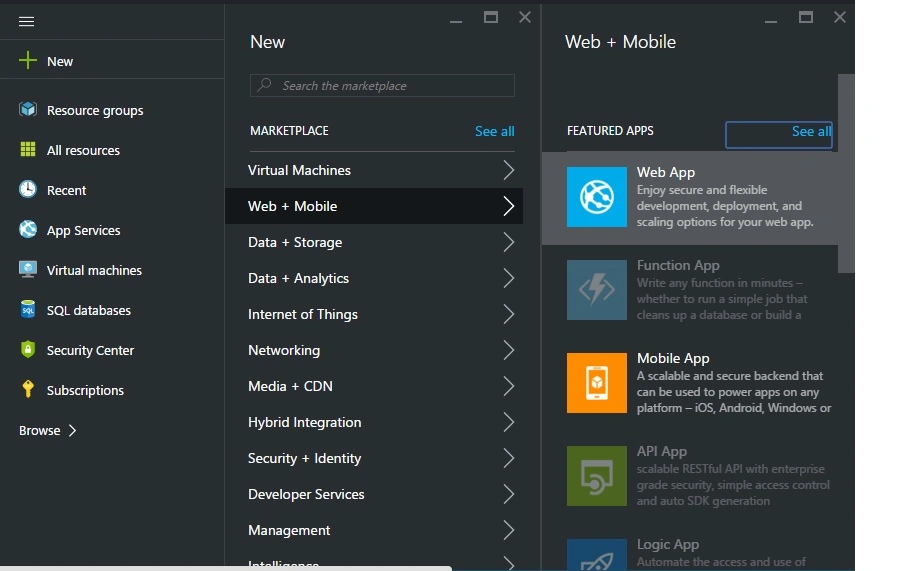
In the Web App account blade, specify the desired configuration for the Web App account (Name, &Resource Group). Click Create button at the bottom of the screen to create the Web App.
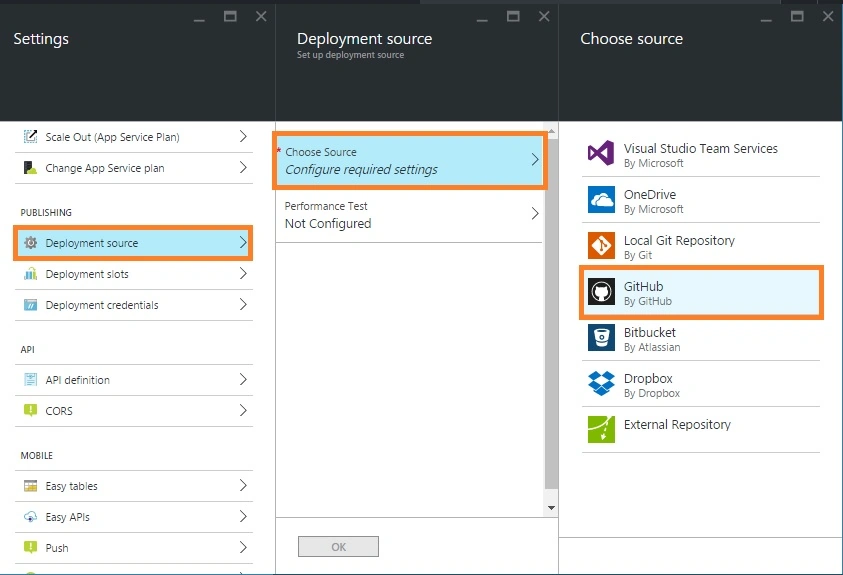
In your web app's blade in the Portal, click Settings > Continuous delivery. Click Choose Source, then click GitHub,
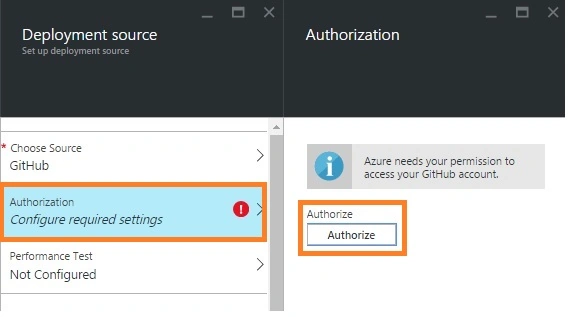
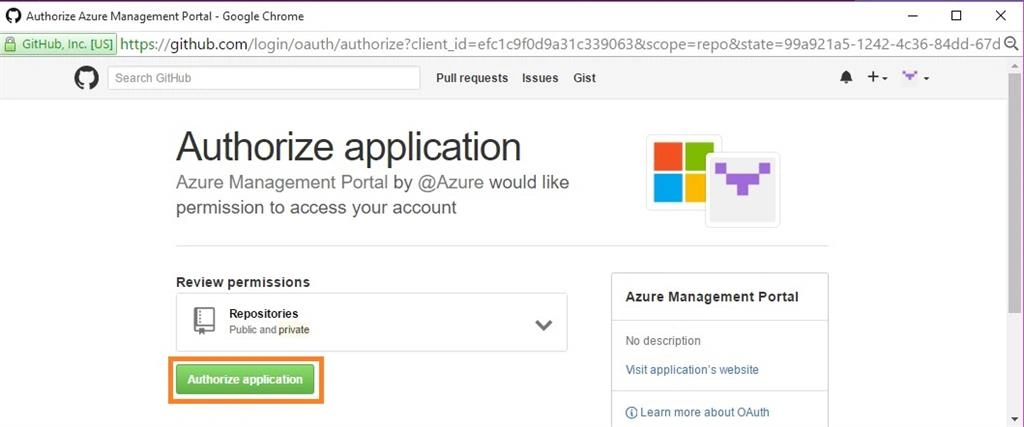
In the Continuous deployment blade, click Authorization, and then click Authorize. The Azure Portal will redirect you to the repository site to complete the authorization process.
When your authorization process completes, go back to the Azure Portal and click OK in the Authorization blade.
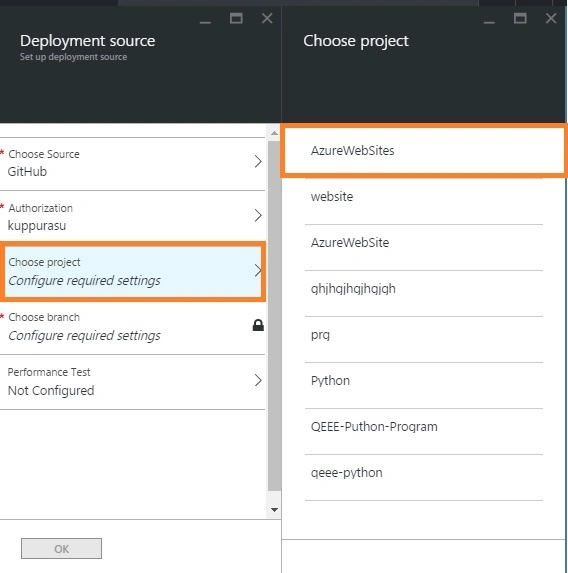
In the Continous Deployment blade, choose the organization, project, and branch you want to deploy from. When you're done, click OK.
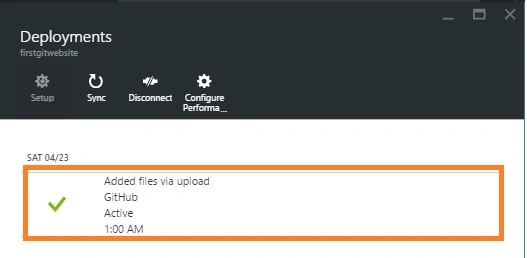
After this process completes, the Deployment section of your web app blade will get an Active Deployment message that indicates deployment has succeeded.
Read more articles on Azure:



Prasanna MuraliPosted May 10, 2016, 10:31 AM
nice share
Debasis SahaPosted Apr 24, 2016, 1:08 PM
Good one..
Rahul Kumar SaxenaPosted Apr 24, 2016, 12:16 PM
Good One
Vignesh ManiPosted Apr 24, 2016, 9:49 AM
Nice one sir
Tamilan SPosted Apr 24, 2016, 3:25 AM
after deployment, Mange these code in Visual studio is possible?
Manoj KulkarniPosted Apr 24, 2016, 2:55 AM
Nice article. Thank you for sharing
Bhushan GawalePosted Apr 24, 2016, 2:31 AM
Good article, Thanks for sharing!