


Prerequisites
.NET Core SDK 2.0, which can be downloaded from https://www.microsoft.com/net/download/core
Getting Started
First, we need to create ASP.NET Core 2 Angular 4 SPA application. Type the following command in command prompt which will create the application and restore NuGet dependencies.
- dotnet new angular
Then, from command prompt, we need to run npm install command. This will download all necessary NPM dependencies for Angular.
Once both the NuGet and NPM dependencies are restored, we can do a test run using dotnet run command. Type the following command in command prompt and your application will be started on default port 5000 (http://localhost:5000).
- dotnet run
Now, we are ready to publish our application.
The basic command to publish an ASP.NET Core application is dotnet publish. Using this, the application will be published to
To avoid publishing debug version, we need to append a release flag. This can be done using the following command.
- dotnet publish -c Release
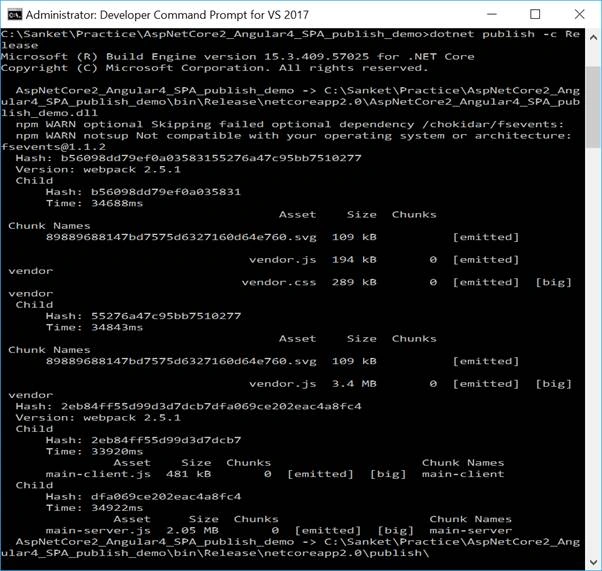
This command will publish the release build to AspNetCore2_Angular4_SPA_publish_demo\bin\Release\netcoreapp2.0\publish folder, as shown in the below screenshot.
Now, we need to set up the website in IIS. Open IIS, right click on "Sites" folder, and select "Add Website".
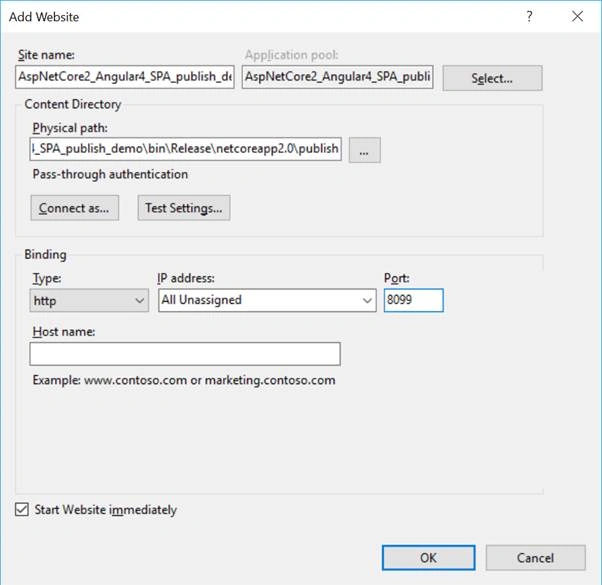
Add Site name; then, select physical path as the folder for publishing the release which was created earlier and assign a port number. Refer to the below screenshot.
The site will be up and running as soon as we press the OK button.
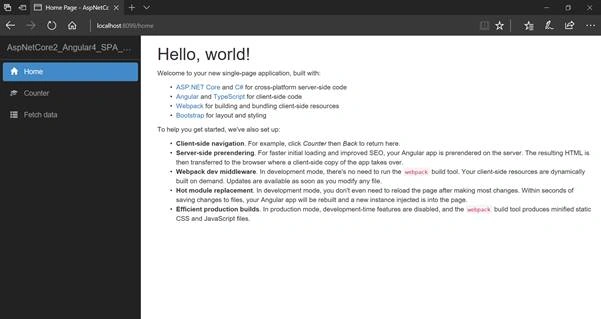
Now, open browser and type http://localhost:8099. This opens the homepage of our application.
Additional Information
- To publish self-contained version of ASP.NET Core application, we can use the following command.This will publish the output in AspNetCore2_Angular4_SPA_publish_demo\bin\Release\netcoreapp2.0\win10-x64\publish folder.
- dotnet publish -c Release -r win10-x64 --self-contained
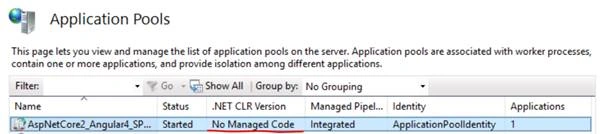
- For ASP.NET Core application, application pool has v4.0 as .NET CLR version. Here, there is no need to have full .NET CLR version. Hence, you can select "No Managed Code" in .NET CLR version, as show below.
Adil AzeezPosted Aug 25, 2018, 5:17 AM
Hi. I too got the same error ... HTTP Error 500.19 - Internal Server ErrorThe requested page cannot be accessed because the related configuration data for the page is invalid.
Wilson DuvanPosted Mar 16, 2018, 3:34 PM
Hello i have a following error: Error HTTP 500.19 - Internal Server Error