

This example shows how to do a search using the SharePoint 2013 REST API. In this sample we will create a page with a search box that displays results in a grid. To get started, create a new SharePoint-hosted app. Then, you must grant permissions to the App to use a search.
Develop the project using the following Method in the NAPA Tool
On your Developer Site, open the "Napa" Office 365 Development Tools and then choose Add New Project.
- Choose the App for SharePoint template, name the project Create Site and then choose the Create button
- Replace APP.js with the following source code below.
- Publish Your App.

Permission
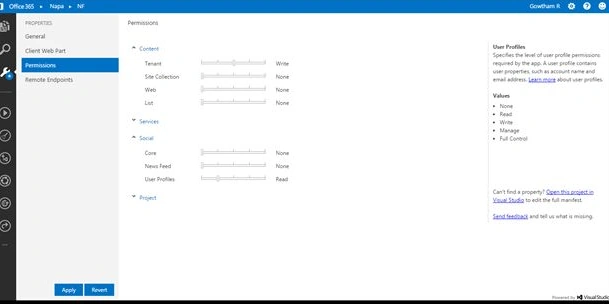
The following is an important procedure to be done before creating the app. Specify the permissions that your app needs as in the following. Choose the Properties button at the bottom of the page.
- In the Properties window, choose Permissions.
- In the Content category, set the Write permissions for the Tenant scope.
- In the Social category, set the Read permissions for the User Profiles scope.
- Close the Properties window.
Default ASPX: Now, edit Default.aspx to add the HTML for our search box and button as well as a div tag to hold the results.
- <div>
- <label for="searchTextBox">Search: </label>
- <input id="searchTextBox" type="text" />
- <input id="searchButton" type="button" value="Search" />
- </div>
- <div id="resultsDiv">
- </div>
Next, edit App.js to include your script to query the search and display the results. Add a click event handle to your document ready function. We'll put our code to do the query search here.
- var context = SP.ClientContext.get_current();
- // This code runs when the DOM is ready and creates a context object which is needed to use the SharePoint object model
- $(document).ready(function () {
- var spAppWebUrl = decodeURIComponent(getQueryStringParameter('SPAppWebUrl'));
- $("#searchButton").click(function () {
- var queryUrl = spAppWebUrl + "/_api/search/query?querytext='" + $("#searchTextBox").val() + "'";
- $.ajax({ url: queryUrl, method: "GET", headers: { "Accept": "application/json; odata=verbose" }, success: onQuerySuccess, error: onQueryError });
- });
- });
- function onQuerySuccess(data) {
- var results = data.d.query.PrimaryQueryResult.RelevantResults.Table.Rows.results;
- $("#resultsDiv").append('<table>');
- $.each(results, function () {
- $("#resultsDiv").append('<tr>');
- $.each(this.Cells.results, function () {
- $("#resultsDiv").append('<td>' + this.Value + '</td>');
- });
- $("#resultsDiv").append('</tr>');
- });
- $("#resultsDiv").append('</table>');
- }
- function onQueryError(error) {
- $("#resultsDiv").append(error.statusText)
- }
- //function to get a parameter value by a specific key
- function getQueryStringParameter(urlParameterKey) {
- var params = document.URL.split('?')[1].split('&');
- var strParams = '';
- for (var i = 0; i < params.length; i = i + 1) {
- var singleParam = params[i].split('=');
- if (singleParam[0] == urlParameterKey)
- return decodeURIComponent(singleParam[1]);
- }
- }


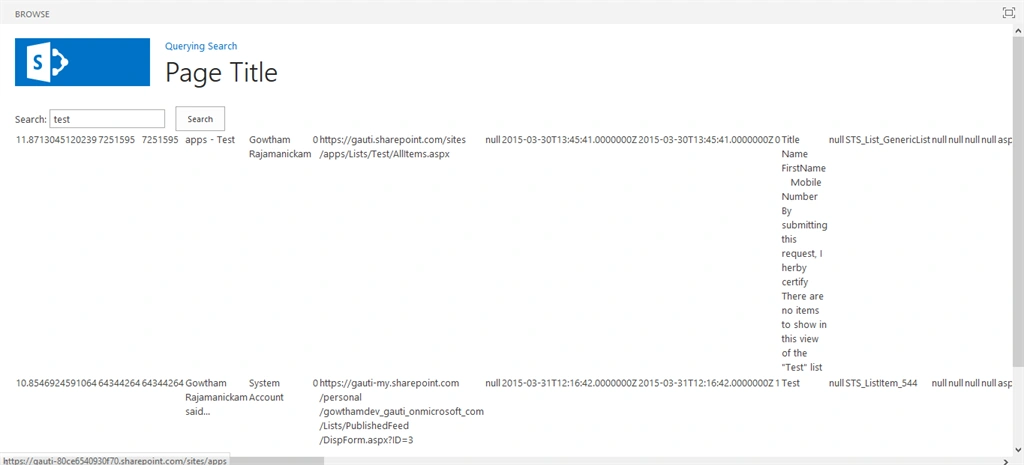
Output
Thanks for reading. Cheers!
Reference: msdn
Gowtham RajamanickamPosted Apr 13, 2016, 2:52 AM
hope you all expecting my new blogs
Gowtham RajamanickamPosted Apr 13, 2016, 2:52 AM
thanku munusamy
Santhakumar MunuswamyPosted Apr 11, 2015, 11:41 AM
Thanks for nice article
Gowtham RajamanickamPosted Apr 11, 2015, 11:37 AM
thank u so much vijay
Vijay SPosted Apr 8, 2015, 9:10 AM
Good work