
In this demo, I will be working with U-SQL where I will be querying in a TSV file on Azure Data Lake Store.
Tips
You should hold an Azure Data Lake Store account, Azure Data Lake Analytics account; and a TSV files should have been added in your Azure Data Lake store account. Click here to work on this stuff.
About U-SQL
U-SQL is a language created by Microsoft that combines traditional SQL Data Definition Language (DDL) and Data Manipulation Language (DML) constructed with expressions, functions, and operators based on the popular C# programming language. It marries the benefits of SQL with the power of expressive code. And, it is supported natively in Azure Data Lake Analytics.
Demo
Log into your Azure Portal using this link.

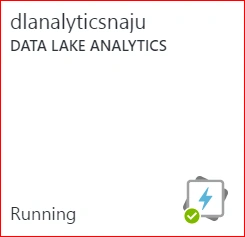
Open up your Data Analytics account that you have created. Here, I have it as dlanalyticsnaju, as shown below.
Click on "New job" in your Azure Data Lake Analytics account.

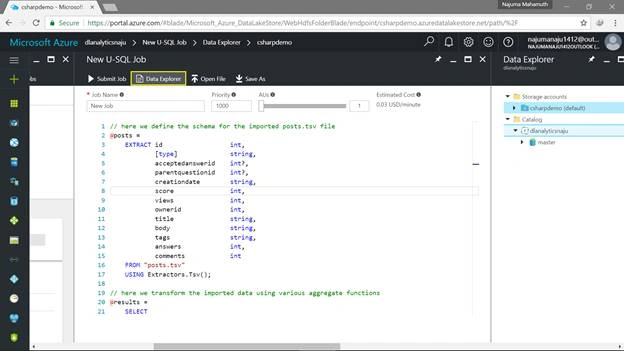
Paste the below query into the empty query blade.
- // here we define the schema for the imported posts.tsv file
- @posts = EXTRACT id int, [type] string,
- acceptedanswerid int ? ,
- parentquestionid int ? ,
- creationdate string,
- score int,
- views int,
- ownerid int,
- title string,
- body string,
- tags string,
- answers int,
- comments int
- FROM "posts.tsv"
- USING Extractors.Tsv();
- // here we transform the imported data using various aggregate functions
- @results = SELECT
- ownerid AS userid,
- SUM(score) AS totalscore,
- COUNT( * ) AS totalposts
- FROM @posts
- GROUP BY ownerid;
- // finally we output the transformed data for further analysis or visualization
- OUTPUT @results
- TO "totalscores.csv"
- ORDER BY totalscore DESC
- USING Outputters.Csv();
About the Queries for New Job
This query has three main segments: EXTRACT, SELECT, and OUTPUT. EXTRACT statement is used to extract the data from the existing data source, SELECT statement is used to transform the input data into an appropriate shape of how we need it for the task, and the OUTPUT statement gives the result as a named rowset which can be used for future analysis.

Once the query is pasted on the new job pane of the Azure Data Lake Store account, click on "Submit Job" at the top pane of the New U-SQL Job.
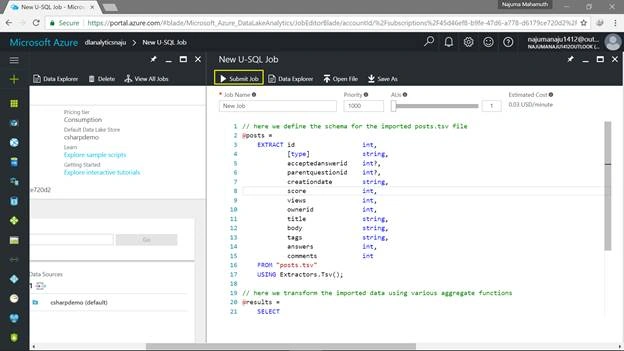
In the below image, you can find a notification that the job is getting submitted.

After the job is submitted, you can see that the query gets executed. A new window will open up with the status of the query processing with an initial status of Building Graph.
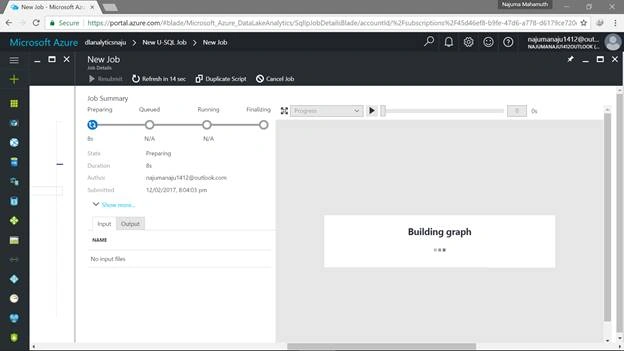
This window will work with four main processes – Preparing, Queued, Running, and Finalizing. After completing each of the processes, you can find a green tick mark, as shown below.
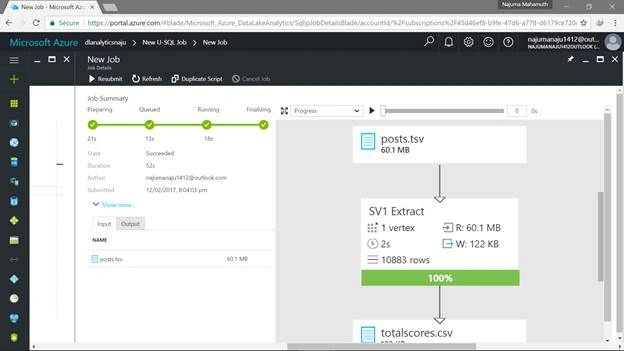
Move back to the Azure Data Lake Store account and click on "Data Explorer" now, where you can find a new file named totalscores.csv. This new file holds the query results.
Clicking on the new file named totalscores.csv will help you to verify the results for the queries executed. It will have three columns of data as shown below.


Key points in short
- About U-SQL.
- Creating a new job.
- Upload queries and executing it.
- Verifying the results.
Join the conversation! Your thoughts help the community grow.