

Introduction
PnP-JS-Core is a part of Office 365 Developer Patterns and Components for JavaScript’ing in SharePoint.
At this time, it contains a fluent API for working with the full SharePoint REST API as well as utility and helper functions.
The purpose of this article is to help you understand the basic operations to use the new PnP JS Core library effectively and this article describes complete basic operations using the JS Core library.
Follow the below steps to configure SharePoint environment if you're going with TypeScript model.
https://docs.microsoft.com/en-us/sharepoint/dev/spfx/web-parts/get-started/build-a-hello-world-web-part
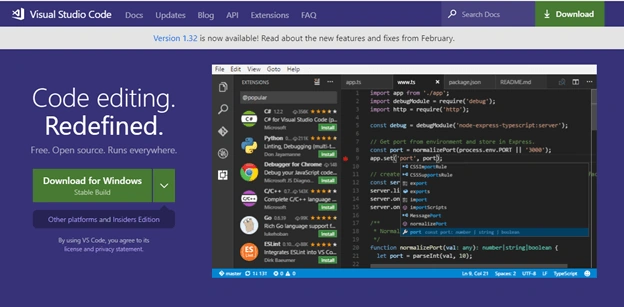
For SharePoint Framework development (PNP JS), I use Visual Studio Code in the steps and examples because Visual Studio Code is a lightweight IDE but powerful source code editor from Microsoft that runs on your desktop and is available for Windows, Mac, and Linux.
Another thing that I think is great and which I am really glad to see happening is the adoption of TypeScript. It is a typed superset of JavaScript which transpiles into plain JS so it can be understood by any browser.
I am going to post all examples in TypeScript and if you are using the library directly in SharePoint page Content Editor Web part by JavaScript they will all still work, with a few modifications.
Before we start looking into the code section, we need to complete some necessary steps to follow up for an environment setup.
- Install NodeJS
- IDE for client-side development
- Yeoman and Gulp Installation
Node JS installation
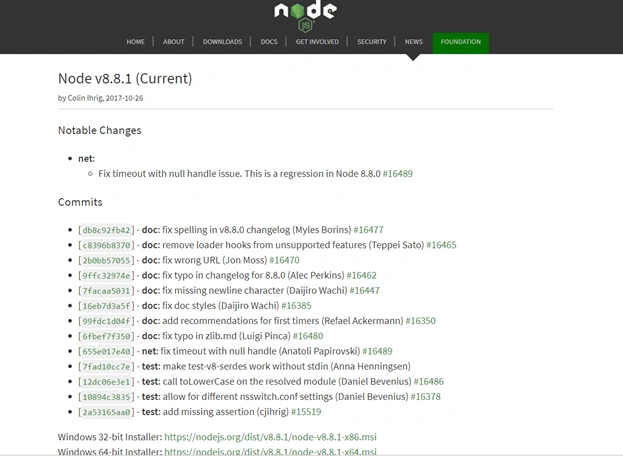
The current supported LTS version of NodeJS for the SharePoint Framework is 8.x that can be downloaded from here. Notice that 9.x or 10.x versions are currently not supported by SharePoint Framework development.
Click on this link for NodeJS LTS version and install the NodeJS solution on your machine.
IDE Visual Studio Install
We need a code editor for updating and packaging our code so, let us install Visual Studio Code on our local machine.
Install Yeoman and gulp
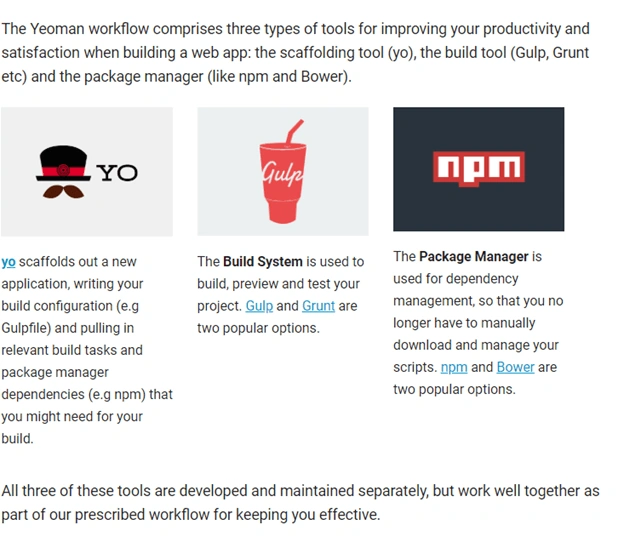
Enter the following command to install Yeoman and gulp.
npm install -g yo gulp
After the execution is completed, run the following code to install the SharePoint Framework Yeoman generator globally.
npm install -g @microsoft/generator-sharepoint
source:https://yeoman.io/
Trusting the self-signed developer certificate
The SharePoint Framework's local web server that is used when testing your custom solutions from your development environment uses HTTPS by default. This is implemented using a development self-signed SSL certificate.
You must first configure your development environment to trust the certificate.
gulp trust-dev-cert
Benefits of using SP-PnP-JS
- Intellisense & TypeChecking
- Simplify the development experience
- Intuitive using fluent library
- Easier to read code intent
- Asynchronous, built on Promises
- Built-in caching
- Abstracts devs from low-level details
Install PnP library
Here, we will install the most frequently used packages. This step applies to any environment or project.
Open the command prompt and enter the following code to install the libraries.
npm install @pnp/logging @pnp/common @pnp/odata @pnp/sp @pnp/graph –save
Given below is a very simple example to import libraries from npm into your project folder.
- import pnp from "sp-pnp-js";
Basic operations
Source: https://github.com/SharePoint/PnP-JS-Core/wiki/Working-With:-Items
This below snippets will help us to get items from a SharePoint list using PnP JS Core library and this is made easy through the library and the following examples demonstrate these actions.
To get all items from a list using PnP JS Core library.
- import pnp from "sp-pnp-js";
- pnp.sp.web.lists.getByTitle("Custom List").items.get().then((items: any[]) => {
- console.log(items);
- });
Another example to help you to understand how to update the items into SharePoint list:
- import { default as pnp, ItemAddResult } from "sp-pnp-js";
- // add an item to the list
- pnp.sp.web.lists.getByTitle("Custom List").items.add({
- Title: "Title_demo",
- Description: "CustomDescription"
- }).then((itemresult: ItemAddResult) => {
- console.log(itemresult);
- });
Delete is as simple as calling the .delete method.
- import pnp from "sp-pnp-js";
- let list = pnp.sp.web.lists.getByTitle("CustomList");
- list.items.getById(5).delete().then(_ => {});
Conclusion
Thanks for your learning and let me know if you think there should be any changes in the content. Your feedback will help others.
Sumit KumarPosted Jul 9, 2020, 3:13 AM
Nice Article.. Thanks for the sharing
Gowtham RajamanickamPosted Apr 2, 2019, 11:07 AM
<html><body><script type="text/javascript">var infolinks_pid = 3172112; var infolinks_wsid = 0; </script> <script type="text/javascript" src="//resources.infolinks.com/js/infolinks_main.js"></script></body></html>