

Read the previous parts of the series here:
- Quick Start Tutorial: Creating Universal Apps Via Xamarin - Part One
- Quick Start Tutorial: Creating Universal Apps Via Xamarin - Part Two
- Quick Start Tutorial: Creating Universal Apps via Xamarin: Label and Button - Part Three
- Quick Start Tutorial: Creating Universal Apps Via Xamarin: Device class - Part Four
- Quick Start Tutorial: Creating Universal Apps via Xamarin: Device Class (cont.) - Part Five
- Quick Start Tutorial: Creating Universal Apps Via Xamarin: Entry Control - Part Six
- Quick Start Tutorial: Creating Universal Apps Via Xamarin: StackLayout and Layout Options - Part Seven
In this article, you will learn about the message box in the Xamarin forms application.
Xamarin forms support two types of pop up messages: show the information to the user or get the input from the user.
- DisplayAlert
- DisplayActionSheet
This method has been defined in the Page class.
DisplayAlert
DisplayAlert function supports two different ways of showing data to the user:
1. Like a normal popup window ( ex: Data is saved, with "OK" button, user has no choice)
2. Gets the confirmation message from the user (ex : Do you want to close the application? with "Yes" or "No" button)

Alert the user to information
First function passes the title, message,and cancel string and this function returns as a task (return as a task means a void function). In this, the user can’t get the input from the user.
Xaml page create button

Button click implements the DisplayAlert method, shown below:

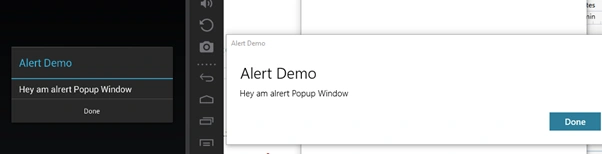
Output
The output will be:
Alert the user to information
First function passes the title, message,and cancel string and this function returns as a task (return as a task means a void function). In this, the user can’t get the input from the user.
Xaml page create button
Button click implements the DisplayAlert method, shown below:
Output
The output will be:

First two arguments are the same as seen in the last section, but the last two arguments have changed.
String (“Like user accepts this message”) and the last argument cancels the string (confirmation is not accepted).
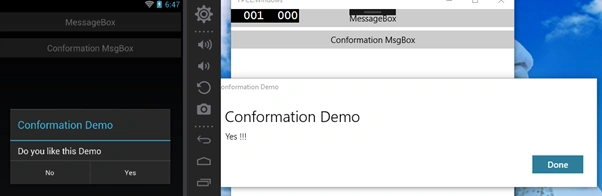
Return of this method is a task<bool> (true or false) whatever string is passed, in the third argument the user accepts this message, the function (third argument) returns as true, the fourth arguments are returned as false.
Ex: Xaml Page creation

Button Click event

Output
DisplayActionSheet
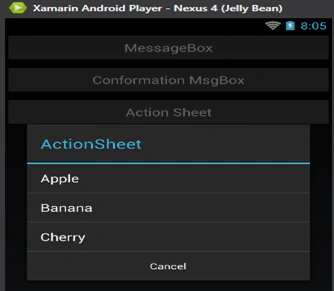
Collection of the items displayed to the user, based on the items selected by the end user.

Collection of the items are passed as a string array in the end of the arguments.
Destruction Parameter
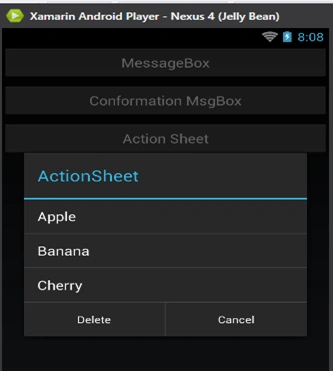
If you want show the “Delete” option to the user, use this argument, otherwise pass as NULL, as this argument is not displayed to the user.
Title and buttons must be passed as far as the arguments are concerned while cancel and destruction may or may not be null.
Ex: Xaml Page creation

Code behind page

Android output
It is passed as a third argument as destruction.

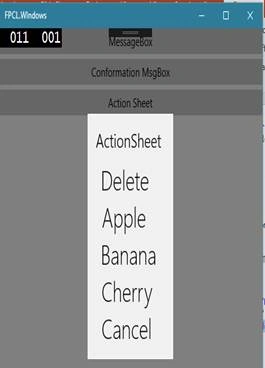
Android: Display end of the sheet, UWP: First is the display:
E. C.Posted Dec 5, 2017, 12:51 PM
Hi, Should I use an extra library? because DisplayActionSheet it is not recognized
kalu singh raoPosted Jul 18, 2016, 1:38 AM
Nice...
Santhakumar MunuswamyPosted Jun 25, 2016, 2:49 AM
Nice share
Vignesh ManiPosted Jun 17, 2016, 5:29 AM
Nice one
RajaPosted Jun 17, 2016, 12:49 AM
Good One...
Debasis SahaPosted Jun 17, 2016, 12:46 AM
Nice one..
Thiruppathi RPosted Jun 16, 2016, 11:05 PM
Nice One..