

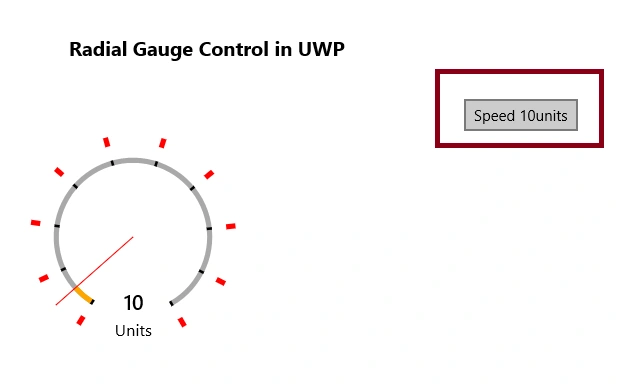
The Radial Gauge Control displays a value in a certain range using a needle on a circular face. Radial Gauge control will make data visualizations and dashboards more engaging with rich style and interactivity. The round gauges are powerful, easy to use, and highly configurable to present dashboards capable of displaying clocks, industrial panels, automotive dashboards, and even aircraft cockpits.
Radial Gauge Control is from UWP Community Toolkit. The UWP Community Toolkit is a collection of helper functions, custom controls, and app services. It simplifies and demonstrates common developer tasks building UWP apps for Windows 10.
Reading this article, you can learn how to use Radial Gauge Control in Universal Windows Apps development with XAML and Visual C#.
The following important tools are required for developing UWP,
- Windows 10 (Recommended)
- Microsoft Visual Studio 2017
- Windows Anniversary Update (10.0.14393.0)
Step 1
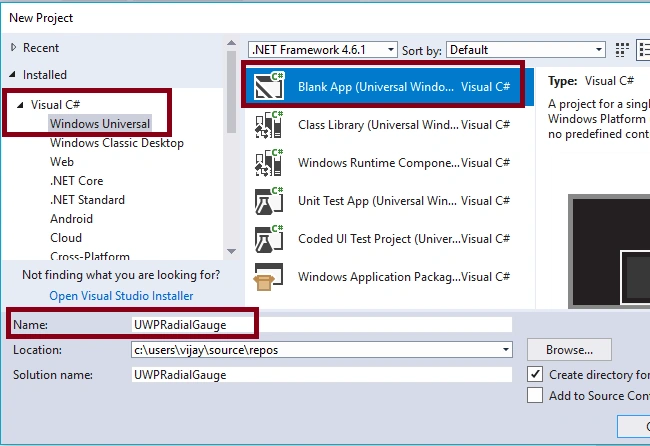
Open Visual Studio 2017. Go to Start -> New Project-> select Windows Universal (under Visual C#)-> Blank App (Universal Windows) -> Give a suitable name for your app (UWPRadialGauge)->OK.
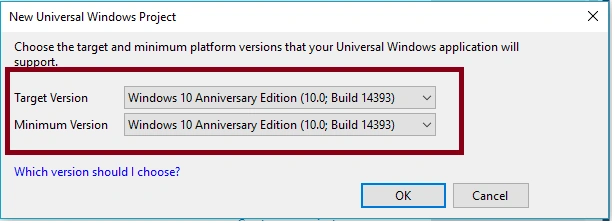
After choosing the target and minimum platform versions that your Windows Universal application will support (Windows Anniversary Update (10.0.14393.0)), the Project creates App.xaml and MainPage.xaml.
Step 2
First Update the Reference, Microsoft.NETCore.UniversalWindowsPlatform with the latest version of it using "Manage NuGet Packages".
Step 3
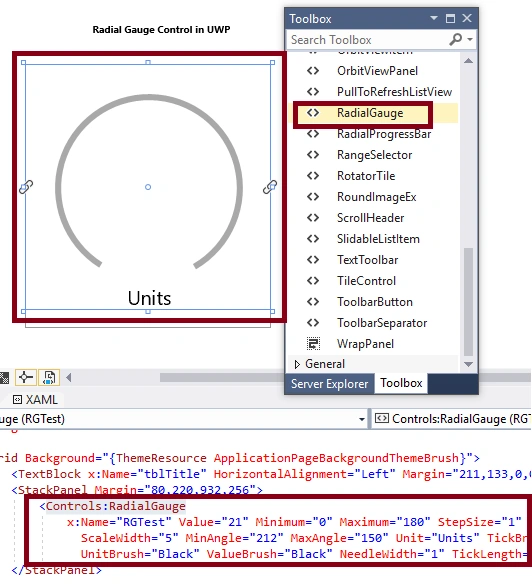
Add the following controls in design window for RadialGauge control view,
Add the TextBlock, Button Controls and change the Name and Text Property.
Add the RadialGauge control and set the Value, Minimum, Maximum, StepSize, IsInteractive, TickSpacing, ScaleWidth, MinAngle, MaxAngle, Unit, TickBrush, ScaleTickBrush, UnitBrush, ValueBrush, NeedleWidth, TickLength and Height Properties
- <Controls:RadialGauge x:Name="RGTest" Value="0" Minimum="0" Maximum="180" StepSize="1" IsInteractive="True" TickSpacing="20" ScaleWidth="5" MinAngle="212" MaxAngle="150" Unit="Units" TickBrush="Red" ScaleTickBrush="Black" UnitBrush="Black"alueBrush="Black" NeedleWidth="1" TickLength="9" Height="232" Margin="92,0,56,0" />
Step 4
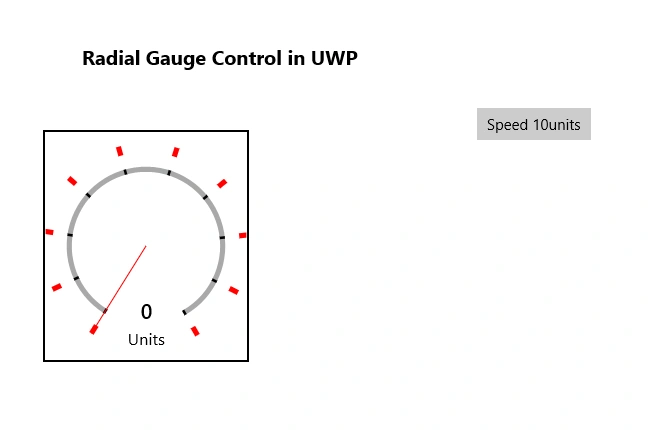
Add the following Source code to Mainpage.Xaml.cs for Speed Value increases by 10.
Jerome DiangoPosted Sep 23, 2019, 12:08 AM
Why can the radial gauge control for uwp not support arm based or raspberry pi