
Introduction
In this article I will explain how to make a single radio button selection in a GridView using jQuery and how to change a selected row style of a GridView with a radio button using jQuery.
Description
In this article:
- First I was create a database in the SQL Server 2008.
- Create an ASP.NET website and add a GridView control with Radio Button to the page.
- I am binding the GridView with a DataTable object that I created in the Page Load event in the code behind file.
- Next you need to add following CSS style rules inside the <head> section of the page. We will use the headerRow, GridView and selectedRow CSS classes.
- Next add the jQuery script file reference inside the <head> section of the page depending on the script file location and jQuery version you are using.
- Next add the following jQuery code inside a script block in the <head> section of the page.
Now time to see the details of all that.
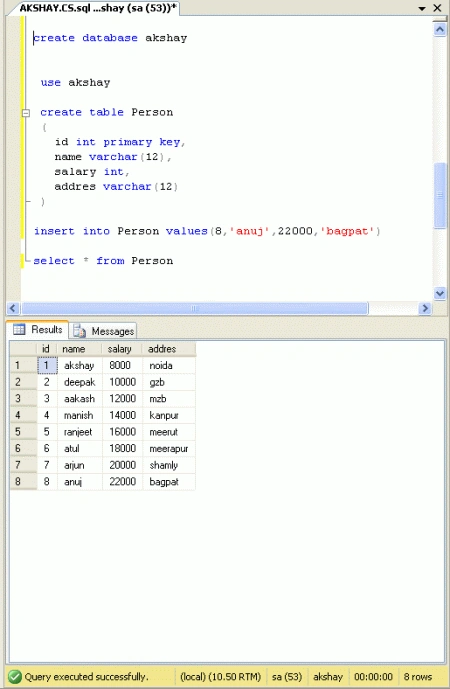
First go through SQL Server and make a table. The following snapshot shows the process.
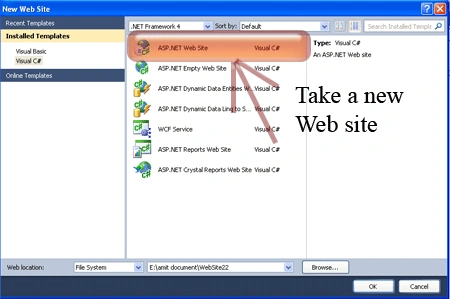
Step 1: First we have to create a Web Application.
- Go to Visual Studio 2010.
- New--> And select the Web Application.
- Give whatever name you want to.
- Click OK.
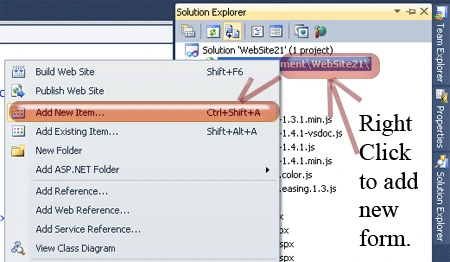
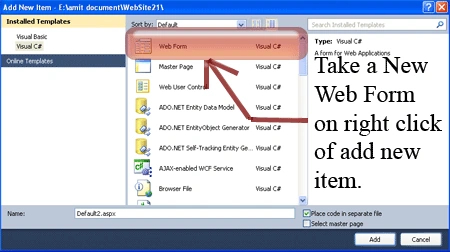
Step 2: Secondly you have to add a new page to the website.
- Go to the Solution Explorer.
- Right-click on the project name.
- Select add new item.
- Add new web page and give it a name.
- Click OK.
Step 3: In this step we will see how to add style sheet code. Whenever we write style sheet code you have to be careful that it is written inside the <style></style> tags and you have to place it inside the head section. We will use the headerRow, GridView and selectedRow CSS classes.
<style type="text/css">
.Gridview
{
font-family: Verdana;
font-size: 11px;
font-family: Arial;
text-decoration: none;
color: #5a5a5a;
height: 20px;
padding-left: 10px;
border: solid 1px #d7d8f0;
width: 300px;
}
.SelectedRowStyle
{
background-color: #ffeb95;
font-size: 11px;
font-family: Arial;
text-decoration: none;
color: #5a5a5a;
height: 20px;
padding-left: 10px;
border: solid 1px #d7d8f0;
}
.headerRow
{
background-color: #458B74;
color: White;
font-weight: bold;
}
</style>
Step 4: In this step we have to write the script reference to the aspx page; let us see from where you have to write the script code.
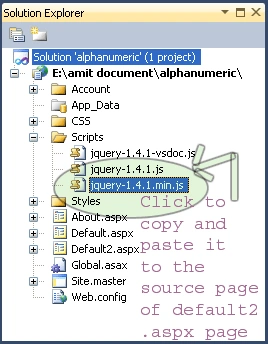
Step 5: Let us see the script code which you have to add inside the <script></script> tags and that will be placed either in the head section or the body section as you prefer.
<script type="text/javascript" src="Scripts/jquery-1.4.1.min.js"></script>
Step 6: In this step we have to write the jQuery code which is given below.
<script language="javascript" type="text/javascript">
function SelectSingleRadiobutton(rdBtnID) {
//process the radio button Being checked.
var rduser = $(document.getElementById(rdBtnID));
rduser.closest('TR').addClass('SelectedRowStyle');
rduser.checked = true;
// process all other radio buttons (excluding the the radio button Being checked).
var list = rduser.closest('table').find("INPUT[type='radio']").not(rduser);
list.attr('checked', false);
list.closest('TR').removeClass('SelectedRowStyle');
}
</script>
Step 7: In this step you will see the body code of the Default2.aspx page which is given below.
Body Code:
<body>
<form id="form1" runat="server">
<div>
<asp:GridView ID="GridView1" runat="server" CssClass="Gridview" AutoGenerateColumns="false"
DataKeyNames="id" HeaderStyle-BackColor="#7779AF" HeaderStyle-ForeColor="White">
<Columns>
<asp:TemplateField>
<ItemTemplate>
<asp:RadioButton ID="rdbUser" runat="server" OnClick="javascript:SelectSingleRadiobutton(this.id)" />
</ItemTemplate>
</asp:TemplateField>
<asp:BoundField DataField="id" HeaderText="Id" />
<asp:BoundField DataField="name" HeaderText="Name" />
<asp:BoundField DataField="salary" HeaderText="Salary" />
<asp:BoundField DataField="addres" HeaderText="Address" />
</Columns>
</asp:GridView>
<br />
<br />
<br />
<br />
<br />
<br />
</div>
</form>
</body>
Step 8: In this step we will see the complete code of the Default2.aspx page which is given below.
Code:
<%@ Page Language="C#" AutoEventWireup="true" CodeFile="Default2.aspx.cs" Inherits="Default2" %>
<!DOCTYPE html PUBLIC "-//W3C//DTD XHTML 1.0 Transitional//EN" "http://www.w3.org/TR/xhtml1/DTD/xhtml1-transitional.dtd">
<html xmlns="http://www.w3.org/1999/xhtml">
<head runat="server">
<title> GriedView Animation Using jQuery in ASP.NET</title>
<script type="text/javascript" src="Scripts/jquery-1.4.1.min.js"></script>
<script language="javascript" type="text/javascript">
function SelectSingleRadiobutton(rdBtnID) {
//process the radio button Being checked.
var rduser = $(document.getElementById(rdBtnID));
rduser.closest('TR').addClass('SelectedRowStyle');
rduser.checked = true;
// process all other radio buttons (excluding the the radio button Being checked).
var list = rduser.closest('table').find("INPUT[type='radio']").not(rduser);
list.attr('checked', false);
list.closest('TR').removeClass('SelectedRowStyle');
}
</script>
<style type="text/css">
.Gridview
{
font-family: Verdana;
font-size: 11px;
font-family: Arial;
text-decoration: none;
color: #5a5a5a;
height: 20px;
padding-left: 10px;
border: solid 1px #d7d8f0;
width: 300px;
}
.SelectedRowStyle
{
background-color: #ffeb95;
font-size: 11px;
font-family: Arial;
text-decoration: none;
color: #5a5a5a;
height: 20px;
padding-left: 10px;
border: solid 1px #d7d8f0;
}
.headerRow
{
background-color: #458B74;
color: White;
font-weight: bold;
}
</style>
<body>
<form id="form1" runat="server">
<div>
<asp:GridView ID="GridView1" runat="server" CssClass="Gridview" AutoGenerateColumns="false"
DataKeyNames="id" HeaderStyle-BackColor="#7779AF" HeaderStyle-ForeColor="White">
<Columns>
<asp:TemplateField>
<ItemTemplate>
<asp:RadioButton ID="rdbUser" runat="server" OnClick="javascript:SelectSingleRadiobutton(this.id)" />
</ItemTemplate>
</asp:TemplateField>
<asp:BoundField DataField="id" HeaderText="Id" />
<asp:BoundField DataField="name" HeaderText="Name" />
<asp:BoundField DataField="salary" HeaderText="Salary" />
<asp:BoundField DataField="addres" HeaderText="Address" />
</Columns>
</asp:GridView>
<br />
<br />
<br />
<br />
<br />
<br />
</div>
</form>
</body>
</html>
Step 9: In this step we will see the design of the Default2.aspx page which is given below.
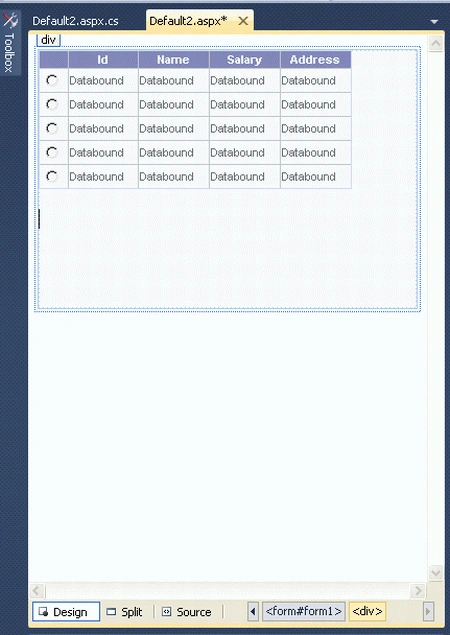
Step 10: In this step I am binding the GridView with a DataTable object that I created in the Page Load event in the code behind file of the Default2.aspx page.
Code:
using System;
using System.Collections.Generic;
using System.Linq;
using System.Web;
using System.Web.UI;
using System.Web.UI.WebControls;
using System.Data;
using System.Data.SqlClient;
public partial class Default2 : System.Web.UI.Page
{
protected void Page_Load(object sender, EventArgs e)
{
SqlConnection con = new SqlConnection(@"Data Source=.;Initial Catalog=akshay;Persist Security Info=True;User ID=sa;Password=wintellect";
SqlDataAdapter adap = new SqlDataAdapter("select * from Person",con);
DataSet ds=new DataSet();
adap.Fill(ds,"Person");
GridView1.DataSource = ds.Tables["Person"];
GridView1.DataBind();
GridView1.UseAccessibleHeader = true;
GridView1.HeaderRow.TableSection = TableRowSection.TableHeader;
}
}
Step 11: In this step we are going to run the Default2.aspx page by pressing F5.
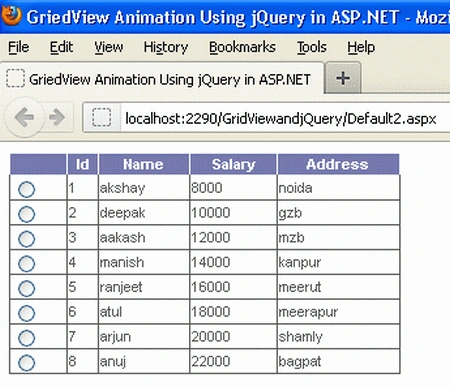
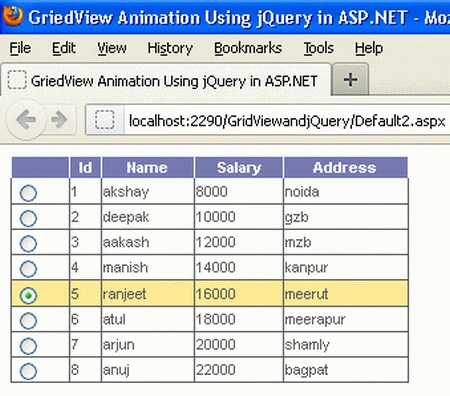
Now I am able to select all the radio buttons in the GridView.
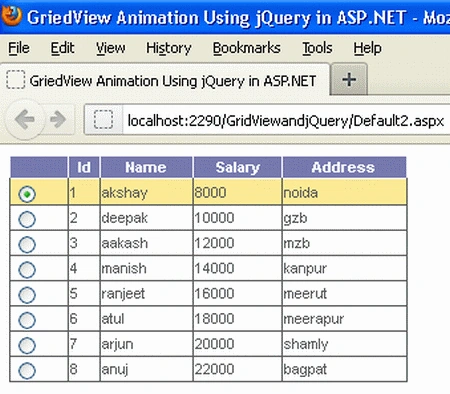
Now select any row you will see.
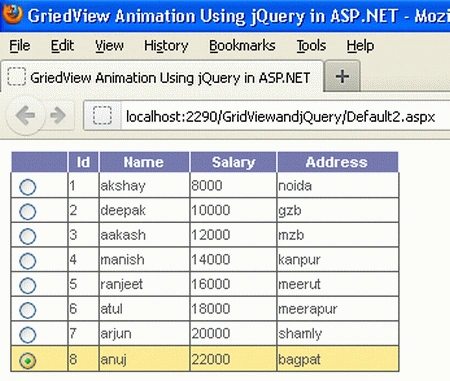
Now again click on a selected row.
Resources
Damodar KarmacharyaPosted Jun 3, 2013, 9:03 PM
Hi Sapna, Thanks for the nice article. How does the server side event fire when radio button is clicked?
Buengkan ThaiBuengkanPosted Feb 28, 2012, 12:35 PM
Thank you.
Stephen JohnsonPosted Feb 26, 2012, 10:46 PM
Hi Sapna. Great what a presentation. Everyone will love to read this article.